
Convert a PDF Table to CSV for Excel or a Database
How to convert a PDF table to CSV: the preview, delimiter, encoding and line endings, ZIP or one combined CSV, and which encoding Excel reads correctly.
A table in a PDF often has to go into software that wants CSV: a database import, an accounting program or a script. Open the file in the PDF to CSV Table Converter, check the preview and set the delimiter, the encoding and the line endings that your software expects. If the file contains several tables, you can download them as a ZIP or as one combined CSV.
Steps: open the PDF, check the CSV preview
- Open the PDF to CSV Table Converter.
- Choose the PDF with Choose File, or press Try an example. The file must contain real text. A scanned PDF has to be read with OCR first, as described in PDF to Excel Finds No Table: The PDF Is a Scan. The file can have up to 20 MB and 50 pages, and the Pages field takes a range such as 1-3, 5.
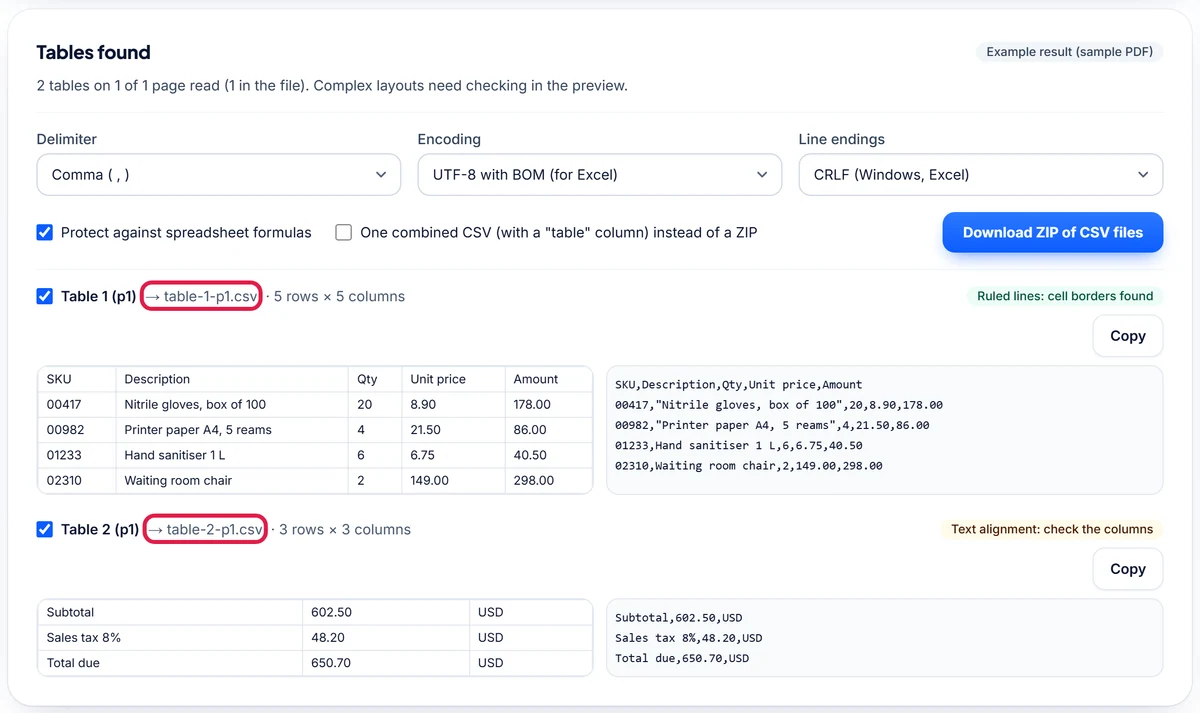
- Look at the preview of each table under Tables found. The table is shown as cells on the left and as CSV text on the right.
- Set the Delimiter, the Encoding and the Line endings.
- Press Download ZIP of CSV files, or Download CSV when only one table is selected.
The preview shows the table as CSV text, so you see exactly what the receiving software will read. Check the first row, the number of columns and a few lines with long text. If the columns are wrong, the cause is in the detection of the table, and PDF Table Columns Come Out Wrong in Excel explains how to change the method.
Choose delimiter, encoding and line endings
Three settings decide whether the target software can read the file.
Delimiter: the character between the cells. You can choose comma, semicolon, tab or pipe. A comma is the default of most databases and tools. A semicolon is common where the comma is the decimal mark, for example in many European versions of Excel. A tab is safe for text that contains commas and semicolons. A pipe is rare in text and is used by some systems for imports.
Encoding: how the characters are stored. UTF-8 is the usual choice, because it can hold every character. Older software expects an older encoding, and some characters cannot be stored in it.
Line endings: the invisible characters at the end of a line. Windows programs use CRLF, and Unix-like systems use LF. Most modern software reads both, but a strict script can fail on the wrong one.
Quoting is handled by the tool: a cell that contains the delimiter, a quotation mark or a line break is put in quotation marks, as described in RFC 4180. In the preview, "Nitrile gloves, box of 100" is written in quotation marks because it contains a comma.
Several tables: ZIP or combined CSV
A PDF can have several tables, on one page or on many. The tool offers two ways to download them.
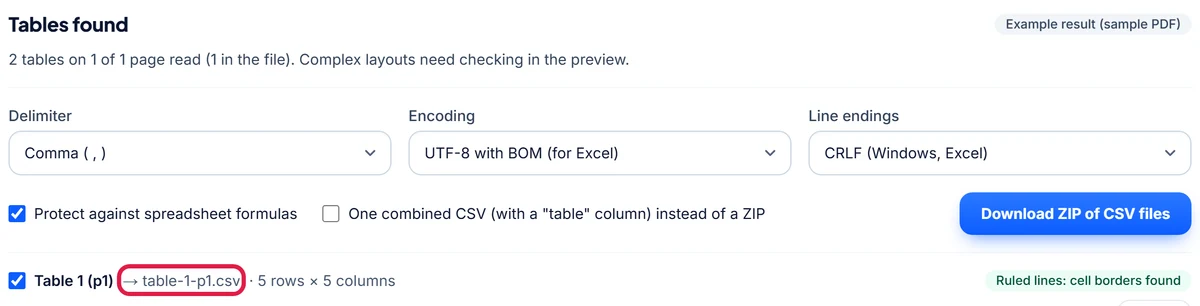
As a ZIP: each table is a CSV file of its own, and the files are collected in one archive named after the PDF, such as invoice-tables.zip. The names inside show the table and the page, for example table-1-p1.csv and table-2-p1.csv for two tables on the first page. A single table is downloaded as one CSV, whose name starts with the name of the PDF, as in invoice-table-1-p1.csv. The tool shows the name of each file next to the table, for example "Table 1 (p1) → table-1-p1.csv". You can untick a table to leave it out.
As one combined CSV: tick One combined CSV (with a "table" column) instead of a ZIP, and all tables are put into one file, with a column named table that shows which table each row came from. Use this when the tables have the same columns, such as the pages of a long list, and you want one file to import.
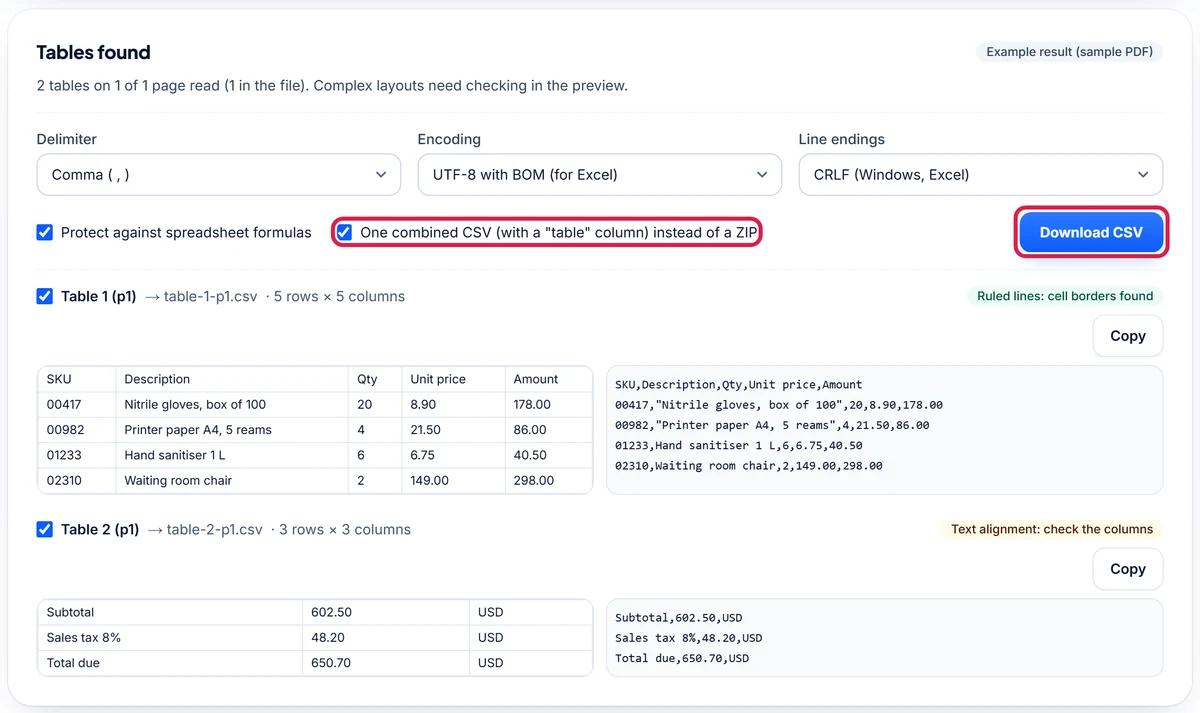
Use the ZIP when the tables are different, for example an item table and a table of totals. Mixing different tables in one CSV gives columns that do not mean the same for every row.
Which encoding works with Excel
Excel does not detect UTF-8 reliably when a CSV has no byte order mark. Accents and special characters then appear as broken characters. UTF-8 with a BOM solves this: the BOM tells Excel that the file is UTF-8. Choose UTF-8 with BOM for a file that people open in Excel.
For a database or a script, plain UTF-8 without a BOM is usually better, because some tools read the BOM as part of the first column name. If a script fails on the first header, download the file again without the BOM.
Some systems require an older encoding. If you choose an encoding that cannot store a character of the table, the character is replaced by a question mark. After the download the tool says, for example, "3 characters cannot be written in Windows-1252 and became ?. Choose UTF-8 to keep them." Treat any number above zero as a warning. Check which characters were lost, or switch to UTF-8. The repair of text that is already broken is described in CSV Opens With Broken Characters: Fix the Encoding.
Before you import
A few last checks help. Compare the row count with the PDF. Cells that start with =, +, - or @ can be read by a spreadsheet as a formula, which is explained in CSV Injection: Protect Exports From Formulas. The option Protect against spreadsheet formulas is ticked by default, so those cells are written so that a spreadsheet keeps them as text. If the data needs cleaning, Clean Messy CSV Data trims spaces and unifies dates. For an Excel file with one sheet for each table, use PDF to Excel (Table Extractor) and read Convert a PDF Table to Excel Without Retyping.
Try it
Open the PDF to CSV Table Converter, load your PDF and check each preview. Choose the delimiter, UTF-8 with BOM for Excel or plain UTF-8 for a database, pick ZIP or one combined CSV, and look at the count of question marks before you download.