
PDF to Excel Finds No Table: The PDF Is a Scan
Why a PDF to Excel conversion finds no table when the PDF is a scan, how to tell a scan from a text PDF, how to use OCR instead, and how to check the amber cells.
If a conversion returns nothing, the file is probably a picture of a page and not a document with text. A converter that reads table structure needs text to work with, and a scan has none. For a scanned PDF to Excel, use OCR, which reads the letters from the image. PDF to Excel (Table Extractor) detects the problem and points you to the tool that does OCR.
How to tell a scan from a text PDF
A PDF can hold two very different things. A text PDF stores the characters and their positions, which is the case for a document exported from Word, a report from an accounting system or an invoice that a program generated. A scanned PDF stores a photograph of each page. To the eye they look the same.
The difference is the text layer. A text PDF has one, and a scan has none, unless OCR was run on it before. Three quick checks:
- Select text with the mouse in your PDF viewer. If you can mark single words, there is a text layer. If you can only draw a box, or the whole page is selected as one block, it is an image.
- Use the search function of the viewer for a word that you can see on the page. A scan finds nothing.
- Copy and paste a few lines. An image gives an empty paste.
A mixed file is possible. Some pages are text and some are scans, for example when a signed page was added to a report. In this case the tool may find tables on some pages and none on others.
What the tool does with a scan
When you open a scanned PDF in PDF to Excel, the tool detects that there is no text layer. It does not return an empty workbook without an explanation. It shows the message "This PDF has no text layer: it looks like a scan or a photo. This tool reads text-based PDFs only. Use the Scanned Table to Spreadsheet tool, which reads scans with OCR in your browser."

The message is the answer to the question why no table was found. Nothing is wrong with your file or with the settings of the page range and the extraction method. The tool simply has nothing to read.
For the normal case, a PDF with real text, the workflow and the settings are described in Convert a PDF Table to Excel Without Retyping.
Use the scanned-table tool with OCR
OCR stands for optical character recognition: software looks at the picture and works out which letters and numbers are in it.
The Scanned Table to Spreadsheet tool does this for tables.
- Open the tool.
- Choose the scanned PDF with Choose File. It can have up to 10 pages. An image file (JPG, PNG or WebP) can be up to 10 MB.
- Pick the Language of the table: English, French, German, Spanish or Arabic.
- Wait for the recognition, then look at the Original and recognised table.
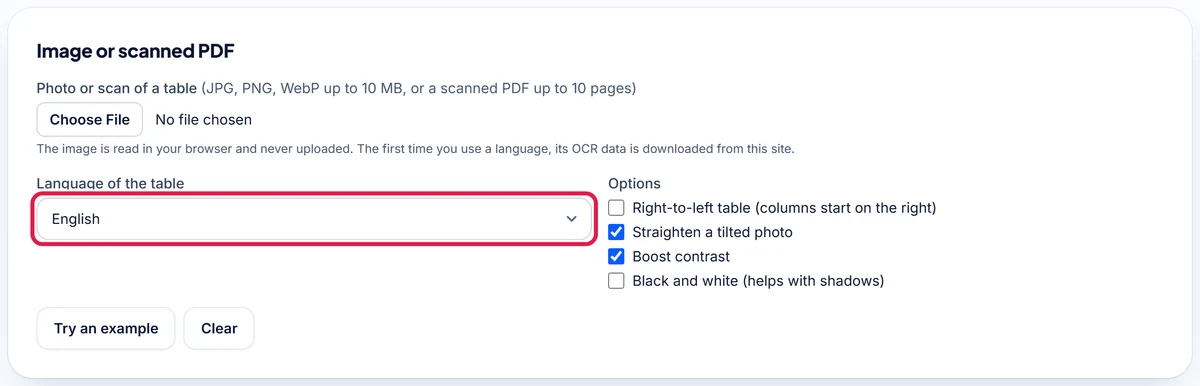
The language setting matters. The OCR uses a model for the language, and a table in German read as English loses the umlauts and confuses letters. The first time you use a language, its OCR data is downloaded from this site, so the first run takes longer. The options Right-to-left table, Straighten a tilted photo, Boost contrast and Black and white (helps with shadows) help with difficult scans.
If your scan is more than 10 pages long, split it first, or scan only the pages with tables. The step-by-step guide for photos and scans is Turn a Scanned Table or Photo Into Excel.
Check low-confidence cells
OCR makes mistakes, and the mistakes look plausible. The tool marks the cells where it is unsure. These cells are shown in amber, a note above the table says "OCR can misread digits (0 and O, 1 and I, 5 and S). Cells in amber have low confidence: check them against the image before you export.", and clicking a cell shows where it sits on the image.
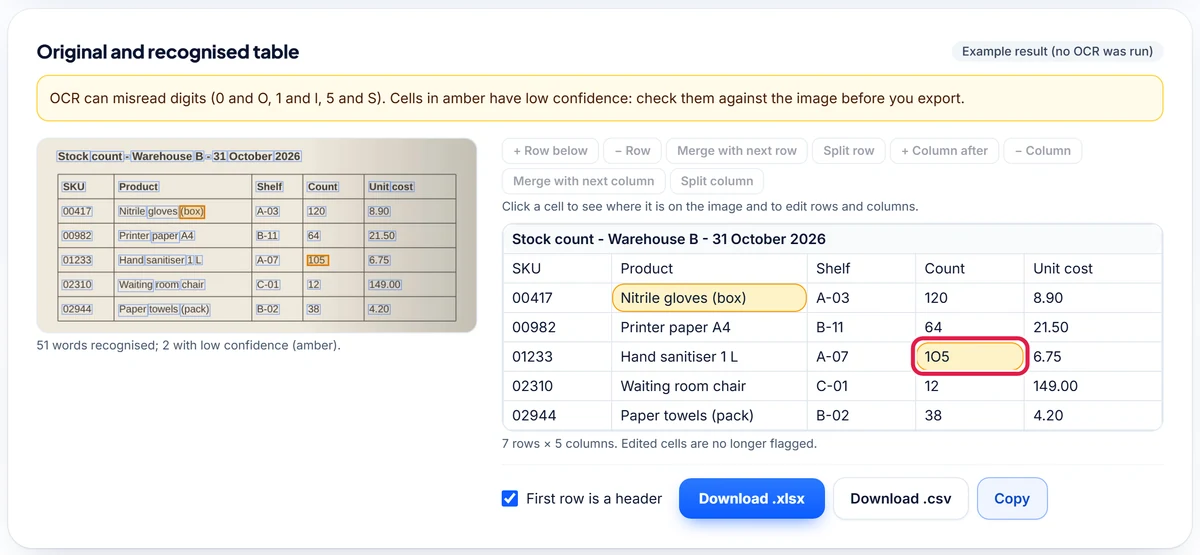
A typical case is a cell that reads 1O5 with the letter O, where the paper says 105. Other usual confusions are l and 1, S and 5, and B and 8. In a column of numbers, any letter is an error. Fix the amber cells first, and then check the totals of the columns against the totals printed on the page.
Cells that are not amber can still be wrong. Amber means that the tool is not confident. It does not mean that the rest is right. For figures that matter, such as amounts, compare the sums with the paper.
To avoid the problem next time, ask the sender for the original file and not a scan. A PDF exported from the source program has a text layer, and the conversion is exact and does not need checking cell by cell.
Try it
Open PDF to Excel (Table Extractor) with your file. If the message says that it is a scan, follow the pointer to the Scanned Table to Spreadsheet tool, pick the language, check the amber cells and compare the totals with the paper.