
Convert Word DOCX to Markdown With Images
How to convert a Word .docx file to clean Markdown: image handling in a ZIP or inline, the report of what changed, and what Markdown cannot carry over.
A Word document that moves into a docs site or a Git repository needs Markdown that is clean: headings, lists, links and images in the right places. Open the .docx in the DOCX ↔ Markdown Converter, choose how the images are saved, and read the list of what changed before you copy anything into your repository.
Steps: open the .docx
- Open the DOCX ↔ Markdown Converter.
- Choose the tab Word → Markdown, which is the first one.
- Open the .docx file, or press Try an example. A file can be up to 50 MB.
- Under Images, choose Extract into a ZIP or Keep inside the Markdown.
- Read What changed in the conversion and the Markdown.
- Press the download button: a ZIP with document.md and the images/ folder, or a single .md file.
The old Word format .doc is refused. Open it in Word and save it as .docx first. A .docx file is a package of XML files and images, which is what the converter reads. A .doc file is a different, older format.
The Markdown that the tool writes uses the common elements: headings from the heading styles of Word, bold and italic text, lists, links, tables and images. The syntax follows the CommonMark specification for the basic elements, and tables use the extension that GitHub and many sites support.
Images: images/ ZIP or data URIs
Markdown refers to images by a path or an address, and the images are not stored in the text file. The converter offers two ways to handle them.
Extract into a ZIP: the images are extracted to a folder called images/ and the Markdown refers to them there. You download a ZIP that contains document.md and the images/ folder. This is the form for a repository or a docs site: the images are normal files that can be versioned and optimised.

Keep inside the Markdown: the images are kept inside the Markdown text, encoded as data: URIs. You get one file, and nothing can get lost, but the file is large, and the text is hard to read. This form suits a quick copy into a tool that accepts a single file, and it does not suit a repository.
For a docs site or Git, choose the images/ folder. Keep the structure when you copy it into the project: the .md file and the images/ folder side by side, so that the relative paths work.
Check the file names of the images. They come from the order in the document, so names like image1.png tell you little. Rename them in a way that says what they show, and update the paths if you do.
Read What changed in the conversion
After the conversion, the tool shows a report called What changed in the conversion. Each entry names a feature of the document, with a count, and carries a label:
- Changed: the element was converted in a different form, for example footnotes written as Markdown footnotes or tracked changes accepted as in Word's final view.
- Not converted: the element could not be written in Markdown, for example comments or equations.
- Note: information that needs no action.
If nothing needed attention, the report says that nothing was left out.
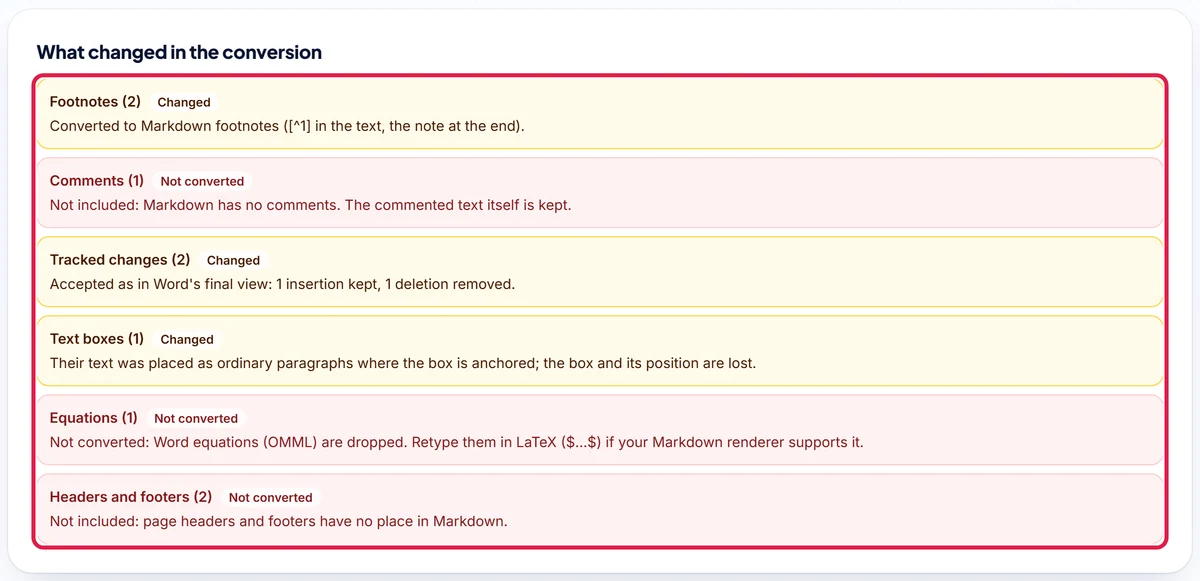
The counts give you an overview before you read a line of the text. A document with a high count in Changed or Not converted needs more checking. Read each entry. It names the feature and says what the tool did with it, so you know where to look in the document and do not have to compare the whole text with the original.
Then read the Markdown itself. Look at the headings and their levels, at lists that are nested, at tables and at links. Markdown is easy to read as text, so most problems are visible at a glance.
What is not converted
Markdown is a simple format, and Word is not. Some things cannot be carried over, and the Not converted list shows them. Elements that are typical for this list include:
- Fonts, colours and sizes. Markdown has no styles of this kind, and the site's stylesheet decides how the text looks.
- Page layout: columns, headers and footers, page breaks and margins.
- Comments. They are not included, although the commented text is kept. Tracked changes are accepted as in Word's final view, with insertions kept and deletions removed, so accept or reject them in Word first if you want to decide yourself.
- Text boxes. Their text is placed as ordinary paragraphs, and the box and its position are lost.
- Equations, charts, SmartArt and embedded objects. They are not converted, so paste a chart into Word as a picture first.
- Merged table cells. Markdown tables are simple grids, so each merged cell is written once and the others are left empty.
If a table is complex, rebuild it. The Excel to Markdown Table Generator turns a range of cells into a Markdown table, as described in Paste an Excel Table Into GitHub as Markdown.
The same tool also goes the other way: the tab Markdown → Word writes a .docx file for people who work in Word.
Always compare the result with the original on a few pages. Prepare the Word file for conversion: use real heading styles, not bold text that only looks like a heading, and use the list functions of Word and not typed dashes. A well-structured document gives a clean Markdown file.

Try it
Open the DOCX ↔ Markdown Converter, load your .docx and choose the images/ folder in a ZIP. Read What changed in the conversion, check headings, tables and links in the Markdown, and download the ZIP.