
CSV Opens With Broken Characters: Fix the Encoding
Why a CSV shows Café or Arabic as symbols, how to detect the real encoding, repair text that is already garbled and save a UTF-8 file with a BOM so that Excel opens it.
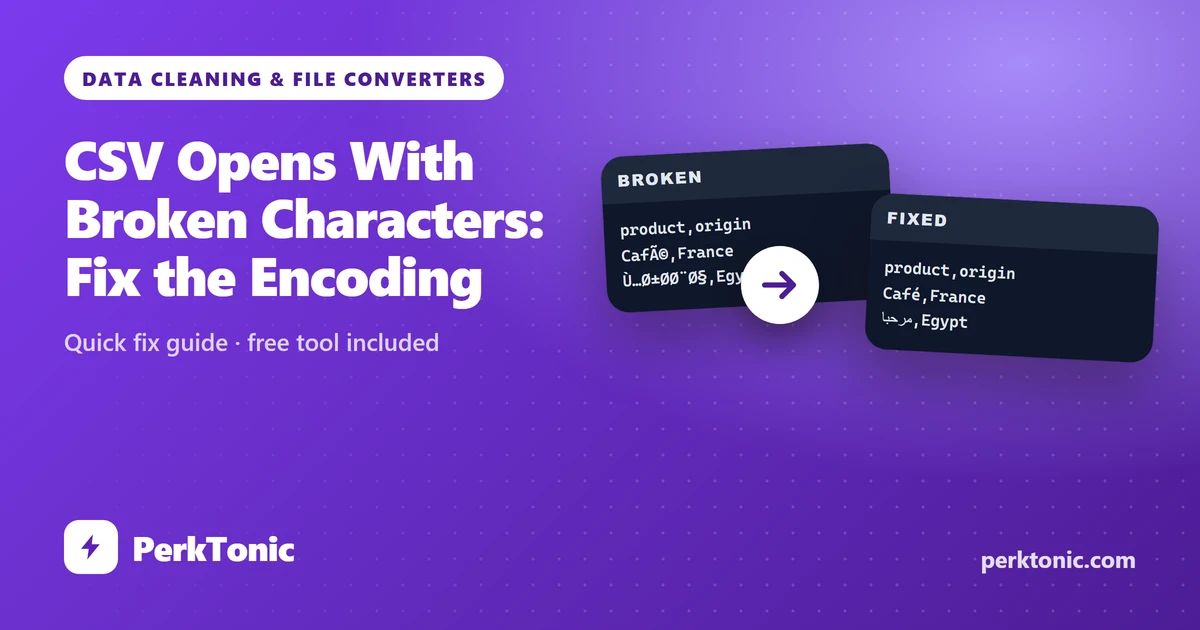
A CSV that shows Café instead of Café, or Arabic text as question marks and symbols, has been read with the wrong encoding. The fix has two parts: detect which encoding the file really uses, and save it in a form that Excel recognises. The Clean Messy CSV Data tool does both in the browser, and it can also repair text that is already garbled.
Why characters break
A CSV is plain text, and the text is stored as bytes. The encoding is the rule that turns bytes into letters. The file does not carry that rule with it, so the program that opens it has to guess.
The letter é in UTF-8 takes two bytes. If a program reads those two bytes as Windows-1252, a single-byte encoding, it shows two characters, à and ©. This is why "Café" becomes "Café". The data is intact. It is being displayed with the wrong rule.
Excel opens a CSV without a byte order mark (BOM) with the encoding of the system, not UTF-8. A UTF-8 file saved by a database export, a script or a web tool therefore often breaks in Excel, even though it is correct elsewhere.
Detect the encoding
The tool detects these encodings: UTF-8 with or without a BOM, UTF-16 with a BOM, Windows-1256 (Arabic) and ISO-8859-1, which browsers treat as Windows-1252. Under File encoding it shows the detected encoding and the reason for the choice.

If the preview shows the text correctly, the detection is right. If it does not, choose the encoding by hand in the File encoding menu. The choice applies at once, so you see the effect on the preview immediately and can try the candidates in turn. For Western European text, try UTF-8 first, then ISO-8859-1 / Windows-1252. For Arabic text, try Windows-1256.
Repair garbled characters already in the text
Sometimes the damage has been saved into the file. Someone opened a UTF-8 file as Windows-1252 and saved it again, and now the file contains the characters à and © as real text. Changing the encoding does not help, because the bytes themselves are wrong.
The cleaning step Repair garbled characters (mojibake) reverses that kind of damage, and it is on by default. It changes a cell only when the repair gives valid text. A cell that is not garbled stays as it is, and so does a cell where the repair would produce nonsense. Every changed cell is listed on the Before / after tab.

Check the result in the Before / after tab. A cell that contained Café should now read Café, and the changed cells are highlighted in the Cleaned data tab. If some cells remain damaged, the original characters may have been lost, for example replaced by question marks during an earlier save, and no repair can bring them back. In that case, go back to the original export and read it with the right encoding.
Save with a BOM for Excel
Once the text is correct, save it so that Excel reads it correctly. A byte order mark at the start of the file tells Excel that the file is UTF-8. The option Save as UTF-8 with BOM is ticked by default under Result and report. Press Download clean CSV, and Excel opens the accents and the other characters correctly with a double click.

Other programs read a UTF-8 file with a BOM without trouble, but a few tools, for example some command-line scripts, treat the BOM as part of the first column name. If a script fails on the first header after you added the BOM, download a second copy without it for that script.
Microsoft documents the Excel side in Opening CSV UTF-8 files correctly in Excel. The encodings and their names are defined in the WHATWG Encoding Standard.
Arabic files from older Excel
Older Arabic exports are often saved in Windows-1256, an encoding that is not UTF-8 and is not detected as such by a program that expects UTF-8. Opened as UTF-8, the file shows symbols or question marks.
When you open an Arabic CSV that was saved in Windows-1256, the detection picks Windows-1256 and shows the Arabic text correctly. Download the file with the BOM option, and Excel opens the text. The file is then UTF-8, which every current program reads.
Open it once in the preview before you trust it. Right-to-left text can look reversed in a plain text view, and that is a display matter, not damage to the data.
After the encoding is fixed, the same tool can trim spaces, standardise dates and remove duplicate rows before you import the file. To cut the file into one file per value of a column, see Split a CSV File by Column Value Into Separate Files, which uses the CSV Splitter & Merger. A correct encoding is also needed for Convert CSV to JSON Without Uploading the File, since JSON is UTF-8.
Check your own file
Open Clean Messy CSV Data and load the file with the broken characters. Check the detected encoding, switch it by hand if the preview is wrong, keep Repair garbled characters switched on if the damage is in the text, and download the file with the BOM option.