
PDF Table Columns Come Out Wrong in Excel
Why PDF table columns come out wrong in Excel: ruled lines against text alignment, forcing one method, merged headers and a checklist for the preview.
When a table from a PDF arrives in Excel with columns shifted, merged or split in the wrong places, the cause is usually the method that was used to find the columns. The quickest fix is to choose the detection method yourself in PDF to Excel (Table Extractor) and check the preview before you download. This guide explains the two methods and when each one fails.
Ruled lines and Text alignment
The tool has two ways to find the cells of a table.
Ruled lines: the tool follows the lines that are drawn in the PDF. Where horizontal and vertical lines cross, it finds cells. This is exact for tables with borders, because the borders say where each cell starts and ends.
Text alignment: when a table has no borders, the tool looks at the text. It groups words into rows by their vertical position, and then finds columns that are shared by at least three rows. A column is a vertical band where words of several rows line up. Three rows are required so that a chance alignment of two words is not taken for a column.
Automatic uses both: it tries the ruled lines first and falls back on the text alignment when there are none. This works for most files, and it is the reason a table without borders can fail in a typical way: if the words do not line up well, the tool finds too many or too few columns.
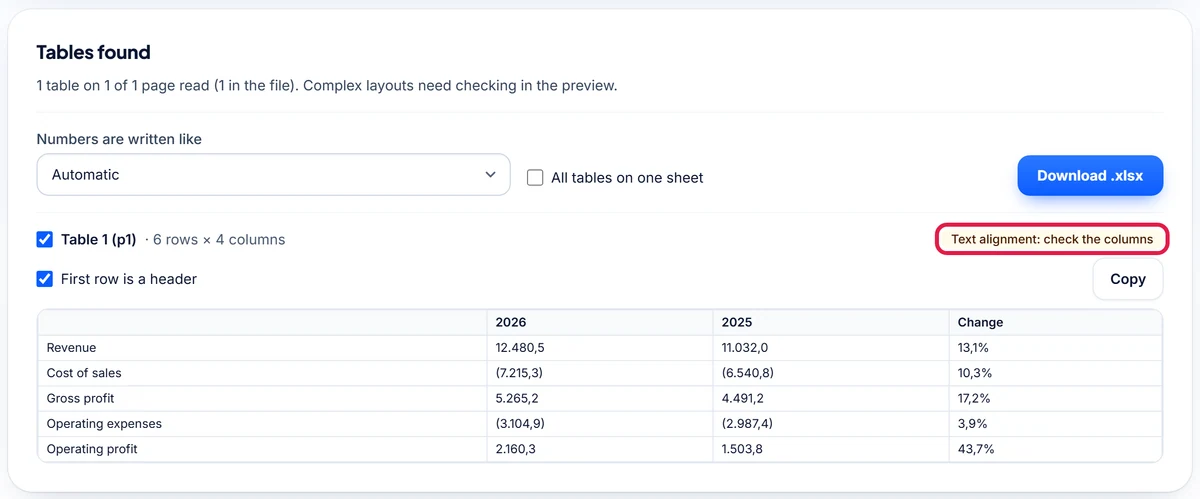
When columns are found by text alignment, the preview carries the label "check the columns". The label is a prompt to look closely, because the result depends on how the text is placed.
Force one method
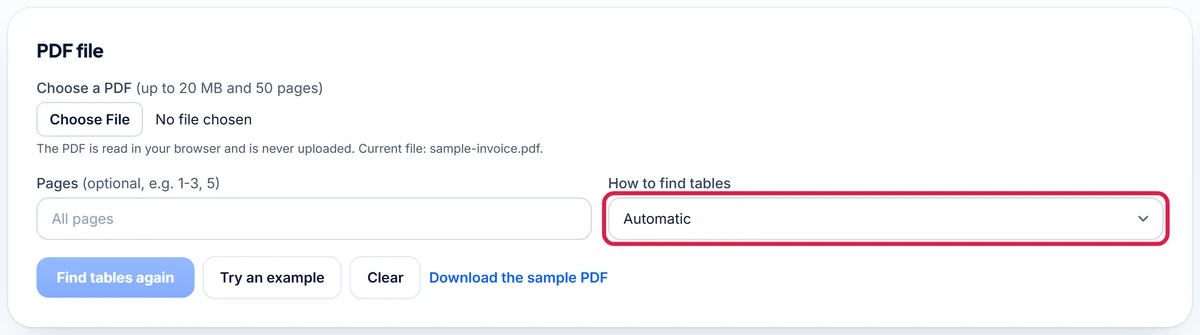
If Automatic gives a wrong result, set the method by hand and compare.
- Open the file in PDF to Excel (Table Extractor).
- Open the menu How to find tables.
- Select Ruled lines only (tables with borders) or Text alignment only (tables without borders).
- Look at the preview again.
Use Ruled lines when the table has visible borders and Automatic still splits it wrongly. A table with faint borders or a shaded background can confuse the detection of text, and the lines give a cleaner result. Use Text alignment when the table has no borders, or when the drawn lines belong to the page design and not to the table. In a report with decorative lines, the ruled-lines method can cut the table at lines that are not cell borders.
Change one thing at a time. If the new method is worse, go back to Automatic and try the other one. Sometimes a page range helps too: a page with a chart next to the table disturbs the alignment, and converting only the pages with the table removes that noise.
Merged headers
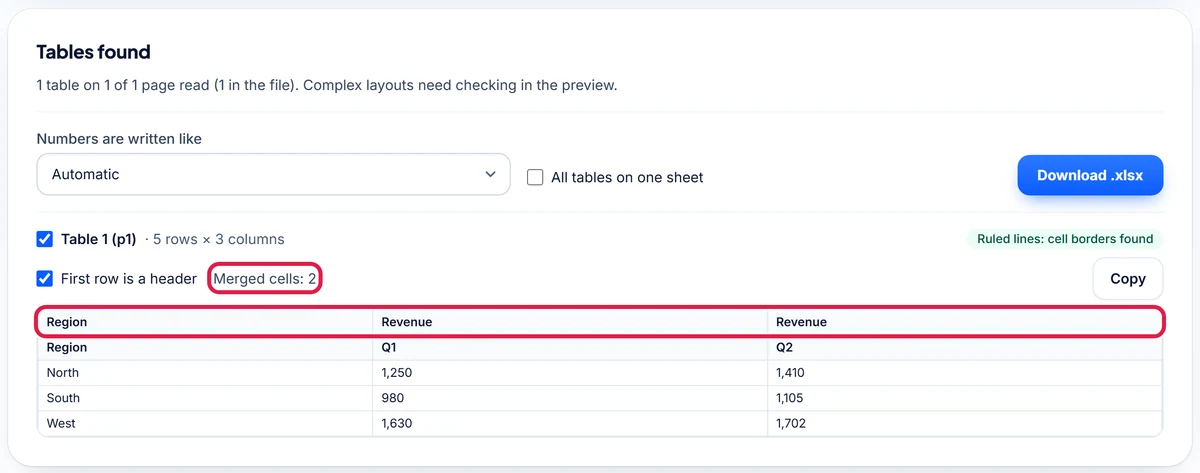
A heading that spans several columns, such as Revenue above Q1 and Q2, is a merged header. In the PDF it is one text with space around it. The tool recognises it and writes a merged cell in the workbook.
In the preview, the text of the merged header is repeated over the columns that it covers, and the tool says "Merged cells: 2". The word Revenue shows above both Q1 and Q2, so you can see which columns belong together. The repeat is only in the preview. In the Excel file, the heading is a merged cell.
Merged cells are awkward for sorting and filtering in Excel. If you want to use the table as data, unmerge the header cells after the download and fill each column with its full heading, for example Revenue Q1 and Revenue Q2.
Tables with right-to-left text, such as Arabic or Hebrew, keep their reading order. The first column in reading order is the one on the right of the page, and the tool does not turn the table around.
Check the columns in the preview
Before you download, check the preview against the PDF. Look at these points:
- The number of columns matches the table in the PDF.
- Numbers are in one cell each. A number with a space as thousands separator, such as 12 500, can be split into two cells by text alignment. If you see this, try the other method, or join the cells after the download.
- The header is in the first row, and the first data row is not taken as a header. Use First row is a header to change this.
- Long descriptions that run over two lines are in one row and not in two.
Compare the totals of a numeric column with the printed totals in the PDF. A column that is shifted by one has a wrong total, and the difference is quick to see.
For the general workflow, see Convert a PDF Table to Excel Without Retyping. If you would rather work with text, the PDF to CSV Table Converter gives the same table as CSV.
Try it
Open PDF to Excel (Table Extractor), load the PDF and look at the label on the preview. Set Ruled lines or Text alignment by hand if the columns are wrong, check the merged header and the numbers, and compare the totals before you download.