
CSV Injection: Protect Exports From Formulas
What CSV injection is, how a leading apostrophe makes risky cells harmless, which cells the converter leaves alone, and how to keep exports safe in your own software.
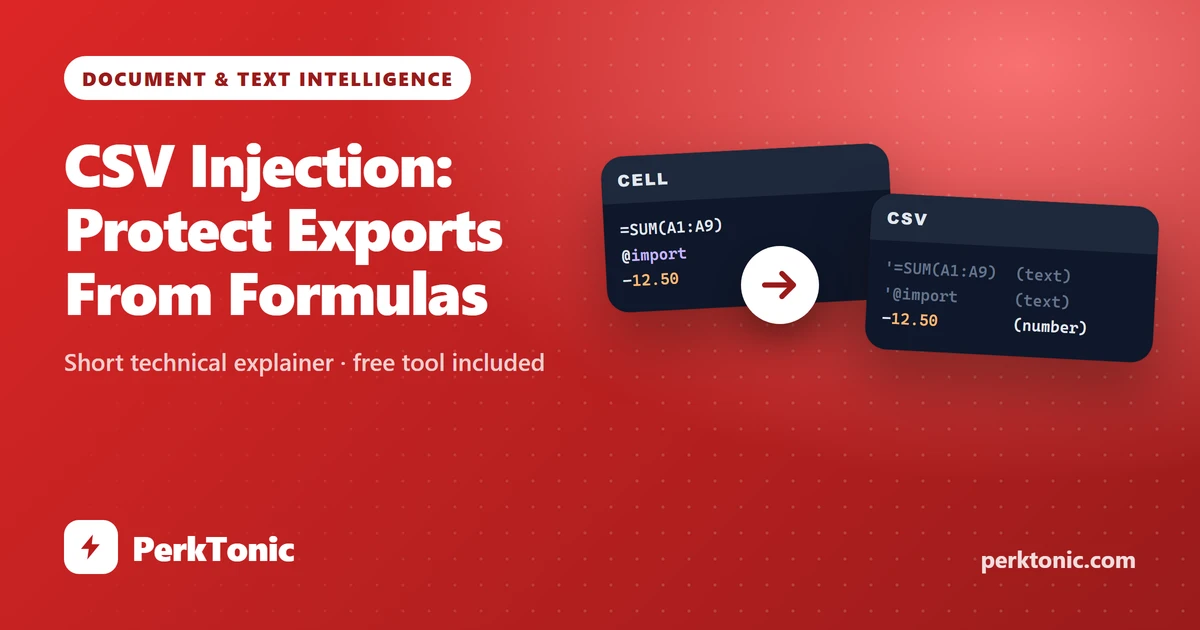
A CSV file is plain text, but a spreadsheet that opens it may treat some cells as formulas. A cell that starts with = can run when the file is opened, and the content of an export is often not under your control. Writing such cells as text makes them harmless. The PDF to CSV Table Converter has an option for this, and this guide explains what it does and what it leaves alone.
What CSV injection is
When Excel or another spreadsheet opens a CSV, it reads each cell and decides what it is. A cell that starts with one of the characters =, +, - or @ may be taken as a formula, not as text. The spreadsheet then calculates it, and it can do more than the person who opens the file expects.
Most of the time this is harmless, for example =SUM(A1:A9) adds up some cells. The risk is that a formula can be crafted to do harm: to read data from other cells, to send data to a remote address or, in some setups, to start other programs. This is called CSV injection or formula injection. It is a concern whenever a CSV contains text that came from somebody else, such as names typed into a web form, text from a PDF, or comments from customers.
The person who exports the file may not have written any formula. The risk is in the data. A user who types a formula into a name field has put a trap into every export that includes the field. The OWASP project describes the problem and the defences on its page about CSV injection.
How the protection option works
The standard defence is to put an apostrophe in front of a cell that starts with a dangerous character. The apostrophe turns the cell into text, so the spreadsheet does not evaluate it.
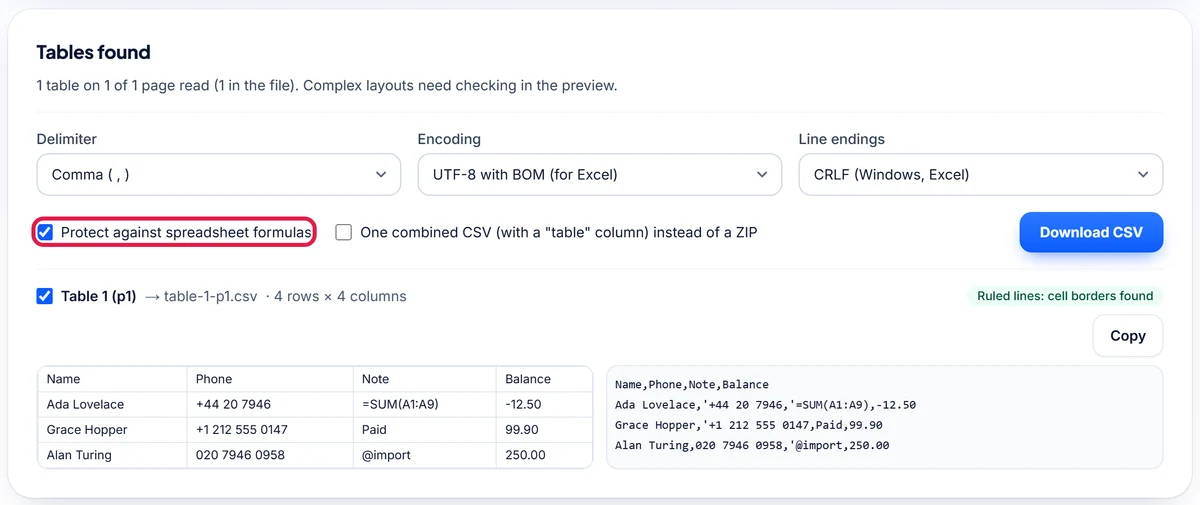
In the PDF to CSV Table Converter, keep Protect against spreadsheet formulas ticked, which is the default. A cell with the content =SUM(A1:A9) is then written as '=SUM(A1:A9). The cell is shown as text, and nothing is calculated. To test it, I made a small PDF with a customer table in which one note is =SUM(A1:A9) and another is @import.
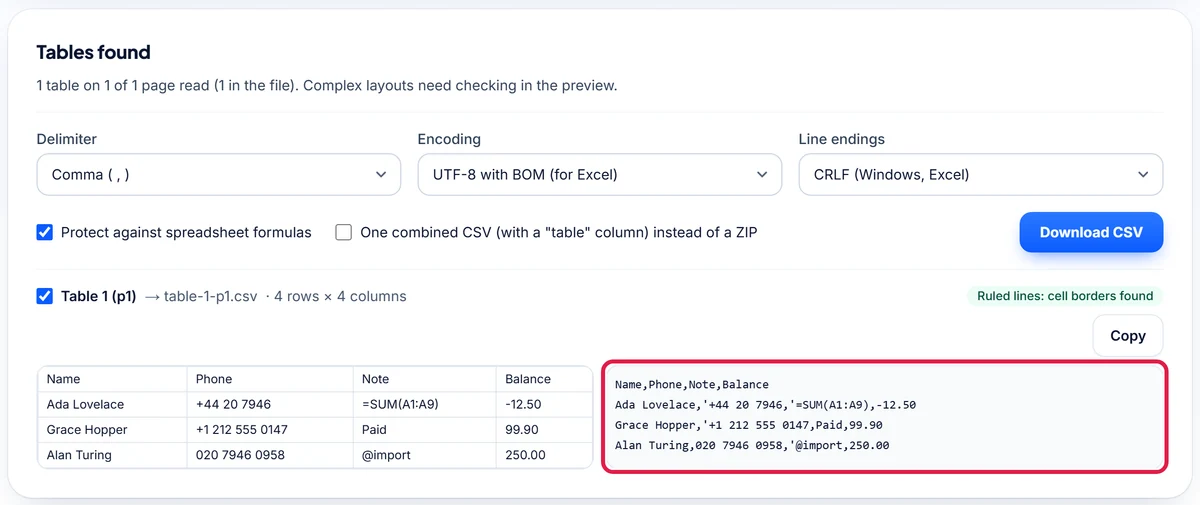
The same applies to a cell that starts with +, such as a phone number. The value +44 20 7946 becomes '+44 20 7946. The number is kept as text, which is what you want for a phone number in any case, because Excel would otherwise try to read it as a calculation or drop the plus sign.
The protection is applied when the file is written. It does not change the table that you see as cells in the preview. The CSV text on the right of each table does show the apostrophes. They are part of the file, and some programs show the apostrophe as part of the text. That is the price of the protection, and for exports that may contain untrusted text, it is a price worth paying.
What is left alone
The option does not touch every cell that starts with a symbol. A value such as -12.50 is left alone. It is a plain negative number, not a formula, and an apostrophe would turn it into text and break calculations on the column. The same goes for ordinary numbers, dates and text that do not start with a dangerous character.
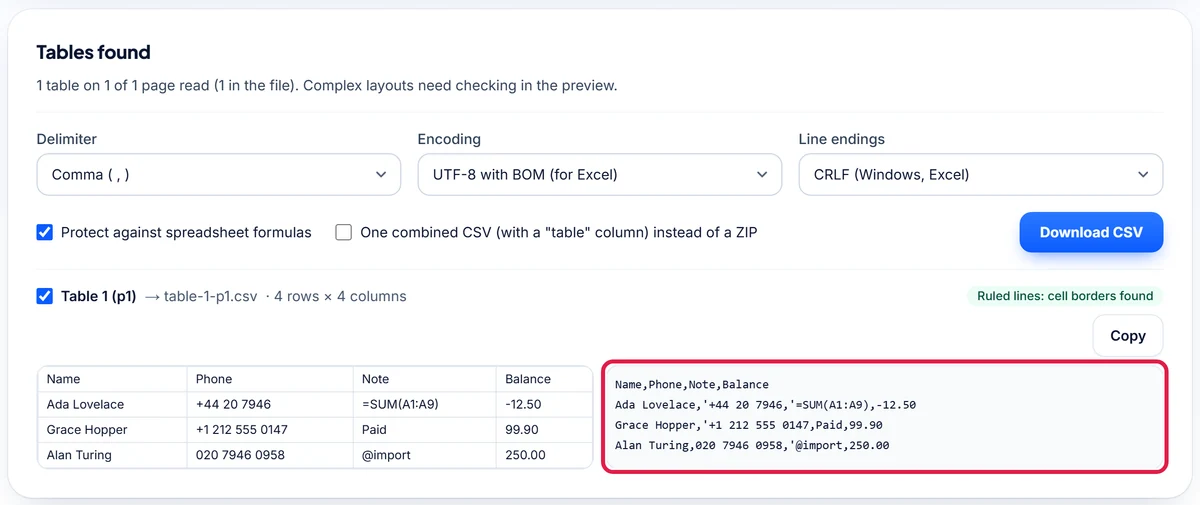
This distinction matters for tables of amounts, such as bank statements and invoices, where negative numbers are common. A protection that turned every negative number into text would make the file useless for sums. Check the amounts in the preview after you switch the option on. Negative numbers should still be numbers.
If you cannot tell whether a value is a number or a formula, the rule of thumb is: a value that is only digits with a sign, a decimal point or a thousands separator is a number. A value that has letters, brackets or operators after the sign is not.
The general workflow of the converter, with delimiter, encoding and line endings, is in Convert a PDF Table to CSV for Excel or a Database.
Other tools that protect cells
The converter is not the only place where this matters. The Bulk URL Status Code Checker writes its results as a CSV, and in that CSV a cell that starts with =, +, - or @ gets a leading apostrophe. The addresses and the messages in such a list can come from the outside, so the same protection applies.
If you write exports in your own software, apply the same rule there: prefix cells that start with =, +, - or @, and also with a tab or a carriage return character, which some spreadsheets treat in the same way. The Scanned Table to Spreadsheet tool and the CSV to JSON converter (option Neutralise formulas) follow the same rule. Also treat the CSV from others with care: do not enable the calculation of links or external data when a spreadsheet asks, unless you know the source.
Try it
Open the PDF to CSV Table Converter, load your PDF and check that Protect against spreadsheet formulas is ticked. Look in the CSV preview for cells that now start with an apostrophe, check that negative numbers such as -12.50 are untouched, and download the file.