
Check SPF, DKIM and DMARC Records for a Domain
SPF DKIM DMARC checker: enter the domain and the DKIM selector, read the five-part summary, find the selector, understand MTA-STS and BIMI and see what the checker cannot tell.
When your emails land in spam, the first thing to check is whether the domain proves that the mail is really from you. Three DNS records do that: SPF, DKIM and DMARC. An SPF DKIM DMARC checker reads all three at once and explains what each says. The SPF, DKIM & DMARC Checker shows them in one result, with a suggestion for every problem it finds.
Steps: domain, DKIM selector, Check
- Open the SPF, DKIM & DMARC Checker.
- Enter the domain that sends the mail, for example example.com.
- Enter the DKIM selector if you know it.
- Press Check.
The domain is the one in the From address of your messages. The DKIM selector needs more explanation, because a DKIM record cannot be found without it.
You can run 15 checks every 10 minutes. The checker reads DNS records and, for MTA-STS, one policy file. It does not send mail.

The result opens with a summary of five chips: SPF, DMARC, DKIM, MTA-STS and BIMI. Each is marked OK (green), Warning (amber), Problem (red) or Note (grey, for information). For fastmail.com on 6 November 2026, SPF is OK, DMARC and DKIM are Warning, and MTA-STS and BIMI are Note. The DMARC record exists and uses p=none, which is monitoring only. The summary shows this at a glance, and the detail below explains it.
Find the DKIM selector (s=)
DKIM stores its public key in a DNS record whose name contains a selector: selector._domainkey.example.com. The selector is chosen by the mail service, and it is not guessable in general.
The reliable way to find it is to look at a message that you sent. Open the full headers of a received message and find the line that starts with DKIM-Signature. In it, the tag s= holds the selector, for example s=selector1. The tag d= holds the domain. Enter that selector in the checker.
If you leave the field empty, the checker tries 20 common selectors, such as those used by large mail providers. This finds many records, but not all. If it finds none, that does not prove that DKIM is missing. The selector may simply be one that the checker did not try. Find it in a message header and test again.
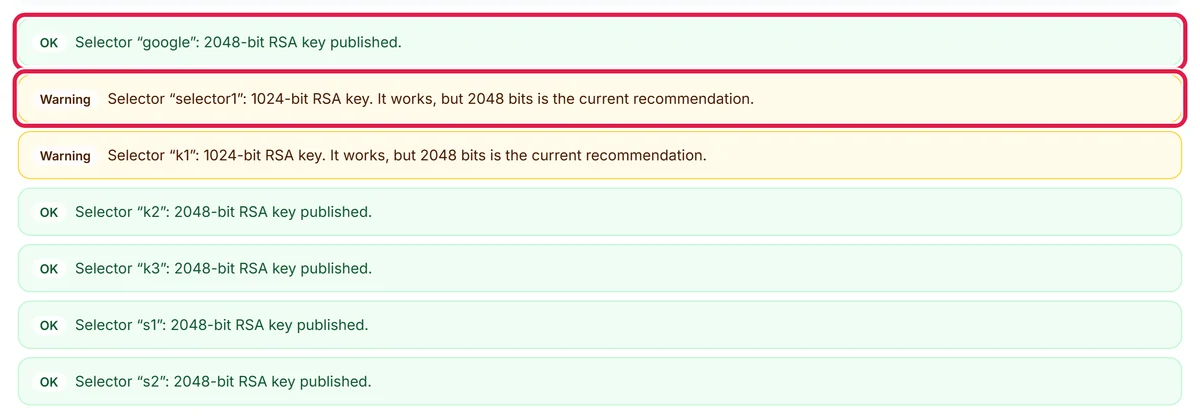
For github.com, with no selector entered, the probe finds seven selectors. The selector google has a 2048-bit RSA key and is marked OK. The selectors selector1 and k1 have 1024-bit keys and are marked Warning: "It works, but 2048 bits is the current recommendation." The selectors k2, k3, s1 and s2 have 2048-bit keys. Use 2048 bits for a new key. The checker also reports two other cases: the flag t=y marks a key as in testing, and some receivers treat its signatures as unsigned, so remove it when you go live; and an empty p= means that the key was revoked, as the checker says for the selector fm1 of fastmail.com, where mail signed with it fails DKIM.
Read each section and suggestion
The result has a section for each record.
SPF: the list of senders that are allowed to send for the domain. The checker shows the record, counts the DNS lookups and warns about the usual faults, such as a record that needs more than 10 lookups. See SPF Has Too Many DNS Lookups: Fix the 10 Limit.
DKIM: the key for the selector, with its length and flags.
DMARC: the policy that tells receivers what to do with mail that fails SPF and DKIM, and where to send reports. The values are none, quarantine and reject. A policy of none only watches. If you want to move on, Move DMARC From p=none to p=quarantine shows how.
Each section ends with a suggestion, in words, for what to change. The roles of the three records and how they work together are explained in SPF vs DKIM vs DMARC: What Each One Does. The standards are RFC 7208 for SPF, RFC 6376 for DKIM and RFC 7489 for DMARC.
MTA-STS and BIMI
The checker also looks at two related standards.
MTA-STS tells sending servers to use encrypted connections to your mail servers. The checker reads the DNS record at _mta-sts and then fetches the policy file from the web address of the domain. A redirect on the policy URL is an error, because the standard requires the file to be served directly.
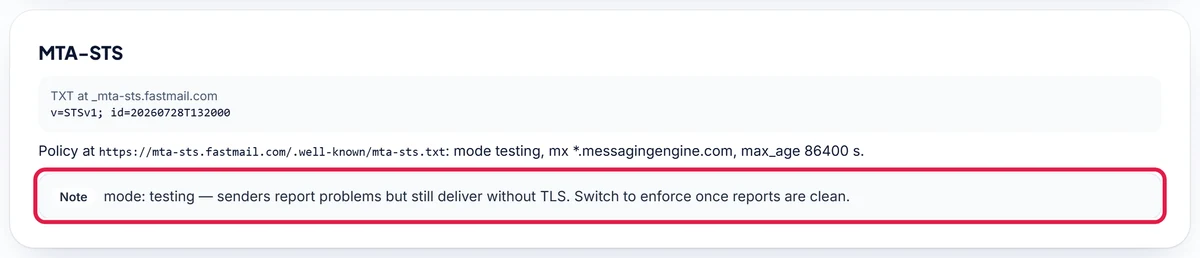
For fastmail.com the policy is in testing mode, where failures are reported but not enforced. The checker shows the policy address, the mode, the MX pattern *.messagingengine.com and max_age 86400 s, and notes that in testing mode senders report problems but still deliver without TLS, and that you should switch to enforce once the reports are clean That is acceptable during a rollout. The checker reports an error when an MX host of the domain is not covered by the policy, because in enforce mode senders refuse to deliver to it. The web server that serves the policy file needs a valid certificate, which the SSL Certificate Checker can confirm.
BIMI lets a brand show a logo next to its mail. The checker tests that the record is present, that its syntax is right and that DMARC is on quarantine or reject, which BIMI requires. It does not download the logo and does not validate the certificate behind it.
What the checker cannot tell you
The checker reads records. It does not send a message and cannot tell you whether a message is delivered, or whether it lands in the inbox or in spam. Delivery depends on many things beyond these records: the reputation of the sending address, the content, the engagement of recipients and the policy of each receiving provider.
Correct records are a requirement, not a guarantee. For a full setup, follow Email Authentication Setup Checklist. To look at other DNS records of the domain, use the DNS Lookup & Domain Info tool.
Try it
Open the SPF, DKIM & DMARC Checker, enter your domain and the DKIM selector from a message header, and press Check. Read the colours of the summary, act on the amber and red items, and check again after your DNS changes have spread.