
Convert a PDF Table to Excel Without Retyping
How to turn a PDF table into an Excel file: ruled lines or text alignment, the previews, a supplier invoice example, what stays text and the limits of 20 MB, 50 pages and 60 seconds.
A table in a PDF report or invoice cannot be edited, and copying it into Excel usually puts everything into one column. To skip the retyping, open the file in PDF to Excel (Table Extractor), check the table previews and download an .xlsx file with one sheet for each table. This works for PDFs that contain real text. A scanned page needs a different tool, covered below.
How tables are found
A PDF does not store a table. It stores text at positions on a page, and perhaps some lines. The tool has to work out which text belongs to a table and which cells it forms. It has two methods:
- Ruled lines: the tool follows the drawn lines of the table, so a table with visible borders is split into cells along them.
- Text alignment: the tool looks at how text lines up in columns, which works for tables without borders.
The menu How to find tables offers Automatic, Ruled lines only (tables with borders) and Text alignment only (tables without borders). The default, Automatic, uses both. A table with borders is found by its lines, and a table without borders is found by the alignment of its text. If a result looks wrong, try one method alone and compare the previews. A table with borders in a report is usually found by the ruled lines, and a table in plain text, such as a statement, by alignment.
Steps: open, check previews, Download .xlsx
- Open PDF to Excel (Table Extractor).
- Choose the PDF with Choose File, or press Try an example. It can be up to 20 MB and 50 pages. The file is read in your browser and is never uploaded.
- If you only need some pages, enter a page range such as 1-3, 5 in Pages.
- Check the previews of the tables under Tables found. Each one says how it was found, for example "Ruled lines: cell borders found".
- Tick or untick First row is a header for each table. The option All tables on one sheet puts everything on one sheet.
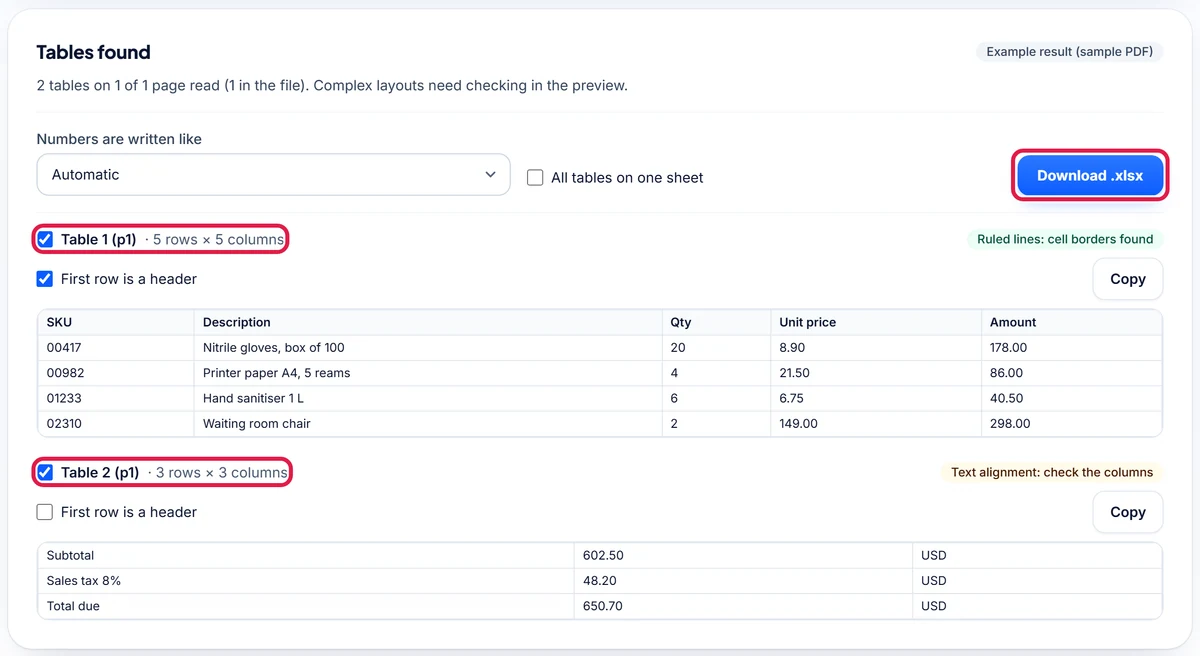
- Press Download .xlsx.
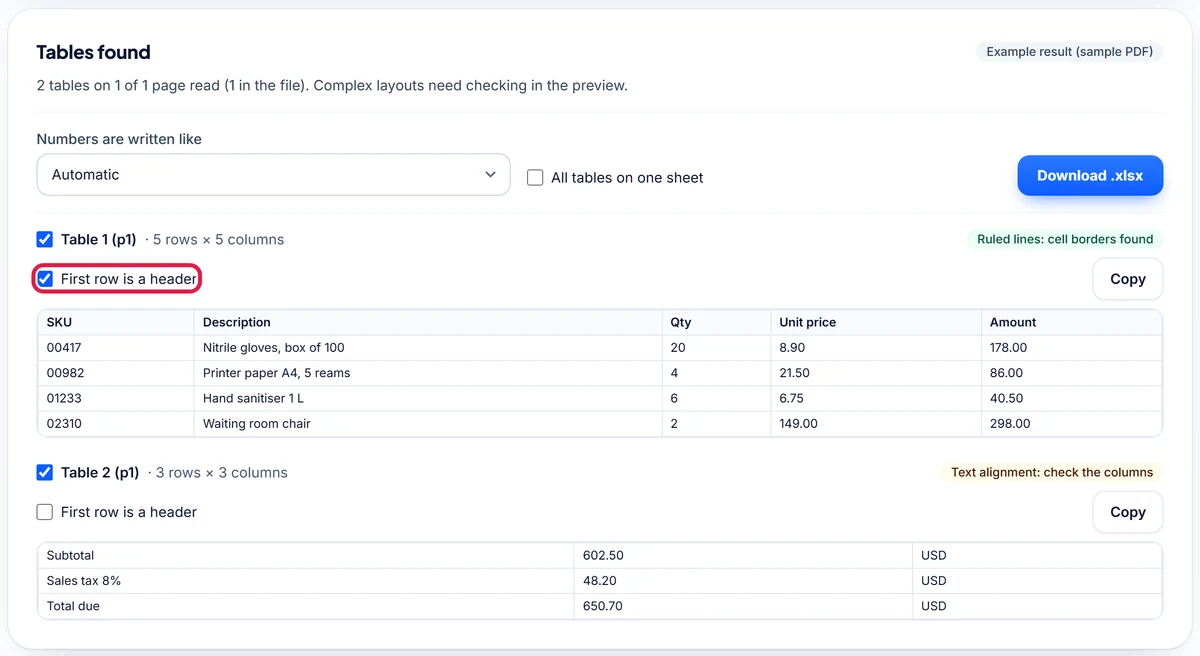
Each table is shown in a preview before you download. Look at the number of columns, the merged-looking cells and the last row. A table that was cut at a page break can show up as two tables, one for each page, and you may need to join them in Excel.
Worked example: a supplier invoice
The example of the tool is a supplier invoice with a ruled table of items: SKU, description, quantity, unit price and amount, and a second table of totals without borders. The tool finds the first table by its lines and shows the rows in the preview. The SKU 00417 appears as 00417, with its zeros. The totals table is found by text alignment, and carries the label "Text alignment: check the columns".

After the download, the workbook has one sheet for each table, named by table number and page, such as Table 1 (p1) for the first table on page 1 and Table 1 (p2) for the first table on page 2.
Open the file in Excel and compare the totals of the quantity and the price columns with the PDF. A sum that is off by a row points to a header row taken as data, or a row that was merged with the next one.
Numbers, dates and leading zeros
Excel converts text to numbers and dates when it opens a file, and that damages codes. The tool avoids this by keeping some values as text:
- Values with leading zeros, such as the SKU 00417.
- Phone numbers.
- Values that start with +.
- Dates, which stay text so that the order of day and month is not guessed.
A cell that starts with = is never turned into a formula. It stays text, so a PDF cannot put a formula into your workbook.
Keeping dates as text means that you cannot sort them as dates yet. Convert them in Excel when you know the format of the document, for example with Text to Columns or the DATEVALUE function. Plain numbers, such as quantities and prices, are numbers and can be summed. The menu Numbers are written like (Automatic, 1,234.56 or 1.234,56) tells the tool how the numbers of the document are written, so that 1.234,56 is not read as a text.
If you need CSV and not Excel, see Convert a PDF Table to CSV for Excel or a Database and the PDF to CSV Table Converter.
Limits
The file can be up to 20 MB and 50 pages. A conversion stops after 60 seconds. If a large file runs into that limit, use a page range and convert the file in parts, for example 1-10, then 11-20.
The tool reads the text that is in the PDF. A scanned document has no text, only a picture, and the tool finds no table in it. In that case, use the Scanned Table to Spreadsheet tool, which is explained in PDF to Excel Finds No Table: The PDF Is a Scan.
A conversion is only as accurate as the layout. Always compare the totals with the original.
Try it
Open PDF to Excel (Table Extractor), load your PDF and enter a page range if it is long. Check each preview, set First row is a header, download the .xlsx file and compare the totals with the PDF.