
Extract a Table From a Password-Protected PDF
How to convert a password-protected PDF table to Excel in the browser: where the file is processed, the password step, choosing pages, and exporting to Excel or CSV.
Bank statements, payslips and reports are often sent as PDFs protected with a password, and uploading such a file to an unknown service is a risk. Open the file in PDF to Excel (Table Extractor), type the password and let the tool read the tables. The work is done in your browser, and the password stays there.
Where the PDF is processed
The tool opens and reads the PDF in your browser. The file is not sent to a server for the extraction. The password that you type is used only to open the file on your computer, and it stays in the browser. It is not stored or sent anywhere.
This matters for documents with personal or financial data. With a server-based converter, the file and its password both leave your computer, and you have to trust the service with them. Here, both stay with you.
Two limits follow from this approach. The tool needs the password: it opens a protected PDF only when you know the password, and it does not remove or bypass the protection. And the browser does the work, so the size of the file counts. The limits are in the section on pages below.
For the document itself, it is good practice to work on a computer that you control, and to close the tab when you are done. A PDF can have an open password, which is needed to read the file, and a permissions password, which only restricts printing or copying. This tool asks for the open password.
Steps with the password
- Open PDF to Excel (Table Extractor).
- Choose the PDF with Choose File.
- The tool says "This PDF is protected by a password. Type the password to open it; it stays in your browser." Type it under PDF password and press Open with password.
- Wait for the tables to be found and check the previews.
- Download the result.
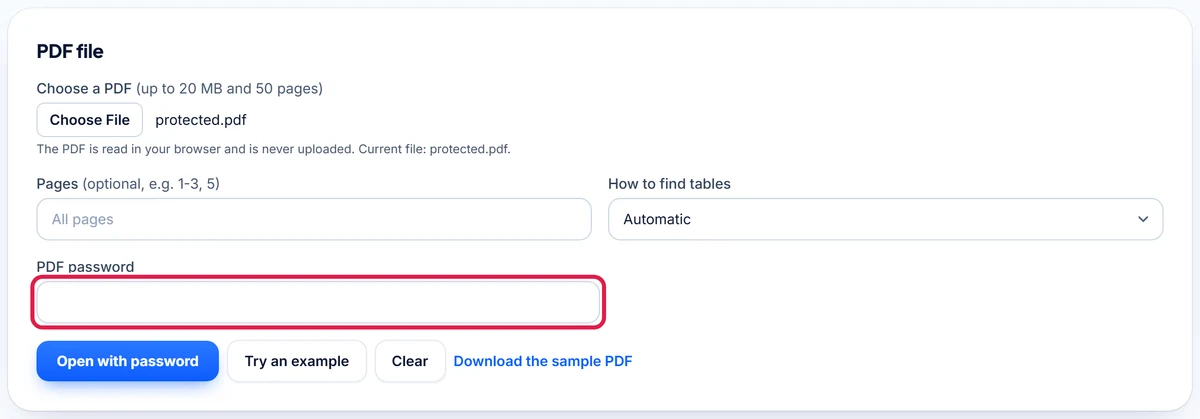
If the password is wrong, the file does not open, and you can type it again. Check that you use the password of this file. The password for a PDF is often not the same as the password of the online account where you got it, and some banks use a rule, such as a date of birth or a customer number, that is described in the letter or the email that came with the file.
After the file is open, the work is the same as for any PDF. The tool looks for tables by the lines or by the alignment of the text, and shows a preview of each one. The details are in Convert a PDF Table to Excel Without Retyping.
Choose pages
A PDF of many pages may have the table on only a few of them. Select the pages that you need. Enter a page range such as 1-3, 5 to convert pages 1 to 3 and page 5. Choosing pages makes the conversion faster, removes tables that you do not want and keeps the workbook small.
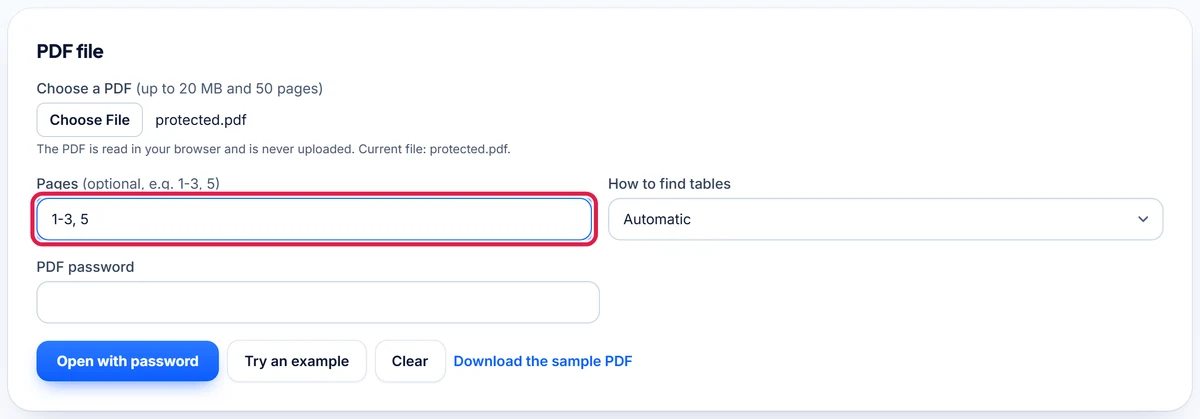
The limits are 20 MB and 50 pages for a file, and a conversion stops after 60 seconds. If a long PDF runs into the time limit, use page ranges and convert it in parts, for example 1-10 and then 11-20. A protected PDF is no different in this respect.
For a statement that runs over several pages, the pages are joined into one table, and the tool says how many times it removed a repeated header.
Export to Excel or CSV
When the previews are right, download an .xlsx file with one sheet for each table. Excel opens it directly. Values that look like numbers but are codes, such as leading zeros and phone numbers, stay text, so that Excel does not change them.
If your software wants CSV, use the PDF to CSV Table Converter. It reads the same PDF, with the same password, and lets you choose the delimiter and the encoding.

In the CSV preview, look at the delimiter choice. A semicolon suits many European versions of Excel, and a comma suits most databases. The full set of settings is explained in Convert a PDF Table to CSV for Excel or a Database.
Keep in mind that the exported file is not protected. The Excel or CSV file that you download contains the data in plain form. Save it in a safe place, and delete it when you no longer need it. Do not send it by an unsecured channel if the PDF was protected for a reason.
Try it
Open PDF to Excel (Table Extractor), load your protected PDF and type the password. Enter a page range if the file is long, check the previews, and download the .xlsx or use the CSV converter for a CSV file.