
Write an SOP From a Template in Minutes
How to write an SOP from a template: the brief, the six generated sections with their gaps, Improve with AI, editing steps, roles and KPIs, and exporting to Word, Markdown or PDF.
Whoever documents a process usually knows the work well and loses time on the structure: which sections an SOP needs, in what order, and what goes into each. The SOP & Policy Template Generator gives that structure at once. You enter the process, the industry and the team size, and the tool generates an outline that you fill in and export.
Fill in process, industry and team size
Start with the facts that shape the document, under Your brief. The menu Document type offers Standard operating procedure (SOP), Policy, Onboarding checklist and Process documentation. For an SOP, fill in:
- The Process name: what the SOP describes, for example Customer refund requests.
- The Industry: the field that the team works in. It sets the vocabulary and the kind of risks.
- The Team size, as a number or a range. A team of three needs less formal roles than a team of thirty.
- Key steps, optional, one per line. They are used by the AI step below.
- The Owner or author, for example Maria Lopez.
An SOP is a standard operating procedure: a written description of how a recurring task is done, so that it is done in the same way by different people. The owner is important, because an SOP that nobody maintains goes out of date quickly.
Be specific about the process. "Customer refund requests" gives a better outline than "customer service". Press Try an example to see a finished refund SOP with its owner and team of 8.
Generate template in the browser
Press Generate template. The outline is made in your browser from the form. Nothing is sent to a server, and a note above the document says "Template made in your browser from the form. Nothing was sent." You can use real process names without a concern about confidentiality at this step.
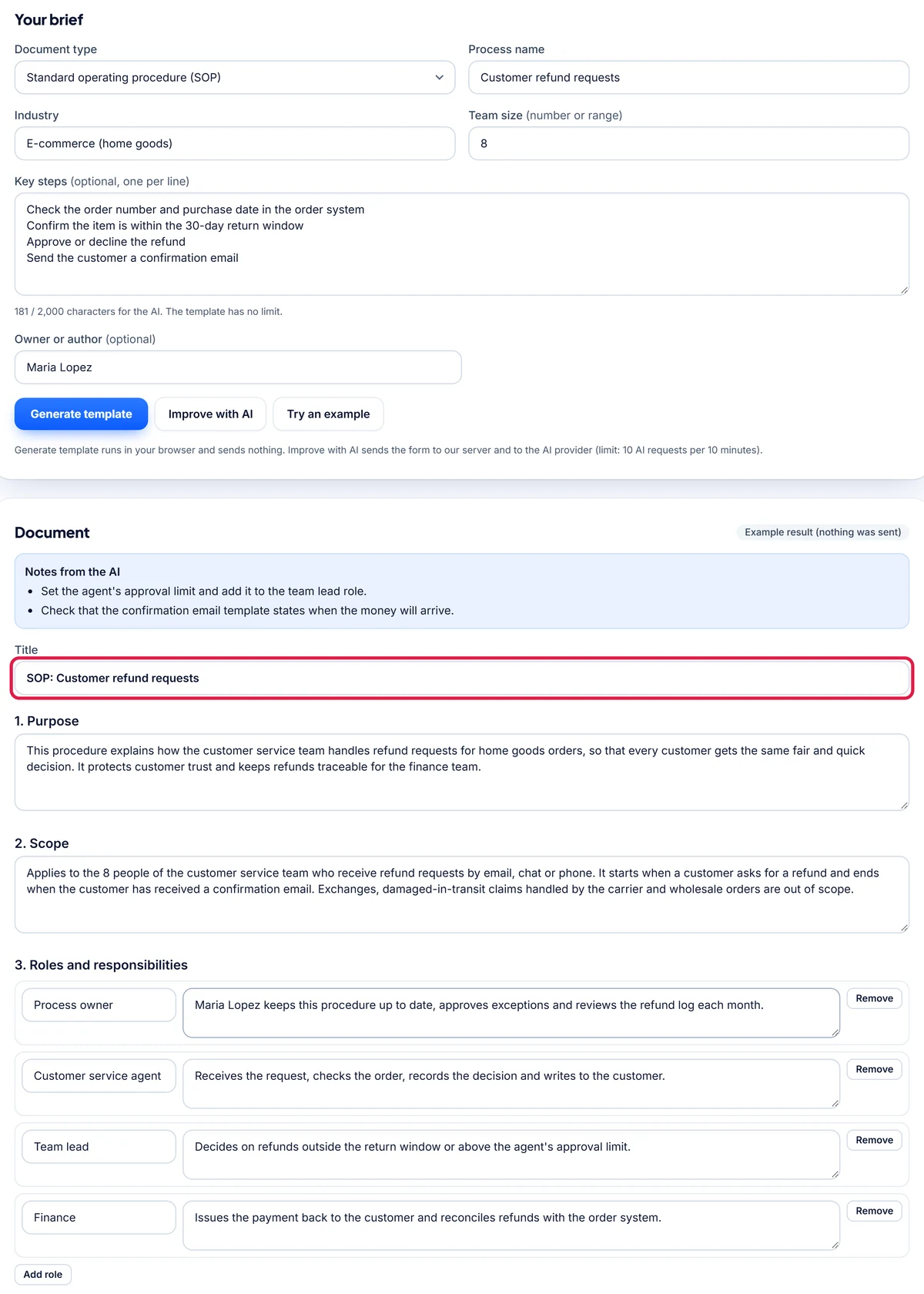
The result is a document with six sections: 1. Purpose, 2. Scope, 3. Roles and responsibilities, 4. Steps, 5. KPIs and 6. Revision history. The Title reads "SOP: " followed by the process name. In the refund example, the owner Maria Lopez appears under Roles and in the revision history, and every field can be edited.
Where the generator cannot know a fact, it leaves a gap and marks it with "[to be completed]". The generated purpose, for instance, ends with "Why it matters: [to be completed]", and the scope says "Starts when: [to be completed]. Ends when: [to be completed]. Out of scope: [to be completed]." It does not invent regulations, deadlines or figures. A gap is better than an invented number, because an invented number in a procedure gets followed.
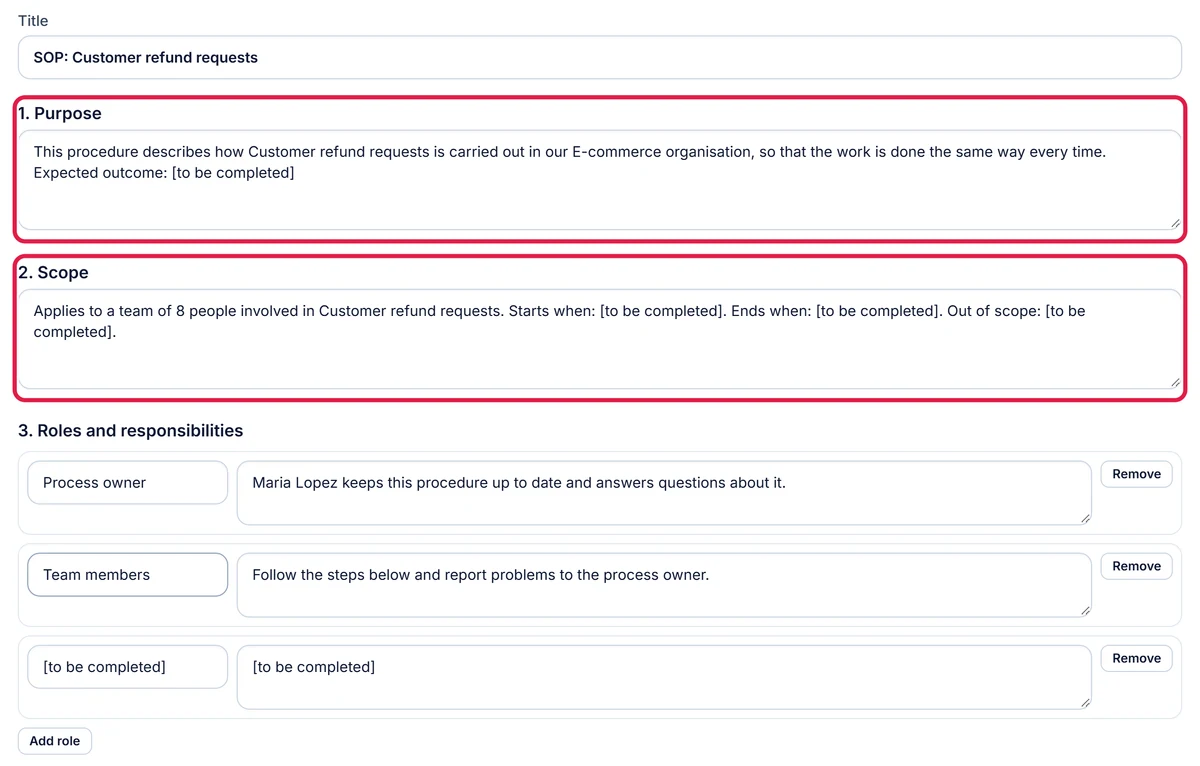
Search the document for "[to be completed]" and work through the gaps. They are the facts that only your team has: the time limit for a refund, the person who approves it, the system that is used.
Improve with AI keeps your steps
If you want help with the gaps, press Improve with AI. It writes the purpose, the scope, the roles, the steps and the KPIs, and it uses the key steps that you gave. In my test with a laboratory and three key steps (alert people nearby, identify the substance from its label, use the spill kit), the three steps stayed in the list in the AI’s own wording, and the AI added more steps around them. A box Notes from the AI lists what you still have to decide; in my test it asked, among other points, to make sure that every chemical has a current safety data sheet and to set out the approved waste disposal route. The KPIs it wrote still carry "Target: [to be completed]", because the AI does not know your targets.
The AI text is a draft, like any generated text. Read what it adds. Remove statements that do not match how your team works, and check that no regulation or figure appears that you did not give. You are the one who answers for the document.
This step sends the form to our server and to an AI provider, unlike the generation of the template, and the limit is 10 AI requests per 10 minutes. Leave out confidential details, such as customer names and account numbers, before you use it. The SOP describes a process and does not need them.
Edit steps, roles and KPIs
Edit the document directly. Three parts need most of your attention:
- Steps: write each step as an action with one actor, for example "The agent checks the order date in the system". Number them in order. Keep to one action per step.
- Roles: name who does, who approves and who is informed. Use job titles and not only names, so that the SOP survives a change of staff.
- KPIs: the measures that show whether the process works, such as the time to complete a refund or the share of refunds that are completed without a second contact. Use measures that you actually track, and do not add numbers that you do not have.
A procedure with branches is easier to follow as a diagram. The Text to Mermaid Diagram Generator turns the steps into a flowchart. For a company rule and not a procedure, see Create a Policy Document From a Template.
Export to Word, Markdown or PDF
When the SOP is ready, export it. The buttons under the document are Copy, Download Markdown, Download Word (.docx) and Print / Save as PDF.

Word is the usual choice for a document that others will edit and approve. Markdown suits a team that keeps its documentation in a repository or a wiki. Print to PDF gives a fixed version to send around or to archive. Print / Save as PDF opens the print dialog of your browser with only the document on the page, so choose the PDF printer there. There is no server that makes the PDF.
Add a version number and a date to the document, and plan a review. If you work in Markdown and need a Word file later, the DOCX to Markdown Converter also converts Markdown to Word, and Word to Markdown the other way.
Try it
Open the SOP & Policy Template Generator, enter the process, the industry, the team size and the owner, and press Generate template. Work through every "[to be completed]", edit the steps, roles and KPIs, and export the SOP.