
Summarize a Long Document Without Losing the Figures
How to summarize a long document with the AI Document Summarizer: length and tone, the section-by-section digest, key points with source quotes, and the limits of 20,000 characters and no PDF.
A busy reader needs the main points of a long report in a few lines, and needs the figures in those lines to be right. The AI Document Summarizer writes a summary of pasted text in the length and tone that you choose, adds an optional digest for each section, and lists key points with the quotes that support them. This guide shows how to use it so that numbers survive the shortening, and tells you what to check.
Choose length and tone
Before you press the button, choose two things.
Length: Short is about 3 sentences, Medium is one paragraph, and Long is two paragraphs. A short summary suits a message to a busy manager. A long one suits a person who needs the structure of the argument and not only the conclusion.
Tone: Executive, Technical or Simple. The executive tone puts decisions, results and consequences first. The technical tone keeps terms and method. The simple tone explains in plain words for readers who do not know the field.
The summary is written in the language of the document. A French report gives a French summary, and you do not have to set the language.
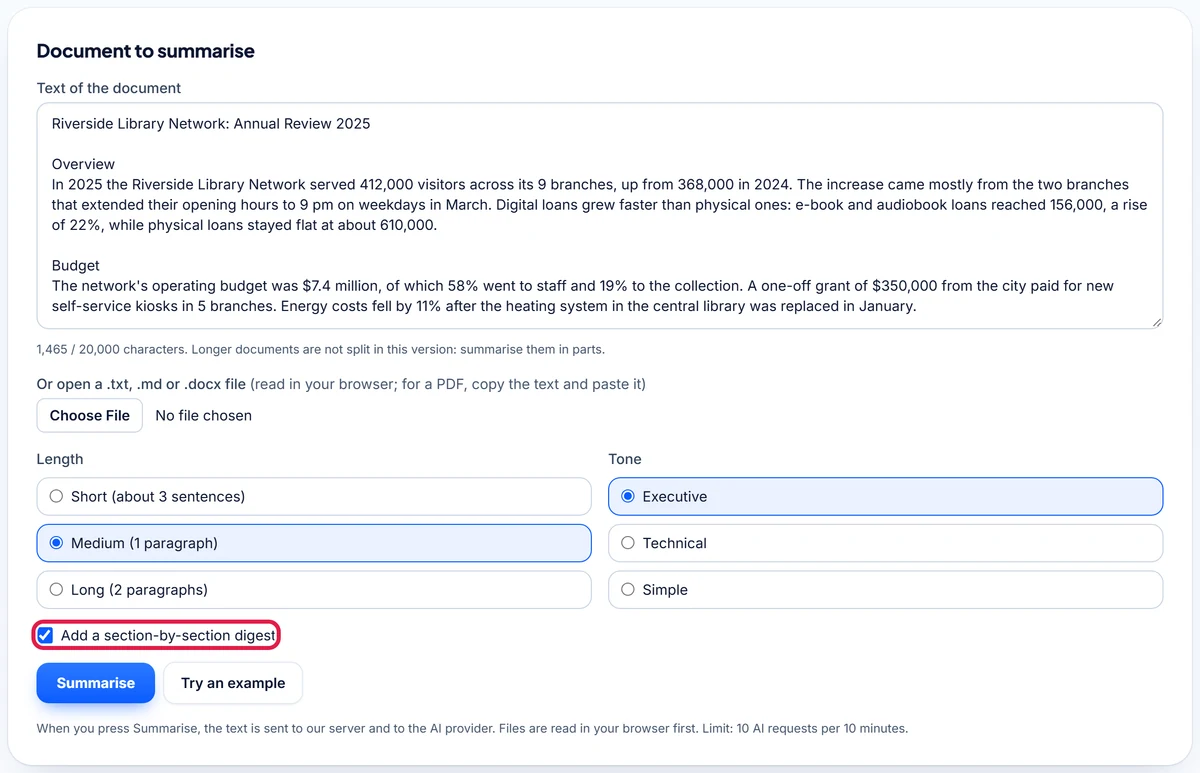
The example of the tool is an annual review of the Riverside Library Network. With Medium length and Executive tone, the saved result is a paragraph of 119 words for an original of 249 words, and the tool states "52% shorter". It says what the network did, what it received and what comes next.

Read it once against the report. If a sentence does not match the document, the key points below it show where to look.
Section-by-section digest
A summary of a whole report loses the structure. The option Add a section-by-section digest adds a list below the summary with one short entry for each section of the document. A reader can see what each part says and go to the part that matters to them.
This is useful for reports with headings, such as a project report, a policy paper or a long email with several topics. If the text has no clear sections, the digest follows the topics that the AI finds.
Use the digest to check coverage. If a section of the report that matters to you is missing in the digest, the summary may have left out something that you need. Choose a longer length, and read that section in the original. In the example, the digest has four entries: Overview, Budget, Programmes, and Challenges and next steps.
Key points with source quotes
Next to the summary, the tool lists key points. Each one is a short statement with a quote from your text that supports it. The quote is the check.
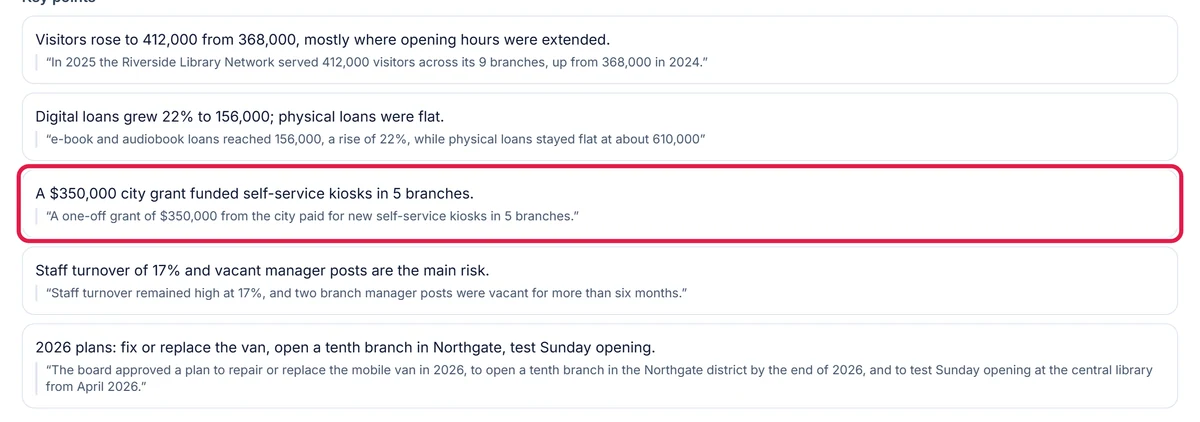
In the example, one key point says that the network received a grant of $350,000. The quote under it is the sentence of the report that contains the amount. If the key point says $350,000 and the quote says $305,000, the key point is wrong, and you should not pass it on.
Do this for every figure that you plan to use: amounts, dates, percentages and names. Summaries are where figures change most easily, because a number is one token among many, and a small slip is invisible in a fluent sentence. A routine for the check is in Check the Numbers in an AI Summary Before Sharing.
Limits: 20,000 characters, no PDF
The text must be between 200 and 20,000 characters, which is about 3,000 words. Shorter text is not worth summarizing: with a text of 190 characters the tool answers "Paste a longer text (at least a few paragraphs, 200 characters)". A longer text does not fit. You can also open a .txt, .md or .docx file, which is read in your browser. Each summary is one AI request, and the limit is 10 requests per 10 minutes.
PDF files are not accepted. Copy the text out of the PDF and paste it in. Check the pasted text for page headers, footers and broken lines, which can distract the summary. If a PDF is a scan, the text has to be recognised first; see PDF to Excel Finds No Table: The PDF Is a Scan.
For a longer document, split it into parts at the chapter boundaries and summarize each part. Then summarize the summaries if you need a single short text. Keep the figures in mind at that step: a summary of summaries is two steps away from the source, and the quotes no longer point to the original text, so go back to the source for any figure that you quote.
For documents with a specific structure, other tools do better. Extract Key Terms From a Contract: Dates, Fees, Renewal covers contracts. To pull tasks out of notes, use the Action Item Extractor, as in Extract Action Items From Meeting Notes or Emails.
Try it
Open the AI Document Summarizer, paste your text and choose the length and the tone. Tick the section-by-section digest if the document has parts, and check every figure in the key points against its source quote.