
Extract Action Items From Meeting Notes or Emails
How to extract action items from meeting notes or an email thread: the reference date, owners and Unassigned tasks, the source sentence of each task, and the CSV or checklist export.
Long meeting notes and email threads hide tasks in the middle of sentences: who is to do what, and by when. Paste it into the Action Item Extractor. It returns a list of tasks with an owner and a due date for each, shows the sentence each task came from, and lets you download the list as a CSV that opens in Excel.
Set the reference date
People write "tomorrow" and "next Friday", and a task list needs calendar dates. The tool turns these phrases into dates, and for that it needs to know what day they are counted from. This is the field Reference date (what "today" means in the text). Set it to the day when the notes were written or the email was sent, not to today, if the two are different. The button Today fills in the current date.
A date reader inside the tool resolves phrases such as tomorrow, Friday, next Friday, end of the month, in 2 weeks and a plain date like 4 December. Resolving these is done by fixed rules and not by the AI, so the same phrase and the same reference date always give the same due date.
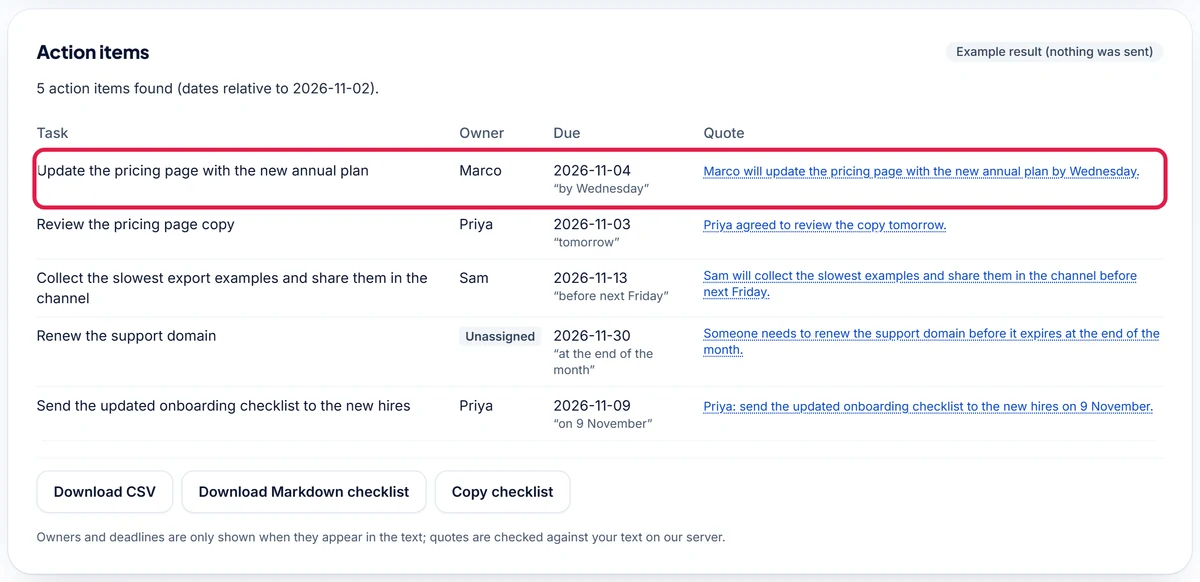
In the example of the tool, the notes are from a meeting on Monday 2 November 2026 and the reference date is 2 November, so "tomorrow" becomes 2026-11-03 and "by Wednesday" becomes 2026-11-04. If you used a later reference date, every due date would move with it. Check the field before you press the button, especially when you work on old notes.
Steps: paste and Extract action items
- Open the Action Item Extractor.
- Paste the notes or the thread, or open a .txt or .md file.
- Check the Reference date.
- Press Extract action items, or press Try an example. The limit is 10 AI requests per 10 minutes.
- Read the list under Action items and the quotes.
The text can be up to 20,000 characters, and the files that you can open are .txt and .md. For other formats, copy the text and paste it. For a meeting that was recorded, the Meeting Minutes from Transcript tool works with caption files, as described in Write Meeting Minutes From a Zoom or Teams Transcript.
Worked example: an email thread
The example of the tool finds five tasks in a set of meeting notes. Three of them show the typical cases:
- "Marco will update the pricing page with the new annual plan by Wednesday." The task is Marco's, due 2026-11-04.
- "Sam will collect the slowest examples and share them in the channel before next Friday." The task is Sam's, due 2026-11-13.
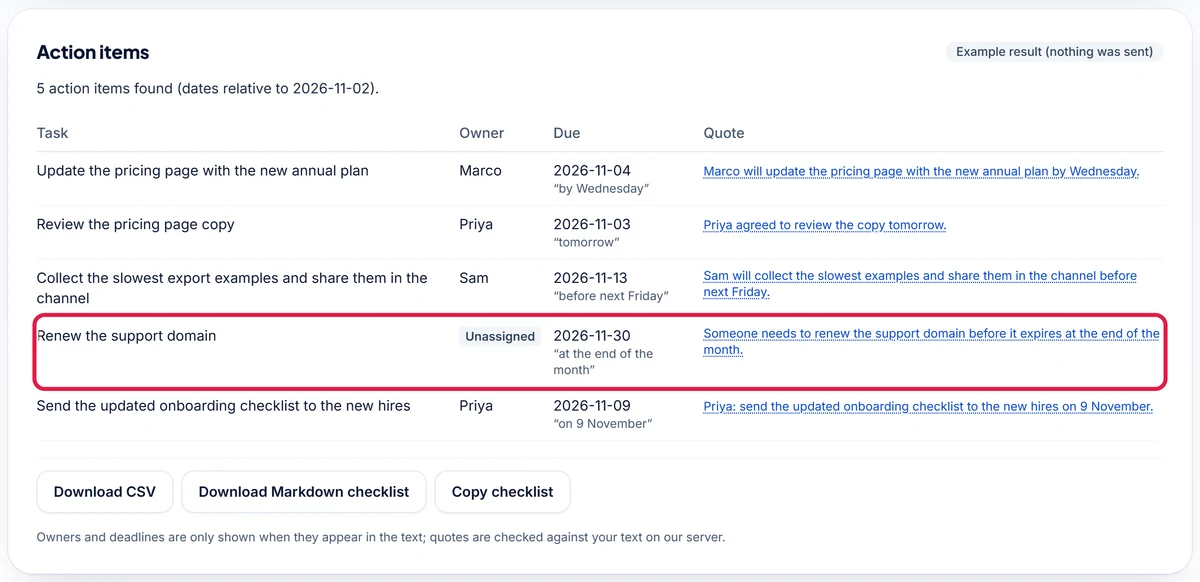
- "Someone needs to renew the support domain before it expires at the end of the month." Nobody is named, the owner is Unassigned, and the due date is 2026-11-30.
The three tasks show a phrase with a weekday, a phrase with a deadline word and a task that nobody has taken. The third is easy to lose in an email thread, because everyone assumes that someone else will do it.
How the phrase "next Friday" becomes a date is explained in How 'Next Friday' Becomes a Due Date in Task Lists. The difference between this Friday and next Friday is one of the usual sources of errors.
Owners: named or Unassigned
The owner is taken from the text. If a person says "I will" or someone says "Sam, can you ...", the owner is that person. If nobody is named, the task shows as Unassigned. The tool does not guess an owner.
For each task, the sentence of the text that it came from is shown in the column Quote, and the phrase that gave the due date is shown under the date, for example "at the end of the month". Click the quote to see the sentence selected in your text, and read it in its context.
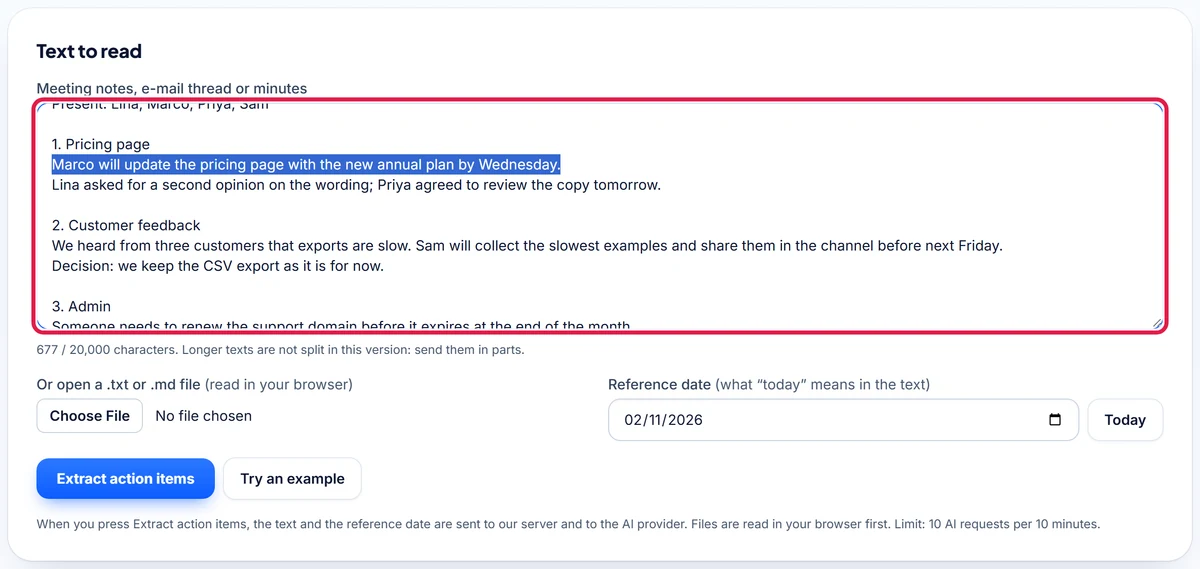
This is the check that you should always do. A task can be a suggestion and not a commitment, or a person can have said that they would do something and withdrawn it in the next message. The quote shows you what was written.
Go through the Unassigned tasks first. They are the ones that will not happen unless you give them to someone.
Export to CSV or a checklist
The list can be downloaded as a CSV file, which opens directly in Excel. Each task is a row, with the task, the owner and the due date, so you can sort by owner or by date, add a column for the status and share the file.
You can also download a Markdown checklist or press Copy checklist and paste the tasks into an email, a chat or a project tool. For a short summary of the whole text to go with the tasks, use the AI Document Summarizer; Summarize a Long Document Without Losing the Figures explains how.
Limits
The text can be up to 20,000 characters, and files can be .txt or .md. A longer thread has to be split into parts. The tool finds tasks that are written in the text. It cannot find a task that was agreed by a nod, in a call that was not recorded, or in an attachment that you did not paste.
A task list from a machine is a draft. Read it before you send it to others. Check owners and dates, correct what is wrong, and take out entries that are not real commitments.
Try it
Open the Action Item Extractor, paste your notes or thread and set the reference date. Press Extract action items, read the source sentence of each task, assign the Unassigned ones, and download the CSV.