
Write Meeting Minutes From a Zoom or Teams Transcript
How to turn a Zoom or Teams transcript into minutes: the file formats, the date that deadlines are counted from, decisions, action items and open questions, and the source sentence of each item.
After a call on Zoom or Teams, the transcript exists, but the minutes still have to be written: what was decided, who does what, and by when. The Meeting Minutes from Transcript tool writes the first draft. Load the file, set the title and the date, and the tool lists decisions, action items and open questions, with a source sentence for each.
Which transcript files work
The tool accepts transcript files in these formats: .vtt, .srt, .txt and .docx. The first two are the caption formats that Zoom and Teams export. The format .vtt is WebVTT, which is defined by the W3C WebVTT specification. A .txt or .docx file works for a transcript that you copied or exported as text.
The transcript can be up to 60,000 characters long. That is enough for a long meeting, but a very long session may need to be split into parts.
The tool works with text only. It does not take audio or video. If you only have a recording, turn it into a transcript first with the transcription feature of your meeting software, and then load the transcript.
Minutes are written in the language of the transcript by default, so a French meeting gives French minutes.
Steps: title, date, Count deadlines from, Write minutes
- Open Meeting Minutes from Transcript.
- Paste the transcript or open the file with Choose File, or press Try an example.
- Enter the Meeting title and the Meeting date, both optional, and choose the Language of the minutes (the default is Same as the transcript).
- Check Count deadlines from.
- Press Write minutes.
Subtitle files carry time codes. They are removed unless you tick Keep subtitle times as [mm:ss]. The limit is 10 AI requests per 10 minutes.
The field Count deadlines from sets the date that relative deadlines are counted from. People say "by tomorrow" or "in two weeks", and the transcript does not contain the calendar date. The tool needs a starting point to turn these phrases into dates. Usually that is the date of the meeting.
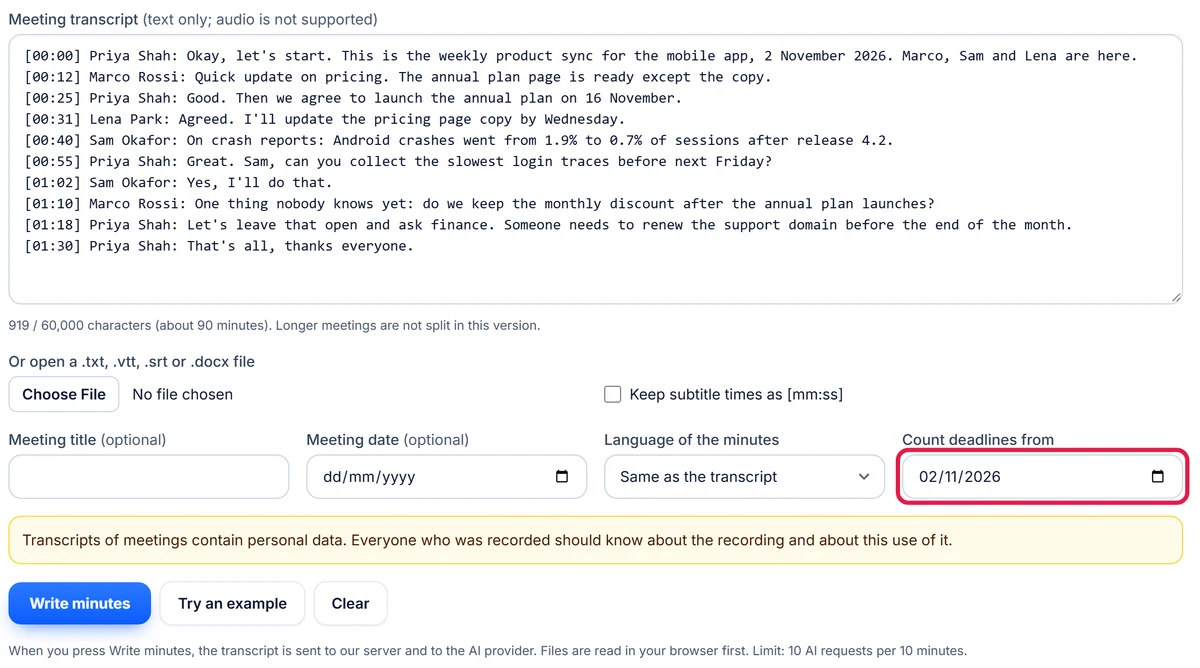
If you write the minutes a few days after the meeting, check this field. If it is set to the day you write the minutes, "tomorrow" is counted from the wrong day, and every deadline moves.
Decisions, action items and open questions
The minutes start with the title, the date and the line "Deadlines counted from …", then the Attendees and an Agenda with one short paragraph for each topic. The rest is split into three groups:
- Decisions: what the participants agreed on.
- Action items: who does what, with an owner and a due date.
- Open questions: points that were raised and not settled.
This is the structure that a reader looks for. A decision tells people what is now fixed, an action item tells one person what to do, and an open question tells the group what still needs an answer.
In the example of the tool, a weekly product sync of 2 November 2026, there is one decision (launch the annual plan on 16 November), one open question (whether to keep the monthly discount) and three action items: Lena Park, due 2026-11-04, Sam Okafor, due 2026-11-13, and a third item with no owner, shown as Unassigned, due 2026-11-30. A table lists the Task, the Owner, the Due date and what was Said.

An item that is Unassigned needs your attention before you send the minutes. Nobody was named in the transcript for that task. Decide who owns it and change the name, or ask in the meeting that follows.
Every item shows its sentence
Each item comes with the sentence of the transcript that it was taken from, in the column Said for action items and under the item for decisions and open questions. This is the part that makes the result checkable. If the minutes say that Sam Okafor owns an action due on 2026-11-13, you can read the sentence and see what was said and how the date was derived.

Read the source sentence for every action item and for every decision before you send the minutes. A transcript can be wrong, especially for names and numbers, and a speaker can change an agreement later in the same meeting. The sentence shows you the context in seconds.
If the transcript labels speakers as Speaker 1 and Speaker 2, the minutes cannot name owners. This is explained in Minutes Show 'Speaker 1' Instead of Names. For notes that did not come from a transcript, such as an email or a typed list, see Extract Action Items From Meeting Notes or Emails and the Action Item Extractor.
Limits: text only
The tool takes a transcript of up to 60,000 characters, in the four file formats. It does not process audio, and it cannot know what was not said or what was not transcribed. A decision that was made by a nod, or a side conversation that the transcript did not capture, will not be in the minutes.
The minutes are a draft. A person who was in the meeting should read them, correct them and then send them. This matters most for commitments with dates and amounts. You can copy the minutes, download them as Markdown or as a Word file, download the action items as a CSV, or copy a checklist.
For a short summary of the whole text with the figures intact, the AI Document Summarizer is the better tool, and Summarize a Long Document Without Losing the Figures explains how to use it.
Try it
Open Meeting Minutes from Transcript, load the transcript and enter the title and the date of the meeting. Check Count deadlines from, press Write minutes, and read the source sentence of every action item before you send the result.