
Minutes Show 'Speaker 1' Instead of Names
Why meeting minutes show Speaker 1 and Speaker 2 instead of names, how to rename speakers in the transcript, why vague deadlines stay as words, and how to check each item's sentence.
When the minutes list Speaker 1 and Speaker 2 as the attendees and the action items belong to Speaker 2, the transcript has no names. A transcript with generic labels gives the Meeting Minutes from Transcript tool nothing else to use, so it lists those labels and invents no names. I checked this with a short test call of five lines. The fix is to put the real names into the transcript before you load it.
Why names are not invented
The attendees list in the minutes is built from the speaker labels in the transcript. If the labels are Speaker 1 and Speaker 2, those are the attendees: in my test the Attendees line read "Speaker 1, Speaker 2", and the owners of both action items were Speaker 2. The tool does not try to work out who the speakers are from what they say, because that would be a guess.
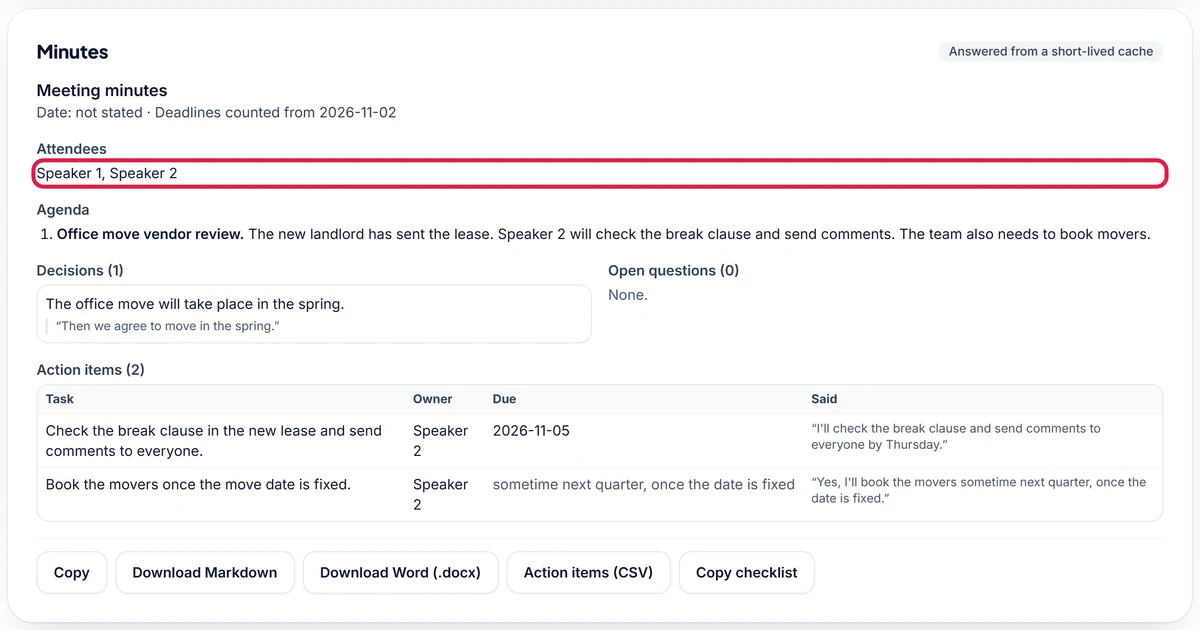
A guess is dangerous here. Minutes are a record of who agreed to do what. An action item with an invented name puts a task on a person who may not have been in the meeting, and the mistake looks like a fact. A label such as Speaker 2 tells the reader that the owner is not identified, and it invites a correction.
Generic labels appear when the source of the transcript does not know the names: a call where people dialled in, a recording that was transcribed from audio only, or a transcript that lost its speaker names on export. Transcripts from meetings where participants are signed in usually carry their display names.
Rename speakers in the transcript first
The reliable fix is to rename the speakers in the file before you load it. The tool reads text, so a text editor is enough.
- Open the transcript in an editor. A .vtt, .srt or .txt file opens in any text editor, and a .docx file in Word.
- Use find and replace to change each label to a name. Replace Speaker 1 with the first person's name, and Speaker 2 with the second.
- Keep the form of the lines. If the lines are written as a label, a colon and the text, keep that form with the name in the place of the label.
- Save the file and load it into the tool.
Check that the same person has one name throughout. A speaker who appears as Speaker 3 in one part and Speaker 1 in another, because the transcription restarted, needs the same name in both places.
The result now lists real attendees, and the action items carry real owners. The complete workflow, from the file to the minutes, is in Write Meeting Minutes From a Zoom or Teams Transcript.
If you do not know who spoke, ask a participant before you send the minutes. It is better to leave a label than to put a wrong name.
Vague deadlines stay empty
A second case where the tool leaves something open is a vague deadline. If a speaker says that something will be done "sometime next quarter", the tool does not turn it into a date. In my test, the due column of the action item shows the words "sometime next quarter, once the date is fixed" instead of a calendar date.

"Next quarter" is not a date. It could be the first day, the last day or any day in between, and the tool does not choose one. A chosen date would look like a commitment that nobody made. The words are kept, so the reader sees exactly what was said and sees that no date was set, and you decide what to do: ask the owner for a date, or set one by agreement and write it in.
Precise phrases are resolved, as long as the tool knows the date from which to count. In the same test, "by Thursday" became 2026-11-05 with 2 November 2026 in the field Count deadlines from. The rules are explained in How 'Next Friday' Becomes a Due Date in Task Lists.
An action item without a date is still an action item. Do not remove it. Mark it for follow-up so that it is not forgotten.
Review each item's sentence
Every decision and action item comes with the sentence of the transcript that it was taken from. Use it for each item, especially for owners and dates.

Read the sentence and ask three questions. Does it name the owner, or did the tool take the label of the speaker? Is the due date in the sentence, or was it derived from a phrase and a reference date? Was it a commitment, or only a suggestion that nobody took up?
When the owner is a label such as Speaker 1, you can often tell who it is from the sentence and the context, but do not put a name into the minutes on that basis alone. Confirm it, or rename the speaker in the transcript and generate the minutes again, which takes seconds.
Try it
Open your transcript in a text editor and replace each generic label with a real name. Load the file into Meeting Minutes from Transcript, set the date to count deadlines from, press Write minutes, and read the sentence of each action item and each empty due date.