
Extract Email Addresses From Text and Remove Duplicates
How to extract email addresses from a long text: paste it, read the standard form and the count of each address, remove duplicates, and download the list as CSV or JSON.
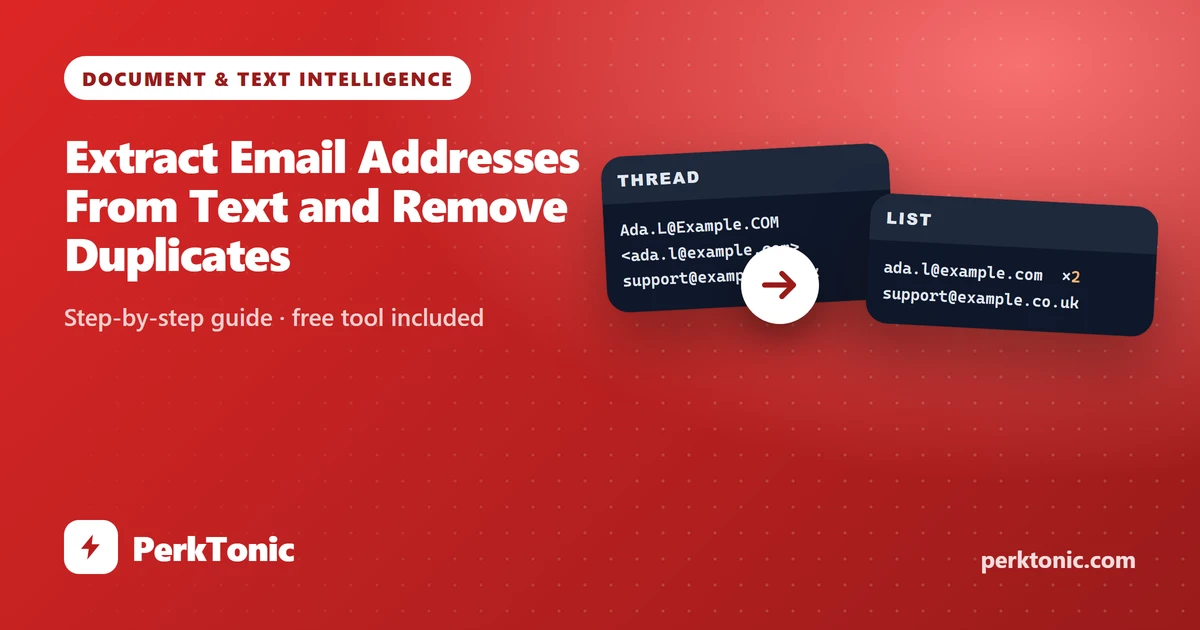
A long email thread or a document contains many addresses, repeated in different places and written in different ways. Paste it into the Text Data Extractor to get them out. It finds every address, writes each in a standard form, counts how often each one appears and lists it once, so you get a clean list without copying addresses by hand.
Paste the text
Open the Text Data Extractor and paste the text. It can be a thread, a document, a web page that you copied or a list that is mixed with other text. The tool works in your browser, so the text stays on your computer while it is analysed.
The tool does not look only for email addresses. It looks for several kinds of data at once, such as phone numbers, links and amounts, and shows each kind as a category. You can ignore the categories that you do not need and use the one that you want.
Press Try an example to see it work. In the support-thread example, the pasted text gives "22 items in 779 characters" in ten groups: Emails, URLs, Phone numbers, Dates, Money amounts, Hashtags, @mentions, IPv4 addresses, IPv6 addresses and IBAN-like numbers, plus the result of an optional pattern of your own. The email addresses are one of these groups. The others are different kinds of data, which are covered in Extract Phone Numbers and Amounts From Text. The tool states that people, company and place names are not extracted.

Results grouped by category
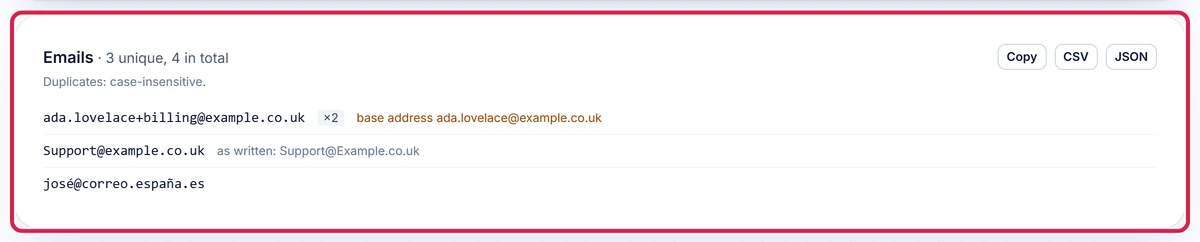
The result is grouped by category, and the buttons under Found (Emails (3), URLs (2) and so on) show how many items each group has. Look at the group Emails. It lists one row for each distinct address, and says "3 unique, 4 in total" in its heading.
Each address is listed once, even if it appears several times in the text, as long as the option Remove duplicates is ticked, which is the default. The second and third appearance do not create new rows, they raise a count shown as ×2. A thread in which the same person answers five times shows that address once, with ×5.
The count is useful beyond the removal of duplicates. An address with a high count belongs to a main participant of the thread, and an address with a count of one was mentioned once, for example in a signature or in a copied line. This helps you to decide whom to contact.
Standard form and how it was written
Each item shows its standard form, how it was written in the text when that differs, the count and sometimes a note.
The standard form is the cleaned version of the address, written in lower case and without surrounding characters such as angle brackets or a trailing full stop. In the example, Support@Example.co.uk is listed as support@example.co.uk, with "as written: Support@Example.co.uk" next to it. If the same mailbox is written in two ways, both are the same address in the standard form, so they are merged into one row with the count of both. The notes explain anything unusual: for ada.lovelace+billing@example.co.uk the tool adds "base address ada.lovelace@example.co.uk", because the part after the plus sign is a label that many mail providers ignore. The group also says "Duplicates: case-insensitive".
The tool finds addresses by their shape, and the rules for the shape of an address are set out in RFC 5322. It does not extract person names. A name next to an address, as in "Ada Lovelace ada@example.com", gives the address, and the name is not taken. This keeps the list limited to the data you asked for.
Check the result against the text for addresses that were broken by a line break, or written in the form name at example dot com. A tool that reads the shape of an address does not find an address that is written in words. The example also contains an address with an accent in the domain, josé@correo.españa.es, and the tool finds it.
Download as CSV or JSON
When the list is right, download it. Each group has three buttons: Copy, CSV and JSON. Download all (JSON) at the top saves every group in one file. The CSV opens in Excel and can be imported into a mailing or CRM tool. The JSON suits a script.

Before you import the list anywhere, check that it is a list that you may use. Addresses that you pulled from a thread are not automatically allowed to receive a mailing. Respect the rules for consent and for data protection that apply to you.
The list may also contain addresses that are written correctly but do not exist, or addresses of systems such as no-reply senders. For a syntax check, a lower-case form and a list of invalid values, load the CSV into the CSV Phone, Email & Name Standardizer, and read Validate and Clean Email Addresses in a CSV.
If you need to pull out a kind of text that has its own pattern, such as order numbers or ticket IDs, the section Your own pattern (optional) of the same tool takes a regular expression: see Extract Order Numbers or Ticket IDs With a Pattern. The Regex Tester & Generator helps to build and test the pattern.
Try it
Open the Text Data Extractor, paste your thread or document and open the email category. Read the standard form, the way it was written, the count and the note of each address, and download the list as CSV or JSON.