
Extract Order Numbers or Ticket IDs With a Pattern
How to extract ticket IDs or order numbers with your own regular expression in the Text Data Extractor: the pattern field, a worked example, testing first and exporting the list.
Order numbers and ticket IDs follow the format of your own company, so no standard extractor knows them. Add your own pattern to the Text Data Extractor to extract them. A pattern is a regular expression that describes the shape of the ID, and the tool finds every match in a long conversation and lists it. This guide shows the steps with a worked example.
Add your own regular expression
The Text Data Extractor finds standard kinds of data by itself, such as emails, phone numbers and amounts. For anything else, the section Your own pattern (optional) has a field Regular expression (JavaScript syntax) and a field Flags. Enter a regular expression there, and the tool adds a group with the matches, named after your pattern, such as "Your pattern /#[A-Z]-\d+/gi". A pattern runs in a separate background thread and is stopped after 1.5 seconds, so a slow pattern cannot freeze the page.

A regular expression, or regex, describes text by its shape: which characters, in which order, how many. The language has a few building blocks:
- A literal character matches itself, such as # or a hyphen.
- [A-Z] matches one capital letter. [0-9] or \d matches one digit.
- A + after an item means one or more of it.
- Flags change how the pattern is applied. The flag g finds all matches and not only the first, and i ignores upper and lower case.
The guide to regular expressions on MDN, Regular expressions, explains these and more.
Worked example: #[A-Z]-\d+
Suppose your tickets look like #A-1042: a hash sign, a capital letter, a hyphen and some digits. The pattern is:
#[A-Z]-\d+
Read it from left to right: a #, then one letter from A to Z, then a hyphen, then one or more digits. Use the flags gi, so that every match is found and letters in lower case also count. The tool opens with exactly this pattern and these flags in the two fields.
On the support thread of the example, this pattern gives #A-1042, and the group says "1 unique" and "Duplicates: case-insensitive (i flag)".

One detail is worth noting. The Text Data Extractor also has a group for hashtags, which are words that start with #. A ticket ID that starts with # looks like a hashtag at first sight. In the example, the Hashtags group lists only #Refunds and #Q4, and #A-1042 appears only in your own group. The result is a clean list of tickets, and the hashtags are not polluted with IDs.
The pattern above matches a single letter. If your IDs have several letters, such as #ABC-1042, use [A-Z]+ for one or more letters, so that the pattern becomes:
#[A-Z]+-\d+
Adapt the pattern to your format. For order numbers like ORD-2026-00417, the shape is ORD, a hyphen, a year and a number, so the pattern is ORD-\d{4}-\d+. The part {4} means exactly four digits.
Test the pattern first
A pattern that is almost right finds almost the right things. Test it on a sample before you run it on a whole conversation. The Regex Tester & Generator shows the matches highlighted in the sample text.
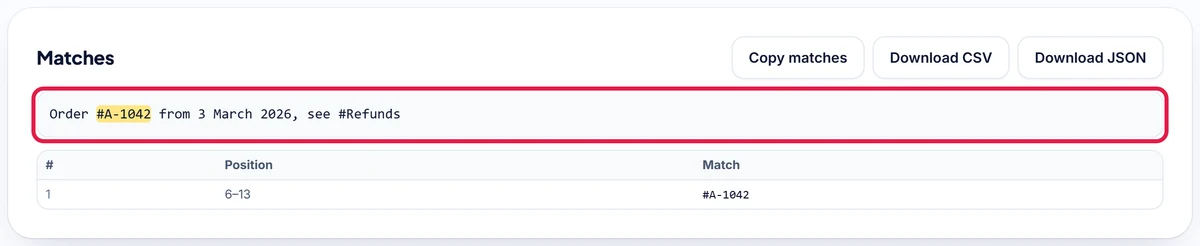
Paste a part of your text, enter the pattern with the same flags, and look at the highlights. Check three things:
- Every ticket ID in the sample is highlighted.
- Nothing else is highlighted, such as a part of a phone number or a date.
- The highlight covers the whole ID, not a part of it.
If something is missing, the pattern is too strict. If too much is highlighted, it is too loose. Change one part and look again. For patterns with named parts, for example on log lines, see Test a Regex Online With Named Groups on Log Lines.
A pattern that is too broad creates false matches. A short pattern such as \d+ matches every number in the text, including prices and dates. Anchor your pattern to something that is specific to your IDs, such as the prefix, the hyphen or the number of digits.
Export the list
When the pattern is right, paste the full text. The matches appear in their own group, with the count of each ID. An ID that appears ten times in a conversation is listed once with ×10, which helps you to see the main topic of the thread.
Download the group with its CSV or JSON button. The CSV opens in Excel, where you can sort the tickets and compare them with a list from your ticket system. Check that no ID is missing by comparing the number of IDs with what you expect.
For other kinds of data in the same text, such as email addresses, see Extract Email Addresses From Text and Remove Duplicates.
Try it
Open the Text Data Extractor, paste your conversation and enter the pattern #[A-Z]-\d+ in the field Regular expression with the flags gi. Adapt it to your ID format, test it in the Regex Tester & Generator first, and download the list.