
Turn a Scanned Table or Photo Into Excel
How to turn a photo or a scan of a table into a spreadsheet with OCR: the accepted files, choosing the language, comparing image and table, amber cells and fixing cells before export.
A printed table that exists only as a photo or a scan cannot be edited, and retyping it invites mistakes. Add the image to the Scanned Table to Spreadsheet tool, pick the language of the text and check the result against the image. The tool reads the text with OCR, shows what it is unsure about, and lets you correct cells before you export.
What files work
The tool accepts two kinds of input:
- An image in JPG, PNG or WebP format, up to 10 MB.
- A scanned PDF of up to 10 pages.
The recognition runs in the browser, so the image does not have to be uploaded to a server for the OCR step. A phone photo of a printed page works, as does a scan from a copier. The more even the light and the straighter the page, the better the result. The tool boosts the contrast to cope with shadows, but it cannot repair a very blurred or strongly tilted picture.
Handwriting is read poorly. The OCR is made for printed text, so a table that was filled in by hand will contain many errors. Use such a result only as a starting point and check every cell.
If your PDF contains real text and not a picture, use PDF to Excel (Table Extractor) instead. It reads the text directly and is more accurate than OCR.
Steps: add the image, pick the language
- Open the Scanned Table to Spreadsheet.
- Press Choose File and add the image or the scanned PDF, or press Try an example.
- Pick the Language of the table: English, French, German, Spanish or Arabic.
- Wait for the recognition to finish and look at the Original and recognised table.
The language matters because the OCR uses a model for it. The first time you use a language, the data for it is downloaded, so the first run is slower, and later runs are faster. Pick the language that matches the text. A table in French read as English loses accents and mixes up letters.
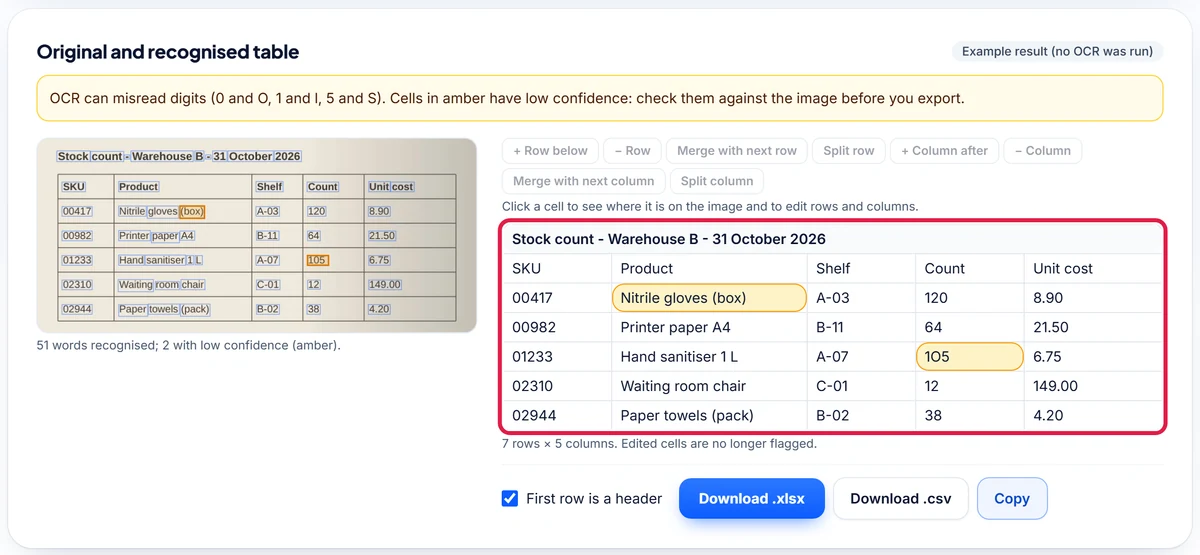
In the example of the tool, a photo of a stock count is read into a table of five columns and seven rows, with the title of the table in the first row. Check that the number of columns matches the paper table. If a column is missing or two columns are joined, the layout detection went wrong, and a better photo is the quickest fix.
Compare the image and the table
The tool shows the image and the recognised table next to each other. Use this to check, row by row, whether the table matches the picture. Do not skip it, even if the result looks plausible. OCR makes mistakes that look right: a 5 read as an S, a 0 read as an O, a missing decimal point.
Cells where the tool is unsure are marked. A word with a confidence below 70 out of 100 is shown in amber, and so is its cell. These are the cells to check first, because they are the most likely to be wrong.
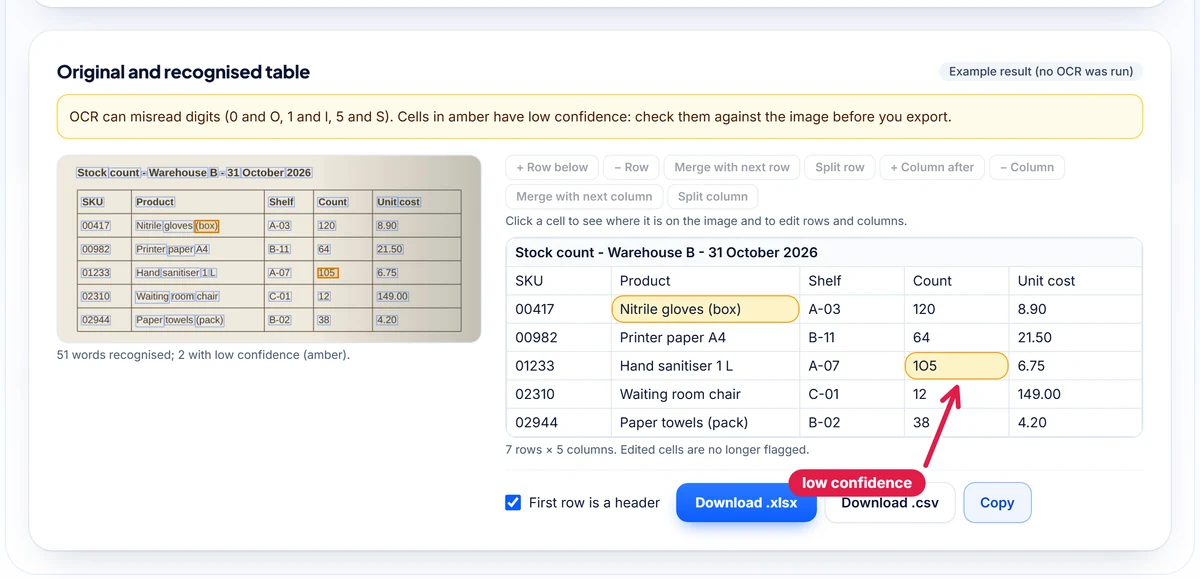
In the example, a cell reads 1O5, with the letter O instead of the digit 0. It is amber, because the tool is not confident about the reading. The true value is 105. Cells that are not amber can still be wrong, so the amber cells are a starting point and not a guarantee. A longer guide on this is OCR Table Mistakes: Find and Fix Low-Confidence Cells.
Fix cells before exporting
Correct the cells in the table before you export. Click a cell, type the right value, and compare the result with the image again. Fix the typical confusions first: letter O and digit 0, letter l and digit 1, S and 5, B and 8. In a column of numbers, every letter is an error.
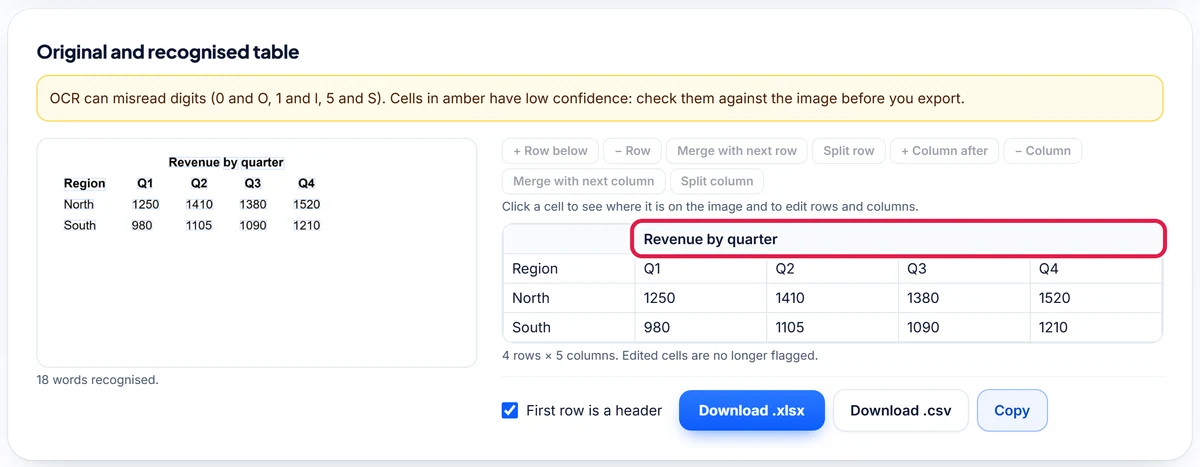
Look at the layout too. A table without borders can be read with columns shifted, and a heading that spans several columns can be recognised as one wide cell. I tested a table without borders that has a heading, Revenue by quarter, above four columns, rendered as a clean image. The tool read all 18 words correctly, kept the heading in a cell that spans the four columns, and the columns below stayed aligned. When you export, a merged heading is written as a merged cell.
When the table is correct, export it. For a CSV that will be loaded into another system, clean it first with Clean Messy CSV Data, which trims spaces and fixes other small problems. For a document with Arabic digits and right-to-left text, see OCR an Arabic Table to Excel With the Right Digits.
Limits
Files are limited to 10 MB for an image and to 10 pages for a scanned PDF. Handwriting reads poorly, and very small print, heavy shadows and tilted photos reduce the accuracy. The first use of a language needs a download of its data, so it needs an internet connection at that moment.
OCR is never perfect. For figures that matter, such as amounts or quantities, compare the totals of the spreadsheet with the totals on the paper. If a PDF turns out to hold no recognisable table at all, the reason is often that it is a scan, which is explained in PDF to Excel Finds No Table: The PDF Is a Scan.
Try it
Open the Scanned Table to Spreadsheet, add a photo or a scan and pick the language. Check the amber cells against the image first, correct the errors, compare the totals with the paper, and then export the table.