
OCR an Arabic Table to Excel With the Right Digits
How to read an Arabic table from a scan: the Arabic language and right-to-left option, column order, Arabic-Indic digits turned into numbers, and why every cell needs a check.
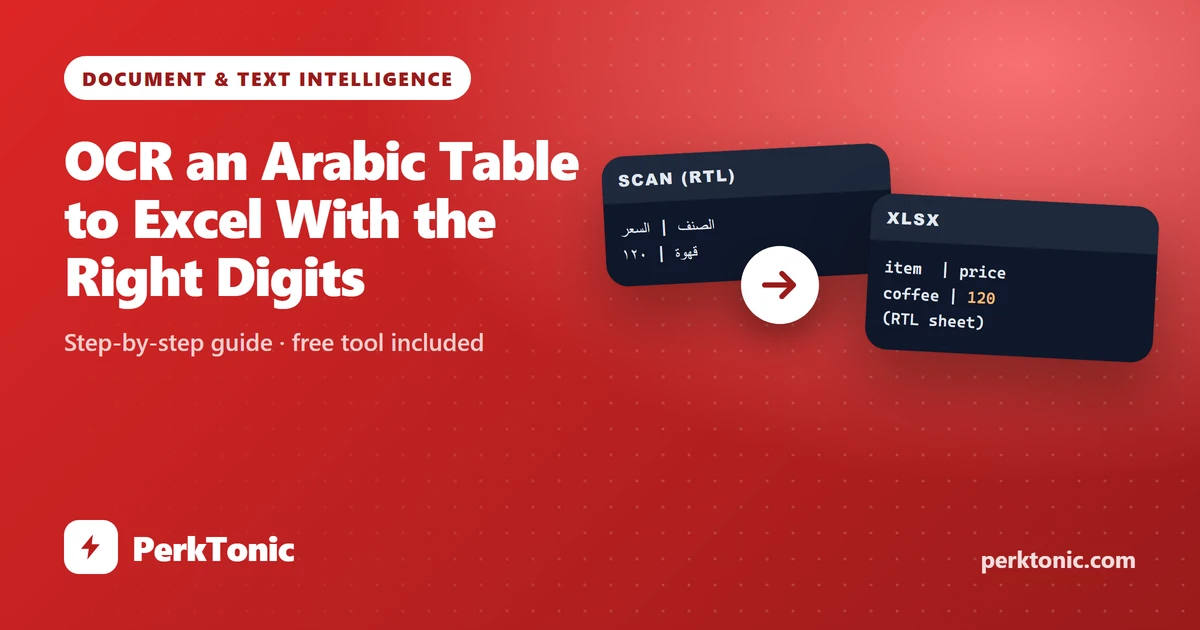
An Arabic price list that exists only as a scan has two special features: it reads from right to left, and it often writes numbers with Arabic-Indic digits such as ١٢٠. The Scanned Table to Spreadsheet tool can read Arabic. Choose Arabic as the language and tick Right-to-left table: the tool then keeps the column order of the page, turns Arabic-Indic digits into real numbers when you export, and writes a sheet that opens right to left. Arabic OCR is less accurate than OCR of Latin text, and this guide shows how to check the result.
Pick Arabic as the language
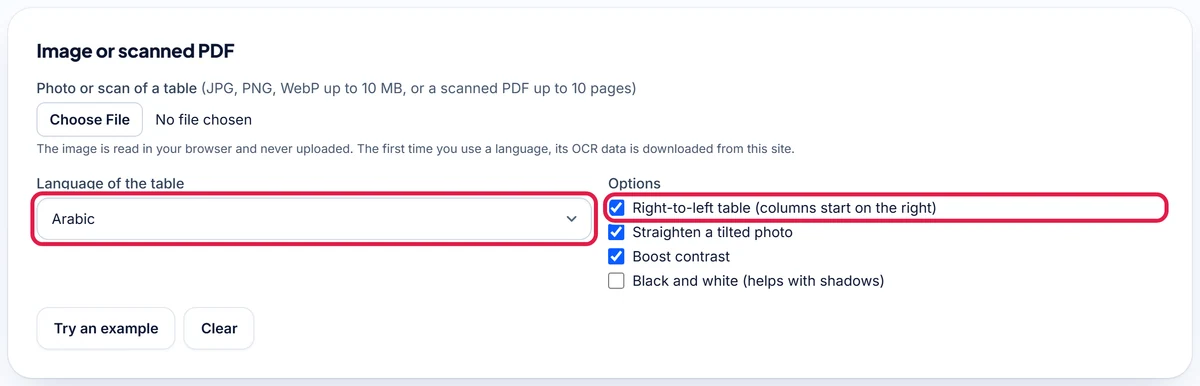
Add the scan or the photo, choose Arabic under Language of the table and tick Right-to-left table (columns start on the right). The OCR uses a model for each language, and Arabic text read with an English model comes out as nonsense. The first time that you use Arabic, its data is downloaded from this site, so the first run takes longer than the next ones.
The usual limits apply: an image can be up to 10 MB, and a scanned PDF up to 10 pages. The recognition runs in the browser. The general steps for photos and scans are in Turn a Scanned Table or Photo Into Excel.
The quality of the picture is important for Arabic. The letters change shape depending on their place in a word, and many letters differ only by the dots above or below them. A blurred photo or a low resolution loses the dots and gives wrong letters. Photograph the page flat, in even light and from straight above.
Column order right to left
In an Arabic table, the first column is on the right of the page. With the option Right-to-left table ticked, the tool keeps this order. Column 1 of the result is the rightmost column of the page, and the following columns go to the left. The words in each cell keep their reading order, so a name or a description is not reversed.
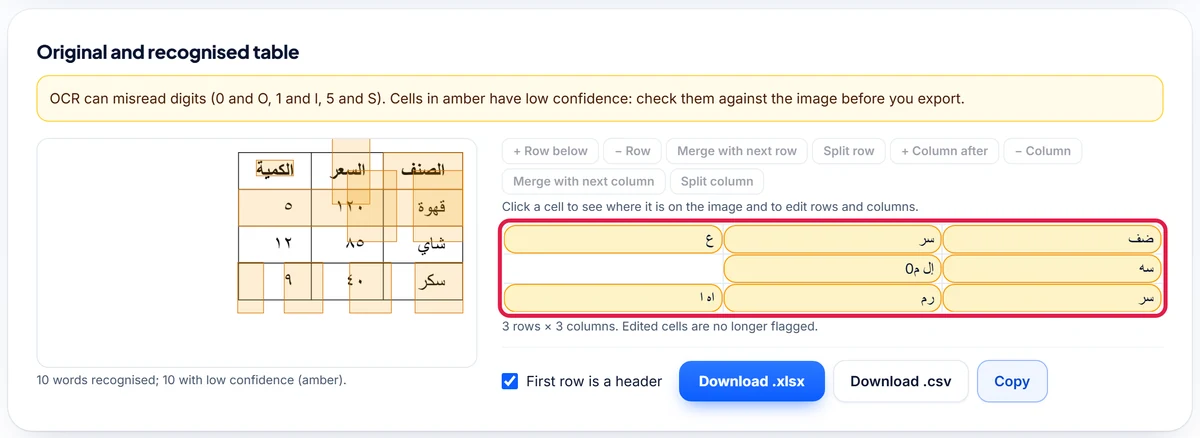
In a price list the item name is in the rightmost column and the price in the column to its left, as on the paper. For this guide I rendered a small test table with the columns الصنف (item), السعر (price) and الكمية (quantity) and read it with Arabic and Right-to-left table. The columns came out in the right order, but the recognition itself was poor: every cell was amber, and several cells contained wrong letters. A clean computer-made image is not a photo, and a real scan can be better or worse, but the lesson is the same: check every Arabic cell against the image, and do not trust the text as it is. Check the column order against the image before you export. If the columns appear in the opposite order, the table would read wrongly in a left-to-right sheet, and a lookup that relies on the first column would pick the wrong one.
Click a cell to see where it is on the image. This helps to match the recognised text with the original, and it is useful for Arabic text that you may not read yourself.
Arabic-Indic digits become numbers
Arabic text often uses the digits ٠ ١ ٢ ٣ ٤ ٥ ٦ ٧ ٨ ٩, which are the Arabic-Indic forms of 0 to 9. A price written as ١٢٠ is the number 120. A spreadsheet does not treat the Arabic-Indic digits as numbers: a column of such values is text, and it cannot be summed or sorted as numbers.
The tool converts them when you export. In the .xlsx file, ١٢٠ becomes 120, a real number, so formulas work on the column, and the Arabic decimal and thousands separators become . and ,. The sheet is also set to open right to left, which matches the direction of the table. Identifiers with a leading zero stay text. The conversion happens at the export, so the table on the screen still shows the digits as they were read.
Check the digits carefully. Some of them are easy to confuse: the Arabic-Indic zero ٠ is a small dot and can be taken for a punctuation mark, and ٥ is close to a small circle that looks like a zero. Cells where the tool is unsure are shown in amber. Check them against the image, then compare the totals of a column with the printed totals. The method for low-confidence cells is in OCR Table Mistakes: Find and Fix Low-Confidence Cells.
Export and encoding
For Excel, export the .xlsx file. It stores the numbers as numbers and the Arabic text correctly, and it opens right to left.
If you need a CSV, the tool writes it as UTF-8 with a byte order mark, so Excel reads the Arabic letters correctly. Some older Arabic exports use the encoding Windows-1256, and a file in that encoding opened as UTF-8 shows symbols instead of letters.

Clean Messy CSV Data detects Windows-1256 and shows the detected encoding, so you can load an older file, check that the Arabic text is right, and download it as UTF-8 with the BOM option. The full explanation is in CSV Opens With Broken Characters: Fix the Encoding.
After the export, open the file in Excel and check three things: the text is Arabic and not question marks, the numbers are numbers (they are aligned in the way numbers are, and a sum works), and the direction of the sheet is right to left.
Try it
Open the Scanned Table to Spreadsheet, add your Arabic scan and pick Arabic. Check the column order against the image, correct the amber cells, export the .xlsx and test that a sum of the price column works.