
Convert a Scanned Table to a Spreadsheet
Convert a scanned table to a spreadsheet from a photo, an image or a scanned PDF. Text recognition (OCR) runs in your browser. You check the table next to the original image, fix what was misread and export to Excel or CSV.
- Free to use
- No account required
- Instant results
- Private: runs in your browser
Image or scanned PDF
The image is read in your browser and never uploaded. The first time you use a language, its OCR data is downloaded from this site.
Original and recognised table
Example result (no OCR was run)OCR can misread digits (0 and O, 1 and l, 5 and S). Cells in amber have low confidence: check them against the image before you export.

Click a cell to see where it is on the image and to edit rows and columns.
7 rows × 5 columns. Edited cells are no longer flagged.
Your data: Files and text are processed locally in your browser. Nothing you load here is uploaded to our servers.
How to use
- Choose the language of the table: English, Arabic, French, German or Spanish. For Arabic, the right-to-left switch turns on by itself.
- Add a JPG, PNG or WebP image (up to 10 MB), a scanned PDF of up to 10 pages, or a photo taken with your phone.
- The image is cleaned up and the text is recognised, with progress for each page and a Cancel button. The first time you use a language, its OCR data is downloaded.
- Compare the two sides. The image shows a box around every recognised word; cells in amber need checking. Click a cell to see where it is on the image.
- Fix the table: edit cells; add, remove, merge or split rows and columns.
- Download .xlsx or .csv, or copy the table.
Examples
A phone photo of a stock count, with a shadow on one side. Contrast is boosted before reading. The result has 5 columns (SKU, Product, Shelf, Count, Unit cost) plus the title on its own row. "105" was read as "1O5" with low confidence, so that cell is amber; you correct it to 105.
A table without borders. Columns are found from the gaps that the rows share. A heading such as "Revenue by quarter", centred over two columns, becomes one merged cell instead of being cut in two.
An Arabic price list with Arabic-Indic digits. Column 1 is the rightmost column and words keep their reading order. In the .xlsx, "١٢٠" becomes the number 120 and the sheet opens right to left.
Tips and limits
- OCR can misread digits: 0 and O, 1 and l, 5 and S. Amber cells have a confidence below 70: check them against the image before you export. A cell you edit is no longer flagged.
- Clean-up runs on your device: grayscale, contrast boost, straightening of tilts up to 5°, and enlarging of small images. Turn on "Black and white" for photos with shadows or uneven light.
- Ruled lines in the image are used as cell borders when there are any. Without them, columns come from aligned gaps.
- A line that does not fit the table, such as a title or a note, becomes its own row. Nothing is dropped.
- Identifiers with leading zeros (00417) stay text, and formulas are never written.
- Handwriting, very blurred photos and tables photographed at a steep angle give poor results.
FAQ
How do I turn a scanned table into Excel?
Add the image or the scanned PDF and wait for the recognition. Check the amber cells against the image, then press Download .xlsx.
How accurate is OCR?
It depends on the image. Sharp, straight, well-lit text reads well; small or blurred digits often do not. That is why each word's confidence is shown, and you review the result next to the original before exporting.
Does it read Arabic?
Yes. Choose Arabic: the table is ordered right to left, and Arabic-Indic digits become numbers in the .xlsx. Mixed Arabic and English tables work best when you pick the main language.
Can I fix mistakes before exporting?
Yes. Every cell is editable. You can also add, remove, merge and split rows and columns, for example to split "Coffee 120" into two cells.
Is my image uploaded?
No. The image is processed and recognised in your browser. Only the OCR language data is downloaded from this site.
Privacy note
Your image or PDF stays on your device: clean-up, recognition and export all run in your browser, and nothing you add is sent to a server, stored or logged. The only downloads are the OCR engine and the language data, which come from this site and may be kept in your browser's cache. Closing the tab discards your table.
Guides for this tool
 Document & Text Intelligence
Extract Invoice Data to Excel: Totals, Dates, Lines
How to extract invoice data to Excel: what is read in your browser and what is sent, hiding account numbers, the Verified, Check and Not found marks, and the arithmetic checks.
5 min read
 Document & Text Intelligence
OCR Table Mistakes: Find and Fix Low-Confidence Cells
Why OCR turns 105 into 1O5, how the amber cells show uncertain words, how to check a cell on the image, fix the layout, and when the black and white option helps.
4 min read
 Document & Text Intelligence
OCR an Arabic Table to Excel With the Right Digits
How to read an Arabic table from a scan: the Arabic language and right-to-left option, column order, Arabic-Indic digits turned into numbers, and why every cell needs a check.
5 min read
 Document & Text Intelligence
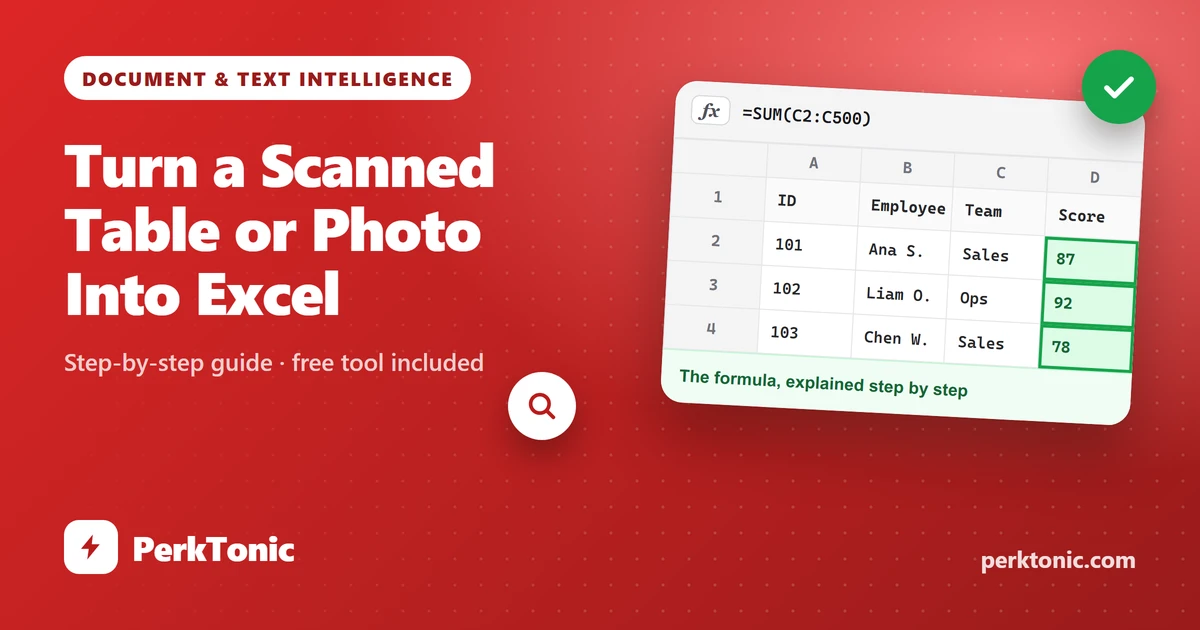
Turn a Scanned Table or Photo Into Excel
How to turn a photo or a scan of a table into a spreadsheet with OCR: the accepted files, choosing the language, comparing image and table, amber cells and fixing cells before export.
4 min read