
Extract Invoice Data to Excel: Totals, Dates, Lines
How to extract invoice data to Excel: what is read in your browser and what is sent, hiding account numbers, the Verified, Check and Not found marks, and the arithmetic checks.
Invoices arrive as PDFs and phone photos, and the same few fields are needed from each: supplier, invoice number, dates, totals and line items. Add the files to the Invoice & Receipt Data Extractor to get them into Excel without retyping. It reads the text in your browser, asks an AI service to pick out the fields, and marks every field as Verified, Check or Not found, with the line it came from.
What is read in your browser and what is sent
The tool works in two steps, and it is worth knowing which part happens where.
First, the text is read in your browser. For a PDF with real text, the tool takes the text layer. For a photo or a scanned page, it uses OCR to recognise the text. The file itself is not uploaded for this step.
Second, the text that was read is sent to an AI service, which finds the fields in it. Only the text goes, not the image.
Because the text is sent, decide what should be in it. An invoice carries bank details and sometimes personal data. The option Hide account numbers before sending changes the text before it is sent: it keeps the last 4 digits of IBANs and of other long runs of digits and hides the rest. The last 4 digits are enough for you to recognise the account, and the rest does not leave your computer. The option is off when the page opens. After the extraction, the section Text that was sent shows exactly what left your browser.
Steps: add files, hide account numbers, Extract data
- Open the Invoice & Receipt Data Extractor.
- Press Choose Files and add 1 to 5 files. A PDF can have up to 5 pages, and a photo can be a JPG, PNG or WebP of up to 10 MB each.
- For photos and scans, choose the Language for photos and scans.
- Tick Hide account numbers before sending if the invoice carries bank details.
- Press Extract data and read the result for each file.
- Press Download .xlsx, Download CSV or Download JSON.
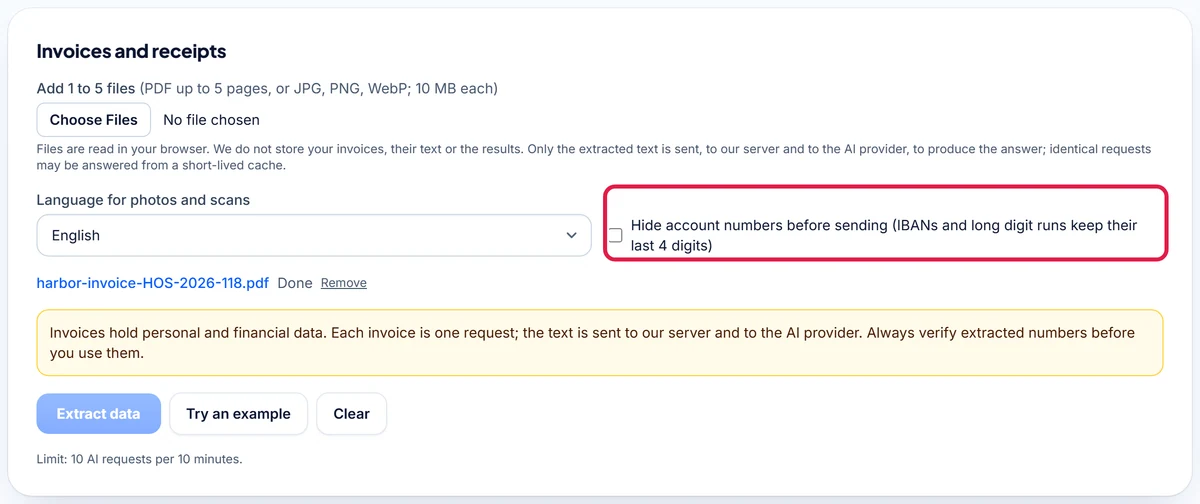
Each file is one AI request, and the limit is 10 requests per 10 minutes. Five files use five of them. If you have a pile of invoices, work in batches of five and wait a few minutes between the batches. A file that is a scan is slower, because the OCR has to run first.
For invoices that come as PDFs with a table of items, the PDF to Excel (Table Extractor) may give a cleaner table of lines, as described in Convert a PDF Table to Excel Without Retyping. For a photo of a table, the Scanned Table to Spreadsheet tool reads the grid.
Verified, Check and Not found
Each field in the result carries a mark:
- Verified: the value was found in the text of the invoice.
- Check: the value is present but unclear, or it conflicts with something else, so look at it.
- Not found: the invoice does not contain the field, or the tool could not find it.
For each field, the source line is shown, the line of the invoice text that the value came from. This is what makes the result checkable. Instead of trusting the number, you read the line next to it.
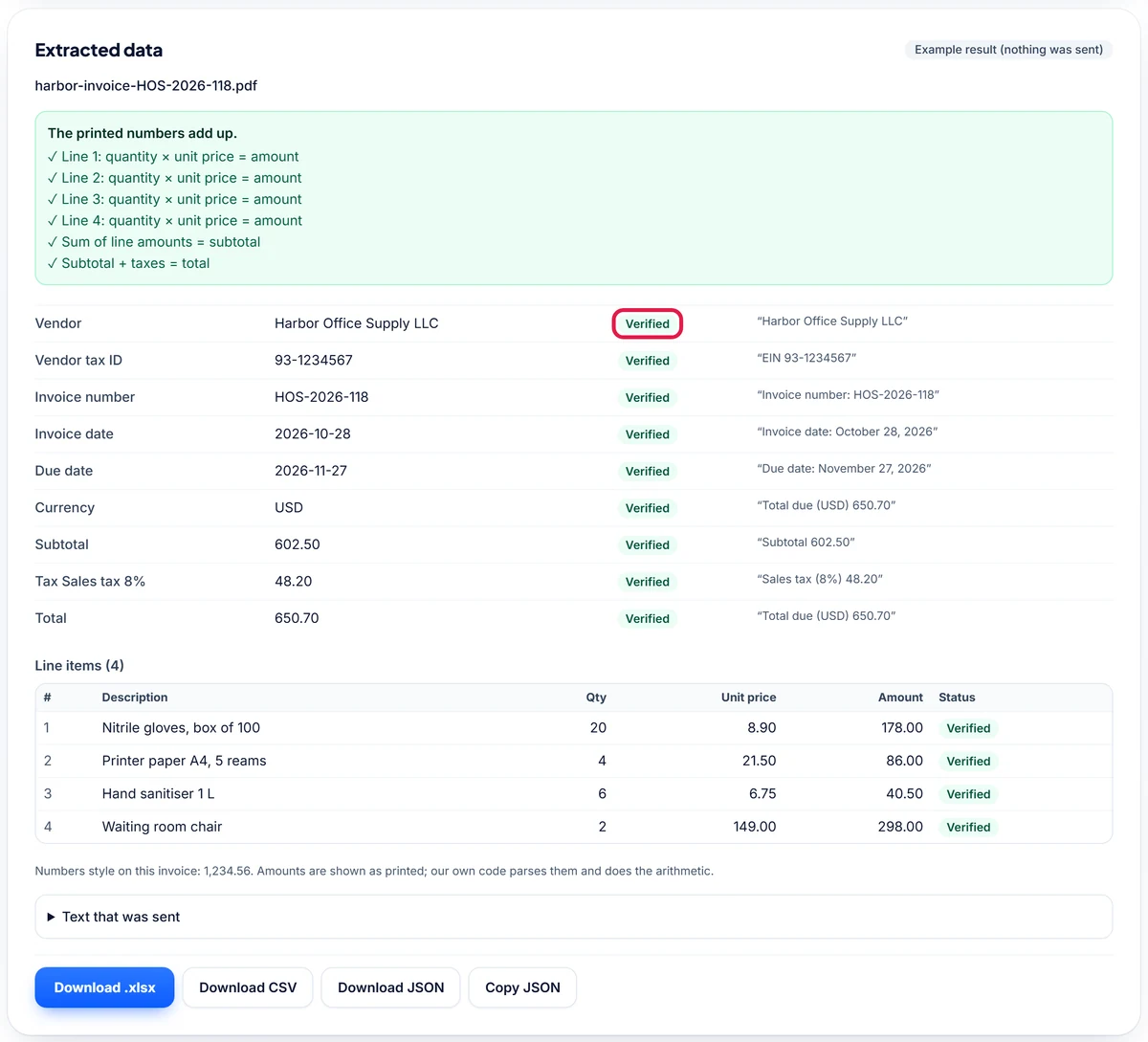
In the example of the tool, an invoice of an office supplier, the supplier, the tax ID, the invoice number, the dates and the totals are Verified, and each one shows its source line in quotation marks. Start with the fields marked Check and Not found. A value that is not found is better than a value that is invented, and the tool does not fill a field that the document does not support.
Arithmetic checks
Invoices have a structure that can be tested: the lines add up to a subtotal, the tax is added, and the sum is the total. The tool does this arithmetic with its own code, not with the AI. A green box says "The printed numbers add up" and lists each check: quantity × unit price = amount for every line, the sum of the lines = subtotal, and subtotal + taxes = total. If the numbers do not agree with each other, the box says so and the affected fields are marked Check, and you look at the invoice.
A difference can be a real error on the invoice, a line that the OCR misread, or a discount that is not part of the lines. Compare the line that is flagged with the printed invoice to find the cause.
Number formats are a frequent source of trouble. In a French test invoice that I made for this guide, the amounts are written 1.043,00 € and 1.251,60 €. The tool shows the amounts as printed, notes that the numbers style on this invoice is 1.234,56, and its code does the arithmetic with that style. The invoice date 28/10/2026 is shown as 2026-10-28 and the due date Échéance : 14/11/2026 as 2026-11-14.
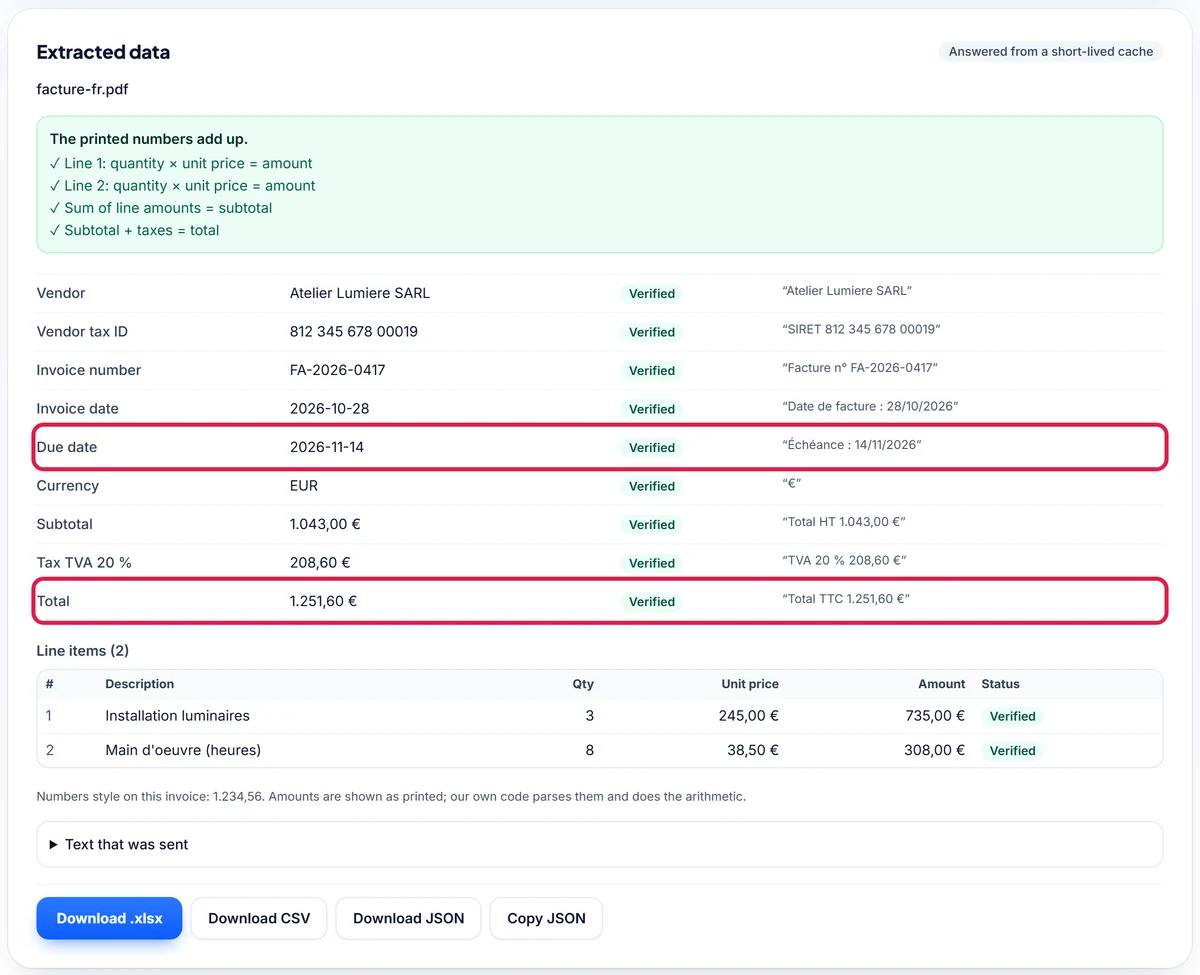
Check the amounts on invoices from other countries, and read Read European Number Formats on Invoices for the rules. A wrong reading by a factor of a thousand is visible only if you look at the amount.
Results can be downloaded as an Excel file, as CSV or as JSON. Identical requests may be answered from a short-lived cache, and the tool then says so.
Limits
You can add 1 to 5 files at a time, and each file is one request of the limit of 10 per 10 minutes. The quality of the result depends on the quality of the text. A sharp PDF gives better results than a dark photo, and handwriting is read poorly.
The tool helps you to enter data, and it does not replace the checks of your bookkeeping. Compare the totals with the invoice, and keep the original files as your record. If you move the data into Excel, check the dates and the decimal separators once after the first import.
Try it
Open the Invoice & Receipt Data Extractor, add up to five invoices and tick Hide account numbers. Press Extract data, start with the fields marked Check or Not found, and compare the totals with the invoices.