
Check an AI-Generated Excel Formula Before You Use It
A short routine to check a formula written by AI before you rely on it: read the assumptions, read the structure, and test it on a copy.
A formula from an AI tool can look right and still use a wrong range, a function that your Excel does not have, or a condition that you did not ask for. To check an AI-generated Excel formula, read the assumptions, read the structure, and test the formula on a copy of your data with answers you already know. The Excel Formula Generator does part of this for you, and this routine covers the rest.
What the generator already checks
Every formula the generator returns goes through automatic checks before you see it:
- Each function name is checked against a list of about 500 names for the chosen app. A name that is not on the list appears under "Unverified".
- Brackets and quotation marks are counted, so a missing closing bracket or quote is reported.
- Semicolons are flagged, because they work only in some regional settings of Excel.
These checks look at the text of the formula. A formula can pass all of them and still give the wrong total, because the tool does not calculate results and has no access to your data. The checks reduce typing errors. They do not replace testing.
Read the assumptions
Below the formula, the generator lists the assumptions it made. They are the first place to look, because a formula that is correct for the assumption but wrong for your sheet is the most common failure.
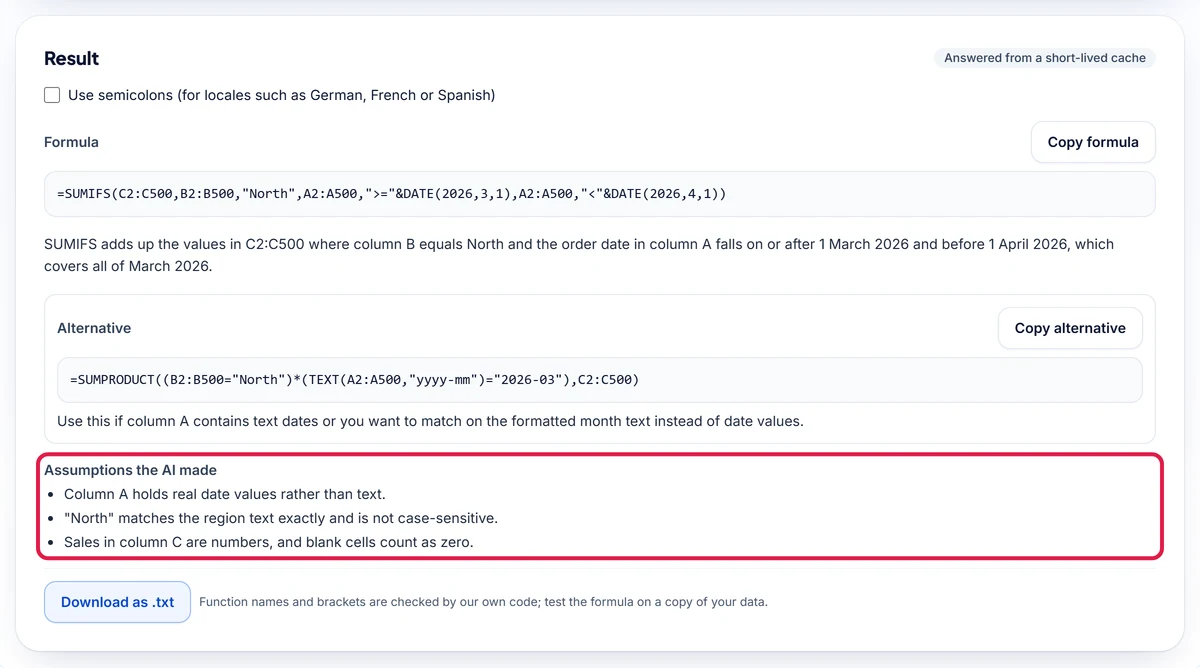
Compare each assumption with your sheet. For a request such as "add up the sales in column C where the region in column B is North and the date in column A is in March 2026", check that:
- the columns and the row range are the ones you meant;
- the text, here North, matches the spelling in the data;
- the date bounds include the first and last day of the period.
If an assumption is wrong, change your request or the column description and generate the formula again. How to word a request is described in Turn a Plain-English Request into an Excel Formula.
Read the structure with the explainer
Paste the formula into the AI Formula Explainer and read the Structure tree from the top node down. The tree shows which function is outermost, which arguments each function received and how many criteria pairs a SUMIFS has.
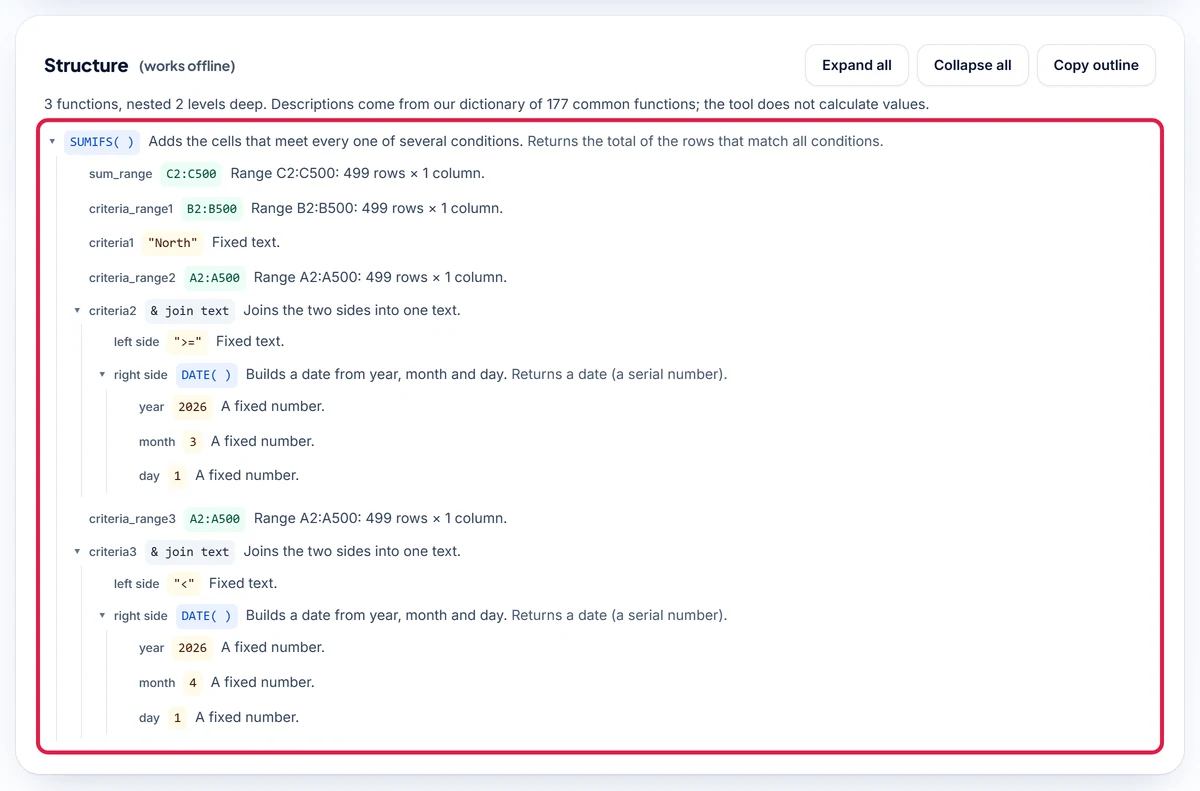
The explainer never calculates values either, so it cannot confirm the result. What it confirms is the shape: the outer function returns what you expect, the ranges are the right size, and no argument is missing. The reading steps are described in Explain a Nested Excel Formula in Plain English.
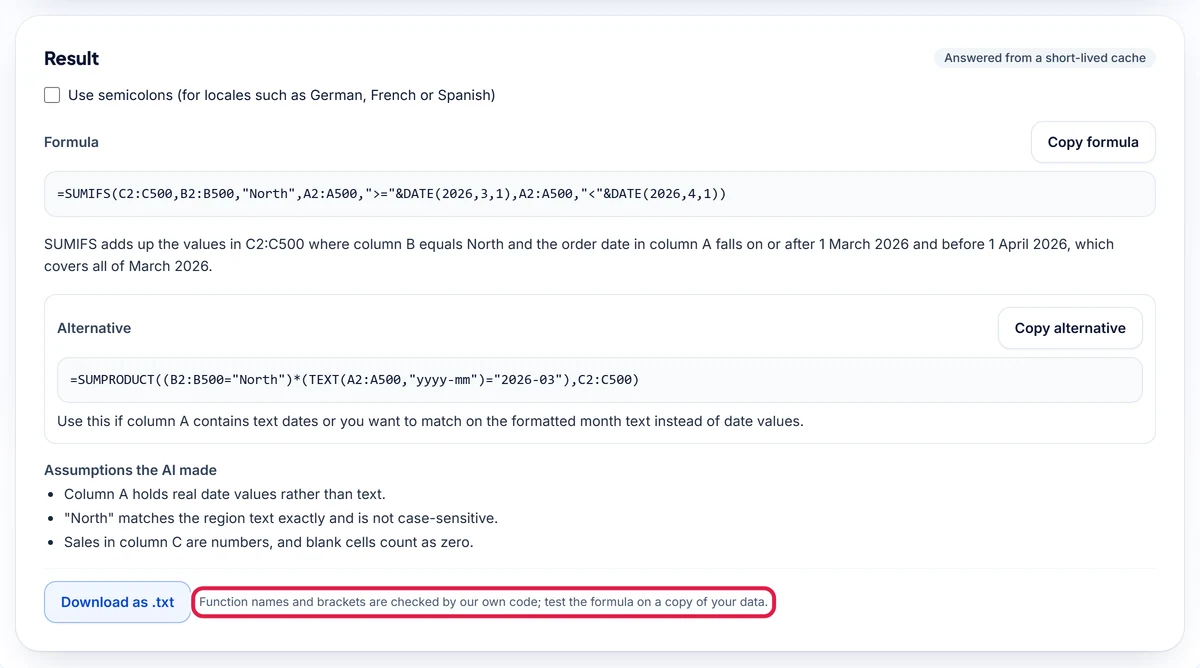
When the generator lists a function under "Unverified", look it up before you use it. It may be a typo, a function from another app, or a very new function. Under every result the generator also repeats a reminder that function names and brackets are checked by its own code and that the formula should be tested on a copy of your data.
Test on a copy with known answers
Copy the workbook, or a small part of it, and paste the formula there. Never test on the original.
- Pick a case where you know the result. Filter the data by hand and read the sum in the status bar.
- Compare the formula result with that number. They must match exactly.
- Test the edges: the first and last row of the period, an empty cell, a text value in a number column, and a value that appears twice.
- Change one input, for example the month, and check that the result changes as it should.
In Excel, Formulas > Evaluate Formula steps through a formula one part at a time, so you can see which part gives a wrong intermediate value. Microsoft describes the Evaluate Formula command in Evaluate a nested formula one step at a time.
Version and separator checks
Check that the formula works in the Excel version that will use it. Functions such as XLOOKUP, FILTER and UNIQUE are not in Excel 2019 or earlier, and pick that version in the generator if the file goes to such users. See Fix #NAME? in Excel: Typos, Quotes and New Functions for what happens when the version is wrong.
If the generator flags semicolons, your regional settings decide which separator is right. The Use semicolons switch writes the formula with semicolons. If Excel rejects the formula on entry, compare its separators with your settings first.
For a review of a whole workbook, use Spreadsheet Formula Error Audit: A Short Checklist. If a formula shows an error after your test, paste it into the Excel Formula Debugger with the error that it shows.
Run it on your workbook
Open the Excel Formula Generator, generate your formula and read the assumptions and the Unverified list. Then paste it into the explainer, and test it on a copy of your data against a result you worked out by hand.