
Is This Excel Macro Safe? Check VBA Before Running
How to check VBA code before you enable a macro: paste it in Explain mode, read the instant safety scan, and know what the review cannot prove.
A workbook arrives with a macro, and Excel asks you to enable it. The question "is it safe to run an Excel macro" depends on what the code does, and you can read that before you enable anything. Paste the VBA into the Explain mode of the Excel VBA Macro Generator for an instant safety scan and a plain-language explanation, then work through the checks below.
Paste the code in Explain mode
Do not enable the macro to find out what it does. Open the file with macros disabled, press Alt+F11 to open the VBA editor, and copy the code from each module. Paste it into Explain mode in the generator.
Code up to 20,000 characters can be pasted. If a workbook has several modules, check them one at a time. The macro never runs in the tool. It reads the text and reports on it, so pasting is safe even when the code is not.
Read the instant safety scan
The Explain mode safety scan runs in your browser while you paste, so the flags appear under the box before you press anything. Our own detector produces them, not the AI. After you press Explain code, they are shown above the AI's own list of concerns, and a comment in the code that asks the reader to treat it as safe does not change them.
The detector flags operations such as Shell, Kill, URLDownloadToFile and Declare. It ignores comments and strings, so a word in a comment does not raise a flag, and a flag points to code that Excel would actually execute.
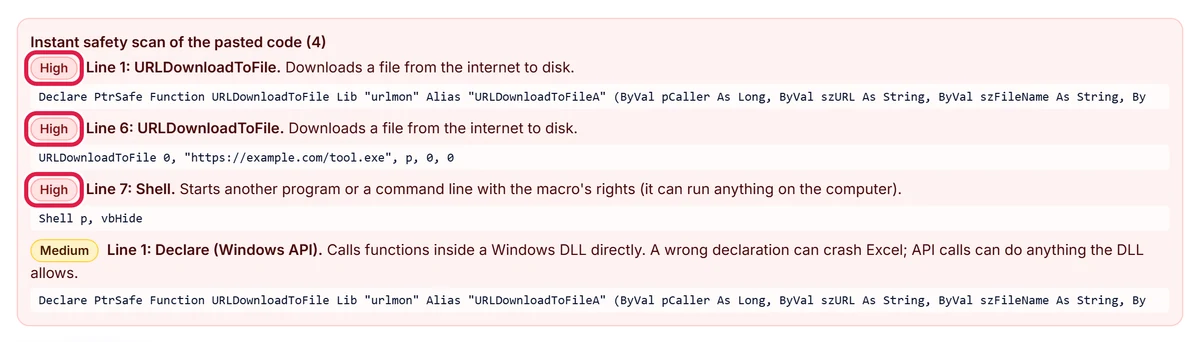
In a macro that uses URLDownloadToFile and then Shell with a hidden window, the high-severity flags tell you that the code downloads a file from the internet and starts a program without showing it. That combination is a reason not to run it.
Operations that deserve a closer look
A flag does not mean the macro is malicious, but each one needs a reason that fits the stated purpose of the file.
- Shell starts another program. A workbook that formats invoices has no need for it.
- Kill deletes files. Check which path it deletes, because the target decides whether it is harmless clean-up or damage.
- URLDownloadToFile downloads a file from the internet to the disk.
- Declare calls a function from a system library outside VBA. It is how some code reaches system functions that VBA does not offer.
- Code that runs when the workbook opens, such as Workbook_Open or Auto_Open, deserves a look even without a flag, because it runs without any click.
For a legitimate macro the flags usually have a visible reason. The export macro that the tool uses as its page example is a good case: it deletes a temporary file, and the flag shows the line with the Kill target. You can then check that the path is the file the macro itself created.
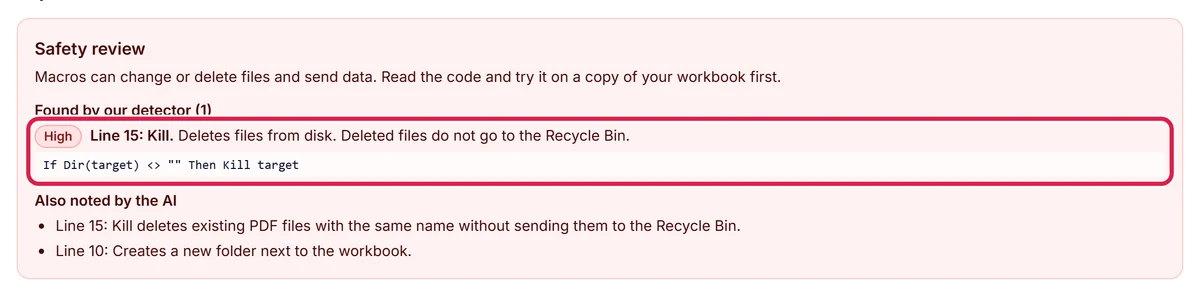
A macro that writes PDFs is described in VBA Macro to Export Each Worksheet as a PDF, which shows what a normal, readable macro of that kind looks like.
Read the explanation by line groups
After the scan, read the explanation. It describes the code in groups of lines, so you can follow the order of operations without reading every statement.
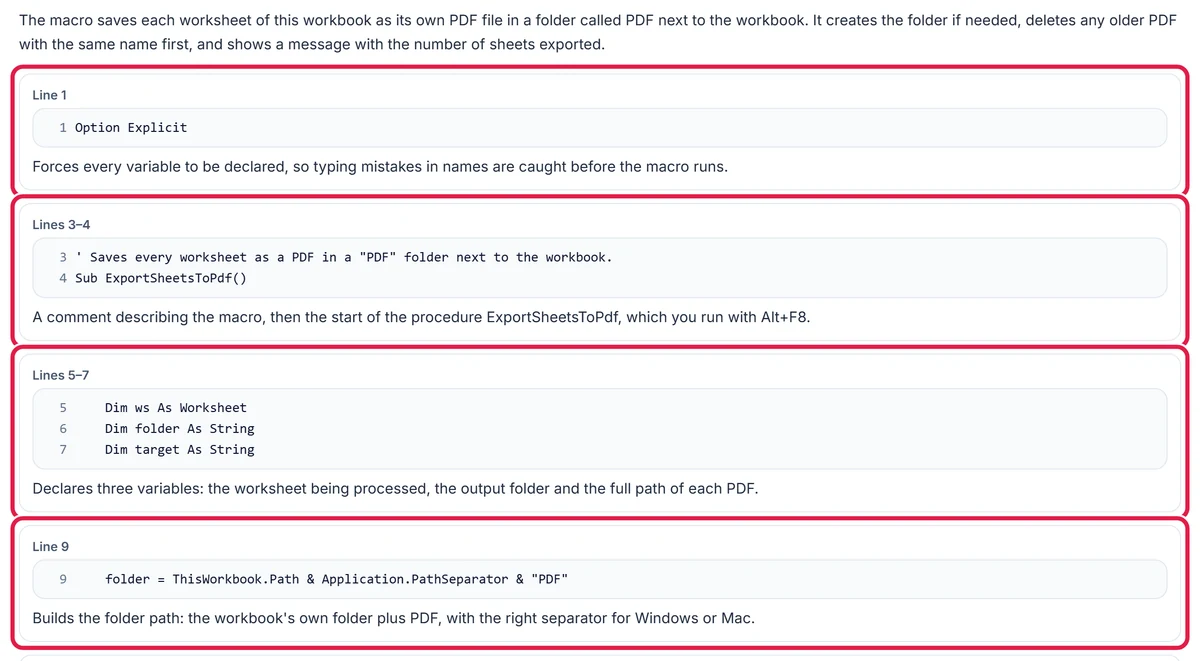
Compare the explanation with what the sender told you the macro does. A file that is described as a report formatter should format cells, not touch files outside the workbook or reach the network. If the two do not match, do not enable the macro.
The scan and the explanation work on the code you pasted. If a request to the generator asks for a keylogger or for behaviour that is hidden from the user, the tool refuses it, and that boundary also tells you what the tool is meant for: building and reviewing ordinary spreadsheet automation.
What the review cannot prove
A clean scan is not a guarantee. Keep these limits in mind:
- The review sees only the text you pasted. A module you did not copy, or a project that is protected with a password, is not covered.
- No flags means no flagged operations, not that the macro is harmless. Code can still change or overwrite your data in ways that are not on the list.
- The scan does not run the code and cannot say what it will do with your files on your computer.
If you are unsure, do not enable the macro. Ask the sender for the purpose and the source, or open the file on a computer that holds no important data. Microsoft explains the macro settings on its support page Enable or disable macros in Microsoft 365 files, and the language itself is documented in the VBA language reference on Microsoft Learn.
For a wider review of a workbook before you share it, see Spreadsheet Formula Error Audit: A Short Checklist.
Run it on your workbook
Open the Excel VBA Macro Generator, switch to Explain mode and paste the macro code. Read the safety flags first, then the line-group explanation, and enable the macro only if both match what the sender described.