
Fix #DIV/0! in Excel Without Hiding Real Errors
Why Excel shows #DIV/0! for a ratio or an average, and how to test the divisor with IF instead of hiding every error with IFERROR.

A ratio or an average returns #DIV/0! when the divisor is zero or empty. Excel is behaving correctly, so the real fix is to decide what the cell should show in that case. Paste the formula into the Excel Formula Debugger to see the likely cause, then test the divisor with IF instead of covering every error with IFERROR.
Why Excel returns #DIV/0!
Excel cannot divide by zero, and an empty cell counts as zero in a division. In =C2/B2, the error appears when B2 is 0 or has nothing in it. AVERAGE gives the same error when the range holds no numbers, because it divides the sum by a count of zero.
Typical situations are a ratio column filled down past the last row of data, a month that has no sales yet, and an average over cells that contain only text. The formula is not wrong in these cases. The data has no valid divisor, and the sheet needs a rule for what to show.
Steps with the debugger
- Open the Excel Formula Debugger.
- Paste the formula, for example
=C2/B2. - Pick #DIV/0! as the error.
- Read the Likely causes.
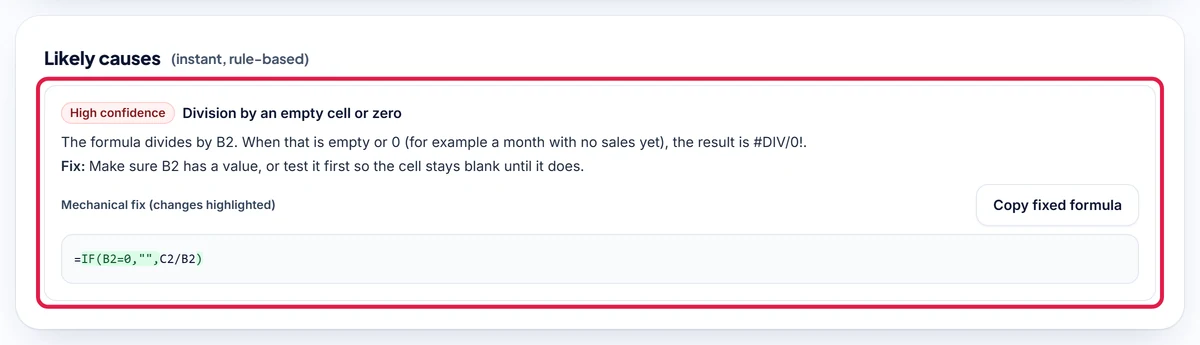
The rule set includes division by empty cells, and for =C2/B2 that cause is listed. The rules see only the formula, not the cells, so the tool cannot know whether B2 is really empty. Whether a cell is empty depends on the data, so look at the confidence of each cause and check the cell yourself.
If you want more specific help, describe the data in the data description and use Ask the AI. It works from your description, for example "column B holds the number of orders, empty until the month starts", so the answer is only as accurate as that description.
Test the divisor instead of wrapping in IFERROR
IFERROR is the quickest way to remove the error:
=IFERROR(C2/B2,"")
It hides every error in the formula, not just #DIV/0!. If C2 holds text, or the range B:B was deleted, the cell stays blank and nobody sees a problem. Testing the divisor is more precise:
=IF(B2=0,"",C2/B2)
The formula returns a blank when B2 is zero or empty, and any other error still shows. If you prefer to describe the rule in words, the Excel Formula Generator can write it. Enter, for example, "divide C by B and show blank when B is empty", pick Excel 365 and press Generate formula.
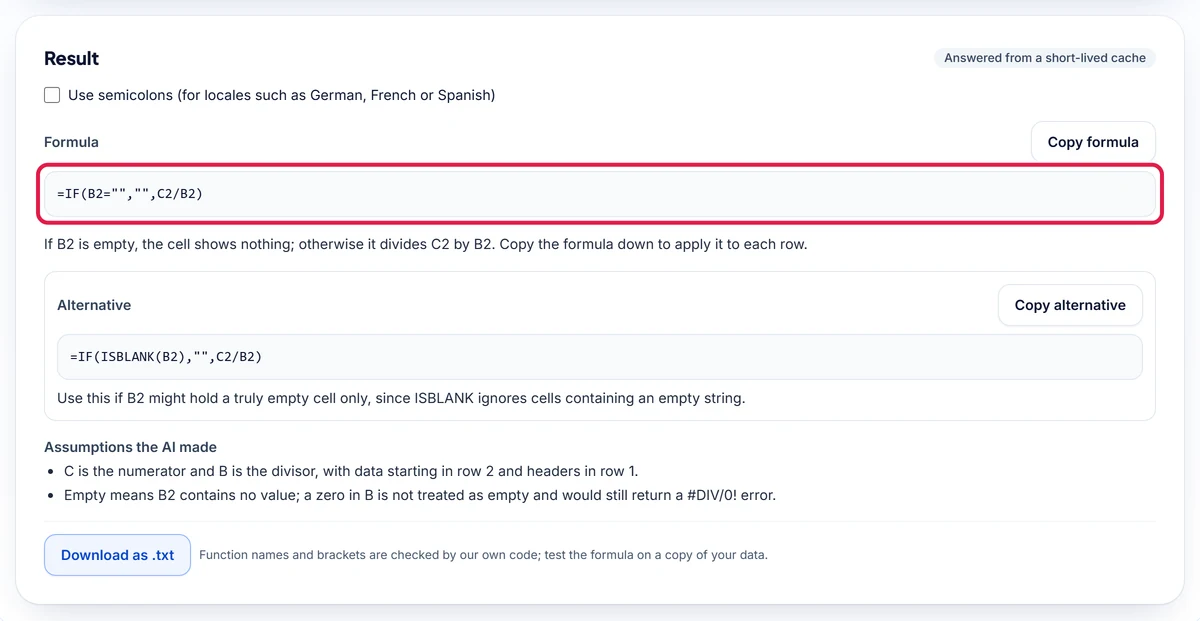
Paste the result into a copy of your data first, since the tool does not calculate results. For writing requests, see Turn a Plain-English Request into an Excel Formula.
For averages, test the count of numbers:
=IF(COUNT(B2:B10)=0,"",AVERAGE(B2:B10))
Empty cells versus zero
An empty cell and a zero are different in the data but behave the same as a divisor. Decide which one you want to treat as missing:
- To treat both as missing, use
=IF(B2=0,"",C2/B2). - To treat only an empty cell as missing, so that a real zero still shows the error, use
=IF(ISBLANK(B2),"",C2/B2). - A cell that looks empty but contains a formula result of "" or a space is not blank. Dividing by it gives #VALUE! instead, which is a different problem. See Fix #VALUE! in Excel When the Cells Look Fine.
A blank returned as "" is text. A later formula that multiplies or adds that cell returns #VALUE!, so use the same test in the dependent formulas, or return a number or NA() where a chart or a total needs it.
Before you share the workbook, check the remaining error cells with the list in Spreadsheet Formula Error Audit: A Short Checklist. Microsoft covers the error in How to correct a #DIV/0! error.
Check your own file
Open the Excel Formula Debugger, paste the formula that shows #DIV/0! and pick #DIV/0!. Check the divisor cell, then replace IFERROR with an IF test on the divisor so that other errors stay visible.