
Spreadsheet Formula Error Audit: A Short Checklist
A five-step checklist to review a workbook before you share it: formula structure, error values, lookups, separators, text numbers and versions.
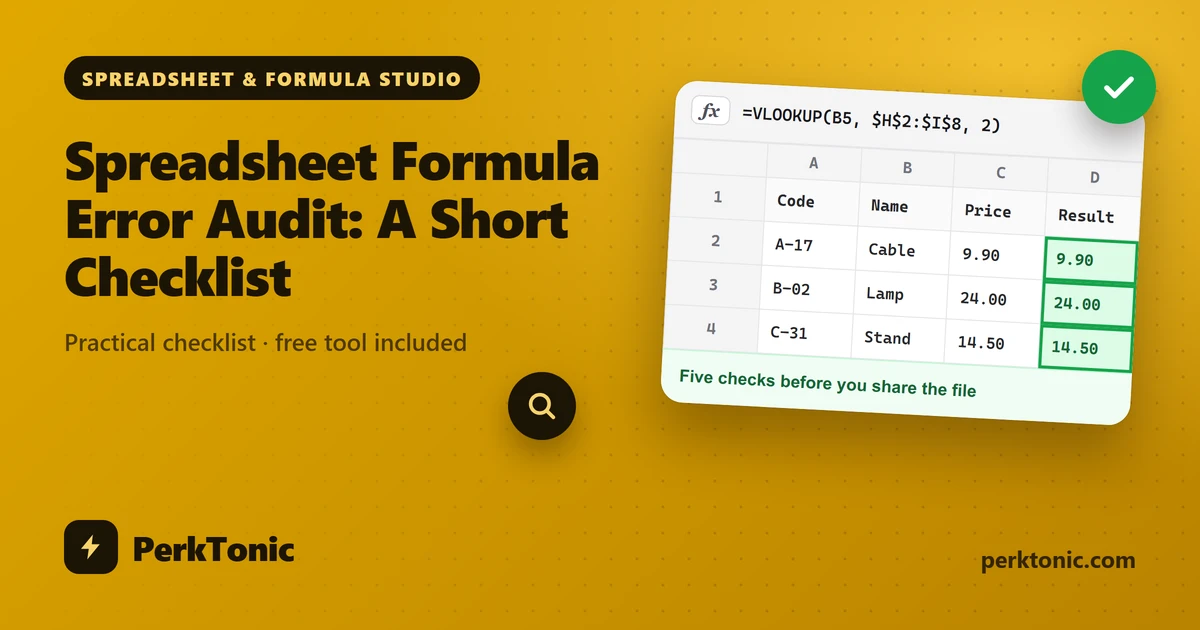
Before a workbook goes to a manager, a client or an auditor, review it with a fixed list instead of scrolling through cells. This checklist has five checks: the structure of key formulas, every visible error value, lookups, separators and text numbers, and version-specific functions. Start with the AI Formula Explainer for the formulas that carry the most weight.
1. Read the structure of each key formula
Pick the formulas whose results feed totals, reports or other sheets. Paste each one into the explainer and read the Structure tree from the top node down.
- Does the outermost function return what the cell is supposed to show?
- Are the inner functions and ranges the ones you expect, with no leftover references to deleted sheets?
- Does each IFERROR wrap only the function you meant to protect?
- Does every lookup state its match type?
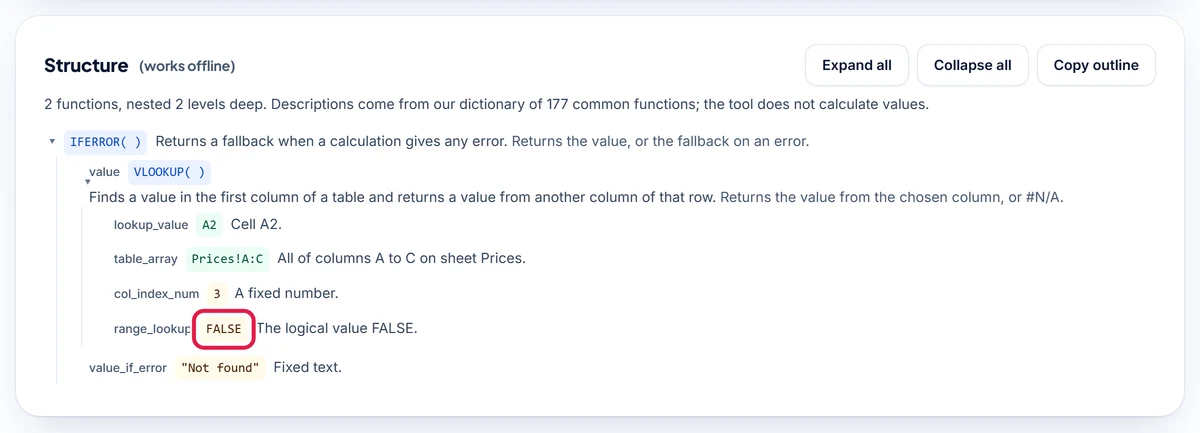
The explainer never calculates values. It describes the structure and the steps, so a clean reading is not proof that the result is right. Compare a few results with the source data by hand. For the steps in detail, see Explain a Nested Excel Formula in Plain English.
2. Check every error value
List the cells that show #N/A, #VALUE!, #REF!, #NAME? or #DIV/0!. In Excel, the Error Checking command on the Formulas tab steps through them. For each distinct formula, paste it into the Excel Formula Debugger, pick the error and read the Likely causes.
The debugger has 33 rules, including approximate-match lookups, numbers stored as text, extra spaces and mismatched SUMIFS sizes. The rules see only the formula, not the file. Causes that depend on your data are marked with medium or low confidence, and those are the ones to test in the cells.

Do not hide an error to pass the review. An IFERROR that replaces an error with 0 or an empty cell makes the sheet look clean while the cause stays. The Fix #VALUE! in Excel When the Cells Look Fine guide shows how to trace one of the most common cases.
3. Lookups: exact match and column numbers
Lookups are the formulas most likely to return a wrong value without any error. Check each one for the following:
- VLOOKUP has FALSE or 0 as the fourth argument unless an approximate match is intended. Without it, the lookup runs as an approximate match.
- The column number is within the table range. A number past the last column gives #REF!.
- Approximate matches, such as tax bands, use a table sorted with the smallest value first.
- Lookup values and table keys have the same type and no extra spaces.
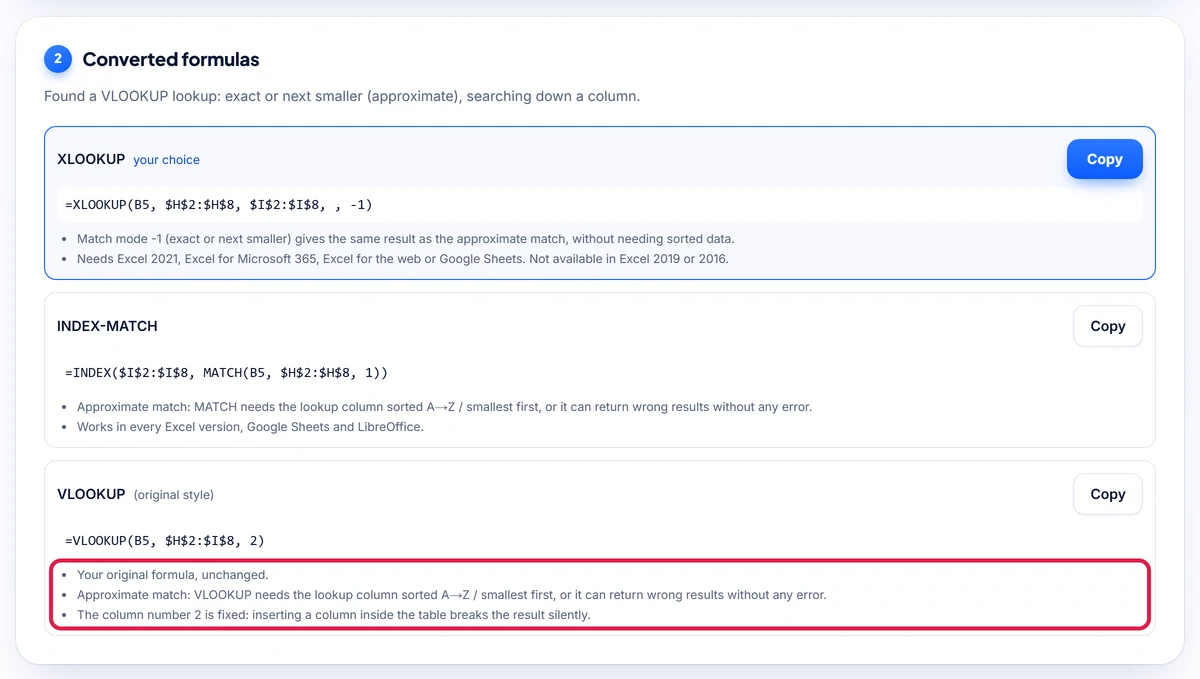
The XLOOKUP vs INDEX-MATCH Generator warns that an approximate match needs a sorted lookup column, for a formula such as =VLOOKUP(B5, $H$2:$I$8, 2). Convert the lookup there if a column number is likely to break when someone adds a column.
For a lookup that returns #N/A although the value is in the table, read Fix #N/A in Excel VLOOKUP: Causes and Fixes.
4. Separators, quotes and text numbers
These problems often appear when a file moves between countries, systems or exports.
- Separators: a formula with commas fails in an Excel that expects semicolons, and the reverse. Check the formulas on the computer where they will be used.
- Quotes: text criteria and text results need straight quotation marks at both ends.
- Text numbers: a number stored as text is ignored or rejected by calculations. Compare the cell with
=ISNUMBER(A2). - Spaces: extra or non-breaking spaces make two identical-looking values different. Compare lengths with
=LEN(A2). - Ranges: in SUMIFS, the sum range and every criteria range must have the same size.
When the data comes from a CSV export, clean the file before building formulas on it, and test the formulas on a copy.
5. Version-specific functions
List the functions in the workbook that need a recent Excel: XLOOKUP, FILTER, UNIQUE, SORT, LET, LAMBDA and VSTACK. They show #NAME? in Excel 2019 and earlier. If the file will be opened by people on those versions, replace them with INDEX/MATCH, VLOOKUP or the built-in commands, and test the file on the oldest version in use.
Also decide what you have not checked. A formula written by an AI assistant needs the same review as one from a colleague, and Check an AI-Generated Excel Formula Before You Use It describes it.
Microsoft describes the built-in tools in Detect formula errors in Excel. It covers the Error Checking command and the other commands on the Formulas tab.
Run it on your workbook
Open the AI Formula Explainer and paste the formula that feeds your final total. Read the tree, then run the debugger on every cell that shows an error before you share the file.