
AI Spreadsheet Formula Explainer
Paste a formula you did not write. This ai spreadsheet formula explainer instantly shows its structure, function by function. On request, it also tells you in plain English what each part does.
- Free to use
- No account required
- Instant results
- Sent to the AI only when you press the button
Formula to explain
Structure (works offline)
7 functions, nested 4 levels deep. Descriptions come from our dictionary of 177 common functions; the tool does not calculate values.
LET( )Gives names to intermediate calculations, then uses them in a final calculation. Returns the result of the final calculation.- name
salessales: a name given a value by LET in this formula. value
FILTER( )Keeps the rows (or columns) of a range where a condition is TRUE. Returns the matching rows, as a spilled array.- array
Sales[Amount]Column Amount of table Sales (data rows only). include
× multiplyMultiplies the two sides. With TRUE/FALSE lists this works as AND (1 × 1 = 1).left side
( brackets )Brackets: this part is worked out first.= equal toCompares: TRUE when both sides are equal (not case-sensitive for text).- left side
Sales[Region]Column Region of table Sales (data rows only). - right side
"North"Fixed text.
- left side
right side
( brackets )Brackets: this part is worked out first.= equal toCompares: TRUE when both sides are equal (not case-sensitive for text).left side
MONTH( )Month of a date, 1 to 12. Returns a number.- serial_number
Sales[Date]Column Date of table Sales (data rows only).
- serial_number
- right side
3A fixed number.
- if_empty
0A fixed number.
- array
calculation
IF( )Chooses one of two results depending on a test. Returns the value of whichever branch applies.logical_test
= equal toCompares: TRUE when both sides are equal (not case-sensitive for text).left side
SUM( )Adds numbers, cells and ranges. Returns the total, a number.- number1
salessales: a name given a value by LET in this formula.
- number1
- right side
0A fixed number.
- value_if_true
"No sales"Fixed text. value_if_false
ROUND( )Rounds a number to a number of digits. Returns the rounded number.number
AVERAGE( )Arithmetic mean of numbers. Returns the average, a number.- number1
salessales: a name given a value by LET in this formula.
- number1
- num_digits
2A fixed number.
- name
In plain English
Example result (nothing was sent)Averages the Amount values of the Sales table for rows in the North region dated in March (of any year), rounded to two decimals. If no row matches, or the matching amounts add up to zero, it shows the text No sales instead.
(Sales[Region]="North")Checks every row of the Region column and gives TRUE for North rows and FALSE for the others.(MONTH(Sales[Date])=3)MONTH takes the month number of each date; comparing it with 3 gives TRUE for rows dated in March, in any year.(Sales[Region]="North")*(MONTH(Sales[Date])=3)Multiplying the two TRUE/FALSE lists gives 1 only where both are true, so it works as AND: North and March.FILTER(Sales[Amount],(Sales[Region]="North")*(MONTH(Sales[Date])=3),0)Keeps the amounts of those rows as a list; when no row matches it returns 0 instead of an error.LET(sales,Stores that list under the name sales, so it is worked out once and reused twice below.IF(SUM(sales)=0,"No sales"If the kept amounts add up to zero, the result is the text No sales.ROUND(AVERAGE(sales),2)Otherwise it averages the kept amounts and rounds the average to 2 decimal places, which is the number the cell shows.
Explanations describe what each part returns; they do not calculate values. Check important results in your spreadsheet.
Your data: Your text is sent to our server and to the AI provider only when you press the button. We do not store it with your identity, and nothing is sent before that.
How to use
- Paste a formula from Excel, Google Sheets or LibreOffice Calc, starting with = and using English function names.
- Read the Structure tree. It appears as you type and works offline. Each function shows its purpose, the name of every argument and what it returns.
- Expand or collapse branches to follow a deeply nested formula one level at a time.
- Optionally describe your data ("Sales is a table with Date, Region and Amount").
- Press Explain in plain English for a summary of at most 80 words and an ordered list of steps.
- Copy the outline or the explanation, or download both as a Markdown file.
Examples
A lookup with a fallback. =IFERROR(VLOOKUP(A2,Prices!A:C,3,FALSE),"Not found"). The tree shows IFERROR with two arguments: *value* is the VLOOKUP, and *value_if_error* is the text "Not found". Inside VLOOKUP, *table_array* is described as "All of columns A to C on sheet Prices", and *range_lookup* FALSE means an exact match. The narration says it searches column A of Prices for A2 and returns column C, or Not found.
A modern formula. The example on the page uses LET, FILTER, MONTH, IF, SUM, ROUND and AVERAGE on an Excel table. The tree labels sales as "a name given a value by LET in this formula" and Sales[Amount] as "Column Amount of table Sales". The narration explains that multiplying two TRUE/FALSE lists works as AND.
A broken formula. =IFERROR(VLOOKUP(A2,Prices!A:C,3,FALSE,"Not found") shows "The bracket opened at position 9 is never closed", with a caret under that bracket.
Tips and limits
- Formulas can be up to 8,000 characters long. The tree handles 20 and more levels of nesting, array constants such as {1,2;3,4}, sheet names in quotes such as 'My Sheet'!A1:B2, table references such as Table1[Col] and [@Price], LET, LAMBDA, and text that contains brackets, commas or doubled quotes.
- Descriptions come from our own dictionary of 177 common functions. A function outside it is still shown in the tree, marked as not described.
- The tool does not calculate values. It says what each part returns, such as "a position number" or "the list of rows where the region is North". It never shows totals, because an AI can get arithmetic wrong.
- The narration quotes pieces of your formula. Our server deletes any step whose quoted piece is not in your formula, and says how many were removed.
- Function names must be in English. Semicolon separators (European locales) are understood.
- You can send 10 AI requests per 10 minutes. If the AI is busy or the daily limit is reached, the structure tree keeps working.
FAQ
Can it explain array formulas?
Yes. Array constants, dynamic arrays such as FILTER and UNIQUE, spill references like A2#, and old Ctrl+Shift+Enter formulas are all parsed. The narration explains that a condition on a range gives one TRUE/FALSE per row.
What does each nested function return?
Every function in the tree has a "Returns" line from the dictionary, such as "a position number, or #N/A" for MATCH. The narration describes the result of each step in words, without calculating it.
Does it change my formula?
No. The tool only reads it. Nothing is rewritten, and the steps quote your formula exactly.
Is my formula sent anywhere?
Not for the structure tree, which runs in your browser. The formula and your notes are sent only when you press Explain in plain English.
Why does it say my formula does not parse?
A bracket, a quote or a separator is usually missing or extra. The message gives the position, and the caret points at it. The 1.3 Formula Error Debugger can suggest a fix.
Does it work with LibreOffice syntax?
It reads Excel-style references (A1, Sheet1!A1). LibreOffice's native $Sheet1.A1 style is not supported in v1.
Privacy note
The structure tree is built in your browser and sends nothing. When you press Explain in plain English, the formula and the optional notes are sent to our server and to the AI provider to write the explanation. We do not store them with your identity, and identical requests may be answered from a short-lived cache. The example narration shown when the page opens is saved in the page and sends nothing.
Guides for this tool
 Spreadsheet & Formula Studio
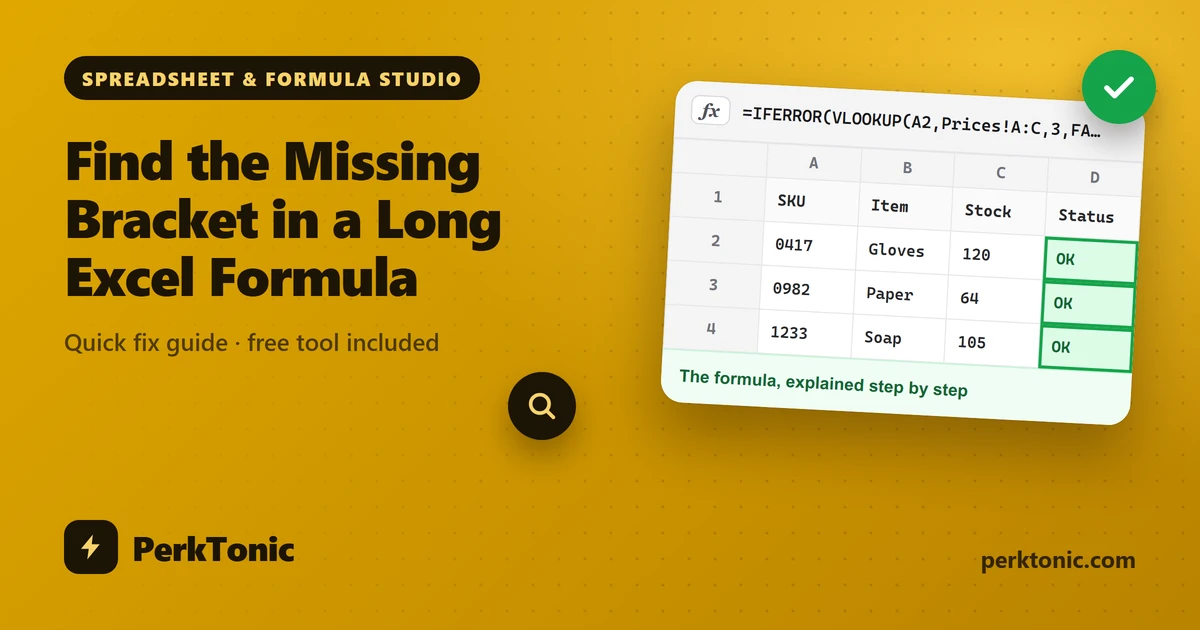
Find the Missing Bracket in a Long Excel Formula
How to find the bracket that never closes in a long Excel formula by position, fix it, and check the structure afterwards.
3 min read
 Spreadsheet & Formula Studio
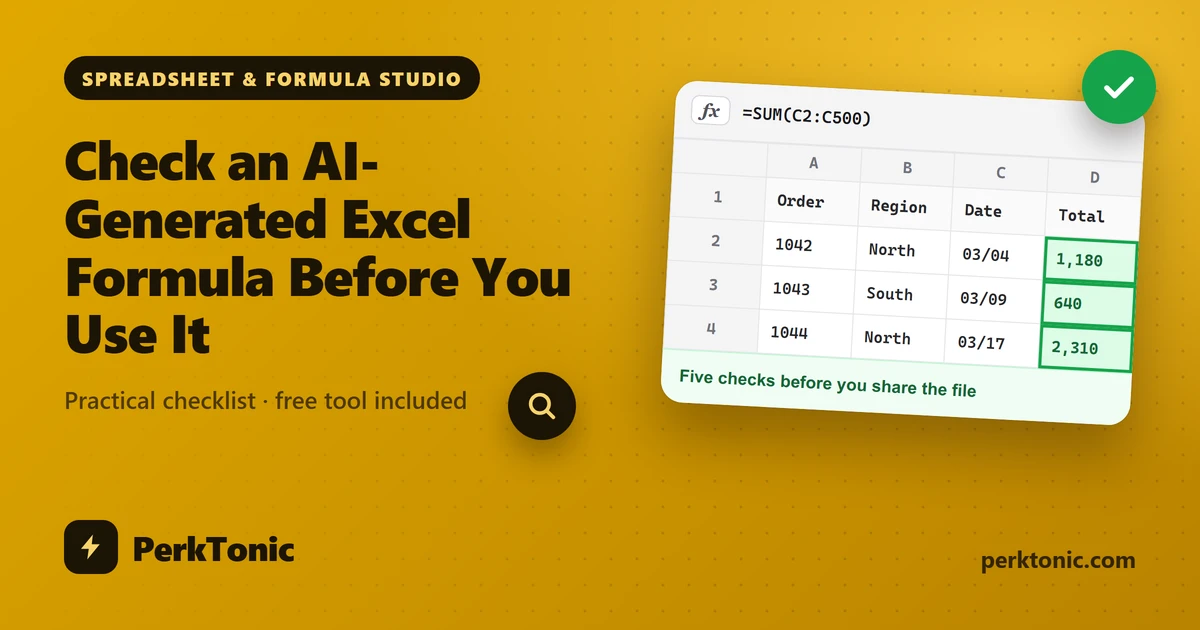
Check an AI-Generated Excel Formula Before You Use It
A short routine to check a formula written by AI before you rely on it: read the assumptions, read the structure, and test it on a copy.
4 min read
 Spreadsheet & Formula Studio
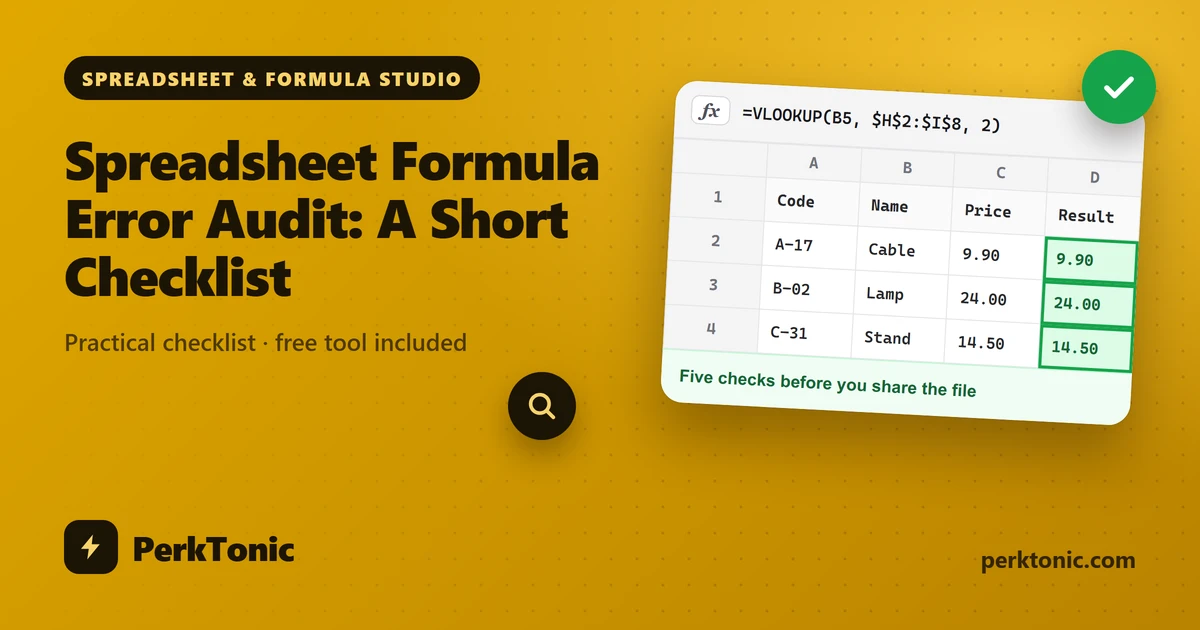
Spreadsheet Formula Error Audit: A Short Checklist
A five-step checklist to review a workbook before you share it: formula structure, error values, lookups, separators, text numbers and versions.
4 min read
 Spreadsheet & Formula Studio
Explain a Nested Excel Formula in Plain English
How to read a nested Excel formula from the outside in, with a Structure tree and a plain-English summary, using IFERROR around VLOOKUP.
4 min read