
Fix #NAME? in Excel: Typos, Quotes and New Functions
Why Excel shows #NAME?: curly quotes pasted from an email, misspelled or too-new functions, and text written without quotation marks.
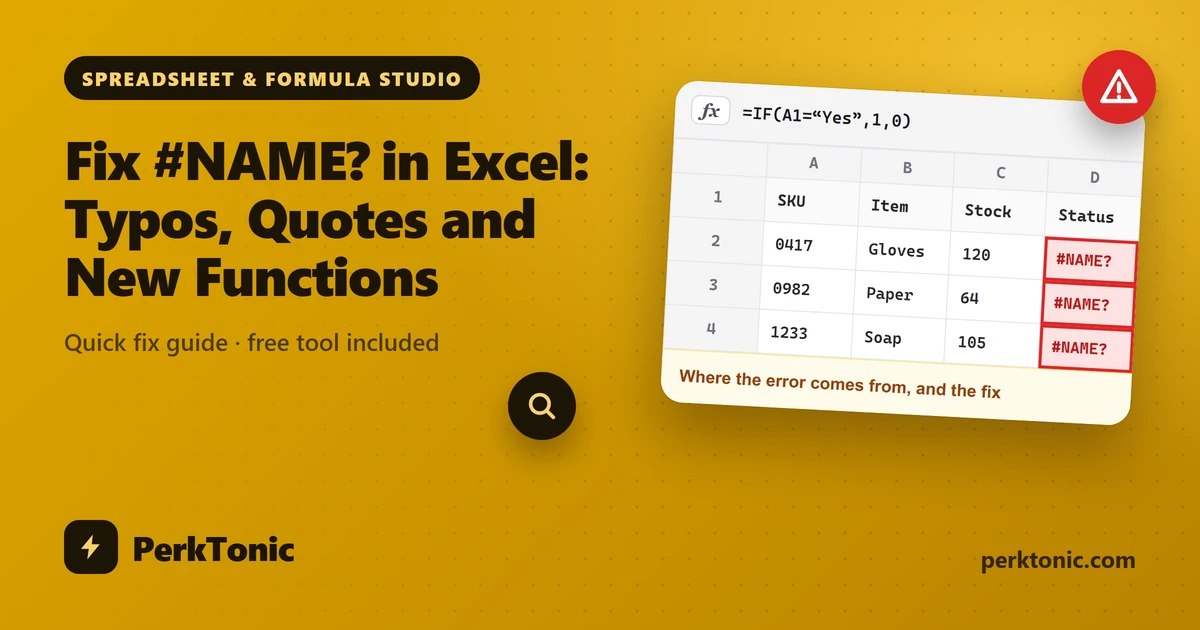
A formula pasted from an email, or written for a newer Excel, shows #NAME? when Excel does not recognise a word in it. The usual causes are curly quotes, a misspelled or unknown function, a function that your version does not have, and text written without quotes. Paste the formula into the Excel Formula Debugger and pick #NAME? to see which of these applies.
What #NAME? means
#NAME? means Excel found a word it cannot match to a function, a defined name or a value. Excel treats an unquoted word as a name. If no function or name with that spelling exists, the cell shows #NAME?.
The formula structure is often correct. The problem is a single word or character: a quotation mark that looks right but is a different character, a letter typed wrongly, or a function that your Excel does not know. Because the cells look fine, the error is easy to miss when you read the formula by eye.
The debugger rules catch unknown or misspelled functions, functions too new for your version and text without quotes.
Curly quotes from email or Word
Email programs and word processors replace straight quotation marks with curly ones. Excel does not read curly quotes as the start or end of text, so it sees a name and returns #NAME?. The formula looks identical to the correct one:
=IF(A1=“Yes”,1,0)
Paste it into the debugger and pick #NAME?. The curly-quote cause is diagnosed with high confidence, because the characters are in the formula itself.
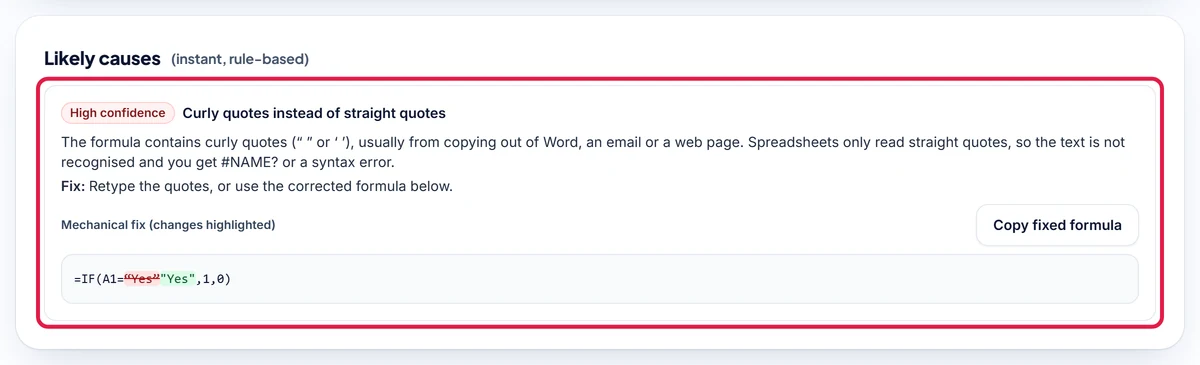
The mechanical fix replaces the curly quotes with straight ones:
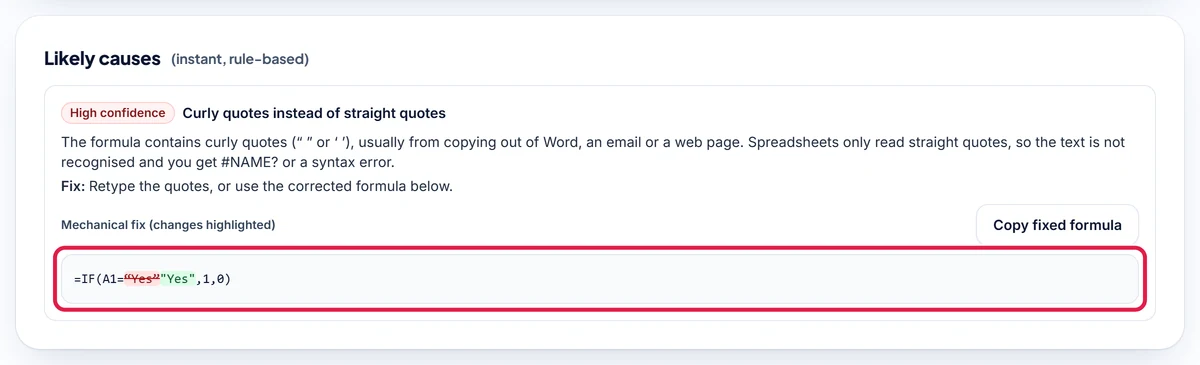
=IF(A1="Yes",1,0)
The corrected formula is shown with the changed characters highlighted, so you can see what was replaced.
To avoid the problem, paste a formula into a plain text editor first, or type the quotation marks again in the formula bar. In a document, turn off automatic replacement of straight quotes if you write formulas there often.
Misspelled or unknown functions
A typo in a function name is the second most common cause. VLOKUP for VLOOKUP, SUMIFS typed as SUMIF5, or CONCATENATE with a missing letter all return #NAME?. Check the name against the function list that Excel suggests while you type: a recognised function name appears in the suggestion list with its tooltip.
English function names are required. A formula from a French or German Excel, such as RECHERCHEV, returns #NAME? in an English Excel even though it is correct there. Translate the name first, or use the Excel to Google Sheets Formula Converter if the formula should end up in Google Sheets. The separators can differ as well, see Excel Formula Needs Semicolons: Fix the Separator.
Other causes outside the debugger rules are a deleted or misspelled defined name, and a range written without the colon, such as A1A10.
Functions too new for your version
A function can be spelled correctly and still not exist in your Excel. XLOOKUP, FILTER, UNIQUE, SORT, LET and LAMBDA are not in Excel 2019 or earlier, and the cell shows #NAME? as soon as the formula is entered. The debugger lists this as a cause when the formula uses a function that is too new for the version.
If you already have an XLOOKUP formula, the XLOOKUP vs INDEX-MATCH Generator notes that it is not available in Excel 2019 or 2016 and gives an INDEX/MATCH version that works there. For a new formula, pick Excel 2019 in the Excel Formula Generator so that it writes with the functions that version has.
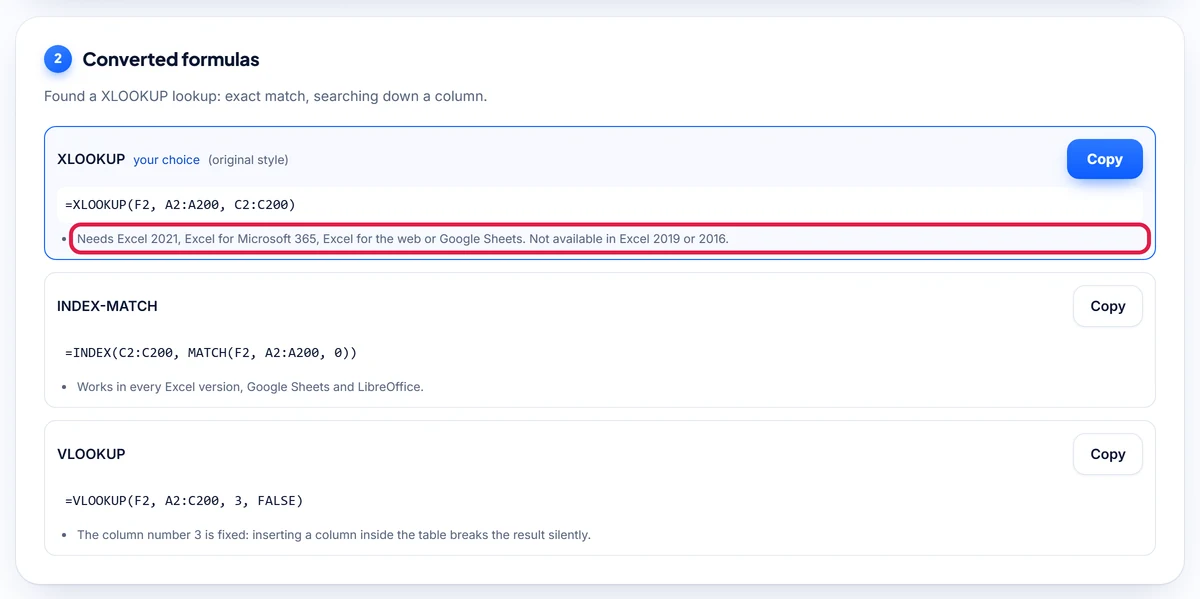
A lookup replacement that works in Excel 2019 is explained in Lookup Formulas for Excel 2019 Without XLOOKUP.
Text without quotes
Text values in a formula need quotation marks. The formula =IF(A1=Yes,1,0) makes Excel look for a name called Yes and return #NAME?. Write "Yes" with straight quotes. Cell references, numbers and TRUE or FALSE do not need quotes, but any other word does.
If the cell still shows an error after the name problem is fixed, the next error is a different one. A #VALUE! that remains is covered in Fix #VALUE! in Excel When the Cells Look Fine.
Microsoft lists the full set of causes in How to correct a #NAME? error.
Check your own file
Open the Excel Formula Debugger, paste the formula that shows #NAME? and pick #NAME?. Check the quotation marks first, then the spelling of each function name, then whether your Excel version has the function.