
Find the Missing Bracket in a Long Excel Formula
How to find the bracket that never closes in a long Excel formula by position, fix it, and check the structure afterwards.

When Excel rejects a long formula and every bracket looks fine, stop counting by eye and count by position. Paste the formula into the AI Formula Explainer: if a parenthesis is missing, it names the opening bracket that never closes and puts a caret under it. Fix that bracket, then check that the Structure tree is complete.
How the explainer reports a missing bracket
Paste the formula into the explainer. If the brackets do not balance, it does not show a tree. It shows an error that gives the position of the bracket that has no partner and a caret under that bracket, so you see exactly where to look.
The tree itself copes with formulas that are hard to read by eye: more than 20 nesting levels, array constants, quoted sheet names, table references, LET and LAMBDA. A long formula is therefore not a reason for it to fail. The problem is in the formula text.
The message names the bracket that was opened and never closed. The missing closing bracket may be far from it, since Excel only notices at the end of the formula that something is still open.
Worked example: position 9
Here is a formula with a bracket error:
=IFERROR(VLOOKUP(A2,Prices!A:C,3,FALSE,"Not found")
Paste it and the explainer reports: "The bracket opened at position 9 is never closed", with a caret under that bracket.
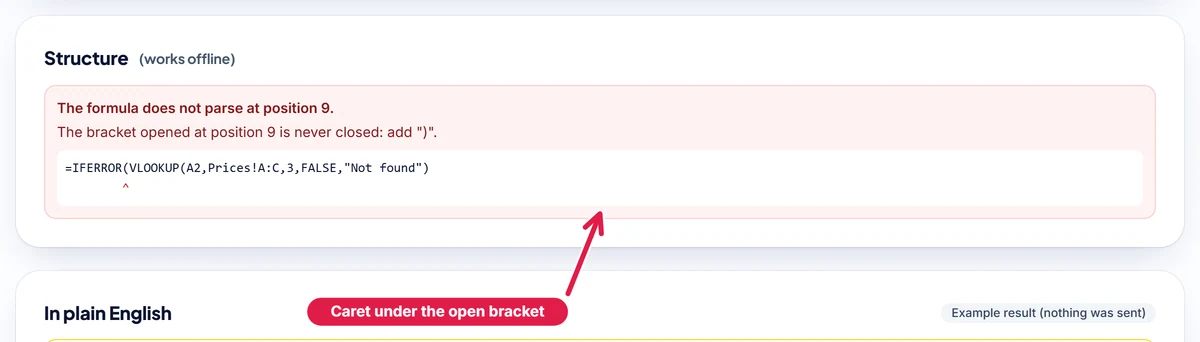
Position 9 is the bracket after IFERROR: the equals sign is position 1 and IFERROR takes positions 2 to 8. The bracket after VLOOKUP is closed, but the closing bracket at the end belongs to VLOOKUP, because the text "Not found" ended up inside it as a fifth argument. IFERROR is left open.
The caret shows which function is incomplete. The message suggests adding a closing bracket, but where it belongs depends on what you mean, and the tool cannot know that. Here the intended structure is VLOOKUP with four arguments, closed after FALSE, and then the message for IFERROR.
Fix the bracket and re-read the tree
Close VLOOKUP after FALSE and keep the final bracket for IFERROR:
=IFERROR(VLOOKUP(A2,Prices!A:C,3,FALSE),"Not found")
Paste the corrected formula again. The tree should now appear, with IFERROR at the top, VLOOKUP as its first argument and "Not found" as the second.
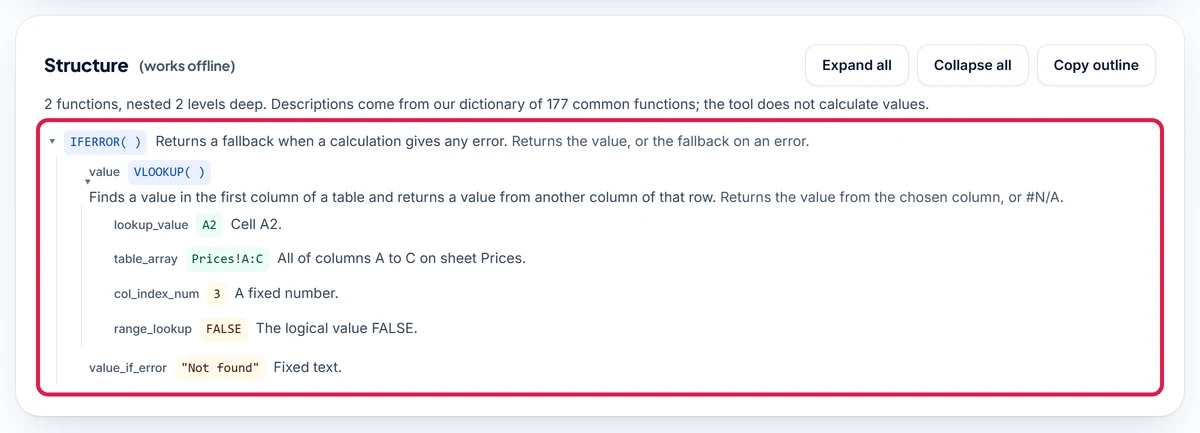
A complete tree does not prove the formula does what you want, only that its structure is valid. Read the tree from the top node down and compare it with your intention. The steps for that are in Explain a Nested Excel Formula in Plain English. If an argument count is wrong, for example too few arguments for a function, the tree shows which arguments each function received.
Quotes and commas inside text
Brackets and quotation marks interact. An opening quote without a closing one turns everything after it into text, so the brackets that follow are not counted, and the error can point at an earlier bracket that looks fine.
Check these points:
- Every text value has a quote at both ends, for example "Not found".
- Commas inside quotes are part of the text, not argument separators: "Not found, retry" is one argument.
- Brackets inside quotes are text as well: "Total (net)" does not open a bracket.
- Straight quotes are needed. Curly quotes pasted from a document are not recognised as quotes by Excel.
Excel reports a different error when the text itself is the problem. If a name without quotes shows #NAME?, see Fix #NAME? in Excel: Typos, Quotes and New Functions.
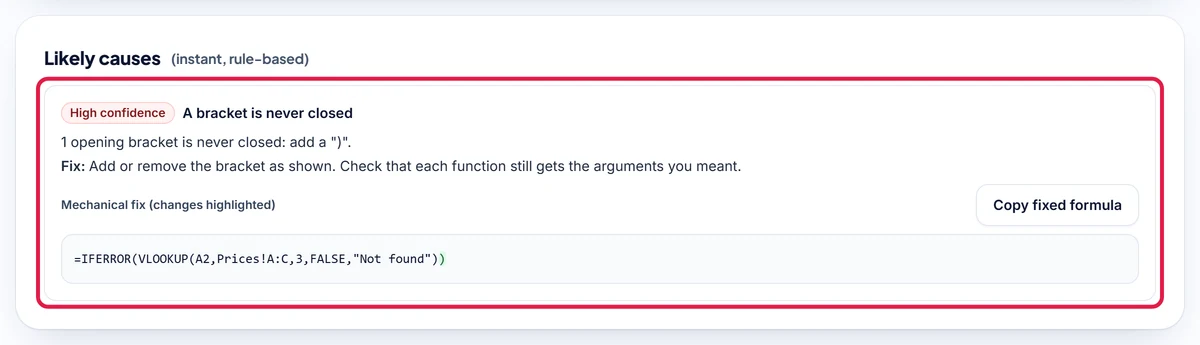
The Excel Formula Debugger rules cover unbalanced brackets and quotes, so it is a second check on the same formula. Pick the error that Excel shows and read the Likely causes. Microsoft describes the syntax in its support article "Overview of formulas in Excel"; one address is Overview of formulas in Excel.
To review a whole workbook for problems of this kind, use Spreadsheet Formula Error Audit: A Short Checklist.
Check your own file
Open the AI Formula Explainer, paste the formula Excel rejects and read the position in the error message. Close the bracket that the caret points to, or the one that matches it, paste the formula again and check that the tree appears.