
Turn a Plain-English Request into an Excel Formula
Use the Excel Formula Generator to turn a plain-English request into a formula for Excel, Google Sheets or LibreOffice Calc, then test it on a copy.
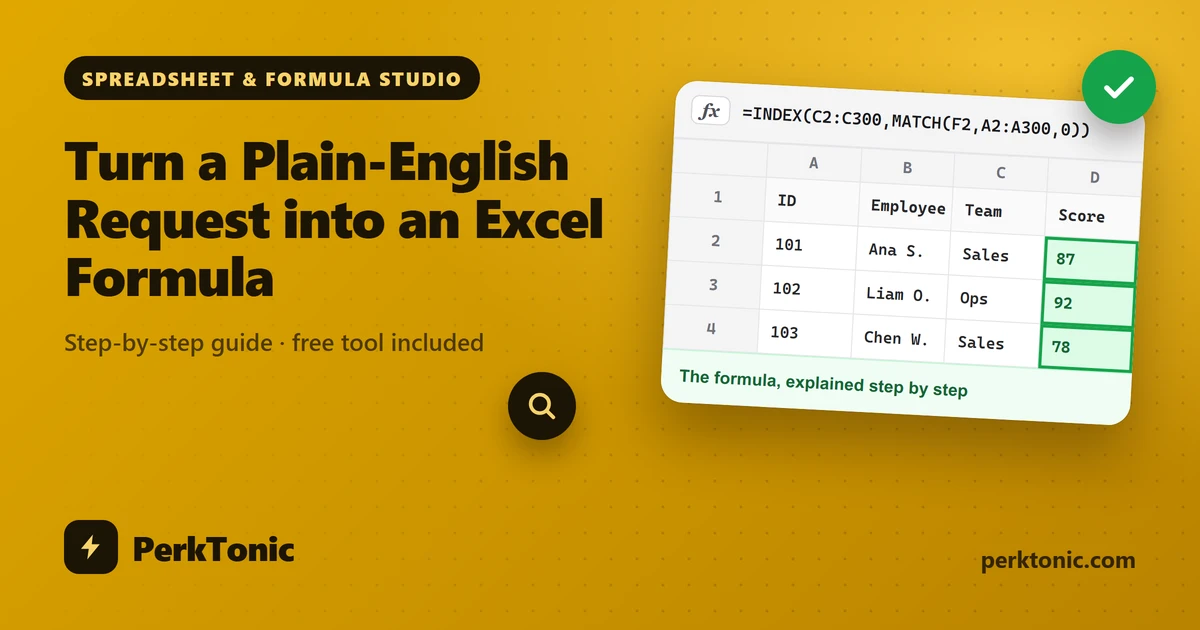
You know what you want to calculate but not which functions to combine. The Excel Formula Generator is an excel formula generator that turns a plain-English request into a formula you can paste into Excel, Google Sheets or LibreOffice Calc. This guide shows what to type, how to pick the app, and how to check the result before you rely on it.
What the generator needs: the request and the columns
The tool takes two pieces of text. The first is the request: what you want the formula to do, in ordinary words. The second is a description of your columns: which column holds what, and which cell holds any value you type in. Each of the two fields accepts up to 2,000 characters, which is far more than most requests need.
A good request names the result and the inputs. "Find the price for the product code typed in F2" says what comes out and where the input lives. A good column description gives the letter and the meaning of each column involved: "codes are in column A, prices in column C". The more exact the cell references, the less you have to edit afterwards.
Steps: describe, pick the app, press Generate formula
- Type your request in plain English.
- Describe the columns that the formula should read.
- Choose the app: Excel 365 / 2021, Excel 2019 or older, Google Sheets, or LibreOffice Calc.
- Press Generate formula.
- Copy the formula into the cell you want to fill.
The app choice matters because the available functions differ. Choosing the right app is how the same tool serves as a Google Sheets formula generator and as a source of formulas for LibreOffice Calc, not only for Excel.

Worked example: lookup for Excel 2019 or older
Say the product codes are in column A, the prices are in column C, and you type a code into F2. Enter this request:
Find the price for the product code typed in F2; codes are in column A, prices in column C
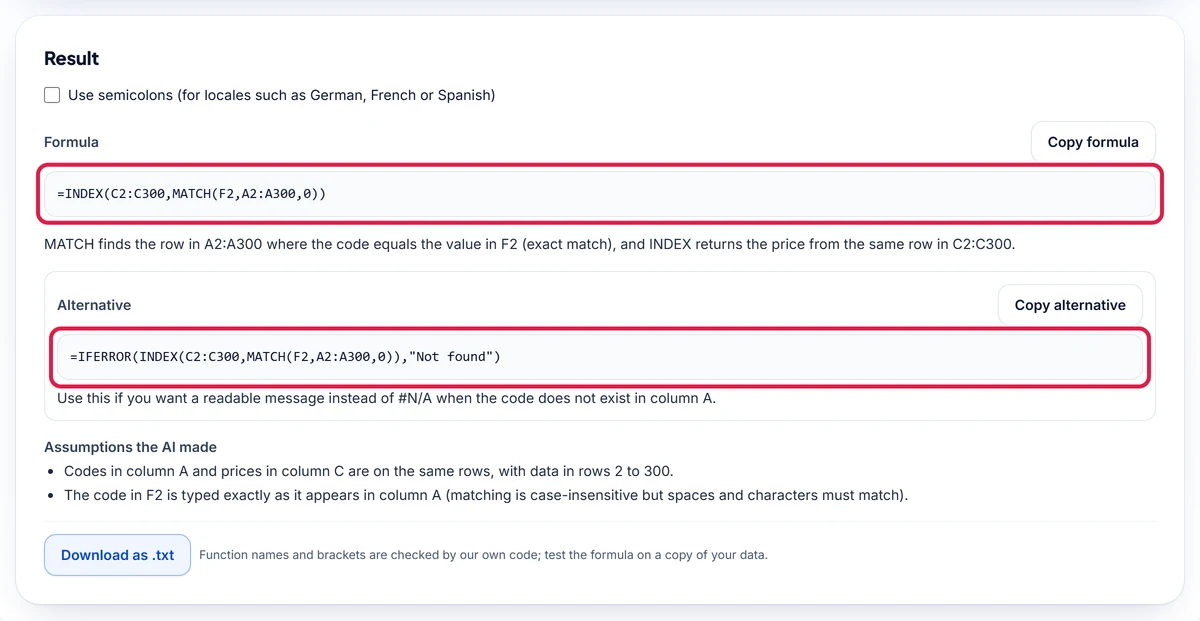
Choose Excel 2019 or older and press Generate formula. The tool returns an INDEX and MATCH formula:
=INDEX(C2:C300,MATCH(F2,A2:A300,0))
It also offers a VLOOKUP formula as an alternative:
=VLOOKUP(F2,A2:C300,3,FALSE)
XLOOKUP is not used here because Excel 2019 does not have it. MATCH finds the row of the code in column A, and INDEX returns the value from the same row in column C. The final 0 in MATCH and the FALSE in VLOOKUP both mean exact match. For a reference on the first pair of functions, search Microsoft Support for "INDEX and MATCH functions".
When the tool asks a question instead
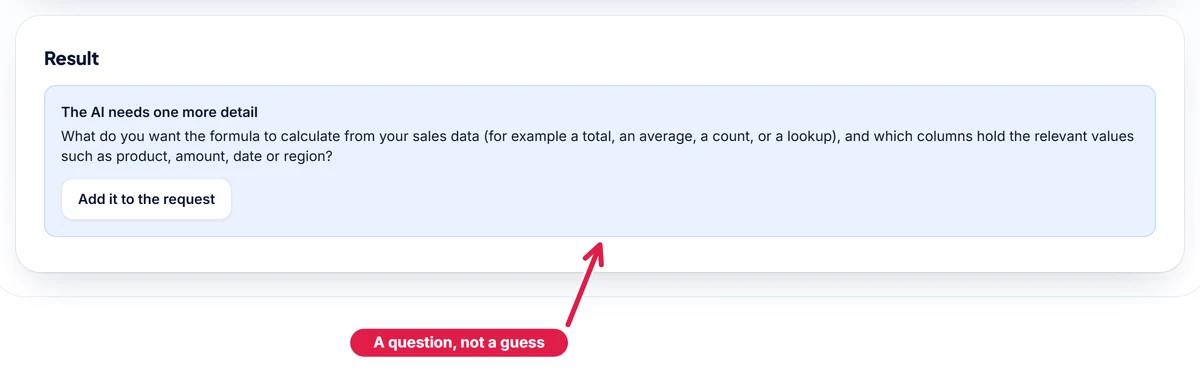
If the request is too vague to build a formula from, the tool does not guess. It sends back one question. A request such as "Make a formula for my sales" gives no result to calculate, no columns and no condition, so the tool asks what you want to know.
Answer by adding the missing detail to your request, then press Generate formula again. Name the result you want (a total, a count, a lookup), the column it comes from, and any condition such as a month or a product.
What Unverified means and how to test the formula
The tool checks the function names in the formula against a list of about 500 functions for the chosen app. If a name is not on that list, the formula appears under an "Unverified" warning. Unverified does not prove the formula is wrong, but it tells you to look at that function name before you use it. Compare it with the function list of your app, for example the Google Sheets function list from Google Docs Editors Help.
The tool does not open your file and does not calculate results. A correct-looking formula can still point at the wrong range. Test it on a copy of your workbook:
- Paste the formula into a spare cell on the copy.
- Type a value you know the answer to, such as a product code and its price.
- Compare the result with the value you expect.
- Try a value that does not exist and see what the formula returns.
If you do not understand part of the formula, paste it into the AI Formula Explainer. If it returns an error, use the Excel Formula Debugger. For a full checklist, read Check an AI-Generated Excel Formula Before You Use It.
Limits
- Request and column description: up to 2,000 characters each.
- AI requests: 10 per 10 minutes, plus a daily limit.
- The tool does not open your file and does not calculate results.
- Function names are checked against about 500 functions per app.
If you reach the 10-request limit, wait for the window to pass and combine what you still need into a more precise request. A precise request needs fewer attempts.
Try it
Open the Excel Formula Generator, describe one calculation you do by hand, choose your app and press Generate formula. Then test the result on a copy. For a related task, see SUMIFS Between Two Dates: Sum One Month in Excel, or learn to read a long formula in Explain a Nested Excel Formula in Plain English.