
Explain a Nested Excel Formula in Plain English
How to read a nested Excel formula from the outside in, with a Structure tree and a plain-English summary, using IFERROR around VLOOKUP.
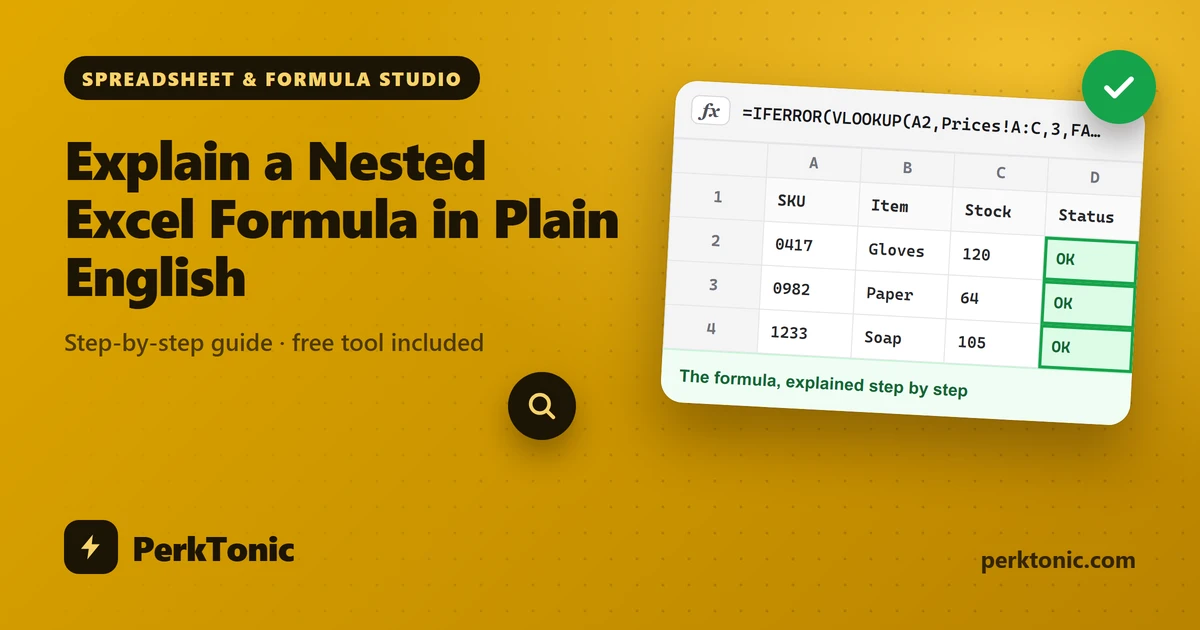
A formula you did not write is hard to read because its parts sit inside each other. Paste it into the AI Formula Explainer and you get its structure as a tree at once, and a short plain-English summary with ordered steps when you ask for it. Start with the tree: it shows which function sits inside which.
Read the Structure tree first
The Structure tree appears as you type and works offline, so you can see the shape of the formula before you use the AI. Each function is a node, and its arguments are listed below it. Nested functions show as nodes inside their parent.
Reading from the outside in is the quickest way to understand a formula. The outermost function decides what the cell finally returns. Every inner function produces a value that the outer function uses as an argument. Paste the formula, read the top node first, then open each argument in turn.
For a formula that does not even parse because of a missing bracket, see Find the Missing Bracket in a Long Excel Formula.
Worked example: IFERROR around VLOOKUP
Take this formula:
=IFERROR(VLOOKUP(A2,Prices!A:C,3,FALSE),"Not found")
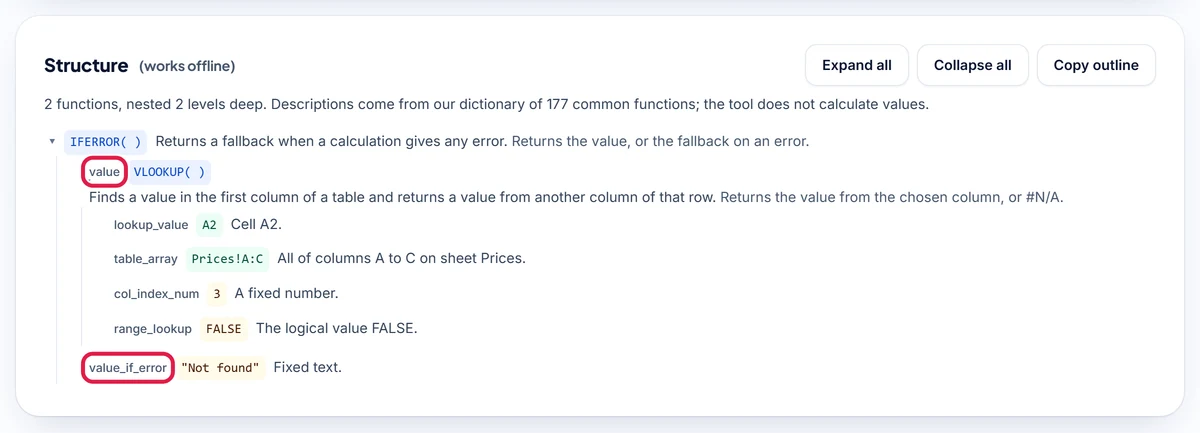
The tree starts with IFERROR, which takes two arguments: value and value_if_error. The value is the VLOOKUP, and the value_if_error is the text "Not found". Under VLOOKUP the tree lists its four arguments: the lookup value A2, the table Prices!A:C, the column number 3 and FALSE for an exact match.
Read in plain words: look for the value of A2 in the first column of Prices, return the matching entry from the third column, and show "Not found" if any error occurs. IFERROR catches every error, not only a missing value, so a broken range would also show "Not found". If the lookup fails when the value seems to be in the table, read Fix #N/A in Excel VLOOKUP: Causes and Fixes.
Explain in plain English: summary and steps
Press Explain in plain English to get a summary of at most 80 words and an ordered list of steps. The summary says what the formula returns. The steps follow the order in which Excel works, from the innermost function outwards.
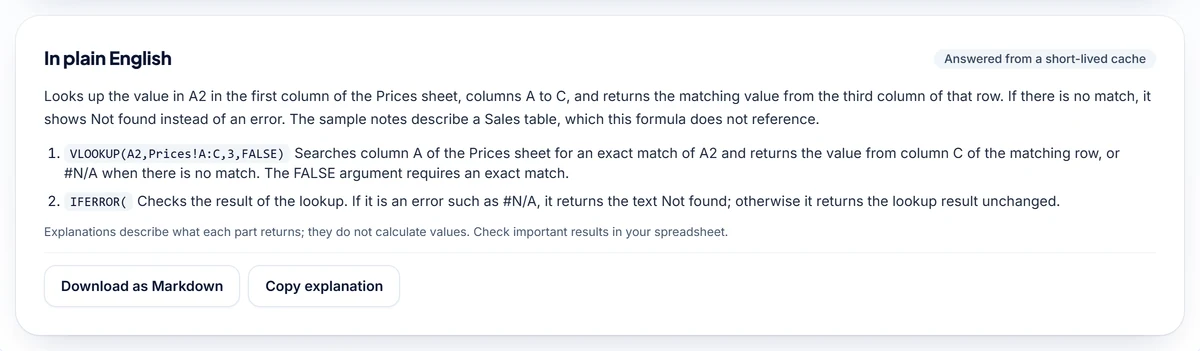
The result is checked against your formula. A step that quotes text that is not in your formula is deleted, and the tool counts how many were removed. That does not make the explanation a proof, so compare the steps with the tree and with your sheet.
The tool understands English function names and accepts semicolons as separators, so a formula from a European Excel can be pasted as it is, provided the function names are English. A formula in another language should be translated first.
Formulas with LET, tables and sheet names
Formulas can be long for reasons other than nesting. LET defines names for intermediate results, structured references point to table columns, and sheet names such as Prices!A:C add text to every reference. The tree helps here as well, since each name or reference is a separate item that you can read on its own.
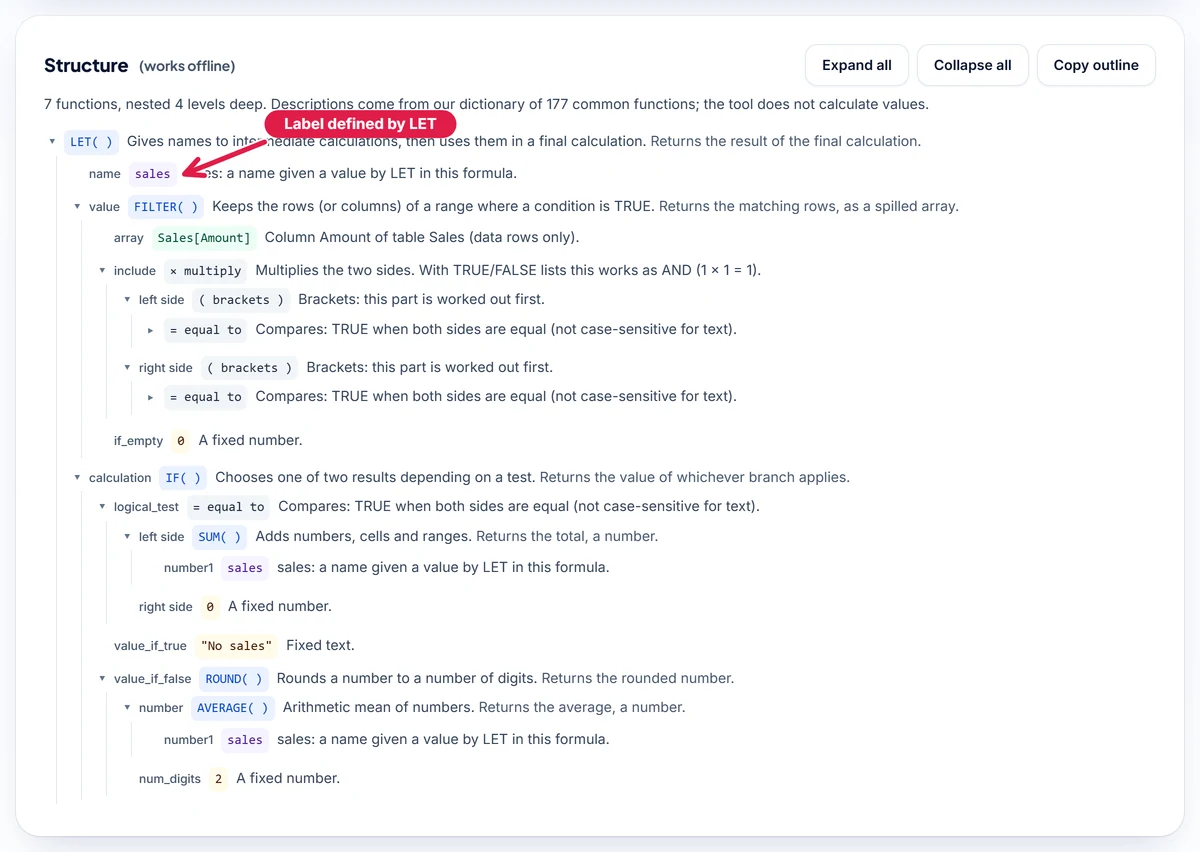
When a LET formula uses a label such as sales, find where it is defined and then where it is used. The explanation steps do the same in order. If LET or FILTER returns #NAME? on your computer, the cause is probably your Excel version rather than the formula, and Fix #NAME? in Excel: Typos, Quotes and New Functions covers that case.
Limits: 177 described functions, no calculation
The explainer accepts formulas up to 8,000 characters. Its dictionary describes 177 common functions, so a rarely used function may appear in the tree without a description. Check such functions in Microsoft's documentation. IFERROR and VLOOKUP are documented there: see IFERROR function and VLOOKUP function.
The tool explains the formula, it does not calculate it. It does not know the values in your cells, so it cannot tell you why a result is wrong for your data. For that, paste the formula into the Excel Formula Debugger with the error it shows. To write a replacement formula in plain words, use the Excel Formula Generator. A checklist for reviewing a whole sheet is in Spreadsheet Formula Error Audit: A Short Checklist.
Do it with your own data
Open the AI Formula Explainer, paste the longest formula in the sheet and read the Structure tree from the top node down. Then press Explain in plain English and check each step against the tree.