
Remove Duplicate Rows From a CSV File
How to remove duplicate rows from a CSV file: why cleaning comes first, the case option, the report and change log, and stacking two files without repeated rows.
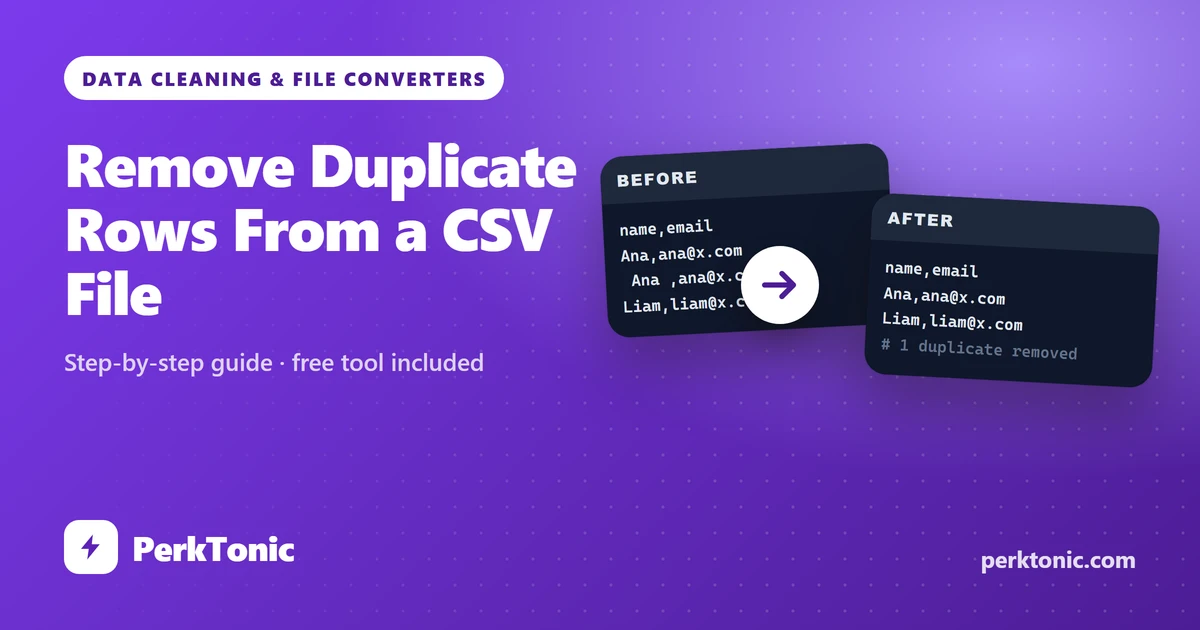
A CRM export often contains the same contact twice, with one copy that has a space after the name or another letter case. A plain "remove duplicates" step does not see these as the same row. To remove them reliably, clean the cells first and compare afterwards. The Clean Messy CSV Data tool works in that order and keeps the first copy of each row.
How duplicates are compared
The tool compares rows after it has cleaned them, not before. Leading and trailing spaces are trimmed, and the other cleaning steps are applied first. As a result, " Ana " and "Ana" become the same value, and two rows that differ only in such details count as duplicates. Letter case is different: "ANA" and "Ana" count as two values unless you tick Ignore case and spacing when comparing under Remove duplicate rows.
When duplicates are found, the first copy is kept and the later ones are removed. The order of the remaining rows is the original order, so the file does not get reshuffled.
This is different from a plain comparison of the raw text, which treats " Ana " and "Ana" as two different people. It is also why a spreadsheet's built-in duplicate removal can leave rows in the file that look identical on screen: the difference is a space that you cannot see.
Decide before you start which rows are real duplicates. Two rows for the same person with different phone numbers are not identical, and they are not removed. The tool removes rows whose cleaned cells are all equal.
Steps
- Open Clean Messy CSV Data.
- Paste the CSV or open the file, or press Try an example.
- Under Cleaning steps, check that Trim whitespace and Remove duplicate rows are ticked. Tick Ignore case and spacing when comparing if rows can differ in letter case.
- Read the report under Result and report.
- Press Download clean CSV.
To see the repeated values before you remove them, highlight them in a sheet first. The rule is explained in Highlight Duplicates in One Column With a Formula, and the Conditional Formatting Generator writes it for you.
Read the report and the change log
After the cleaning, the report counts what was changed. For the example data of the tool it shows 6 rows before and 4 after, 18 cells changed and 2 rows removed. The table below lists the steps. The most important lines are:
- Trim whitespace: 2
- Straighten smart quotes: 2
- Standardise blank values: 2
- Standardise dates: 5
- Normalise header names: 6
- Remove empty rows: 1
- Remove duplicate rows: 1
Each count belongs to one cleaning step. The line Remove duplicate rows 1 means that one duplicate row was removed, and Rows removed 2 adds the empty row that was removed as well.
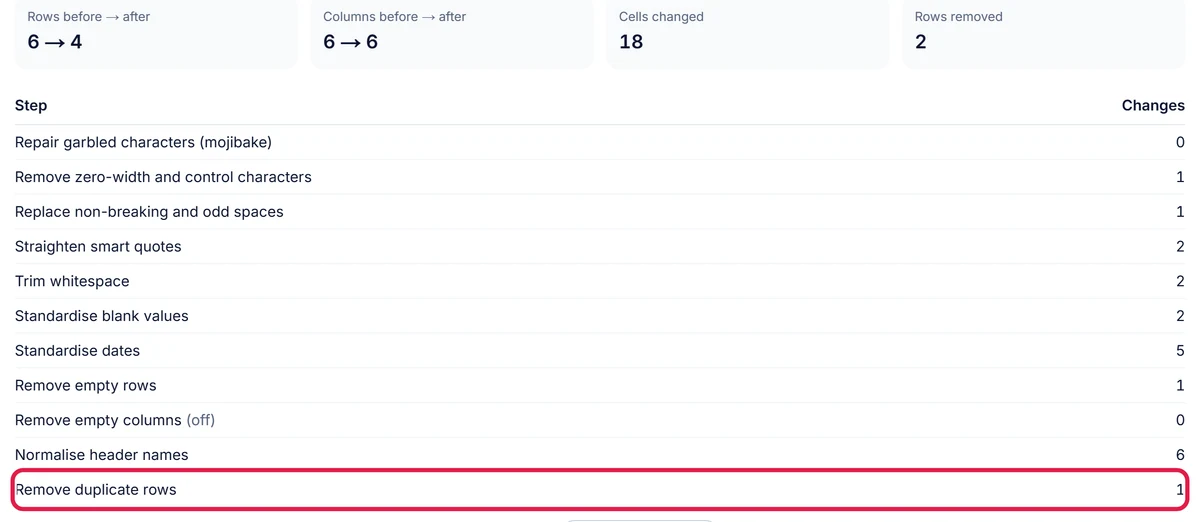
The line Remove duplicate rows is the one to check against your expectation. If you expected twenty duplicates and the report says one, the rows differ in something that the cleaning does not remove, for example a different ID column. The number of Cells changed tells you how much of the file was touched, which is useful for deciding whether to review the result by hand.
Next to the cleaned data is the tab Before / after, which is the change log. The log on screen shows the first 300 changes, and Download change log saves up to 20,000. Each entry shows the value before and after, so you can verify the changes instead of trusting them. The entry for a removed duplicate reads "duplicate of row" followed by the row number, and the new value is "(removed)". The menu Show changes from filters the log by step.

Check a few entries from each kind of change, especially dates and duplicates. Open the downloaded log if the file has more changes than the screen shows. For a wider list of checks before an import, see Clean a CSV Before Importing It: Checklist.
Duplicates across two files
Sometimes the duplicates are not inside one file but across two exports, for example last month's list and this month's list. Stack the two files and remove the duplicates across them. In Compare Two CSV Files, the mode Stack and remove duplicates puts the rows of both files together and keeps one copy of each repeated row.

If you want to know what differs between the two files, and not only to merge them, use the comparison by key instead. The steps are in Compare Two CSV Files and Find the Differences. Stacking is right when the files are lists of the same kind of record. A comparison by key is right when the files are two versions of the same list.
The structure of a CSV file, including quoted values, is described in RFC 4180. A value in quotation marks that contains a comma is one value, so a tool that splits on every comma will compare the wrong cells.
Try it
Open Clean Messy CSV Data and load your export. Read the report, check that the number of duplicates is plausible, look at a few entries of the change log, and download the cleaned file.