
Compare Two CSV Files and Find the Differences
How to compare two CSV files by a key column and list the added, removed and changed rows, with a price-list example, key options and downloads.
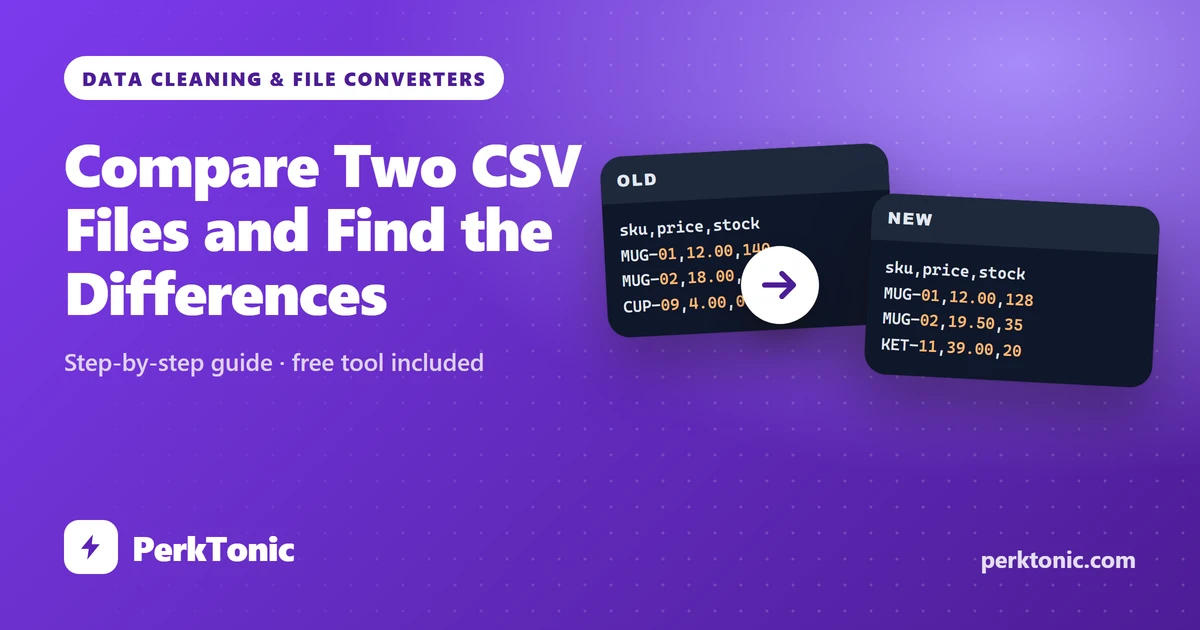
When you have two versions of a price list or an export, a line-by-line text diff is not much help, because one reordered row makes everything look changed. To compare two CSV files properly, match the rows by a key column and list what was added, removed or changed. The Compare Two CSV Files tool does this in the browser and gives you the differences as a result you can download.
Pick a key column
The key column is the column that identifies a row, such as a product code, an order number or an email address. The tool matches the rows of the two files by this key, not by their position. Row order and column order do not matter, so a file that was re-sorted or had its columns rearranged still lines up correctly.
A good key is unique in each file and does not change between versions. A product code works. A product name that people edit does not, because a renamed product would appear as one removed row and one added row.
If the key repeats in a file, the tool shows a Duplicate keys warning and pairs the rows with the same key in the order they appear. Add a second key column to make the key unique, or remove the duplicates first: the Stack and remove duplicates mode of the same tool does that.
Steps
- Open Compare Two CSV Files.
- Paste or open the old file as File A (old) and the new file as File B (new).
- Keep the mode on Compare and choose the key column, for example sku. The tool offers the column names that both files share.
- Check the options for the key: Ignore case in keys and Ignore spaces around keys. Both are on by default.
- Read the summary and the lists of added, removed and changed rows. The result appears as soon as both files are loaded.
Excel files must be saved as CSV first, with File > Save As and the CSV format. Each file can be up to 50 MB.
Worked example: two price lists
Take two versions of a price list with the key sku. The comparison reports:
- 1 added: KET-11, a row that exists only in the new file.
- 1 removed: CUP-09, a row that exists only in the old file.
- 3 changed: MUG-01 with the stock changed from 140 to 128, MUG-02 with the price changed from 18.00 to 19.50, and TEA-07 with the stock changed from 80 to 72.
- 1 unchanged: SET-03.
The second file also has a category column that the first one does not have, and its columns are in a different order. The tool compares only the shared columns, matched by name, and tells you which columns exist in one file only.
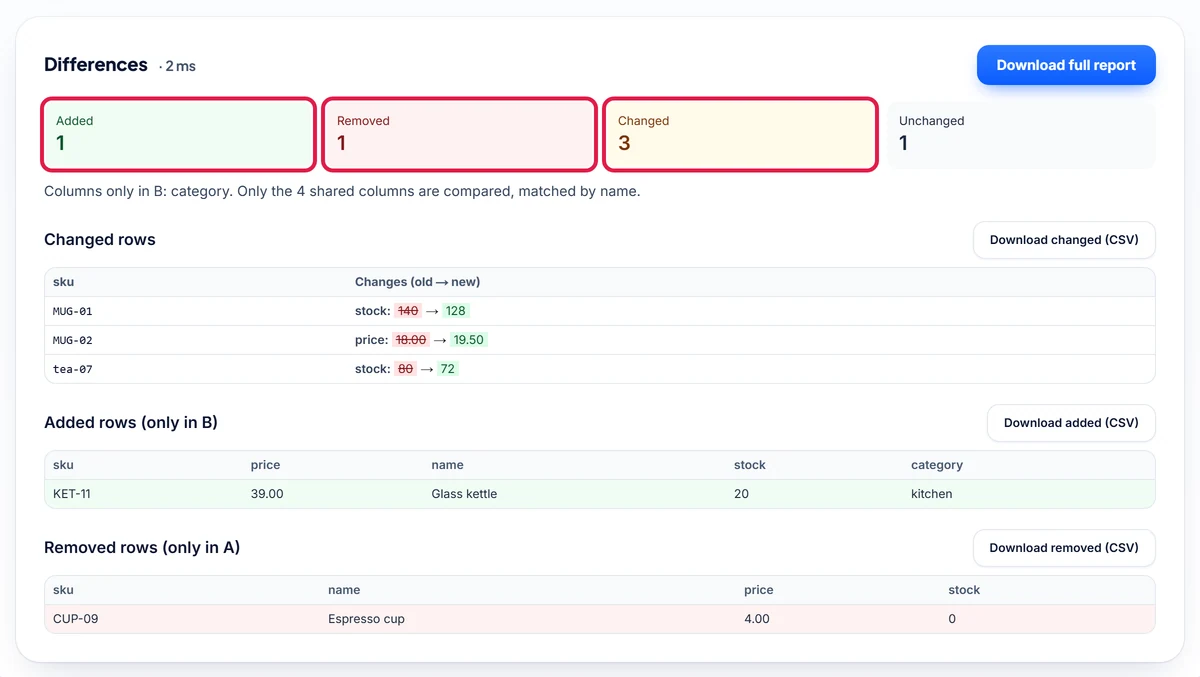
The changed rows show the old and the new value of each cell that differs, so you can see at a glance what moved. In this list only one cell differs in each changed row. A change of the price of MUG-02 matters for your sales sheet, and a change of the stock of MUG-01 matters for your orders.

Check the removed and added rows against each other. A row that was removed and a row that was added can be the same product under a new code. The tool cannot know that, so decide it from your own data.
Ignore case and spaces
Keys often differ in small ways that are not real changes. One system writes MUG-01 and another writes mug-01, or a code has a trailing space after an export. Without help, these become one removed row and one added row.
The options for keys let you ignore upper and lower case and ignore spaces around the key. Turn them on when the same codes are written slightly differently in the two files.

If almost every row is reported as changed, the key is usually the cause. With no key column selected, the tool compares row 1 with row 1, row 2 with row 2 and so on, so one inserted row makes every row after it look changed. Select a key column to fix that. Stray spaces in the data cells can be ignored with Ignore spaces around values, or removed beforehand with Clean Messy CSV Data.
Download the changes
Each list has its own download button, and Download full report saves one file with every row and its status. You can pass the differences to someone else or load them into a sheet. The CSV of changed rows has one line per changed cell. A row with two changed cells therefore appears as two lines, one for each cell.
For the example above, the file of changed rows has three lines, one for each change. This format is easy to filter in a spreadsheet, for instance to see all price changes together. To combine the two files instead of comparing them, switch the mode of the same tool to Merge (join), which works like a VLOOKUP on the key column.
Limits
Each file can be up to 50 MB. Files in Excel format must be saved as CSV before they are loaded. The comparison reports what differs between the two files and does not decide which version is right.
A CSV has no types. The tool compares the text of the cells, so 18.00 and 18 count as different values. Format the numbers the same way in both files before you compare. The structure of a CSV file is described in RFC 4180.
Do it with your own data
Open Compare Two CSV Files, load the old and the new file and choose the key column. Turn on the key options if the codes are written differently, read the added, removed and changed rows, and download the changes.