
Is JSON With Comments Valid? JSONC Explained
Why JSON with comments is not valid JSON, what JSONC adds, how to validate it with the Allow comments option, and what the formatted output keeps.
JSON with comments is not valid JSON. The standard has no comment syntax, so a strict validator rejects a file that contains // or /* */ and stops at the first one. Config files such as editor settings use a relaxed variant called JSONC that allows comments and trailing commas. The JSON Formatter & Validator can read JSONC when you tick one option.
What standard JSON allows
The JSON standard, RFC 8259, defines a small grammar: objects, arrays, strings, numbers, true, false and null. It has no comments, and it does not allow a comma after the last item of an object or an array.
This is deliberate. A data format that has comments needs a parser that handles them, and the rules of a trailing comma differ between languages. A small strict grammar means every parser in every language reads a document in the same way.
So both of these are invalid in standard JSON:
{
  // the port of the server
  "port": 8080,
}
The comment and the comma after 8080 are both errors. A strict parser reports an unexpected token at the first of them, and the message is explained in Fix Invalid JSON: Unexpected Token and Missing Comma. The JSON Formatter & Validator gives the line and the column and tells you what to do: "Comments are not allowed in JSON. Remove them, or turn on “Allow comments and trailing commas (JSONC)”."

What JSONC adds
JSONC stands for JSON with Comments. It is JSON plus two relaxations:
- Comments, written as // to the end of a line or between /* and */.
- A trailing comma after the last item.
Everything else is the same as JSON. The format is used for files that people edit by hand, such as settings of code editors and configuration of build tools. A comment explains why a value is set, and a trailing comma makes it easier to add a line without touching the previous one.
JSONC is a convention and not a formal standard, so the details can differ from one program to another. A file that one program accepts as JSONC can be rejected by another. If a file is read by a program you do not control, check what that program accepts, and when in doubt, send strict JSON.
Validate with Allow comments and trailing commas
In the validator, tick Allow comments and trailing commas (JSONC) to treat the input as JSONC. Without the option the validator is strict and reports the error. With the option the same input is valid, and a note says "This is JSONC, not JSON", with the number of comments and trailing commas that it found.
- Open the JSON Formatter & Validator.
- Paste the file with the comments.
- Tick Allow comments and trailing commas (JSONC), under the Output menu.
- Read the result and the formatted output.
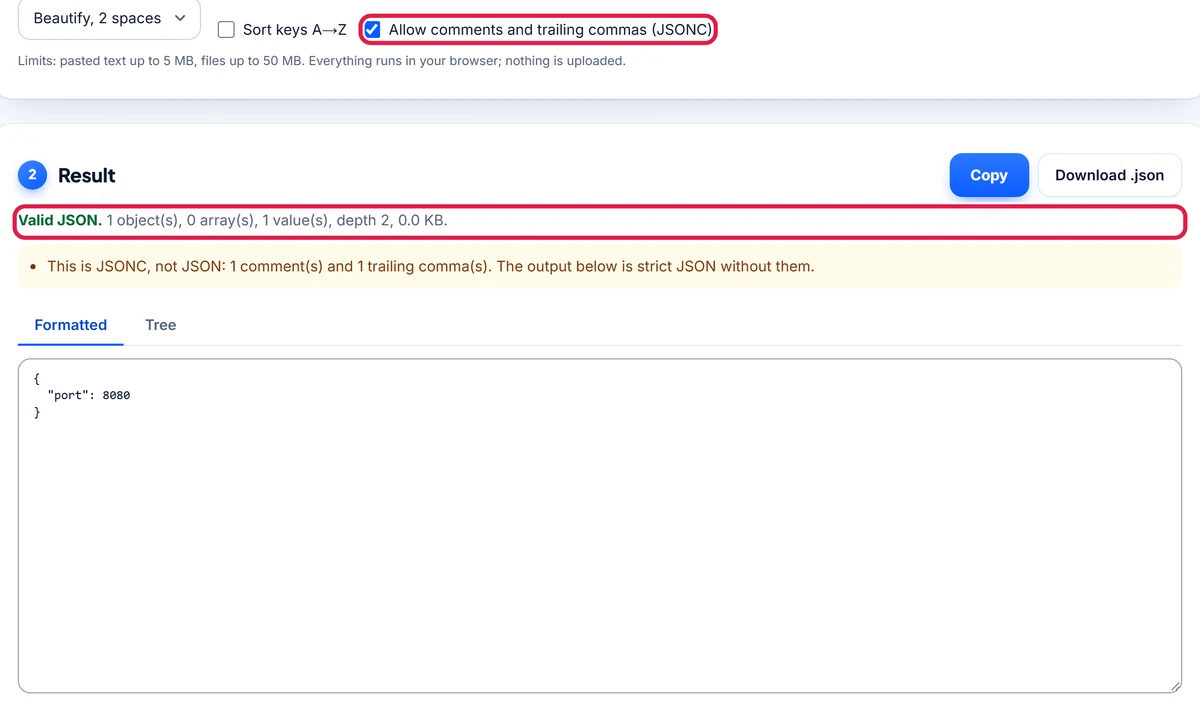
Use the strict mode for anything that will be read by a standard parser, such as an API or a library. Use the lenient mode for configuration files that you know support JSONC. Validating in both modes is a good test: if the file is valid only in the lenient mode, you know that it contains comments or trailing commas, and you know where the next program may stumble.
To check that valid data also has the right structure, see Validate JSON Against a JSON Schema.
What the output keeps
In lenient mode the comments and the trailing commas are removed from the formatted output. The output is strict JSON, and the comments are gone.
This matters. If you format a configuration file in the tool and copy the result back, you lose the comments that explained the settings. Keep the original file, and use the output where strict JSON is needed, for example to send it to an API or to compare the values.
Formatting offers more options, such as sorting the keys. With Sort keys A to Z, the keys are put in order. The order is made by comparing the keys character by character, by character code. As a result, "10" comes before "2", because the character 1 comes before 2, and the numeric value is not considered. The same applies to keys such as item10 and item2, and capital letters come before small letters.
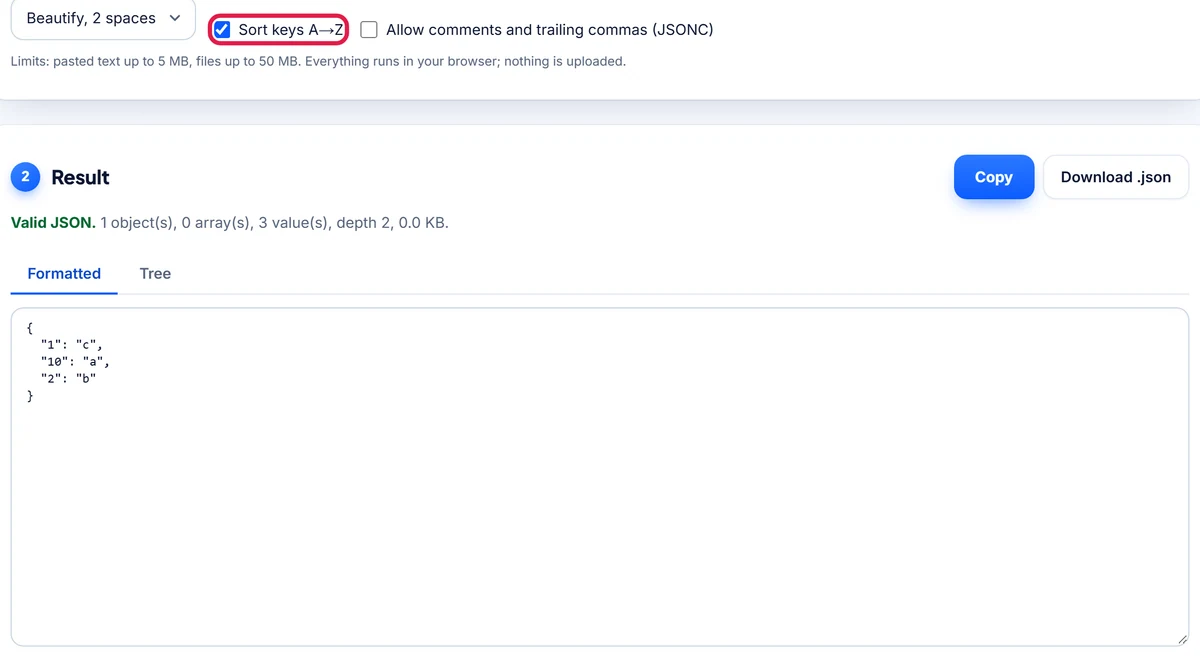
Sorting changes the order of keys in the output but not the data, because the order of keys in an object has no meaning in JSON. For a config file that people read, the original order may carry meaning for them, such as grouping related settings. Sort only when you need to compare two files or want a stable order.
Try it
Open the JSON Formatter & Validator and paste your file with comments. See the error in strict mode, tick Allow comments and trailing commas, and check the output. Keep a copy of the original, because the comments are not kept.