
CSV Compare Shows Every Row Changed: Use a Key
Why a CSV comparison shows almost every row as changed, how to pick a key or a composite key, what duplicate keys do, and how to ignore case and spaces in keys.
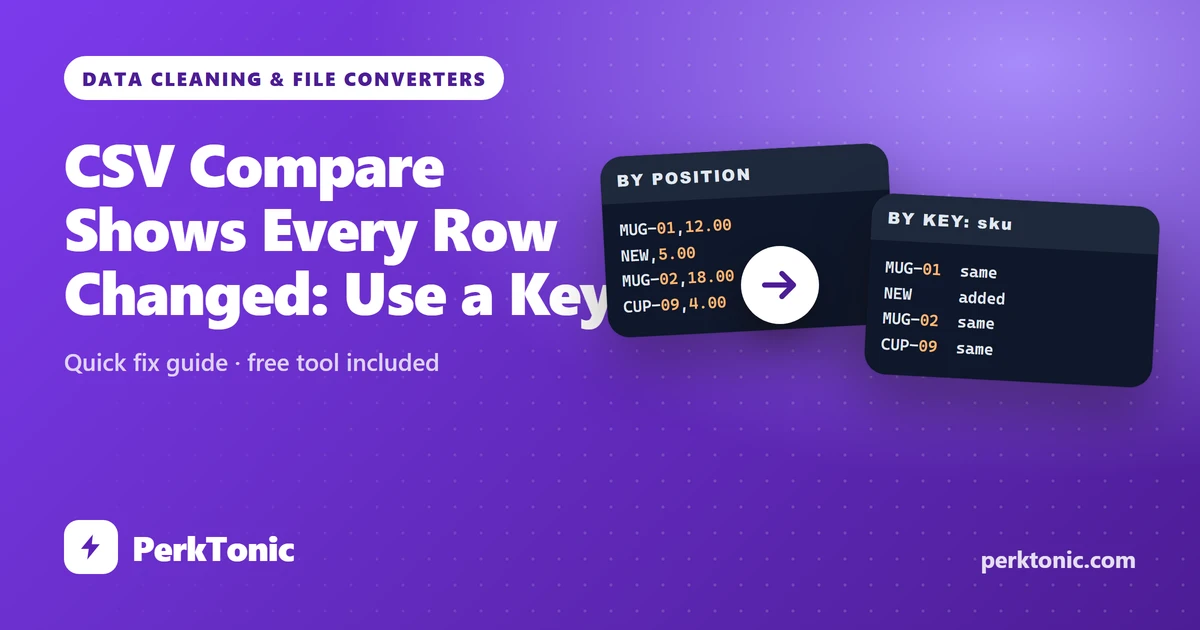
If a CSV comparison reports almost every row as changed after you inserted a single row, the comparison is running by position, not by identity. The fix is to tell Compare Two CSV Files which column identifies a row, so that rows are matched by that key and not by their line number.
Why position-based comparison fails
Without a key, the tool compares row 1 of the first file with row 1 of the second, row 2 with row 2, and so on. This works only while both files have the same rows in the same order. The tool warns you: with no key column selected it says "No key: rows are compared by position (row 1 with row 1…). This is less reliable: one inserted row makes every following row look changed."
Now insert one row near the top of the second file. Every row after it moves down one line. Row 10 of the first file is now compared with a different record, the one that was row 9, and the two differ in most cells. The same happens for row 11, row 12 and every later row. A single insertion makes the rest of the file look changed.
Sorting has the same effect. If one export is sorted by date and the other by name, the lines no longer match, although they hold the same records. A comparison by position cannot tell a changed record from a moved record.
Pick one or more key columns
A key is a column whose value identifies a row, such as an order number, an SKU or an email address. With a key, the tool finds the row with the same key value in the other file, and compares the two rows cell by cell. A row that exists in only one file is reported as added or removed, and the other rows are not disturbed by insertions or sorting.
Under Key columns, the tool lists the columns that both files share, and it suggests one that is unique in both files. Click a name to add it to the key or to take it out. Keep the suggestion if it is the identifier you know, or pick another.

Sometimes one column is not enough. In a file with sales by store, the SKU repeats for every store, so only the pair of store and SKU is unique. Pick both columns as a composite key. Rows then match when both values are the same.

After you set the key, run the comparison again. The number of changed rows should drop to the real changes, and the added and removed rows should match what you know about the data. The full workflow is in Compare Two CSV Files and Find the Differences.
Duplicate keys
A key only works if it is unique. If the same key appears twice in a file, there are two rows that could be matched with one row of the other file. The tool does not hide this. Duplicate keys are reported, with examples, so that you see which values repeat.

When a key is duplicated, the rows with that key are paired in the order of appearance: the first with the first, the second with the second. This gives a result, but it is only meaningful if the order within the duplicates is the same in both files. Treat the pairing as a hint and not as proof.
Look at the examples in the report and decide what the duplicates are. They can be real, such as a customer with two plans, and then a composite key with the plan column fixes the problem. They can be mistakes, such as a record exported twice, and then the duplicate should be removed from the source. Remove Duplicate Rows From a CSV File describes that step.
Spaces and case in keys
A key that is the same to a person can differ for a program. SKU-100 and sku-100, or SKU-100 with a trailing space, are different values. Without help, such rows look like one removed row and one added row, which makes the report longer than the real changes.
Use the options Ignore case in keys and Ignore spaces around keys, which are both on by default. Then a code that differs only in these details is matched. Check a few of the matched rows after you turn the options on, to be sure that no two different records were merged by accident.
If you want to add the columns of one file to the other by the same key, and not to list the differences, see Merge Two CSV Files Like a VLOOKUP (Join). The format of CSV files, including quoted values with commas, is described in RFC 4180.
Try it
Open Compare Two CSV Files and load the two files. Pick the suggested key or a composite key, check the report for duplicate keys, turn on the options for case and spaces if codes are written differently, and compare again.