
Merge CSV Files With Different Columns Into One
How to merge CSV files that have different columns: headers matched by name, empty cells for missing columns, the source_file column, and the limits of the merge.
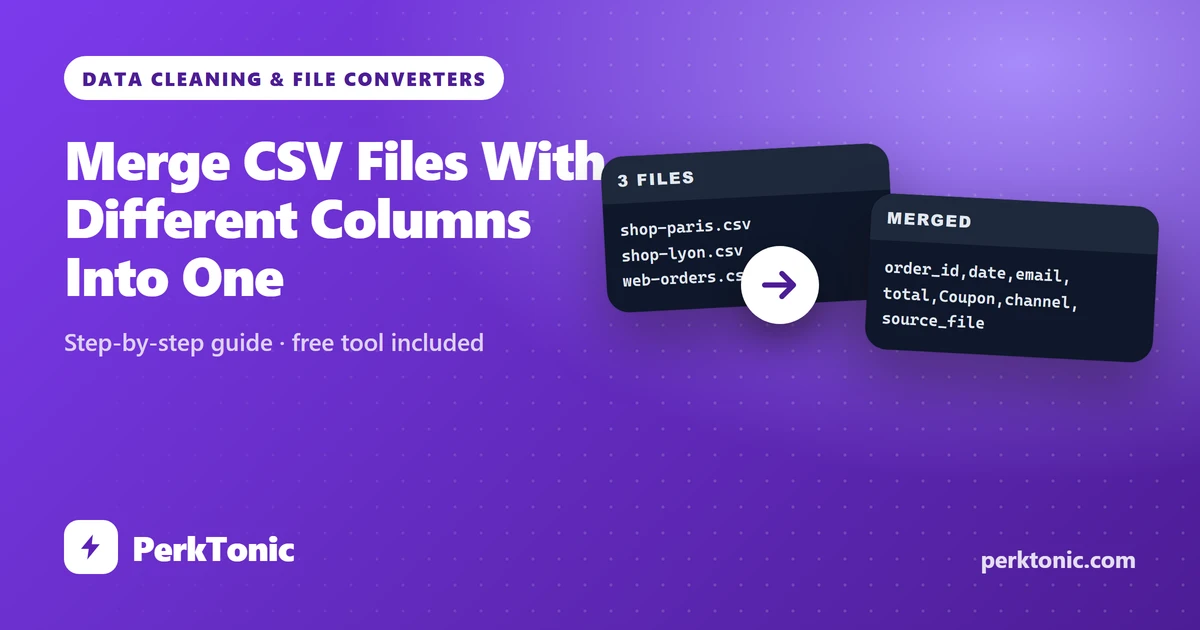
Exports from several shops or systems rarely have the same columns. One file has an email column, another has a coupon code, and a third uses semicolons instead of commas. To merge CSV files like these into one, use the CSV Splitter & Merger: it lines up the headers by name, adds the columns that only some files have, and leaves the missing cells empty. It does not just paste the files below each other.
Steps: choose Merge CSV files
- Open the CSV Splitter & Merger.
- Choose Merge CSV files.
- Press Add CSV files and choose the files you want to combine, or press Try an example.
- Check the report under merged.csv: it names the headers that were matched and the columns that are missing from some files.
- Decide whether to keep Add a source_file column ticked, and choose the Output separator.
- Press Download merged.csv.
You can merge up to 50 files, with 500 MB in total. The files do not need to share the same separator, because each file is read in its own way, so a semicolon file and a comma file can be merged in one step. The result is a single file with one header row. The option Ignore case and spaces in headers is on by default, so Order_ID in one file and order_id in another become one column. The report names every such match, for example matched “Order_ID” → order_id.
How headers are matched
The tool compares the header names of all files and builds one combined header. A column that is in several files becomes one column, and the values of each file go under it. A column that exists in only some files is added to the combined header, and the files without it get an empty cell in that column.
This is different from stacking files with a text command. If you stack files that have different columns, the values end up under the wrong headers, and the error is not obvious: the file looks fine, and the data is wrong.
Check the report before you download. It lists the headers that were matched and the columns that were missing from some files. Only differences in letter case and spaces are ignored. If two headers mean the same thing but are spelled differently, such as order_id in one file and OrderID in another, the report shows them as separate columns. Rename the header in the source, or merge the two columns afterwards.
Worked example: three shop exports
Take three exports: shop-paris.csv, shop-lyon.csv and web-orders.csv. The merged header is:
order_id,date,customer,email,total,Coupon,channel,source_file
That makes eight columns. Some of them exist in only part of the files, and the combined header contains all of them.

The Lyon rows have no email column in their file, so the email cell is empty for those rows. Nothing is invented. The empty cell tells you that the information is not in the source, and you can decide how to handle it later, for instance by getting the emails from another system.
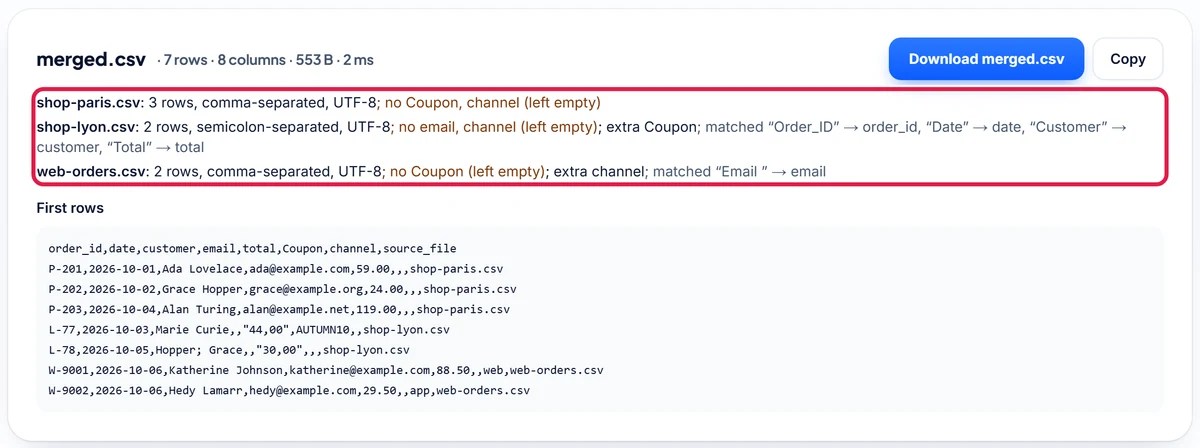
The report for the example lists which columns were missing from which file and which headers were matched. Read it like a checklist: every column that you expect should be in the merged header, and every empty column should have an explanation.
The source_file column
The last column in the example header is source_file. When the option is on, the tool adds a column that holds the name of the file each row came from, such as shop-lyon.csv. It is useful for three reasons:
- You can filter the merged file by shop or by channel.
- You can trace a wrong value back to the original file.
- You can split the file again later, for example with Split a CSV File by Column Value Into Separate Files, using source_file as the column.

Keep the option on unless the file name is meaningless, for example when the files are called export (1).csv and export (2).csv. In that case, the column does not help, and you can leave it out or rename the files first.
Limits
Merging works for up to 50 files and 500 MB. If you have more, merge them in groups and then merge the results.
Merging does not remove duplicates. If the same order appears in two exports, it appears twice in the merged file. To find the repeated rows, compare by a key with Compare Two CSV Files, as described in Compare Two CSV Files and Find the Differences, or remove them after the merge.
The structure of a CSV file, including quoted values that contain separators, is described in RFC 4180. Check the merged file in a spreadsheet: the number of rows should equal the sum of the rows of the source files, minus their header rows, and every column should hold the type of data its header promises.
Try it
Open the CSV Splitter & Merger, choose Merge CSV files and load your exports. Read the report of matched and missing headers, keep the source_file column on, and check the row count of the merged file against the sources.