
Test a Regex Online With Named Groups on Log Lines
How to test a regex with named groups on log lines: the flags g and m, the matches with positions and groups, the explanation of the pattern and a replacement preview.

Someone who writes a log parser needs to see two things: which lines the pattern matches, and what each group captures. A regex tester shows both without running the parser. In the Regex Tester & Generator, you paste the pattern and a sample of the log, and the tool lists the matches with their positions and the value of every named group. It runs in your browser.
Paste the pattern and the text
Open the Regex Tester & Generator. There are two inputs: the pattern and the text to test it on. Paste a few lines from your log into Test text, and the pattern into the Pattern field. Press Try an example to load the five-line log and the pattern of this guide.
Below the pattern are the flags, shown as buttons: g, i, m, s, u and y. Each one is explained under its button. In short:
- g finds all matches, not only the first.
- i ignores the difference between capital and small letters.
- m makes ^ and $ match at the start and end of every line, which is what you need for a log with one entry per line.
- s lets the dot match line breaks.
- u switches on Unicode handling.
- y matches only at the current position, in a sticky way.
For log lines, the usual choice is g and m together.
The tester does not write patterns from a description. You write the pattern, and the tool shows what it does. If you need to build up a pattern, start with a small piece that matches the start of a line and extend it step by step, looking at the matches after every change.
Worked example: a log pattern with named groups
Take a log with five lines. Each line has a date, a time, a level in brackets and a message. A pattern of this kind captures the parts as named groups:
^(?<date>\d{4}-\d{2}-\d{2}) (?<time>[\d:]+) \[(?<level>WARN|ERROR)\] (?<message>.+)$
A named group is written (?...). It captures the text that matches the part in brackets and gives it a name, so that you can refer to it by name and not by number. With the flags g and m, the pattern matches 3 of the 5 log lines.
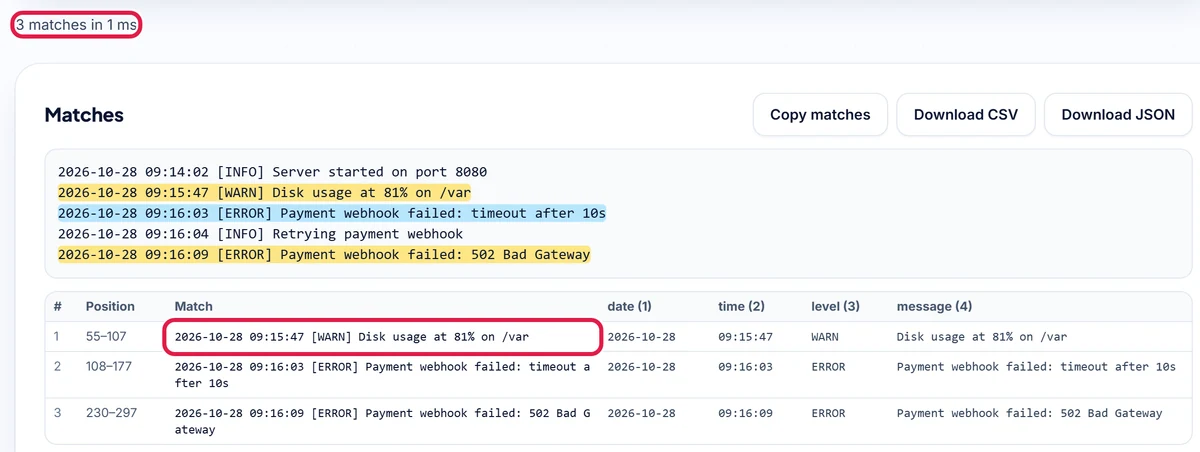
The second line of the log is a warning. The groups of that match are:
- date: 2026-10-28
- time: 09:15:47
- level: WARN
- message: Disk usage at 81% on /var
The two lines with the level INFO are skipped, because the pattern accepts only WARN and ERROR in the level group. This is the kind of selection that a log parser needs, and the test shows that it works as intended: three lines in, two lines out.
Read What the pattern means
Besides the matches, the tester explains the pattern in plain words, in a part called What the pattern means. It goes through the pattern piece by piece: the start of the line, the group named date with four digits, a hyphen and so on.
Use it to find mistakes. If a piece is explained in a way that you did not intend, that is the mistake. A typical case is a dot that is meant as a literal point but is explained as "any character". The explanation also helps when you read a pattern that somebody else wrote.
The match list shows each match with its position in the text and the groups that it captured.

Check the positions and the groups of one match in detail. A group that is empty or shows too much text tells you that the pattern around it is too loose or too strict. The named groups are documented on MDN, in the section on groups and backreferences.
Preview a replacement with $ A pattern is often used to rewrite lines. The option Also test a replacement lets you enter a replacement text and shows the result for each match. In the replacement, a named group is referred to as $.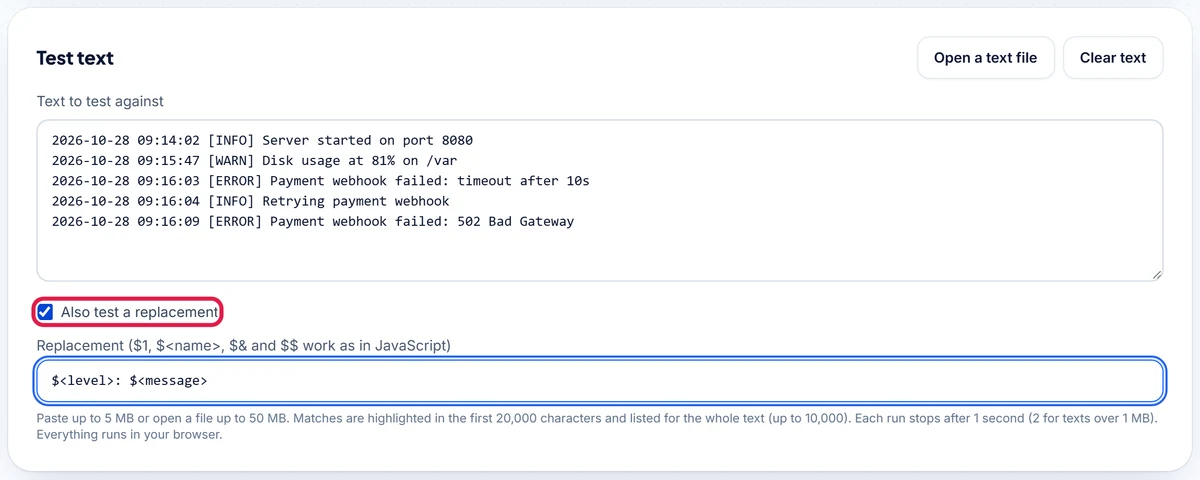
Check the preview on all matches, not only on the first. A replacement that works for one line can produce an odd result for another, for example when the message contains a character that has a meaning in the replacement text.
Limits
The tester uses the regular expression engine of the browser, which is the JavaScript flavour. Most of the syntax is the same in other languages, but not everything. Named groups are written (?P...) in Python, for example. A pattern that works here can need changes elsewhere. The section Use it in another language converts it for Python, PCRE / PHP, Java and Go, and Convert a JavaScript Regex to Python shows how.The tester warns about a repetition inside a repetition and stops every run after 1 second, because such a pattern can take very long on a line that almost matches. Regex Too Slow: Fix Catastrophic Backtracking explains how to find and fix it. For a ready pattern for addresses, see Regex for Email Addresses: Test a Library Pattern.
If your goal is to pull standard data out of text, such as emails or phone numbers, without writing patterns, use the Text Data Extractor. For JSON logs, the JSONPath & jq Tester is the better tool.