
Split a CSV File by Column Value Into Separate Files
How to split one CSV into a file per value of a column, with a seven-country example, file names for N/A and accents, the 500-file limit and the BOM option.
If you need one CSV per region or country from a single export, split the file by the values of one column. To split a CSV file by column, open the CSV Splitter & Merger, choose Split a CSV and pick the column. Every distinct value in that column becomes its own file, and each file keeps the header row of the original.
Steps
- Open the CSV Splitter & Merger.
- Choose the Split a CSV tab.
- Paste the data or open the file.
- Under Split by, choose Column value, then pick the column whose values decide the split, for example country.
- Read the list of output files and their row counts. With pasted text the list updates by itself; for an opened file, press Split the file.
- Press Download ZIP. The files are packed into one archive in your browser, and nothing is uploaded.
Check the list before you download. The number of files and the number of rows in each should match what you expect from the data. A surprise here, such as two files for what you think is one country, points to a data problem that is easier to fix before the download.
Worked example: one file per country
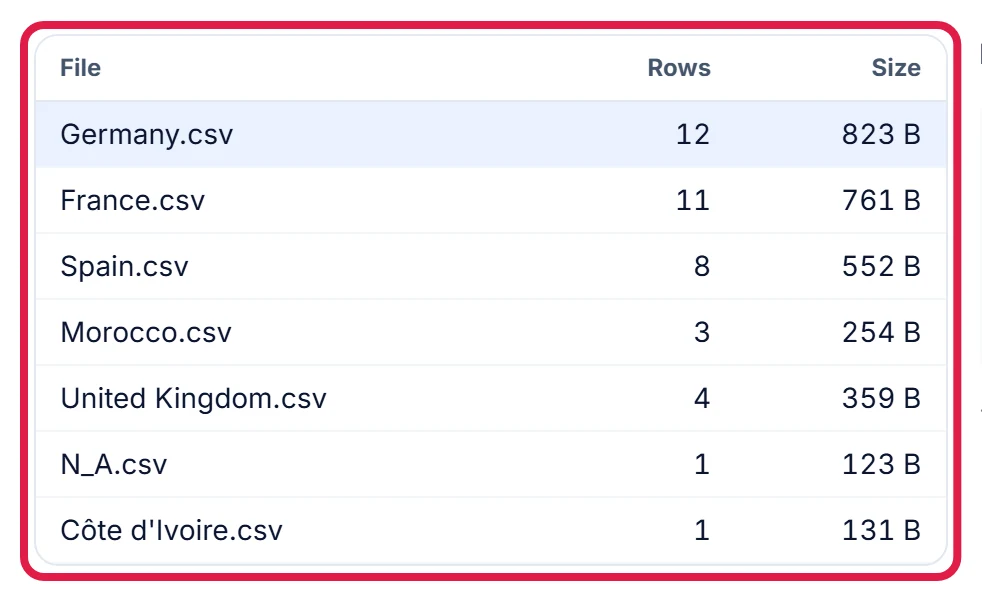
The example is a file of 40 orders with a country column. Split by country, it gives seven files:
| File | Rows |
|---|---|
| Germany | 12 |
| France | 11 |
| Spain | 8 |
| Morocco | 3 |
| United Kingdom | 4 |
| N_A | 1 |
| Côte d'Ivoire | 1 |
The rows add up to the 40 orders of the original, so no row is lost or duplicated. Each file starts with the header row, so it opens as a complete CSV on its own.
The split is exact. France and france are different values, so they get separate files, and the second one is named france-2.csv so that the two names do not clash on a system that ignores letter case. If your data has the same country in several spellings, the split makes several files for it. Normalise the column first, and use Clean Messy CSV Data if the differences are in spaces or letter case.
File names for N/A and accents
The name of each file comes from the value in the column. Some values cannot be file names as they are, and the tool changes them:
- A slash is not allowed in a file name, so the value N/A becomes the file N_A.csv.
- Rows where the column is empty go to a file named _empty.csv.
- Accents are kept, so Côte d'Ivoire is a valid file name.
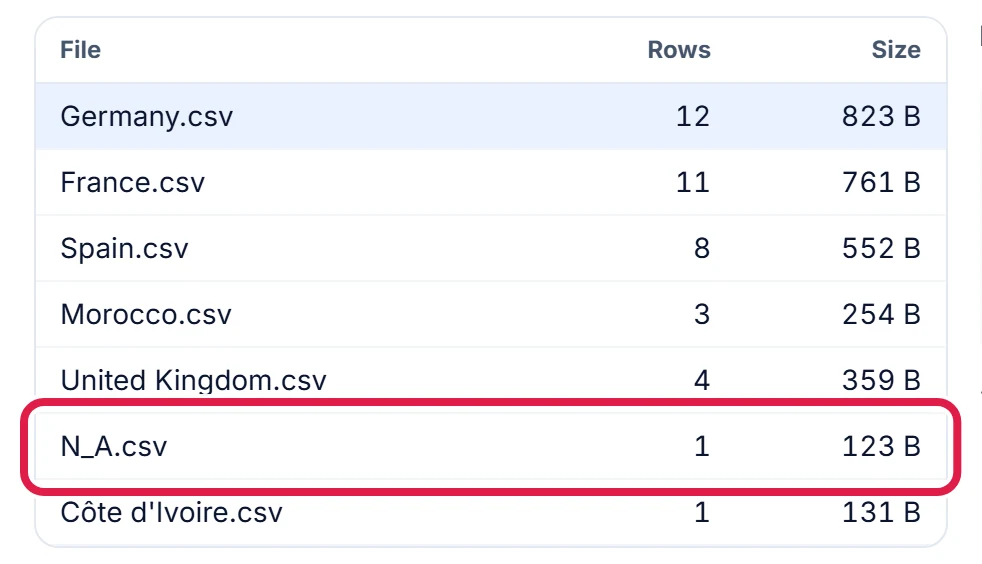
Look at N_A.csv and _empty.csv before you hand the files out. They hold the rows that have no real country, and they usually need a decision: fix the data in the source, assign a country by hand, or leave the rows out.
The 500-file limit
The tool creates at most 500 output files. A column with a few dozen values is no problem. A column with many distinct values, such as a customer ID or an email address, would make a file for each, and above the limit the split cannot be made.
If you hit the limit, choose a column with fewer values, for example a region instead of a city, or group the values in the source first. If the real aim is smaller files and not one file per value, choose Number of rows or File size under Split by instead of Column value.
Encoding and BOM
The output files are UTF-8 with commas as separators and CRLF line endings. This is the common form of CSV, described in RFC 4180.
Excel does not recognise UTF-8 without a byte order mark, so accented names such as Côte d'Ivoire can show as broken characters when you open the file with a double click. Tick Add a BOM (helps Excel open UTF-8) before you split, and Excel opens the accents correctly.

The ZIP is easier to send by email than seven separate attachments, and the tool also offers Copy file list, which copies the file names and row counts as text. If the characters are already broken in the source, the BOM does not repair them, and CSV Opens With Broken Characters: Fix the Encoding shows what to do.
To put files back together later, for example when the regions send their own versions, use the Merge CSV files tab of the same tool.
Do it with your own data
Open the CSV Splitter & Merger, choose Split a CSV and load your export. Pick the column, check the list of files and their row counts against the original, tick Add a BOM (helps Excel open UTF-8) if the data has accents, and download the ZIP.