
Convert Nested JSON to CSV by Flattening Objects
How to turn nested JSON from an API into a CSV: flatten objects into dotted columns, choose how arrays are written and set the delimiter and BOM for Excel.
A CSV is flat: rows and columns. An API response is not, because values such as a customer can be objects inside each record. To turn nested JSON into CSV, you flatten each nested object into extra columns whose names show the path, such as customer.name. The CSV to JSON Converter does this when you switch it to JSON to CSV, and it lets you choose the delimiter and how arrays are written.
How nested objects become dotted columns
Take a response with a data array. Each item has an id, a nested customer object and a paid flag:
{"data": [
  {"id": 1, "customer": {"name": "Kofi", "country": "GH"}, "paid": true}
]}
When nested objects are flattened, each inner key becomes a column named with the path from the outside in. The result has the columns id, customer.name, customer.country and paid. The row for the first item reads 1, Kofi, GH, true.
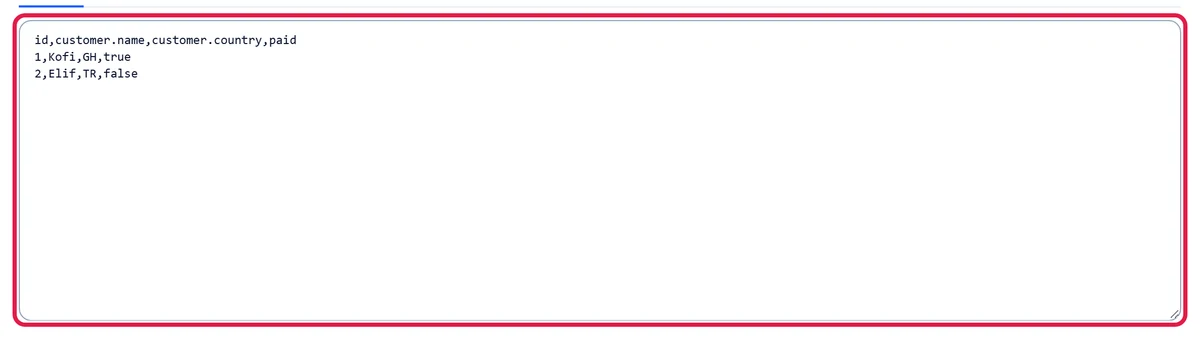
The dot in the column name is the separator between levels. A deeper object gives a longer name, such as customer.address.city. The same convention works in the other direction, and Build Nested JSON From a CSV With Dotted Headers shows how to rebuild the nesting from such headers.
Steps for JSON to CSV
- Open the CSV to JSON Converter.
- Choose JSON → CSV under Direction.
- Paste the JSON or open the file. JSON files can be up to 50 MB.
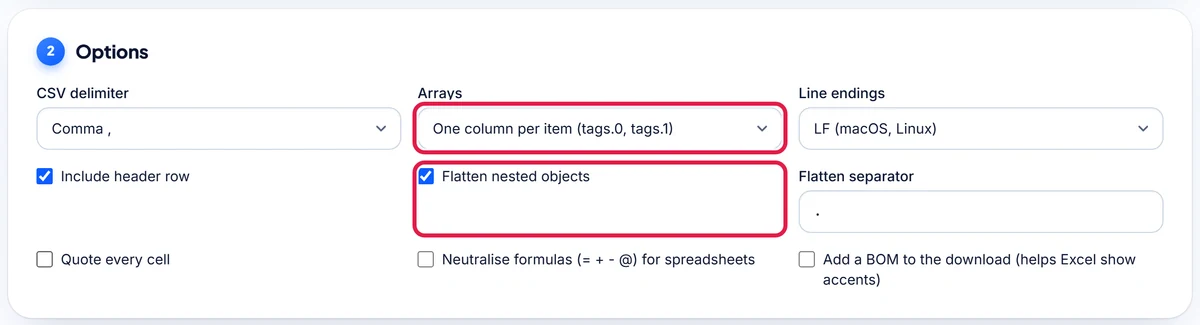
- Set the options: CSV delimiter, Arrays, Line endings, Flatten nested objects and the Flatten separator. Flattening is on by default.
- Check the CSV tab or First rows and press Download .csv.
Look at the preview before you download. There should be one row for each item of the array and one column for each value that you want to keep. A response that wraps its list in one key, such as {"data": [...]}, is handled for you: the tool converts the array inside the object and says so in a note. If the object holds several arrays or the list sits deeper, for example under result.items, extract it first. The JSONPath & jq Tester can select it with $.result.items, and you paste the result back.
Invalid JSON stops the conversion. If the tool reports an error, validate the text first with the JSON Formatter & Validator.
Arrays: how they are written
A CSV cell holds one value, so an array inside a record needs a rule. A record with a list of tags, for example, has several values for one column. The Arrays option has two choices: One column per item (tags.0, tags.1), which is the default, and Keep as JSON text in one cell. With the first, a list of tags becomes the columns tags.0 and tags.1, and a record with a shorter list leaves the later cells empty.
Consider what happens next. If people read the CSV in a spreadsheet, separate columns are easiest to filter. If another program reads the cell, JSON text in the cell keeps the list in one piece and is easy to parse back. An array of objects, such as order lines, does not fit in one row without losing structure. For that case, make a second CSV with one row per line item.
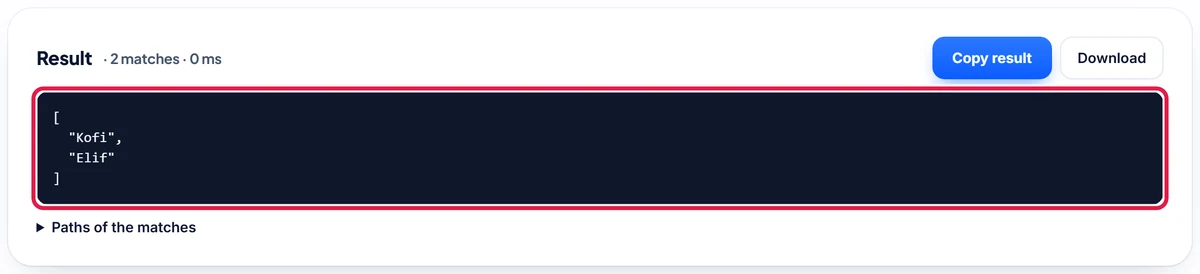
To select such inner arrays before the conversion, use a path expression. With the JSONPath & jq Tester, the path $.data[*].customer.name returns the name of every customer in the example.
Choosing the delimiter for Excel
The delimiter decides how Excel splits the CSV into columns. Excel uses the list separator of the system. In many European locales it is a semicolon, because the comma is the decimal mark. In English-language settings it is a comma.
Choose the delimiter that matches the Excel that will open the file. If a file with commas opens in one column, change the delimiter to a semicolon, or the other way round. A tab also works in both and is safe when values contain commas or semicolons.
Values that contain the delimiter, a quotation mark or a line break must be put in quotation marks, as described in the CSV standard. The converter handles that, but check a value with a comma in the preview. Names with accents can show as broken characters in Excel if the file is not read as UTF-8, so tick Add a BOM to the download (helps Excel show accents). If the data comes from outside and a value could start with =, +, - or @, tick Neutralise formulas (= + - @) for spreadsheets, which CSV Injection: Protect Exports From Formulas explains.
The JSON side of the conversion follows the format defined in RFC 8259. The reverse direction, for a CSV export, is covered in Convert CSV to JSON Without Uploading the File.
Try it
Open the CSV to JSON Converter, switch to JSON to CSV and paste your response. Turn on flattening, choose how arrays are written and the delimiter for your Excel, and check that the preview has one row per record before you download.