
Convert CSV to JSON Without Uploading the File
How to convert CSV to JSON in your browser without uploading the file: delimiter and encoding, which values stay text, NDJSON output and file limits.
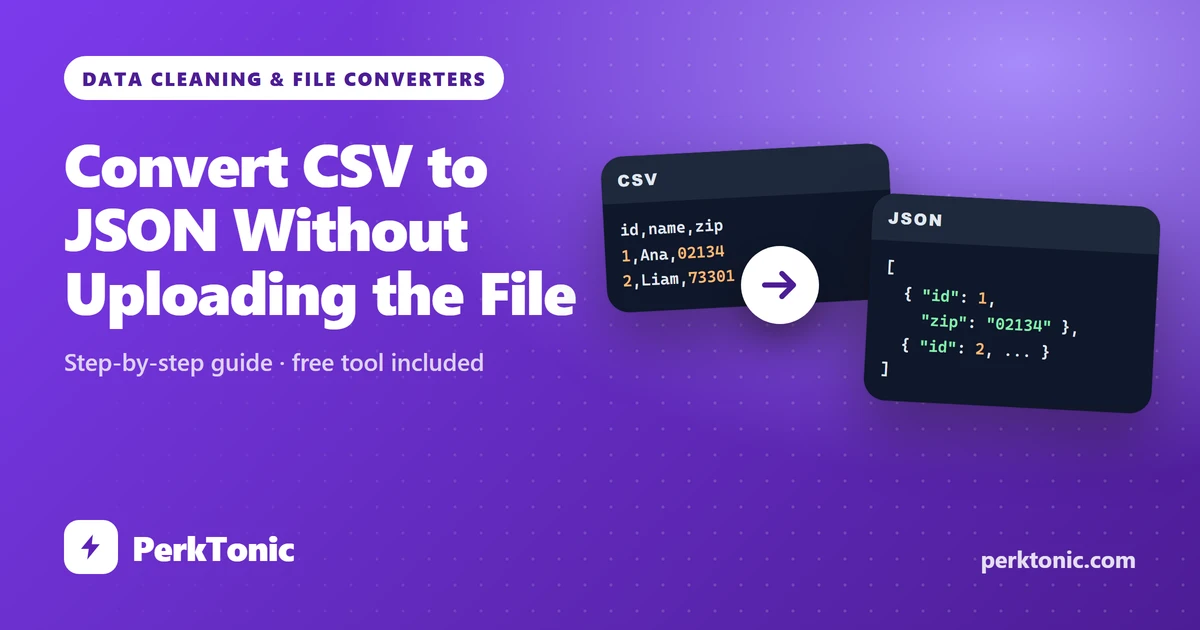
If you need a JSON array from a CSV export and do not want to upload customer data to a server, you can convert it in the browser instead. The CSV to JSON Converter reads the file on your computer, and the file is not uploaded. This guide shows the steps, the options that matter and the values that stay text.
What happens in your browser
The conversion runs in the page itself. Your browser reads the file, parses it and builds the JSON, and the file is not sent anywhere. For customer lists, order exports or anything with personal data, that removes the question of what a third-party server does with the file.
You can check this yourself. Open the developer tools of the browser, switch to the Network tab, convert a file and watch that no request carries your data.
The result is a JSON array with one object per CSV row. The header row gives the keys. The same tool also converts in the other direction: the Direction switch at the top changes it to JSON to CSV. For example:
id,name,zip
1,Ana,02134
becomes an array with one object that has the keys id, name and zip. The zip value stays "02134" as a string, as shown below.

Steps: paste or open, check the options
- Open the CSV to JSON Converter.
- Paste the CSV text, or open the file from your computer.
- Under Options, check the Delimiter (Detect automatically is the default) and the File encoding.
- Look at the result. The tool converts as soon as the data is there, and a second tab, First rows, shows the same data as a table.
- Press Download .json to save the file, or Copy for results up to 5 MB.
Pasted text can be up to 5 MB. For larger data, open the file instead of pasting it.
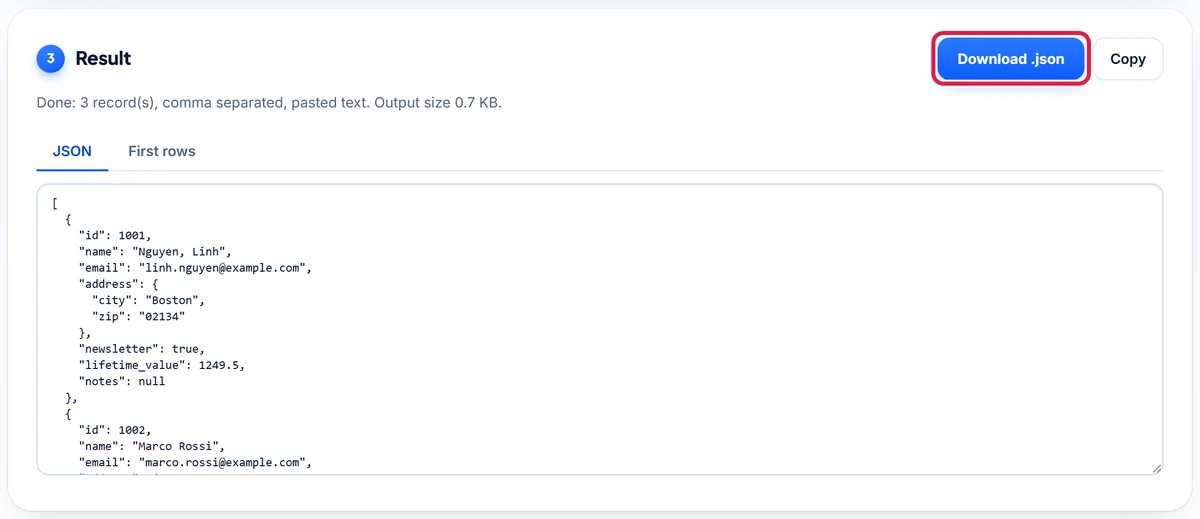
Read the preview before you download. Check that the keys are the header names, that each row has the same keys, and that numbers and text look right. If the CSV needs cleaning first, for example for stray spaces or duplicate rows, run it through Clean Messy CSV Data and convert the cleaned file.
Delimiter and encoding detection
Not every CSV uses commas. Exports from European systems often use semicolons, and others use tabs or pipes. The converter compares comma, semicolon, tab and pipe on the first 64 KB of the file and picks the one that fits best. Detect automatically is the default setting of the Delimiter menu, and you can choose comma, semicolon, tab or pipe yourself if the detection is wrong.
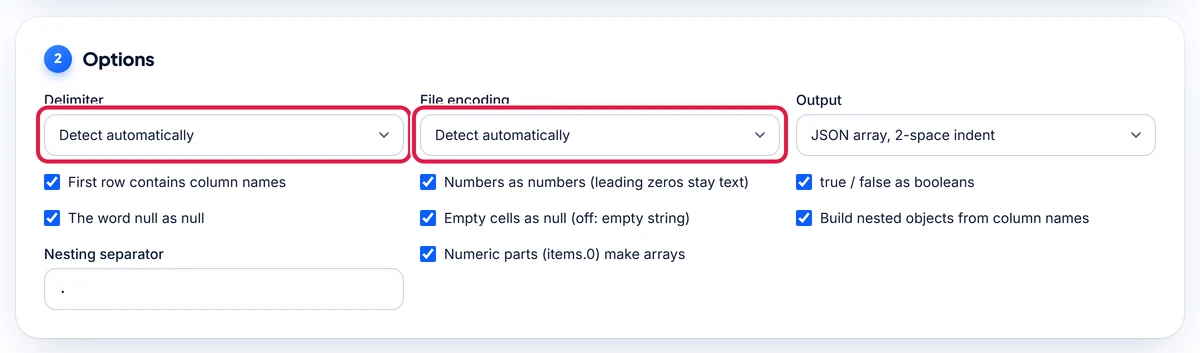
Check the File encoding in the same section. It is also set to Detect automatically, and the menu lists UTF-8, UTF-16, Windows-1252, ISO-8859-1, Windows-1256 (Arabic), Windows-1251 (Cyrillic), Shift_JIS and GB18030. A file saved as UTF-8 shows accented characters correctly. If names such as "Müller" appear with strange characters in the preview, the encoding is wrong, and you should select the one the file was saved in. Fix it before you download, because the damage is in the JSON afterwards. If the strange characters are already in the file itself, CSV Opens With Broken Characters: Fix the Encoding explains how to repair them.
The format of CSV is described in RFC 4180, which also explains quoting of fields that contain commas or line breaks.
Types: what becomes a number and what stays text
JSON distinguishes numbers from text, and a CSV does not. The converter turns plain numbers into JSON numbers, and keeps text as text. Some values look like numbers but are safer as text, so they stay text:
- Numbers with thousands separators, such as 1,250.
- Numbers with a decimal comma, such as 3,14.
- Numbers with a leading plus sign.
- Numbers with more than 15 digits, which a JSON parser based on floating point cannot hold exactly.
- Values with leading zeros, such as the zip code 02134.
These rules protect identifiers. A zip code, a phone number or a long account number converted to a number loses its leading zeros or its last digits, and the loss cannot be undone from the JSON. If you would rather have every value as text, switch off Numbers as numbers (leading zeros stay text) in the Options.
Three more conversions are on by default, each with its own switch: true and false become JSON booleans, the word null becomes null, and an empty cell becomes null instead of an empty string. Check them against what the program that reads the JSON expects.
To get nested objects in the output, tick Build nested objects from column names in the Options. A header such as address.city then becomes the key city inside an address object, and the Nesting separator setting lets you use a character other than the dot. The example in the tool does this with its address.city and address.zip columns.
Output formats and file limits
The Output menu offers a JSON array with a 2-space or 4-space indent, a minified JSON array, or NDJSON, where each row is a separate JSON line. Minified output is the smallest, and NDJSON suits programs that read a file one line at a time.
The limits are:
- CSV files up to 200 MB, which are streamed instead of loaded at once.
- JSON files up to 50 MB, when you convert in the other direction.
- Pasted text up to 5 MB.
- The Copy button works for results up to 5 MB. For larger results use Download, because the preview shows only the first 100,000 characters.
If a file is too large for the program that will read the JSON, cut the CSV into parts first with the CSV Splitter & Merger and convert each part.
After the conversion, paste or open the result in the JSON Formatter & Validator to check that it is valid JSON. The syntax is defined in RFC 8259.
Do it with your own data
Open the CSV to JSON Converter and paste or open your CSV. Check the delimiter and the encoding, look at the first rows, confirm that identifiers such as zip codes stay text, and then press Download.