
Convert CSV to YAML for Config or Inventory Files
How to turn a CSV inventory into YAML: the top-level key, tags[] lists, dotted headers for nested keys, and why yes, on and 007 are written in quotes.
A server inventory kept in a spreadsheet often has to become a YAML file for a configuration tool. The converter turns each row into an entry of a list, and turns special column names into lists and nested objects. The CSV to YAML, XML & TOML Converter does this in the browser, for files up to 50 MB, and it quotes values that a YAML parser could misread.
Steps: paste, pick YAML, set the top-level key
- Open the CSV to YAML, XML & TOML Converter.
- Paste the CSV or open the file.
- Under Convert, choose CSV → YAML, which is the default.
- Under Options, set the Top-level key, for example servers. Leave it empty for a plain list.
- Check the result and press Copy or Download .yaml.
The top-level key is the name under which the list of rows is placed. Many tools expect a named key, not a bare list at the top of the file. With the key servers, the result has this shape:
servers:
  - host: web-01
    ip: 10.0.0.5
  - host: db-01
    ip: 10.0.0.9
Each row of the CSV becomes one item of the list, and the header names become the keys. The same converter writes XML and TOML, so the choice of format is the Convert menu and the steps are the same. With the option Detect numbers, true/false and empty (null) ticked, numbers stay numbers and an empty cell becomes null.
Lists with tags[] columns
A CSV cell holds one value, but an inventory often needs a list, such as the tags of a server. Name the column tags[] and the converter splits the cell into a list. The default separator inside the cell is |.
A row with the value prod|web in the column tags[] gives:
    tags:
      - prod
      - web

Write the cell with the separator and no spaces, as in prod|web. A single value, such as prod, gives a list with one item, which keeps the type of the field the same for every server. This matters when the tool that reads the file expects a list everywhere.
Nested keys from dotted headers
A dot in a header name creates a nested object. A column named address.city and a column named address.country become one address object with two keys:
    address:
      city: Rabat
      country: MA
Use this for data that belongs together, such as the location of a server or the settings of a service. The same convention works for deeper levels, such as network.interface.name. The reverse direction is described for JSON in Build Nested JSON From a CSV With Dotted Headers, and the rule is the same.
Keep the names consistent. If one header says address.city and another says address_city, they become two unrelated keys, and the result is hard to use.
Values that YAML quotes
YAML 1.1 parsers, which are still common, read some plain words as other types. The words yes and on become the boolean true, 007 can be read as a number in octal notation, and 2026-01-01 becomes a date. A value that a person meant as text then changes type when the file is loaded.
The converter protects these values by quoting them: yes, on, 007 and 2026-01-01 are written in single quotes, as in enabled: 'yes', so a YAML 1.1 parser keeps them as strings.

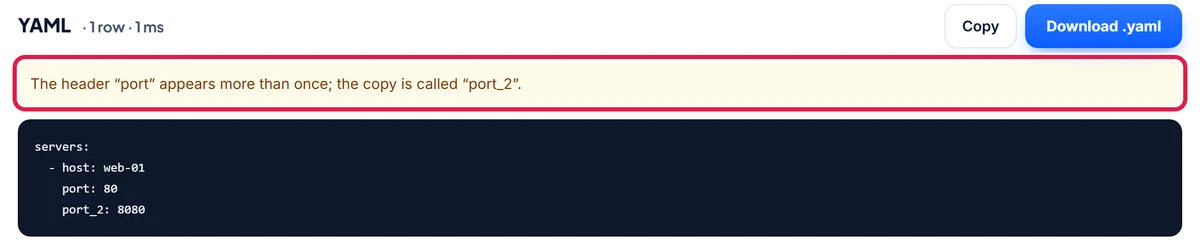
The quoting happens without a note, so read the output for the quotes. Notes appear under the result when the converter had to change something, for example when a header appears twice and the copy is renamed with a number, or when a column name clashes with nested columns.
If your target tool is strict about types, check the result with its own parser. A server name such as no or off would also be read as a boolean by a YAML 1.1 parser, so a quoted value is the safe form. The language is defined in the YAML 1.2 specification, and the differences between the versions are the reason for the quoting.
To choose between formats, see YAML vs TOML vs XML for Config and Data Files. If you are not sure whether your data should be in CSV, JSON or YAML at all, read CSV vs JSON: Which Format to Use for Your Data. For JSON output, use the CSV to JSON Converter.
Try it
Open the CSV to YAML, XML & TOML Converter, paste your inventory CSV and pick YAML. Set the top-level key, rename the list columns with tags[], use dotted headers for nested values, and read the notes before you copy the file into your configuration.