
Fix #VALUE! in Excel When the Cells Look Fine
How to find the argument behind #VALUE! when the cells look fine: numbers stored as text, hidden spaces and mismatched SUMIFS ranges.
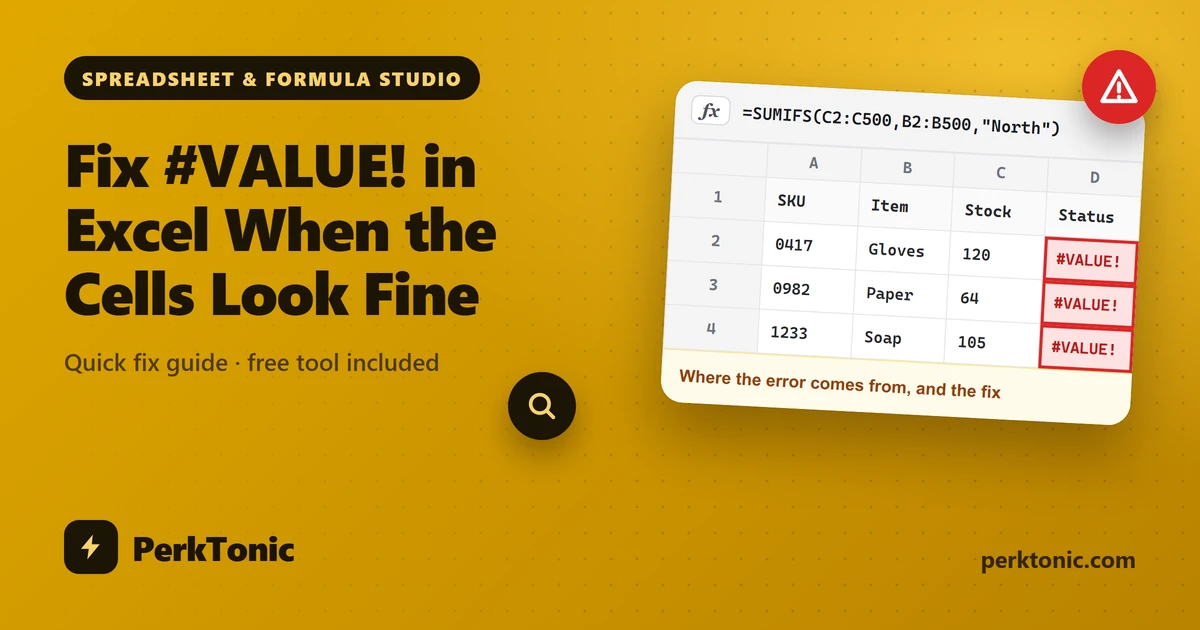
A formula shows #VALUE! and every cell it points to looks normal. The cause is an argument of the wrong type or size: text where a number is expected, a hidden space, or ranges of different lengths. Paste the formula into the Excel Formula Debugger to get the likely causes, then check the data cells for the ones the formula alone cannot show.
What #VALUE! means
#VALUE! means Excel received an argument of the wrong kind. The formula is usually written correctly, but one input is not what the function needs. Common examples:
- A calculation uses a cell that holds text, such as a number with a non-breaking space or a label like "n/a".
- A function receives ranges of different sizes where it needs matching ones, as in SUMIFS.
- A text value is written without quotation marks.
Because the cell looks fine, the problem is often invisible: a character you cannot see, or a range that ends one row too early.
Paste the formula and pick #VALUE!
- Open the Excel Formula Debugger.
- Paste the formula that shows the error, for example
=SUMIFS(C2:C500,B2:B400,"North"). - Pick #VALUE! as the error.
- Read the Likely causes.

The rules include numbers stored as text, extra spaces, text without quotes and mismatched SUMIFS sizes. In this example the ranges C2:C500 and B2:B400 have different sizes, so that cause applies.
The rules only see the formula, not your cells. A cause that depends on the data, such as text numbers or extra spaces, gets a medium or low confidence badge. Read the badge as "check this in the sheet", not as "this is the cause". For =A2*B2, for example, the debugger lists "A cell in the calculation holds text" with a medium badge.

Text that looks like numbers and hidden spaces
Text that looks like a number is the most frequent reason for a #VALUE! that nobody can see. Imported data often contains a leading or trailing space, or a non-breaking space that TRIM does not remove. Test the suspect cell in a spare cell:
=ISNUMBER(A2)returns FALSE when Excel treats the content as text.=LEN(A2)is longer than the number of characters you can see when a space is hidden.=CODE(RIGHT(A2,1))returns 160 for a non-breaking space.
To repair a single formula, use =VALUE(TRIM(SUBSTITUTE(A2,CHAR(160)," "))). If the whole column is affected, clean the data once instead of patching each formula. The Clean Messy CSV Data tool reports what it changed, including the trim count, so you can see how many cells had stray spaces.
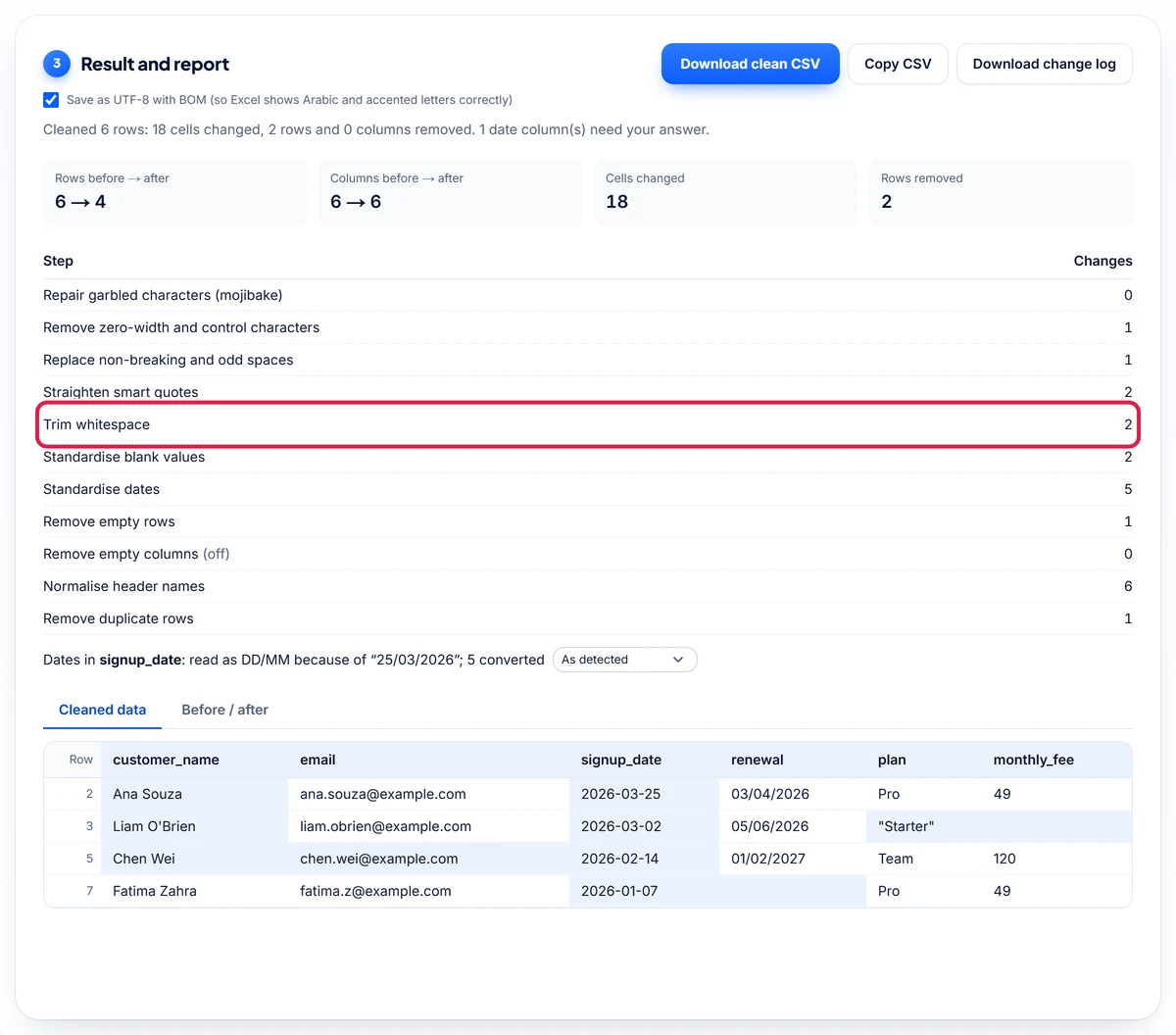
Duplicates often arrive in the same messy export, and the step Remove duplicate rows of the same tool takes care of them.
Mismatched SUMIFS ranges
SUMIFS requires the sum range and every criteria range to have the same number of rows and columns. A formula such as =SUMIFS(C2:C500,B2:B400,"North") returns #VALUE! because B2:B400 is shorter than C2:C500. This often happens after rows are added and only some ranges are extended.
The fix is to make all ranges the same size:
=SUMIFS(C2:C500,B2:B500,"North")
Text criteria also need quotation marks: "North", not North. If you prefer to describe the task in words, the Excel Formula Generator writes the formula for you and lists its assumptions. For a lookup that fails with a different error, see Fix #N/A in Excel VLOOKUP: Causes and Fixes.
Describe the data and Ask the AI
When the rule-based causes do not settle it, describe your data in the data description field and use Ask the AI. Write what the cells contain, where the file came from and which cells the formula uses, in up to 2,000 characters. The answer is a corrected formula, and the changes are highlighted so you can see what was altered.
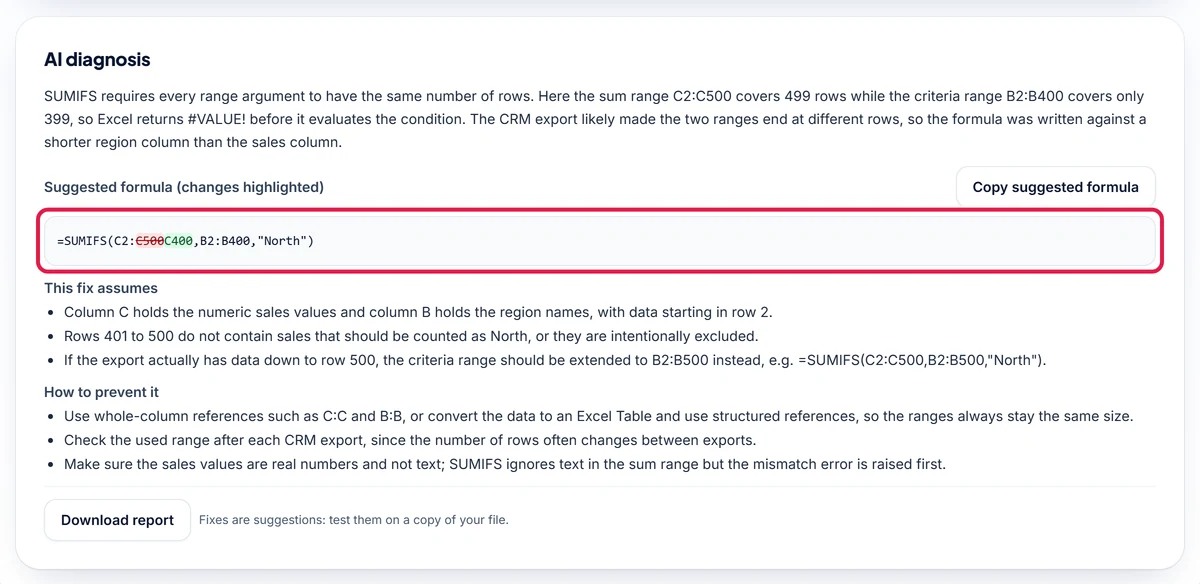
Compare the highlighted changes with your sheet and test the result on a copy of your data before you replace the original formula.
Microsoft covers the error in How to correct a #VALUE! error. A related error, division by zero, is handled in Fix #DIV/0! in Excel Without Hiding Real Errors.
Check your own file
Open the Excel Formula Debugger, paste the formula that shows #VALUE! and pick #VALUE!. Compare the sizes of all SUMIFS ranges first, then test the input cells with ISNUMBER and LEN.