
VBA Macro to Export Each Worksheet as a PDF
How to export every worksheet to its own PDF with a VBA macro: generate or explain it, read the Kill safety flag, import the .bas file and check the notes.
A macro that saves every worksheet as its own PDF is short, but the details decide whether it is safe to run: which folder it writes to, what it deletes and how it names the files. For this task the Excel VBA Macro Generator generates the macro, explains it in plain language and flags risky lines before you run anything. This guide walks through the page example.
Two modes: generate or explain
The tool has two modes. In generate mode you describe the task and get a macro. In Explain mode you paste existing code and get a safety scan and an explanation. The page example is a 20-line macro that saves each worksheet as a PDF.
At the centre of such a macro is a loop over the worksheets and a call to ExportAsFixedFormat for each one. A minimal form of that call is:
ws.ExportAsFixedFormat Type:=xlTypePDF, Filename:=outPath
Here ws is the current worksheet and outPath is the full path of the PDF. The method is documented on Microsoft Learn as Workbook.ExportAsFixedFormat method, and the worksheet version takes the same arguments.
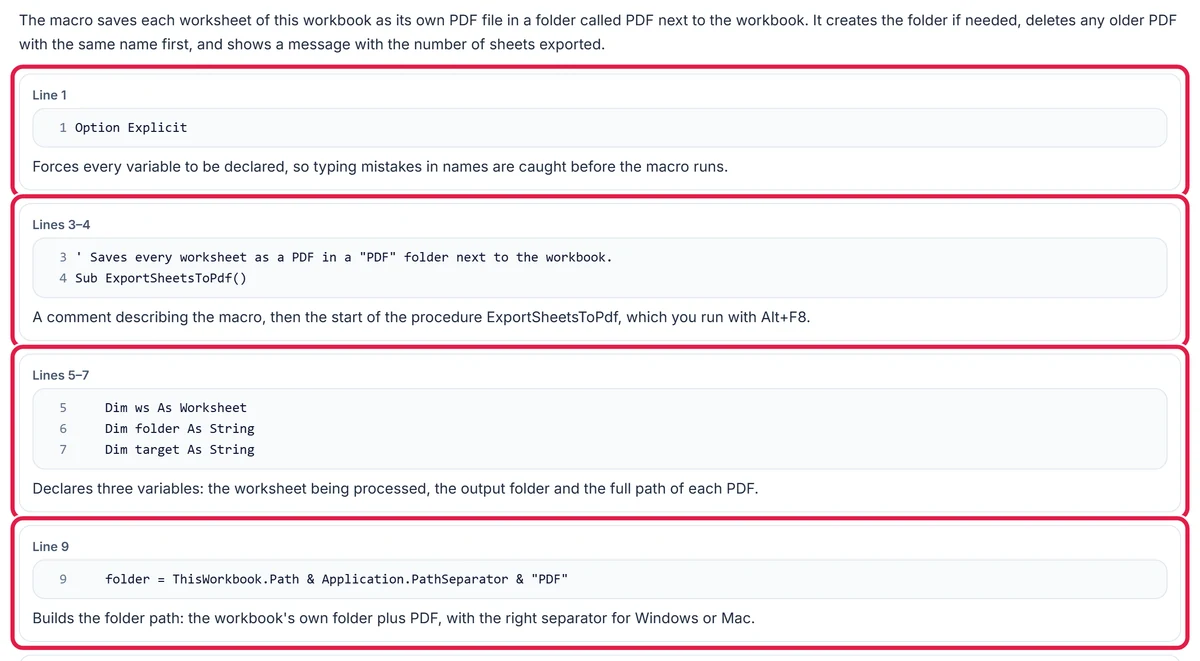
The explanation of the page example comes in ten groups of lines, from Option Explicit down to End Sub. Reading it group by group is faster than reading the code line by line, and each group states what it does in one or two sentences. The same approach is described for formulas in Explain a Nested Excel Formula in Plain English.
Read the safety review: Kill target
Before you run a macro, read the flags. In the page example, line 15 is a Kill statement, and the tool shows it as high severity. Kill deletes the previous PDF, and the file does not go to the Recycle Bin, so it cannot be restored from there.
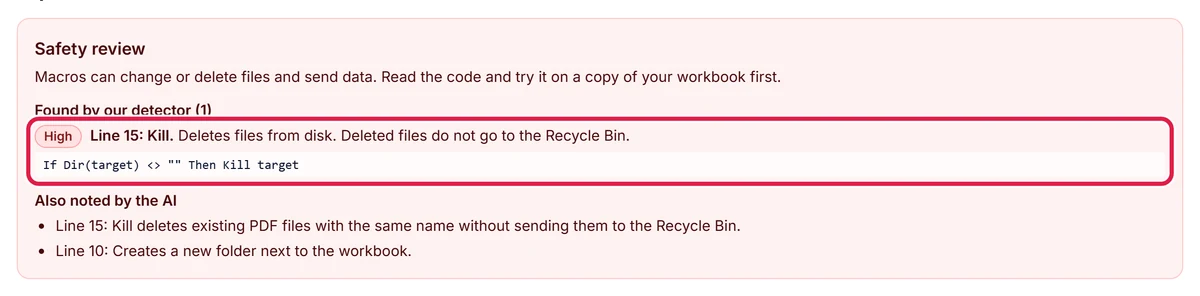
A flag is not a verdict. Here the reason is clear: the macro deletes the PDF from an earlier run so that the new export can replace it. Check three things before you accept that:
- The path in the Kill statement is built from the output folder and the sheet name, and nothing else.
- The output folder is a folder you created for this purpose, not a folder with other documents.
- The macro does not fail when the file does not exist yet. Kill raises an error for a missing file, so look at how the code handles the first run.
Test the macro on a copy of the workbook with a folder of its own. For a wider checklist, see Is This Excel Macro Safe? Check VBA Before Running.
Sheet names also need attention. A name that contains characters that are not allowed in a file name, such as a slash or a colon, stops the export, so rename those sheets or let the macro replace the characters.
Import the .bas file
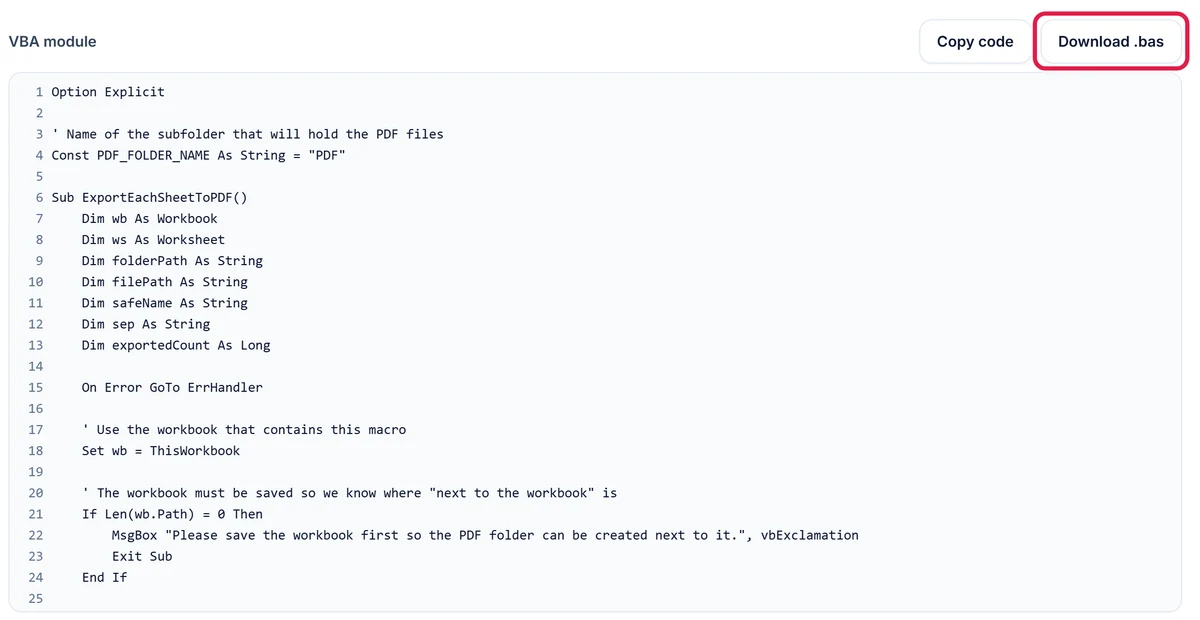
The tool offers the macro as a download in the .bas format. A .bas file is a VBA module that you can import without copying and pasting.
- Open the workbook and press Alt+F11 to open the VBA editor.
- Choose File > Import File and select the .bas file.
- Check that the module appears in the project list.
- Save the workbook as a macro-enabled file (.xlsm).
- Run the macro from the editor or from Developer > Macros.
If Excel blocks the macro, the macro settings or the origin of the file are the reason. Microsoft explains the settings in Enable or disable macros in Microsoft 365 files.
Windows, Mac and 64-bit notes
The generated macro comes with notes for different environments. They matter when the macro leaves your computer.
- 64-bit Excel: code that declares an external function needs PtrSafe, and pointer values use LongPtr. A declaration written for 32-bit Excel fails to compile on 64-bit.
- Mac: Excel for Mac cannot call Windows-only features. Tasks that need the system use AppleScriptTask, which needs a script file outside Excel.
- Paths: a Windows path with a drive letter and backslashes does not exist on a Mac, so build paths for the system the macro runs on.
An export through ExportAsFixedFormat itself does not need external declarations, so the macro in this guide avoids most of these problems. Check the notes if you add features such as opening the folder after the export.
Do it with your own data
Open the Excel VBA Macro Generator, generate the export macro or paste your own into Explain mode. Read the Kill flag and the ten groups of lines, download the .bas file, and import it into a copy of your workbook with a test folder.