
Paste an Excel Table Into GitHub as Markdown
How to paste an Excel or Google Sheets range into a GitHub README as a Markdown table: header, alignment, pipes, line breaks and converting only part of a sheet.

A table in a GitHub README is written with pipes and dashes, and formatting it by hand is slow and error-prone. To turn an Excel range into a Markdown table, copy the cells and paste them into the Excel to Markdown Table Generator. It detects the tab-separated paste from Excel and Google Sheets and writes the table, with the separator row and the alignment already set.
Steps: paste, pick Markdown, check the preview
- Select the cells in Excel or Google Sheets and copy them.
- Open the Excel to Markdown Table Generator.
- Paste the cells under Your table.
- Check that Output format is Markdown, which is the default.
- Check the preview, then copy the table into your README or issue.
A copy from Excel or Sheets is tab-separated text, and the tool detects it, so you do not have to convert the data first. The output looks like this:
| Item | Qty | Price |
| :--- | ---: | ---: |
| Mug | 12 | 4.50 |
| Tea | 8 | 3.20 |
GitHub shows it as a formatted table. The syntax is described in the GitHub Docs page on organizing information with tables and defined in the GitHub Flavored Markdown spec.
Header row and alignment
A Markdown table must have a header row, because the row of dashes below it is what makes the text a table. If your range has no header, untick First row is the header: the tool adds an empty header row and shows the note "Markdown tables need a header row, so an empty one was added", so the table still renders. Fill in the header cells afterwards, or paste the range again with a header row included.
Alignment is set in the separator row. A colon on the left, as in :---, aligns the column left, and a colon on the right, as in ---:, aligns it right. The menu Default alignment is set to Auto (text left, numbers right), so text columns are aligned left and number columns right, which is how people expect a table to read. The option Alignment per column lets you set each column.
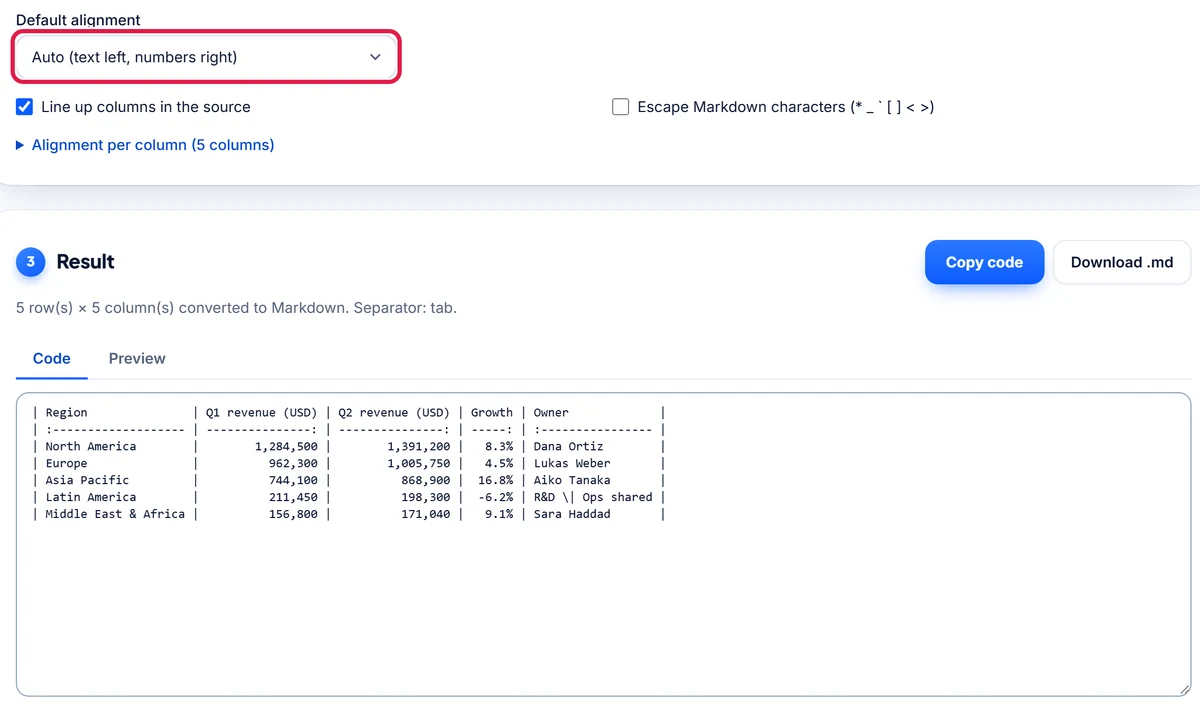
You can set the alignment by hand when Auto is not what you want, for example to centre a status column. Numbers aligned right make decimals easier to compare, so keep Auto for price and quantity columns.
Pipes and line breaks in cells
Two characters can break a Markdown table. The first is the pipe, because it separates the columns. A cell with the text a|b would be read as two cells. The tool escapes it as |, so the cell stays one cell.
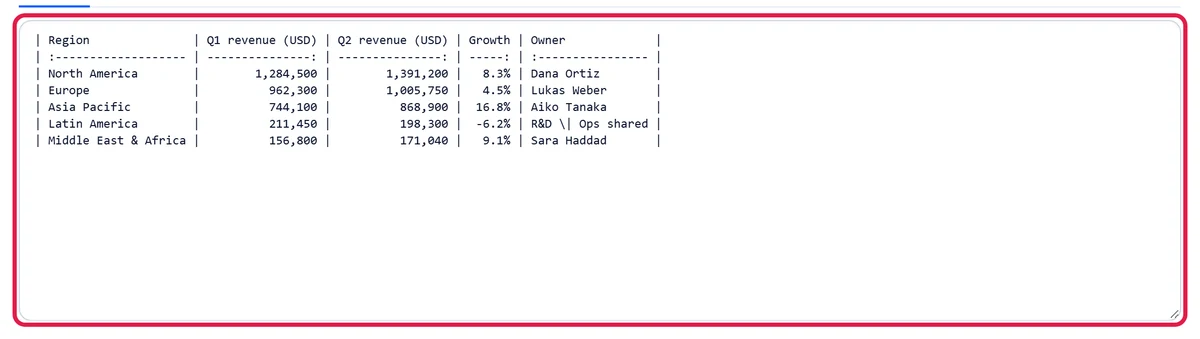
The second is the line break. A cell in Excel can contain several lines, but a Markdown table row must stay on one line. The tool turns each line break into
, which GitHub renders as a break inside the cell.
Check these two cases in the preview if your data has free text, such as comments or descriptions. Other Markdown characters, such as asterisks or underscores, keep their meaning inside a cell by default, so a name like snake_case_name can show up with unexpected formatting. If that happens, tick Escape Markdown characters, or wrap the text in backticks in the source.
Converting part of a sheet
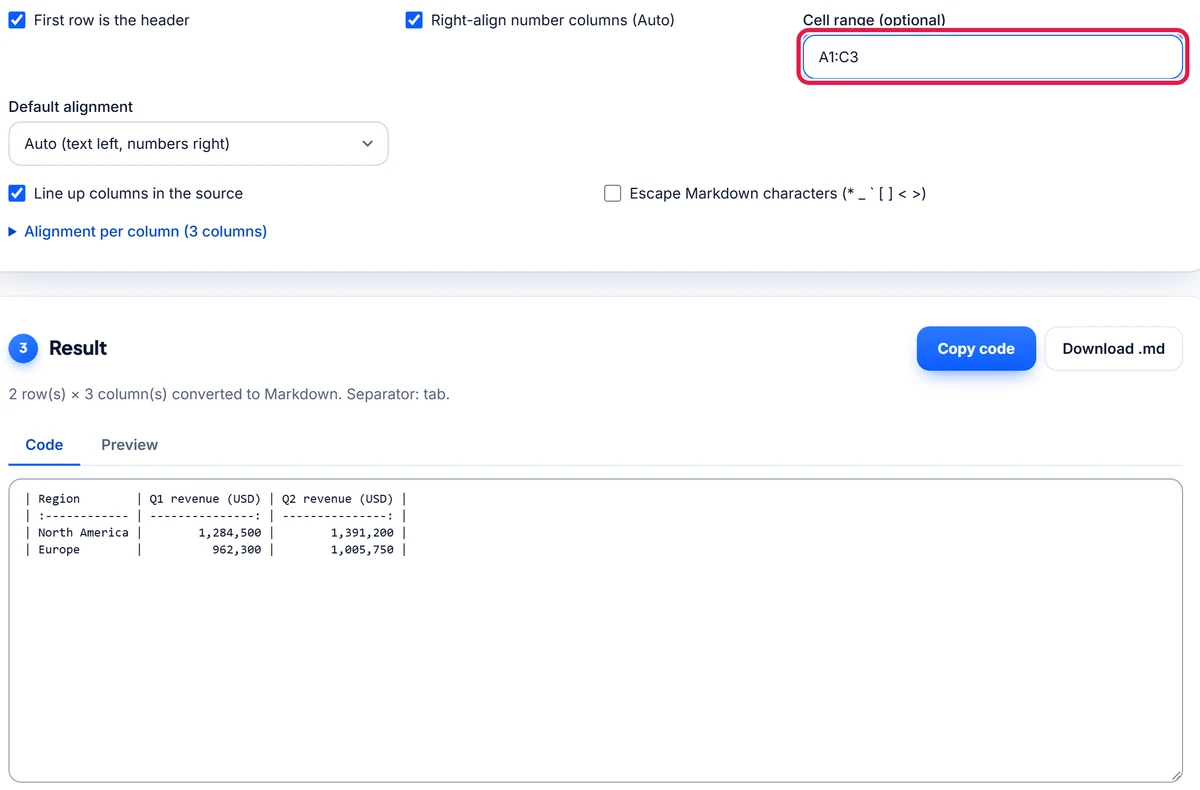
You do not have to copy the whole sheet. If you paste a large sheet, enter the range that you want in Cell range (optional), for example B2:E20, and the tool converts only those cells. This is handy when the sheet has notes or totals around the data that do not belong in the README.
Keep a table in a README small. A table of a few dozen rows is readable, and a larger one is better linked as a CSV file. For the same range in a printed paper, see Make a LaTeX Table From Excel With booktabs.
If your source is a Word document with tables, and not a spreadsheet, the DOCX to Markdown Converter converts the whole document. The steps are in Convert Word DOCX to Markdown With Images.
Try it
Copy a range from Excel or Google Sheets and paste it into the Excel to Markdown Table Generator. Pick Markdown, check the header and the alignment in the preview, and copy the result into your README. Look at the cells with pipes or line breaks first.