
Make a LaTeX Table From Excel With booktabs
How to turn an Excel table into LaTeX: the tabular code, escaped characters such as & % _ and #, booktabs or plain hline rules, and line breaks in cells.
A table in a LaTeX paper needs ampersands between cells, double backslashes at the end of rows and escapes for several characters, and typing it by hand from a spreadsheet invites mistakes. For an Excel to LaTeX table, copy the cells, paste them into the Excel to Markdown Table Generator and pick LaTeX as the output. It writes the tabular environment and escapes the special characters.
Steps: paste and pick LaTeX
- Select the cells in Excel and copy them.
- Open the Excel to Markdown Table Generator.
- Paste the cells under Your table.
- Under Output format, choose LaTeX.
- Check the Preview tab, then copy the code into your document.
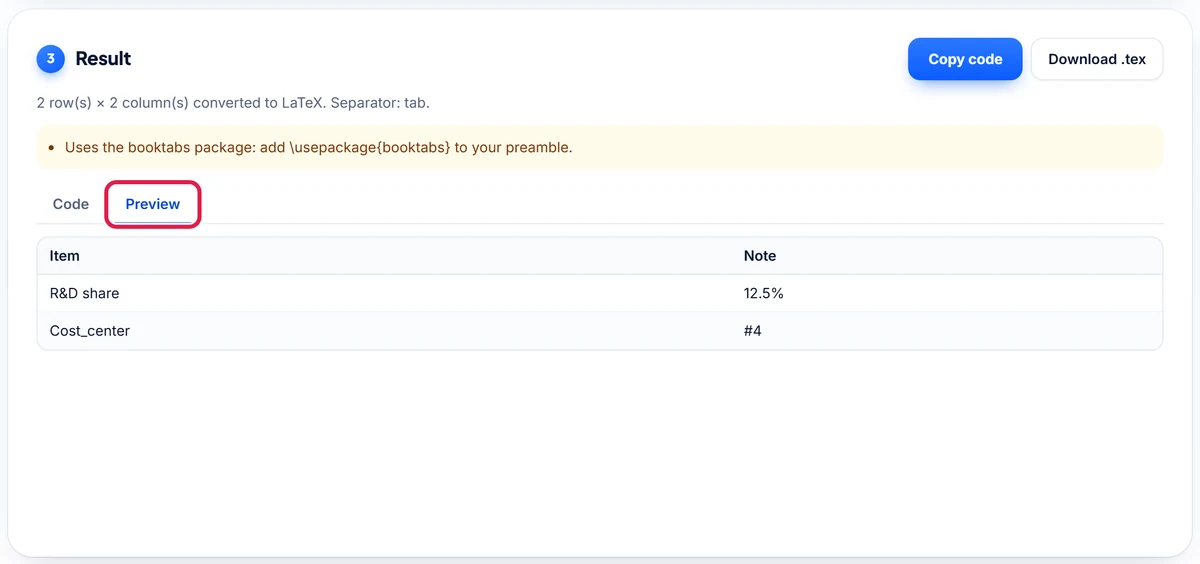
The Preview tab shows the table as it will look, so you can check the structure before you paste anything into your paper. The generated code has the shape of a tabular environment: a line for each row, cells separated by &, and \ at the end of each row. By default the tool also wraps the tabular in a table float (\begin{table}[htbp] with \centering and a label) and writes the header row in bold. You can untick Wrap in a table float and Bold header row, and you can type a Caption and a Label. Paste the code where the table should appear.
Escaping special characters
Several characters have a special meaning in LaTeX, and a table with such characters in its cells fails to compile or prints wrongly. The generator escapes them. Take these cells:
- R&D share
- 12.5%
- Cost_center
- #4
In LaTeX, & separates cells, % starts a comment, _ is used for subscripts in math and causes an error in plain text, and # is reserved for macro parameters. The escaped result is:
R\&D share & 12.5\% \\
Cost\_center & \#4 \\
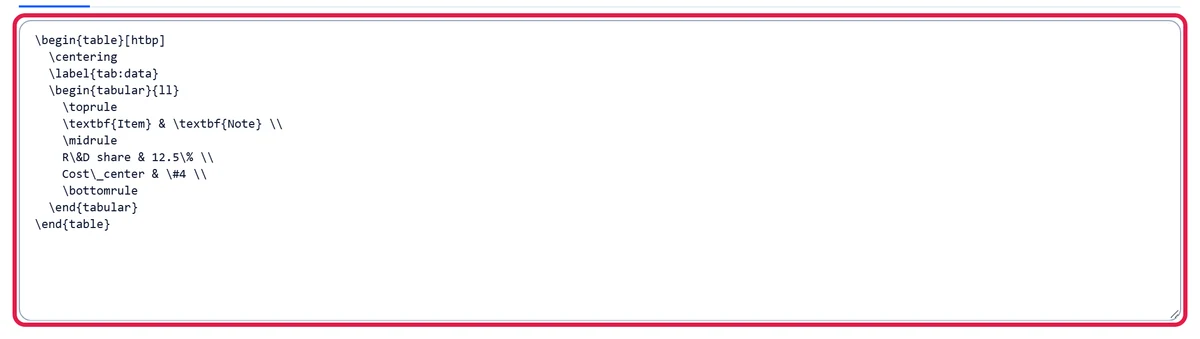
Without the escapes, R&D share would be split into two cells, and everything after the % in a row would disappear as a comment. Other characters, such as $, { and }, also need escaping in text. After pasting, compile the document once and read the log for errors, because a cell with an unusual symbol is the usual cause of a failed build.
For the same kind of problem with the pipe in Markdown tables, see Markdown Table Breaks on a Pipe Character.
booktabs or plain hline
The style booktabs gives tables the typographic look of a printed paper: thin rules at the top and the bottom, a rule under the header and no vertical lines. The package defines the commands \toprule, \midrule and \bottomrule. It needs a line in the preamble of your document:
\usepackage{booktabs}
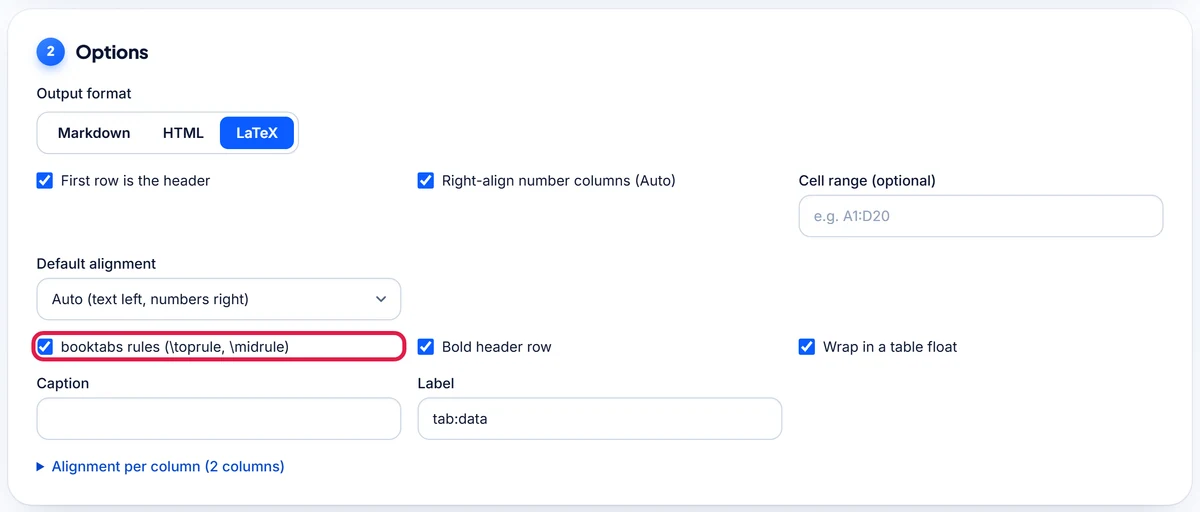
The option booktabs rules (\toprule, \midrule) is ticked by default, the generator writes those commands, and a note under the result reminds you to add the package. If you do not want the package, untick the option, and the generator writes plain \hline rules instead. A table with \hline rules compiles in any LaTeX installation without extra packages.
Most journals and style guides prefer the booktabs look, so use it when the template allows. The package documentation is on CTAN at booktabs, including its advice on spacing and why vertical rules are avoided.
For a table that goes into a README and not into a paper, see Paste an Excel Table Into GitHub as Markdown.
Line breaks in cells
A cell in Excel can hold several lines. A cell in this kind of LaTeX table cannot, because a line break would need a special construction. The generator replaces each line break with a space and shows a note, so the table still compiles.
Check the cells that were changed. A cell that held a list on several lines is now one line of text. If you want a real break inside a cell, rewrite the cell by hand after the conversion, for example with a paragraph column type, or shorten the text in the spreadsheet before the conversion.
Limits
Files in the old .xls format are not supported. Save the workbook as .xlsx, or copy the cells directly from Excel. The tool handles up to 200 columns, which is far more than a table in a paper can show.
Think about the width of the page, not about the limit. A table with more than a handful of columns does not fit in a portrait page. Make columns narrower with a smaller font, rotate the page, or move the less important columns to an appendix.
The tool writes the table. It does not check whether your numbers are right, so compare a few cells with the spreadsheet before you submit.
Try it
Open the Excel to Markdown Table Generator, paste your cells and pick LaTeX. Check the escaped characters in the Preview tab, choose booktabs or plain \hline, and add \usepackage{booktabs} to the preamble if you use the package.