
Excel Formula Needs Semicolons: Fix the Separator
Why a pasted formula is rejected with "There's a problem with this formula", and how to switch it to semicolons in Excel and Google Sheets.
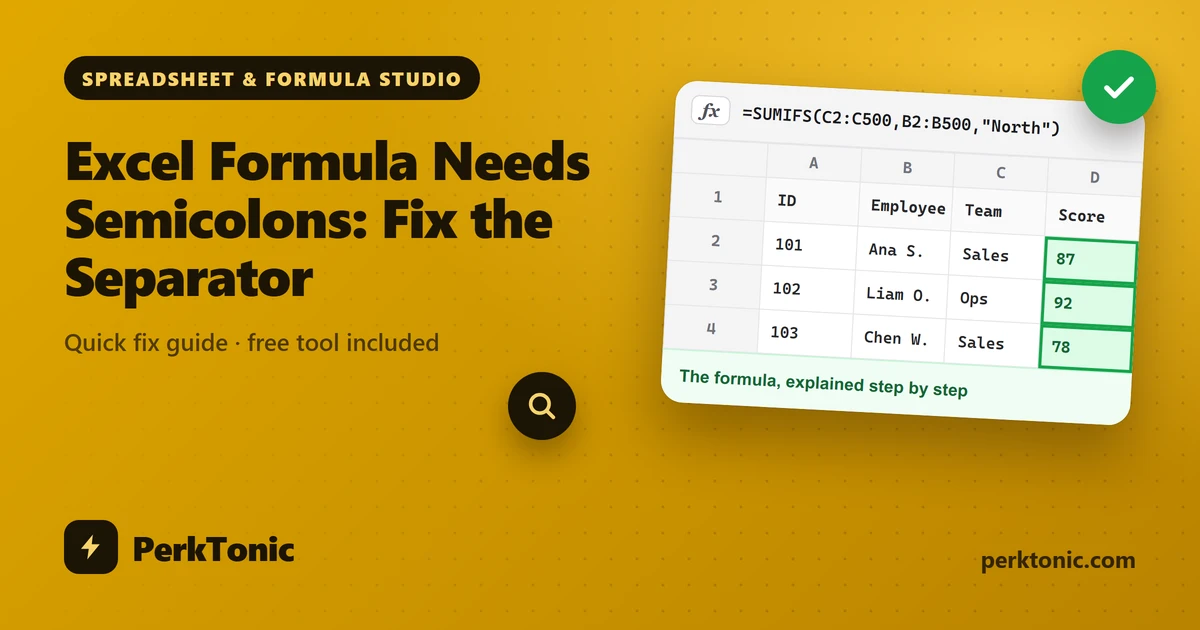
You paste a formula from an English tutorial, press Enter, and Excel answers "There's a problem with this formula". On many European installs the logic is fine: Excel expects semicolons between arguments instead of commas. The Excel Formula Generator has a switch that writes the separators for you before you copy the formula.
Why some Excel installs want semicolons
Excel separates function arguments with the list separator of the system's regional settings. In regions where the decimal separator is a comma, as in France, Germany or Spain, the comma is already used inside numbers such as 3,14, so the argument separator is a semicolon. A formula copied from an English-language website or tutorial uses commas and is therefore rejected on those installations.
The same formula in the two settings:
=SUMIFS(C2:C500,B2:B500,"North")
=SUMIFS(C2:C500;B2:B500;"North")
Nothing else changes: the function name, the ranges and the quoted text stay as they are, unless your Excel also uses translated function names, which is covered below.
Switch the formula to semicolons
- Open the Excel Formula Generator.
- Type your request, for example: Add up the sales in column C where the region in column B is North and the date in column A is in March 2026.
- Enter the columns, choose your Excel version and press Generate formula.
- Turn on Use semicolons before copying the formula.
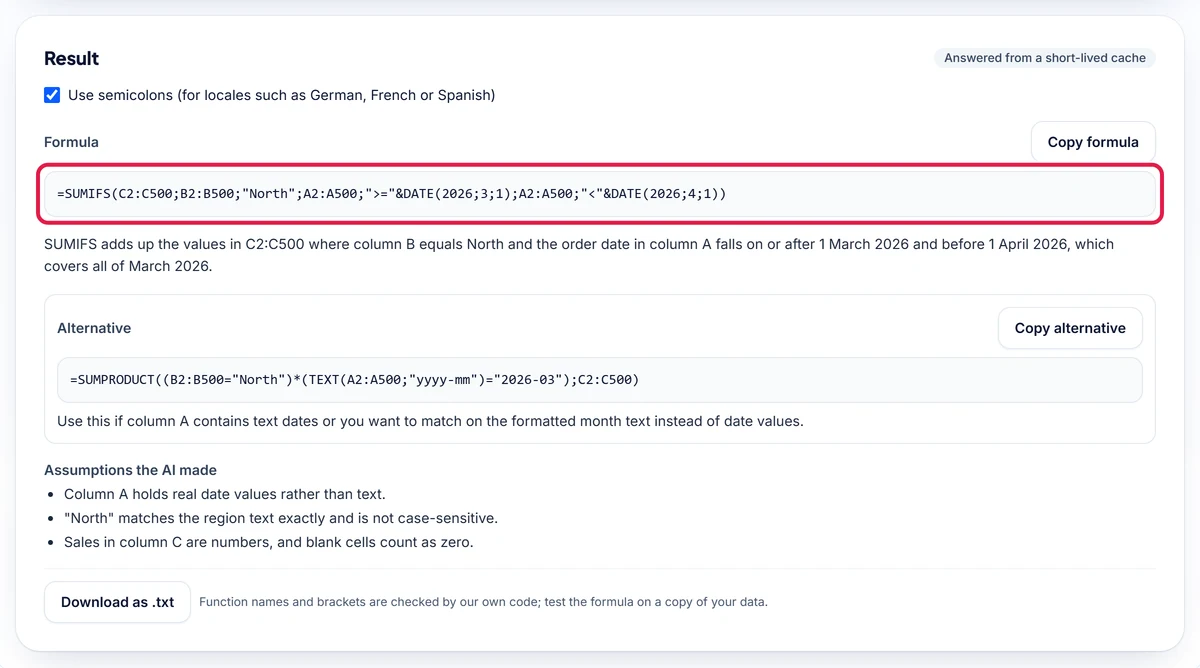
The formula now has semicolons between all arguments. Paste it into a copy of your data and check the total, because the tool does not calculate results. For a longer walk through writing requests, see Turn a Plain-English Request into an Excel Formula.
If you want to keep commas in your own Excel instead, you can change the separator in the system settings of your operating system. Microsoft describes this in Change the character used to separate thousands or decimals.
Translate a formula written in another language
Separators are only one difference. Excel in French or German also shows function names in that language, for example RECHERCHEV instead of VLOOKUP. A formula in that language pasted into an English Excel fails with a name error, even when the separators are right.
The Excel to Google Sheets Formula Converter handles the French example and converts RECHERCHEV into the Google Sheets function. If the formula uses semicolons, the converter keeps the ; in the result.

For a full guide on translating function names, read Translate a French or German Excel Formula to English.
Google Sheets and LibreOffice separators
Google Sheets always uses English function names. The spreadsheet locale only changes the separators. In locales that use a comma as the decimal separator, a semicolon goes between arguments, and a backslash goes between the columns of an array. The same formula can therefore need different punctuation in two sheets owned by users in different countries.
You can check or change the locale in the spreadsheet settings. Google describes the setting in Set a spreadsheet's location and calculation settings. If a formula pasted into Sheets is refused, compare its separators with that locale first.
LibreOffice Calc follows its own language and locale settings for the function separator, so a formula written for one setup can also need its punctuation changed in another.
Common errors
- The dialog "There's a problem with this formula" appears on entry: the separators do not match the install. Replace commas between arguments with semicolons, or the reverse.
- Mixed separators in one formula: a pasted formula that has both commas and semicolons is rejected or read wrongly. Use one kind throughout. Decimal numbers inside the formula keep the decimal character of your locale.
- Function names in another language: the separators are right but the name is not recognised. Translate the name before you look at the punctuation.
- Array constants: the characters between the columns and rows of an array such as {1,2;3,4} also follow the locale. In a comma-decimal Google Sheets locale a backslash separates the columns, so check an array constant after you change locales.
- Commas inside quoted text, such as "North, South": these stay as they are, because they are part of the text and not separators.
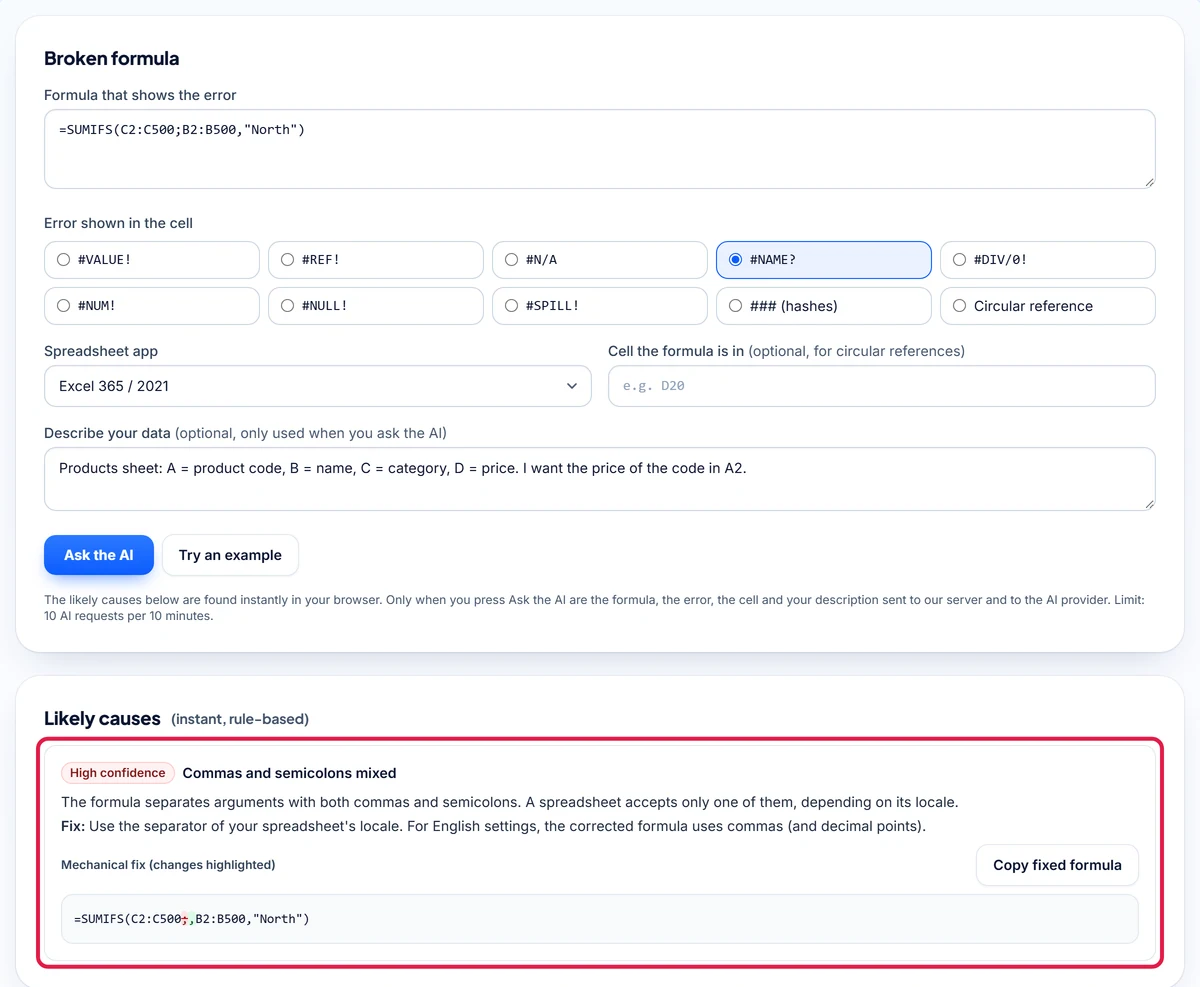
The Excel Formula Debugger rules cover semicolon or comma separators. Paste a formula with mixed separators, pick #NAME? and the separator cause appears in Likely causes. For the name errors themselves, read Fix #NAME? in Excel: Typos, Quotes and New Functions.
Check your own file
Open the Excel Formula Generator, describe your calculation and turn on Use semicolons before you copy the formula. Paste it into a copy of your sheet, check the result, and use the debugger if Excel still refuses it.