
Translate a French or German Excel Formula to English
How to turn a French or German Excel formula into English: translated function names, error values and TRUE/FALSE, separators, and why Sheets uses English names.
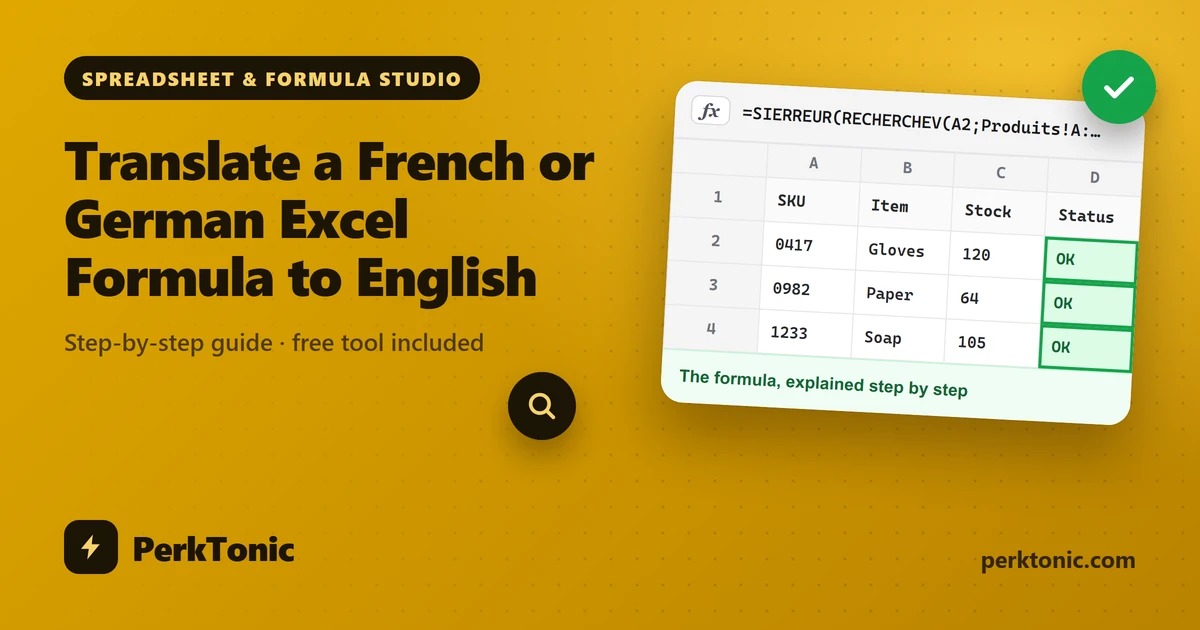
A formula copied from a French or German Excel fails in an English Excel because the function names are different: RECHERCHEV and SVERWEIS are both VLOOKUP. Paste it into the Excel to Google Sheets Formula Converter, pick the source language and read the result. The output is a Google Sheets (or LibreOffice) formula with English function names; for common functions such as VLOOKUP or IFERROR it is the same text an English Excel expects. The tool also translates error values and TRUE/FALSE, which a simple name replacement misses.
Localised function names and separators
Excel stores formulas in the language of the installation. The same formula looks different in each one, and it only works in an Excel that uses the same language. The converter knows French, German and Spanish names for common functions. Some examples:
| English | French | German | Spanish |
|---|---|---|---|
| VLOOKUP | RECHERCHEV | SVERWEIS | BUSCARV |
| IF | SI | WENN | SI |
| IFERROR | SIERREUR | WENNFEHLER | SI.ERROR |
| SUMIFS | SOMME.SI.ENS | SUMMEWENNS | SUMAR.SI.CONJUNTO |
Separators differ as well. These Excel versions normally put a semicolon between arguments, because the comma is the decimal mark. A translated formula that keeps semicolons can fail in an English Excel with commas. The fix for that is in Excel Formula Needs Semicolons: Fix the Separator.
Steps: pick the source language
- Open the Excel to Google Sheets Formula Converter.
- Use the language pickers to choose the language of the formula you have.
- Paste the formula.
- Read the converted formula and the notes under it.

Take this French formula:
=SIERREUR(RECHERCHEV(A2;Produits!A:C;3;FAUX);"Introuvable")
With French as the source, the function names come out in English: IFERROR and VLOOKUP, and FAUX becomes FALSE. Sheet names such as Produits and text in quotation marks such as "Introuvable" are not function names, so they stay as they are. Rename them yourself if the target workbook uses other names.

Error values and TRUE/FALSE
Error values and booleans are translated too. A German formula that tests for #NV uses the German name for #N/A, and WAHR is TRUE. In French, #VALEUR! is #VALUE! and VRAI is TRUE.
This matters for formulas that compare against an error text or that return a boolean. A name-only replacement leaves #NV or WAHR in the formula, and Excel then reads them as unknown names and shows #NAME?. The converter translates them together with the functions.

Check the result for the function names the tool does not know. If a name is not translated, it stays in the output, and you can look it up on Microsoft's translation page. For differences between Excel and Sheets that are not about language, see Convert an Excel Formula to Google Sheets.
Google Sheets always uses English names
Google Sheets uses English function names in every language. Setting the locale of a spreadsheet to France or Germany changes only the separators. A formula written in Sheets therefore never contains RECHERCHEV or SVERWEIS, and a localised Excel formula pasted into Sheets fails with a parse error until it is translated.
For separators in Sheets, the locale decides. In locales that use a comma as the decimal mark, a semicolon separates arguments, and array constants can use a backslash between columns. Array constant separators also depend on your settings: compare a constant such as {1,2;3,4} with what your Excel or Sheets accepts, and adjust the separators if the formula is rejected.
The converter does not calculate results. Paste the translated formula into a copy of your workbook and compare a few values. If you want to write a new formula in your own words instead, the Excel Formula Generator writes it with English function names, and the Use semicolons switch adapts the separators.
Microsoft publishes a list of function names in several languages on its page Excel functions translator.
Do it with your own data
Open the Excel to Google Sheets Formula Converter, choose the language of your formula and paste it. Read the English result and the notes, check the separators and array constants, and test the formula on a copy of your data.