
Cron Expression for Every Weekday at 9:30
How to schedule a cron job on weekdays at 9:30: the expression 30 9 * * 1-5, what each field means, the time zone and the list of next runs.

A job that must run on weekdays at 9:30 needs one line of cron, and the line is easy to get wrong when you write it from memory. A cron expression generator turns the description into the expression and shows when it will run. In the Cron Expression Generator, "every weekday at 9:30" gives 30 9 * * 1-5, with the next runs listed in the time zone you choose.
The expression and what each field means
A cron expression has five fields, separated by spaces:
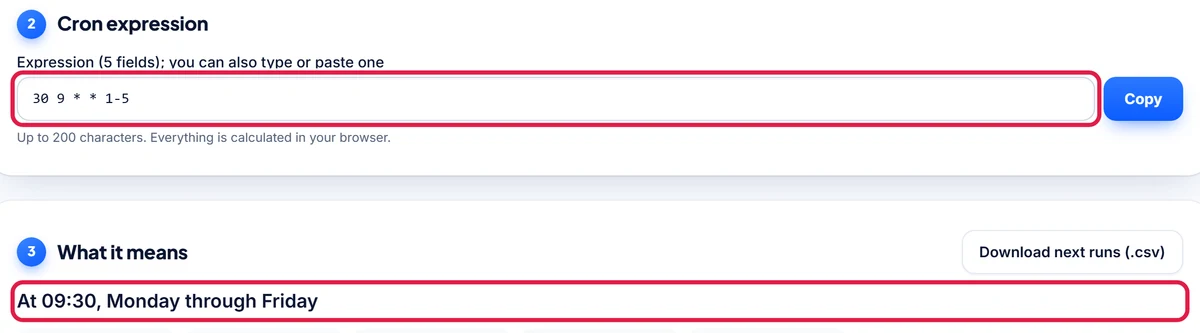
30 9 * * 1-5
From left to right, the fields are:
- Minute: 30, the half hour.
- Hour: 9, nine in the morning, on a 24-hour clock.
- Day of the month: *, every day of the month.
- Month: *, every month.
- Day of the week: 1-5, Monday to Friday.
In the day-of-week field, 1 is Monday and 5 is Friday. Sunday is 0, and in many implementations also 7. The range 1-5 therefore means Monday through Friday.
The generator describes the expression in words: "At 09:30, Monday through Friday". Always read the sentence. If it does not say what you meant, the expression is wrong, even if it looks plausible.
The format is documented in the manual page crontab(5), including the special characters and the rules for the day-of-month and day-of-week fields.
Steps: describe or build, pick the time zone
- Open the Cron Expression Generator.
- Type the description, for example every weekday at 9:30, under Schedule in words and press Generate. You can also use the tab Visual builder, or type or paste an expression in the field under Cron expression. The words are parsed in your browser, without AI.
- Under Time zone for the next runs, pick the zone that the job should be read in, for example Europe/Berlin.
- Check the sentence and the list of next runs.
- Copy the expression into your crontab or scheduler.
The time zone matters. A cron expression has no time zone of its own. The scheduler that runs it decides what 9:30 means, and most schedulers use the time zone of the server, which is often UTC. The generator lets you see the result in the zone you care about, and shows the UTC equivalent beside it. Check the settings or the documentation of your scheduler to find out which zone it really uses.
Read the next 10 runs
The generator lists the next 10 runs. This is the best check of an expression, because the list shows the real dates and not a description.
With Europe/Berlin selected and a look on Thursday 5 November 2026, the list starts with:
- Friday 6 November, 09:30 CET, which is 08:30 UTC
- Monday 9 November, 09:30 CET, which is 08:30 UTC
- Tuesday 10 November, 09:30 CET, which is 08:30 UTC
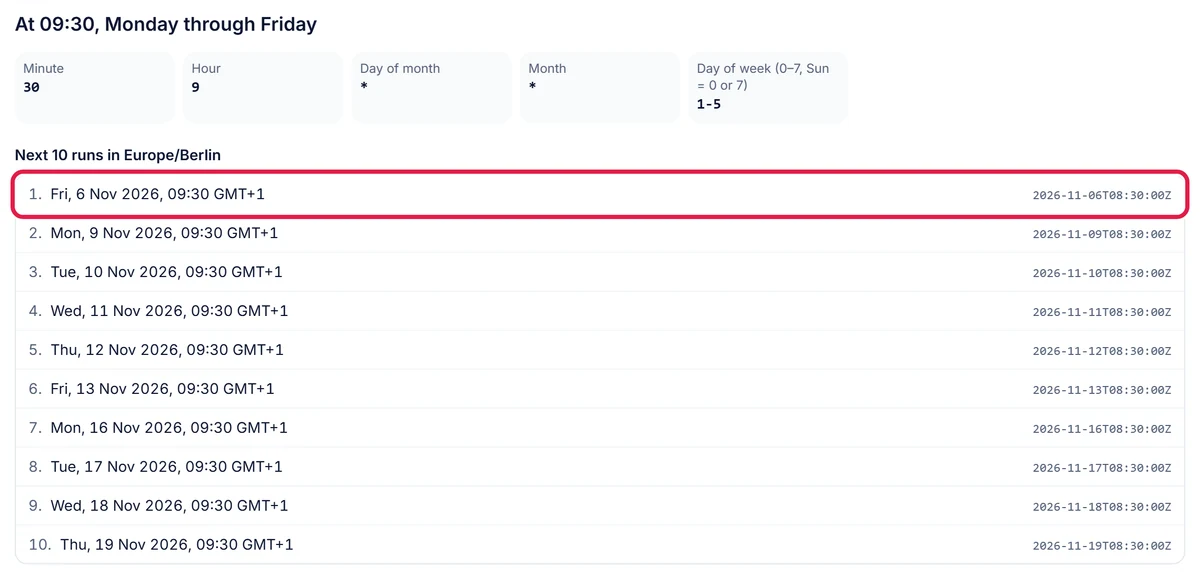
Look at the weekdays in the list. There is no Saturday and no Sunday. The runs follow each other from Monday to Friday, and the next one after Friday is the following Monday. This confirms that the 1-5 range does what you want.
The UTC time is shown for each run. Use it to compare with the time of your server. If the server runs in UTC and you want 9:30 in Berlin, the expression for the server would use the UTC hour, which is 8:30 in winter. In summer, when Berlin is on summer time, the same local time is 7:30 UTC, so a fixed UTC expression drifts against local time by an hour twice a year. The list of runs shows the effect, and the guide on time zones explains how to handle it.
The runs can be downloaded as a CSV file, which is useful to send to a colleague or to compare with a calendar.

Paste an existing expression to explain it
The generator also works in the other direction. Paste an expression that you found in a crontab, and the tool explains it in words and lists the next runs.
Use this when you inherit a server. A line such as 0 2 * * 0 is hard to read at a glance. The explanation tells you that it runs at 02:00 on Sundays, and the next runs tell you when that is. It also helps to find mistakes, for example an expression that was meant for weekdays but runs on every day because of the day-of-week field.
Check the special case of the last day of the month, which cron cannot express in the standard form: Run a Cron Job on the Last Day of the Month shows how to solve it.
When the job is scheduled, make sure that you notice when it fails. A job that fails quietly is found only when somebody misses the result. Monitor a Cron Job With a Heartbeat URL describes the check, and the Cron Job Heartbeat Monitor provides it.
Try it
Open the Cron Expression Generator, type every weekday at 9:30 and choose your time zone. Check that the sentence says "At 09:30, Monday through Friday", look at the weekdays and the UTC times in the next 10 runs, and copy 30 9 * * 1-5.