
Run a Google Apps Script Every Hour
How to make Google Sheets fetch an API value every hour with a time-driven trigger: the script, the permission it needs, the URL Fetch quota and the review.

To have Google Sheets fetch data from an API every hour without opening the file, you need a script with a time-driven trigger. Google runs the function by itself, on its own servers, whether the sheet is open or not. The Apps Script Automation Generator writes the script and tells you which permissions it needs before you install it.
The every-hour option in the generator
In the generator, the trigger picker has an every-hour option, which is the setting for this task. Choose it, describe what the script should do, and the result contains a function that is meant to be run by a time-driven trigger instead of by an edit.

Time-driven triggers do not run at an exact minute. Google runs the function at some point within the chosen interval, so an hourly script does not run precisely on the hour. If a result must be written at an exact time, add the time to the written data instead of relying on when the script ran.
Time-driven triggers do not use cron expressions. The Apps Script trigger menu has its own interval settings. The Cron Expression Generator is for tools that do use cron syntax, such as a server scheduler.
Worked example: hourly exchange rate
Suppose a service at https://api.example.com/rates returns exchange rates, and you want the USD rate in cell B2 of your sheet.
- Open the Apps Script Automation Generator.
- In the task field, enter:
Every hour fetch https://api.example.com/rates and write the USD rate in B2. - Pick the every-hour trigger.
- Press Generate script.
The script uses UrlFetchApp, the Apps Script service that sends a request to a web address. It also checks the response code and raises an error when the request fails, for example when the service is down, so the failure appears in the execution log instead of passing silently.
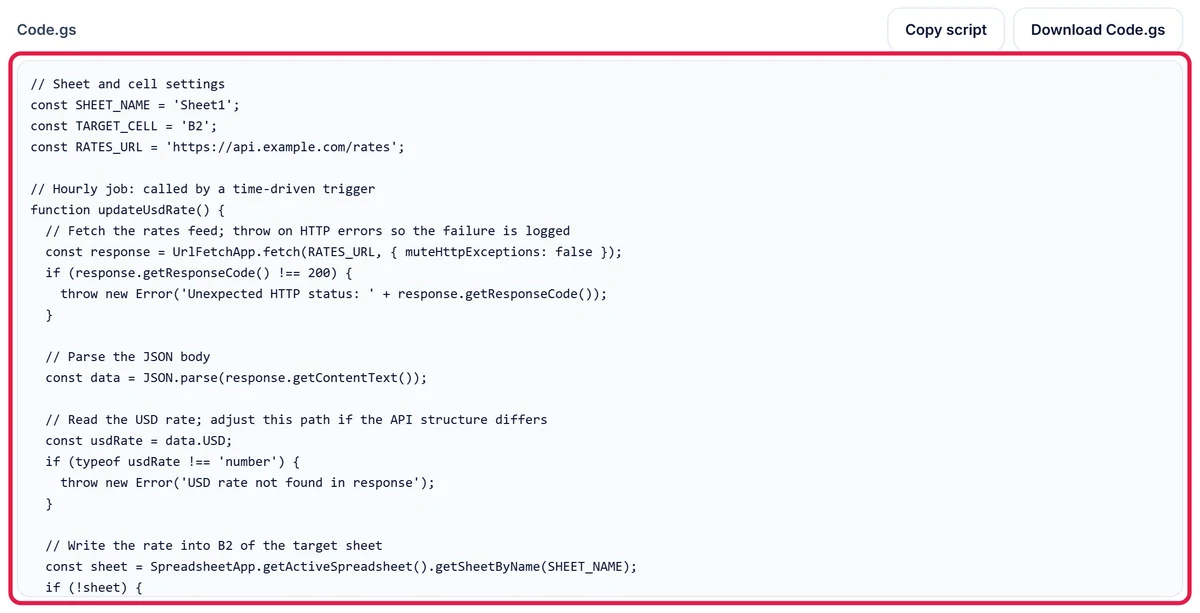
Install it as in the earlier guide Send an Email When a Google Sheets Cell Changes: Extensions > Apps Script, paste, save, create the trigger and authorise. For the hourly script, the trigger is a time-driven trigger set to run every hour. Google describes the types in its documentation on installable triggers.
Permissions and URL Fetch quota
A script that calls an outside address needs the external_request permission. When you authorise the script, Google shows this as permission to connect to an external service. The generator lists the permission in its review before you run the script.

URL Fetch has a daily quota. On a Gmail account it is 20,000 calls a day. An hourly script makes a small number of calls, so the quota is not a problem for one sheet. It can become one if you add several sheets, or loop through many addresses on every run. See the Google page about quotas for Google services for the current limits and for the limits of Workspace accounts.
The method reference for the service is on Google's page for UrlFetchApp.
Safety review for external URLs
A script that sends requests can also send data. Read the review before you run it. It lists websites you did not mention in your task and any sheet data that is sent to a URL.
Check these points:
- Every address in the list is one you chose. A website that you did not name is a reason to stop and regenerate the script.
- No sheet data is sent to the address unless that is the purpose of the task. Fetching a rate needs no data from your sheet.
- If the service needs an API key, do not paste it into a sheet that others can read. Keep it where only you can see it, such as the script's own properties.
If the script does not run when you expect it to, or the trigger does not appear, check the trigger list in Apps Script for failed executions. The related problem with edit triggers is described in Apps Script onEdit Not Running: Simple vs Installable.
Do it with your own data
Open the Apps Script Automation Generator, describe the fetch and pick the every-hour trigger. Read the permissions and the list of addresses, then install the trigger on a copy of your sheet and check the value in B2 after the first run.