
Send an Email When a Google Sheets Cell Changes
How to make Google Sheets email the owner when a Status cell becomes Done: the generated script, the installable trigger, the permissions and the quotas.

To make Google Sheets send an email when a cell changes, you need an Apps Script that runs on every edit and checks whether the Status cell became Done. The Apps Script Automation Generator writes that script from a one-sentence task description. You then paste it into Apps Script, create an installable trigger and authorise it once.
What the generated script does
The generated result is a function called onStatusEdit(e). Google passes the edit event as e. The function looks at where the edit happened and what the new value is, then sends the email only when all the conditions are met.
It ignores edits on other sheets, edits in the header row and multi-cell pastes. This matters in a task list: without those checks, a paste of 50 rows or a change to a column title could trigger mail by mistake. The script reads the owner's address from the row that changed and sends the message to that address.
Steps: task, sheet, trigger, Generate script
- Open the Apps Script Automation Generator.
- In the task field, enter: When Status (D) changes to Done, email the owner in column C and write the date in column E.
- In the sheet field, enter: Tasks, header in row 1.
- Pick the installable on-edit trigger.
- Press Generate script.
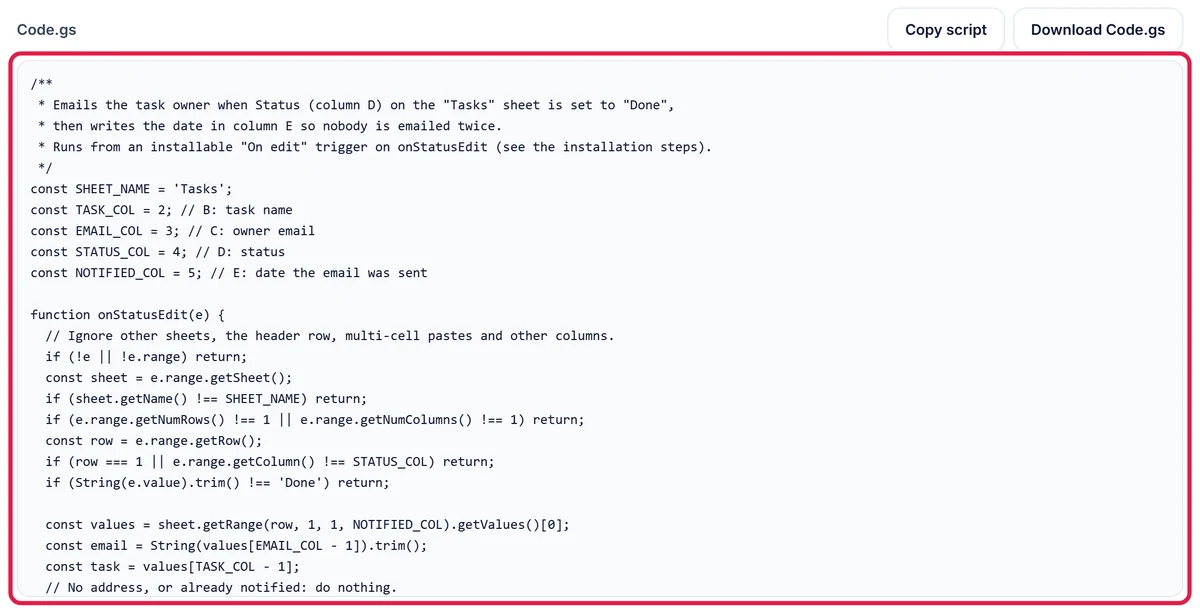
The tool returns the script with the function onStatusEdit(e). The trigger type matters. A simple onEdit trigger runs without authorisation and cannot send mail, so a script that sends email needs an installable trigger. If an onEdit script does not run at all, read Apps Script onEdit Not Running: Simple vs Installable.
Read Review before you run
Do not run a script before you have read it. Below the code, the tool shows Review before you run, with the list of permissions the script needs. The permissions are detected by the tool's own code from the script text, and the safety review always runs, whatever the task is.

Check three things against your task:
- The list contains only what you expect: access to the spreadsheet and permission to send email.
- The column letters match your sheet: Status in D, owner in C, date in E.
- The script writes only the cell you named. Here that is the date in column E.
If the review shows a permission you did not ask for, change the task description and generate the script again.
Install the trigger and authorise
Installation takes a few minutes:
- In your spreadsheet, open Extensions > Apps Script.
- Paste the script and save.
- Create the trigger: open Triggers, add a trigger for onStatusEdit, set the event source to the spreadsheet and the event type to On edit.
- Save the trigger and authorise the permissions when Google asks.

Authorisation happens once, with the Google account that owns the trigger. Test with a copy of the sheet first: change one Status to Done and check that the email arrives and the date appears in column E. Google describes the trigger types in its documentation on installable triggers.
To make the Done rows easy to see as well, add a colour rule. The Conditional Formatting Generator writes the formula, and Highlight a Whole Row Based on One Cell's Value shows the steps.
Email quotas
MailApp has a daily quota. It is 100 recipients a day on a Gmail account and 1,500 on Google Workspace. Each recipient counts, so a message to three people uses three. When the quota is used up, the script stops sending until the quota resets.
For a team that closes many tasks in a day, consider one summary email instead of one email per task. A time-driven trigger can send it, as in Run a Google Apps Script Every Hour. The current limits are listed on Google's page quotas for Google services, and they can change, so check it for your account type.
Do it with your own data
Open the Apps Script Automation Generator, describe your status rule and generate the script. Read Review before you run, then install the trigger on a copy of your sheet and test it with one row.