

Google Apps Script Automation Generator
Describe what your spreadsheet should do by itself. This google apps script automation generator writes the commented script and tells you how to install it. It lists the permissions it will ask for and flags anything worth checking before you run it.
- Free to use
- No account required
- Instant results
- Sent to the AI only when you press the button
Describe the automation
Simple or installable trigger?
Simple: Simple triggers (functions named onEdit or onOpen) run by themselves without asking for permission, so they cannot send mail, call other websites or open other files, and they stop after 30 seconds. They only fire for edits made by a person, not by scripts or formulas.
Installable: Installable triggers are created on the Triggers page (or with ScriptApp). They run as the person who created them, can use every service that person authorised (Gmail, Drive, other websites), and can run on a timer or on form submissions.
Your choice (Installable on-edit): Triggers (clock icon) > Add Trigger > choose the function > From spreadsheet > On edit.
Your script
Example result (nothing was sent)Emails the task owner when a row's Status becomes Done and records the date in column E, so each task is emailed once.
Review before you run
- The script sends e-mail as you. Test it with your own address first. (line 28)
Code.gs
/**
 * Emails the task owner when Status (column D) on the "Tasks" sheet is set to "Done",
 * then writes the date in column E so nobody is emailed twice.
 * Runs from an installable "On edit" trigger on onStatusEdit (see the installation steps).
 */
const SHEET_NAME = 'Tasks';
const TASK_COL = 2; // B: task name
const EMAIL_COL = 3; // C: owner email
const STATUS_COL = 4; // D: status
const NOTIFIED_COL = 5; // E: date the email was sent

function onStatusEdit(e) {
  // Ignore other sheets, the header row, multi-cell pastes and other columns.
  if (!e || !e.range) return;
  const sheet = e.range.getSheet();
  if (sheet.getName() !== SHEET_NAME) return;
  if (e.range.getNumRows() !== 1 || e.range.getNumColumns() !== 1) return;
  const row = e.range.getRow();
  if (row === 1 || e.range.getColumn() !== STATUS_COL) return;
  if (String(e.value).trim() !== 'Done') return;

  const values = sheet.getRange(row, 1, 1, NOTIFIED_COL).getValues()[0];
  const email = String(values[EMAIL_COL - 1]).trim();
  const task = values[TASK_COL - 1];
  // No address, or already notified: do nothing.
  if (!email || values[NOTIFIED_COL - 1]) return;

  MailApp.sendEmail({
    to: email,
    subject: 'Task done: ' + task,
    body: 'The task "' + task + '" (row ' + row + ') was marked as Done.',
  });
  sheet.getRange(row, NOTIFIED_COL).setValue(new Date());
}
How to install it
- Open the spreadsheet and choose Extensions > Apps Script.
- Replace the code in Code.gs with this script and click Save.
- Click Triggers (the clock icon) > Add Trigger, choose onStatusEdit, then From spreadsheet > On edit, and save.
- Allow the permissions Google asks for (choose your account, then Allow).
- Test it once on a copy or a test row.
Permissions it will ask for
Detected by our own code from the services the script uses (scope table checked 2026-10-30).
- SpreadsheetApp: Read and change your spreadsheets
https://www.googleapis.com/auth/spreadsheets - MailApp: Send email as you (no access to your inbox)
https://www.googleapis.com/auth/script.send_mail
Quotas to know
| Limit | Gmail account | Workspace |
|---|---|---|
| Run time of one execution | 6 min | 6 min |
| Total run time of triggers per day | 90 min | 6 h |
| Triggers per user per script | 20 | 20 |
| Email recipients per day (MailApp / GmailApp) | 100 | 1,500 |
From Google's Apps Script quotas page (checked 2026-10-30). Google changes these limits; check the current numbers there.
Assumptions the AI made
- The sheet is named Tasks and row 1 holds the headers.
- Status is set to exactly Done (typed or picked from a list).
Your data: Your text is sent to our server and to the AI provider only when you press the button. We do not store it with your identity, and nothing is sent before that.
How to use
- Describe the task in plain English, for example "when Status in column D becomes Done, email the address in column C".
- Describe the sheet: its name, what each column holds, and the header row.
- Pick when it should run: simple onEdit, installable on-edit, every hour, day or week, on form submit, or as an onOpen custom menu.
- Press Generate script. Read the Review before you run box, then copy the code or download Code.gs.
- Follow the installation steps: open Extensions > Apps Script, paste, save, create the trigger and authorise.
Examples
Email when a task is done. Task: "When Status (D) changes to Done, email the owner in column C and write the date in column E". Sheet: "Tasks, header in row 1". Trigger: installable on-edit. The result is an onStatusEdit(e) function that ignores other sheets, the header row and multi-cell pastes. It sends one email with MailApp and stamps column E so nobody is emailed twice. Permissions: spreadsheets and script.send_mail. The quota note shows 100 recipients a day on a Gmail account and 1,500 on Workspace.
Hourly exchange rate. Task: "Every hour fetch https://api.example.com/rates and write the USD rate in B2". The script uses UrlFetchApp with error handling. It needs the external_request permission and counts against the URL Fetch quota of 20,000 calls a day on a Gmail account.
A custom menu. "Add a Tools menu that sorts the sheet by column A" gives an onOpen() function and a sort function. Clicking the menu item asks for permission the first time.
Tips and limits
- The task and the sheet description can each be up to 2,000 characters. Name the sheets and columns exactly as they appear in your file.
- The permissions are detected by our own code from the services the script uses (SpreadsheetApp, GmailApp, MailApp, DriveApp, UrlFetchApp, CalendarApp, DocumentApp, ScriptApp and others), not taken from the AI. If the AI's list differs, both are shown.
- Every script is syntax-checked on our server before you see it. An error is shown with its line number.
- The safety review always runs. It lists e-mail addresses and websites that you did not mention, text run as code (eval, Function), sheet data sent to a URL, files shared publicly, and code that deletes data.
- Requests to copy data out without the owner knowing, to send spam or to get into other people's accounts are refused.
- You can send 10 AI requests per 10 minutes. The example on the page is saved and does not count.
FAQ
How do I install an Apps Script trigger?
In the Apps Script editor, open Triggers (the clock icon), click Add Trigger, then pick the function, the event source and the event type. Simple triggers named onEdit or onOpen need no installation.
Why does it ask for permissions?
Google asks you to allow every service the script uses, such as sending mail as you or reading your spreadsheets. The list on the page shows which permission each service needs, so you know what you are agreeing to.
Is it safe to run generated code?
Read it first. The review box points out anything unexpected, and the script only does what the code says. Test it on a copy of your spreadsheet, and with your own email address before you email others.
What is the difference between simple and installable triggers?
Simple triggers run without permission, so they cannot send mail or call other websites, and they stop after 30 seconds. Installable triggers run as you, with the permissions you granted, and can run on a timer.
Why did my onEdit not run when a formula changed?
onEdit only fires for edits made by a person. Changes made by formulas, other scripts or imports do not trigger it. Use a time-driven trigger instead.
Does it work in Google Workspace accounts?
Yes. Workspace accounts usually have higher quotas, for example 1,500 email recipients a day instead of 100. Your administrator may block some services.
Privacy note
When you press Generate script, your task description, sheet structure and trigger choice are sent to our server and to the AI provider to write the script. Nothing else leaves your browser, and the tool never sees your spreadsheet. We do not store the text with your identity, and identical requests may be answered from a short-lived cache. The example shown when the page opens is saved in the page and sends nothing.
Guides for this tool
 Spreadsheet & Formula Studio
Apps Script onEdit Not Running: Simple vs Installable
Why onEdit does not fire or cannot send mail: the limits of simple triggers, why formula changes do not trigger it, and when to use an installable trigger.
3 min read
 Spreadsheet & Formula Studio
Run a Google Apps Script Every Hour
How to make Google Sheets fetch an API value every hour with a time-driven trigger: the script, the permission it needs, the URL Fetch quota and the review.
3 min read
 Spreadsheet & Formula Studio
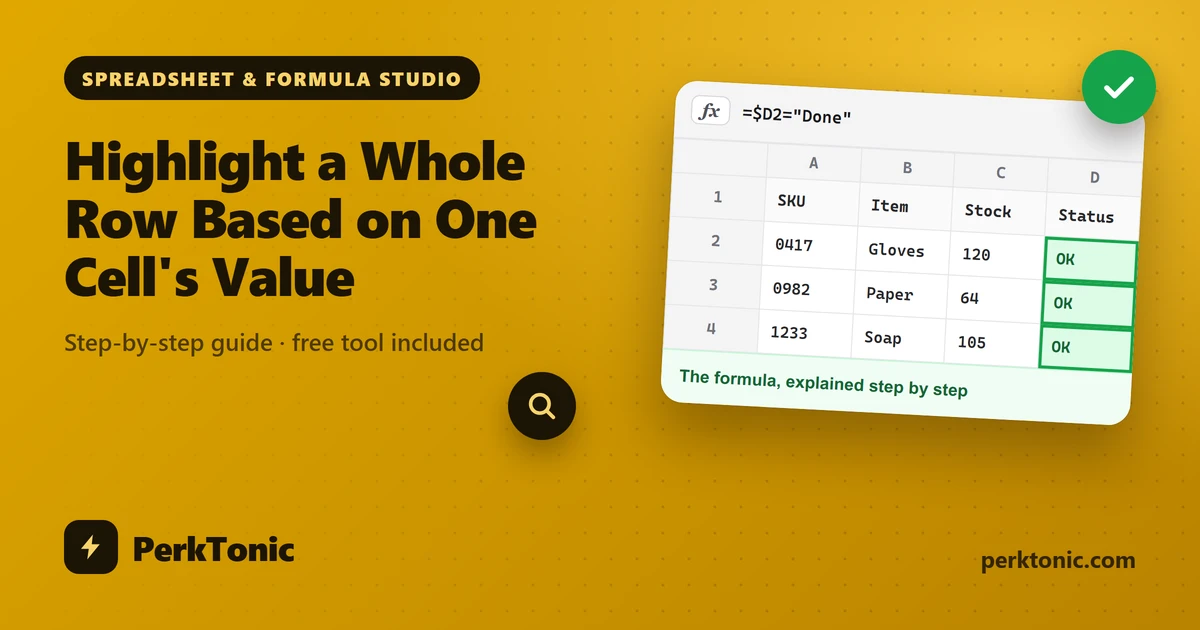
Highlight a Whole Row Based on One Cell's Value
How to highlight a whole row in Excel or Google Sheets when one cell says Done: the =$D2="Done" formula, why the dollar sign matters, the steps and AND for two conditions.
4 min read
 Spreadsheet & Formula Studio
Send an Email When a Google Sheets Cell Changes
How to make Google Sheets email the owner when a Status cell becomes Done: the generated script, the installable trigger, the permissions and the quotas.
3 min read