NotebookLM Is Now Gemini Notebook: Turn a PDF Into a Podcast
NotebookLM, now Gemini Notebook, turns a PDF into a podcast-style audio summary on the free plan. Here are the steps, the limits and what not to upload.

You've got an 80-page PDF you were never going to read. A report, a lecture pack, a policy document with nothing going for it except a cover page. NotebookLM, Google's free research tool, can turn that PDF into a podcast-style chat between two AI hosts, ready to play while the kettle boils.
This guide walks through it step by step, then covers what most tutorials skip: the usage limits, how to catch errors in the audio, and what you shouldn't upload. One update first. Google renamed NotebookLM to Gemini Notebook on 16 July 2026, and its Workspace team says automatic redirects keep existing links working. I checked every step below against Google's own help pages on 13 October 2026, so a button may have moved if the interface changed since.
Quick answer: Open Gemini Notebook, the new name for NotebookLM, create a notebook, upload your PDF, then choose Audio Overview in the Studio panel. Google says generation takes a couple of minutes. It's free with a Google account, within usage limits, and the audio can contain errors, so check it against the PDF.

What do you need before you start?
Budget about 10 minutes, most of it waiting. Here's the shopping list:
- A Google account. If it's a work or school account, your admin has to switch Gemini Notebook on first.
- A PDF under 500,000 words and 200MB. Those per-source caps apply on the free plan, so split anything bigger.
- Headphones. Nobody in your office asked for a podcast about Q3 logistics.
- A document you have the right to upload. More on that below.
The catch: availability varies by country, and the mobile app is listed separately from the browser version. If the site won't load for you, check Google's supported-countries list in its help centre before blaming your Wi-Fi.
How do I turn a PDF into a podcast with NotebookLM?
Two parts: load the PDF, then generate the audio. I've used Google's button names, so look for the same wording if the layout shifts.
Part 1: Load the PDF
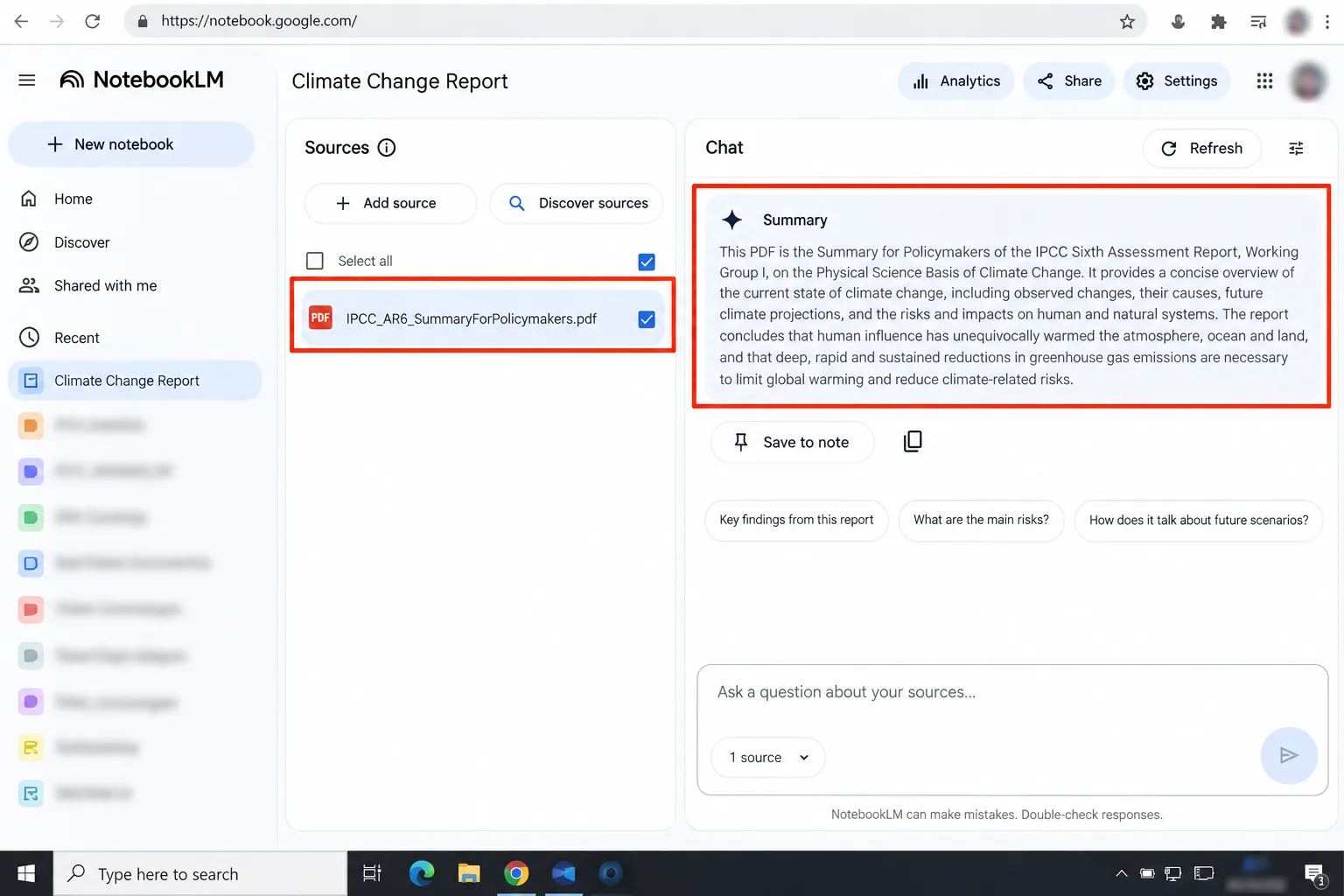
- Open the app. Go to Gemini Notebook's official site and sign in. The old notebooklm.google address forwards there.
- Create a notebook. Select Create new notebook, then Upload a source, and pick your PDF. A notebook is just a folder of sources for one project.
- Read the summary. Once processing finishes, the Chat panel shows a generated summary of your sources. Skim it. If it describes the wrong document, you uploaded the wrong file, which happens to the best of us.
Part 2: Generate the audio
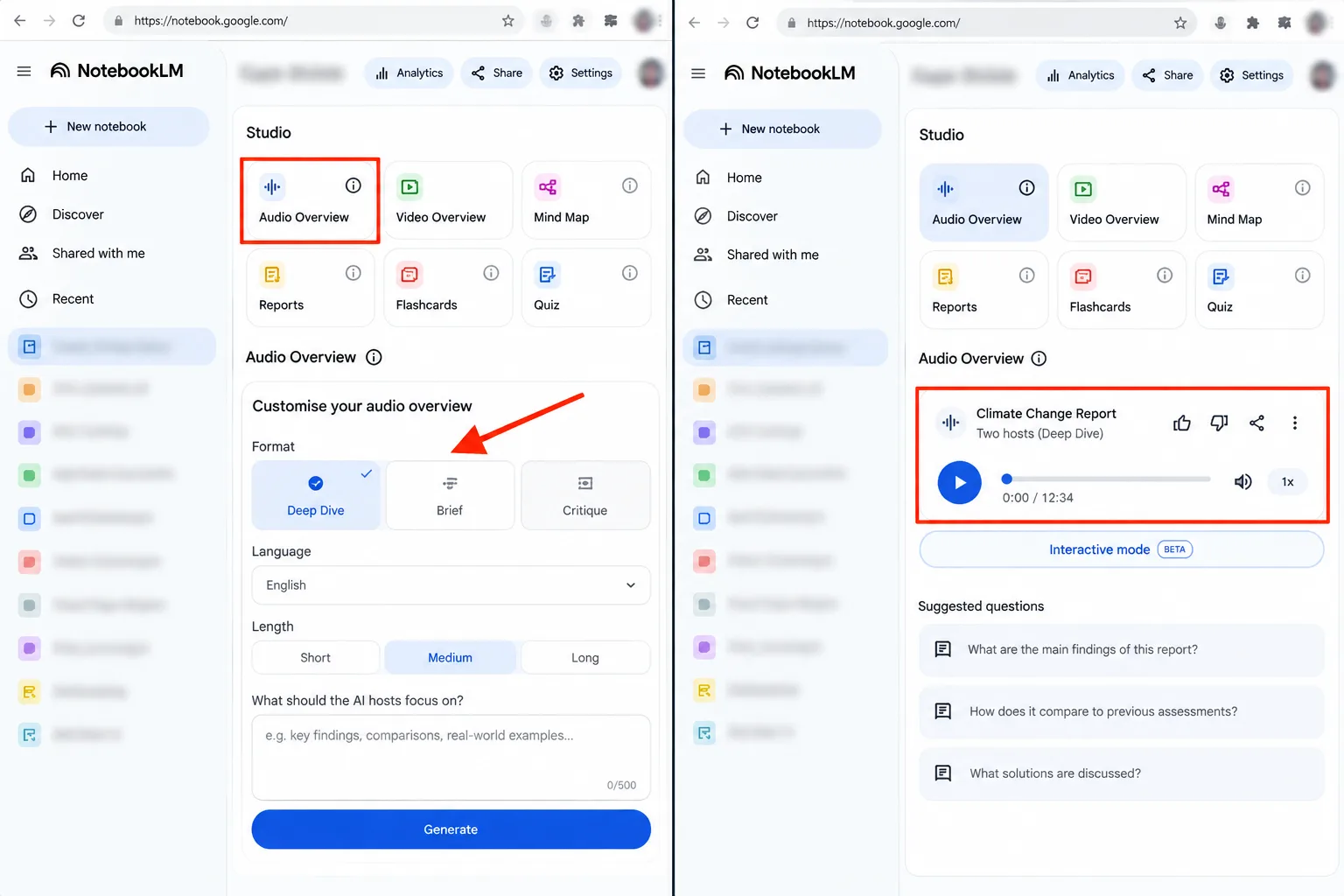
- Open the Studio panel and customise. Select Audio Overview. Before you generate, you can choose a format, a language, a length (Shorter, Default or Longer, English only) and write a prompt. Try something like: focus on the findings in chapters 3 and 4, and explain them to a smart non-expert.
- Generate and carry on. The audio is built in the background, so you can keep working. To get pinged when it's done, turn on web notifications under Settings, then Notifications.
- Play it, then check it. Use the More menu to change playback speed. Before you repeat anything you heard, run the quick checks in the accuracy section below.
Which Audio Overview format should you pick?
Google offers four. My pick: start with The Brief. It's short enough that you'll know quickly whether the document deserves the longer treatment.
Deep Dive (the default)
- Two hosts unpack your sources and connect the topics in an in-depth conversation.
- Best for long documents where the links between sections matter.
The Brief
- A single speaker delivers the key takeaways in under two minutes, according to Google.
- The fastest way to triage a pile of PDFs.
The Critique
- Two hosts give constructive feedback on material like an essay or a design doc.
- Useful on your own drafts, less so on a published report.
The Debate
- Two hosts argue the topic back and forth in a formal style.
- Handy for policy papers or anything that picks a side.
Choose the right one with this:
- Choose The Brief if you're deciding what to read.
- Choose Deep Dive if you'll listen on a commute and want the whole picture.
- Choose The Critique if the PDF is your own work.
- Choose The Debate if the document argues hard for one view.
Is NotebookLM really free? The catch is the usage meter
Free means a Google account and no card. It doesn't mean unlimited. Google's plans page lists 100 notebooks and 50 sources per notebook without a paid plan, and says limits may change.
The bigger shift is how usage is counted. Google moved consumer accounts to flexible limits from 2 September 2026. Your budget now reflects prompt complexity, chat length, number of sources and the features you use, and it refreshes every five hours rather than daily. Google's help page adds that this runs until you reach a weekly cap.
Plenty of older guides still quote a fixed number of free Audio Overviews per day. The Google pages I checked describe a shared budget and don't list a per-day count for audio, so I'd treat those numbers as stale.
To see where you stand, open Settings, then Usage. The Studio panel also shows an expected usage cost before you generate. If you like tools that punch above their price, our roundup of free AI tools that feel like paid software covers more of them, and where free runs out.
Can you trust the audio? How to check it in five minutes
Not blindly. Google itself warns that Audio Overviews, voices included, may contain inaccuracies or audio glitches.
Researchers at the University of Pittsburgh and Middlebury College tried it on three published papers about volcanism on Mars. Every overview contained errors, and they always appeared near the end. Some were leaps the papers never made, such as hinting at life on Mars. Others were subtle enough that a non-expert might miss them. Their verdict: useful, but no replacement for reading the source.
That's three papers in one field, so treat it as a warning, not a law. Here's a quick routine:
- Note every number, name and conclusion you'd repeat to someone else.
- Ask the Chat panel about each one. Google says chat answers come with inline citations you can click back to the source.
- Listen to the last third of the audio with extra suspicion.
- If money, health or legal decisions are involved, read the PDF itself. Google says not to rely on the tool for professional advice.
My pick: use the audio to decide what's worth reading, not to replace reading. Skip this if: you need to quote it or act on it without checking.
What shouldn't you upload to NotebookLM?
Google says content in the app isn't used to directly train its foundation models unless you choose to give feedback. That clause matters. When you press thumbs up or down, Google collects the related content, including your uploads, and specially trained reviewers can read it. Reviewed feedback is kept for up to three years, disconnected from your account.
Workspace and Workspace for Education accounts are treated differently: no human review, even with feedback. Personal accounts don't get that guarantee.
So keep these out of a personal-account notebook:
- IDs, passports, bank statements and medical records.
- Other people's personal data, such as a client list or a class register.
- Confidential work documents, unless your employer has approved the tool.
- Paywalled or licensed material you don't have the rights to. Google asks users not to share copyrighted content without permission.

The catch: sharing is its own risk. If you make an audio publicly available, anyone with the link can play it, signed in or not. Data that Gemini Notebook shares with other Google services, such as the Gemini app, follows those services' notices.
Skip this if: the document would hurt if it leaked. And never click thumbs up or down on a notebook containing anything sensitive.
What goes wrong, and how do you fix it?
- The upload fails. Check the 500,000-word and 200MB caps and split the PDF if needed. If it's a scan, open the source in the notebook and confirm real text came through. Paywalled web pages aren't supported as URL sources either.
- You hit your limit. The chat shows when it resets. On the web you can choose Generate later at the bottom of the Studio panel. Google says it may take a couple of hours.
- The hosts wander off. Regenerate with a tighter prompt that names the sections you care about. Keep one notebook per topic so unrelated sources don't muddy the conversation.
- You can't generate or delete audio. You need edit access to the notebook, which matters if someone shared it with you.
- The audio glitches. Google warns this can happen. Regenerating draws on your usage budget again, so try it once, not five times.
Can it make a study guide, too?
Yes. In the Studio panel, open Reports and pick FAQ, study guide, briefing document or an AI-suggested format. The three-dot menu has Export to Docs. Edits you make in the exported file don't sync back to the notebook.
Flashcards, quizzes and mind maps live in the same panel. Google also says an overview or report may appear automatically when you first add sources, and those don't count toward your limits. Studying on a budget? Our guide to free student software offers pairs well with this.
My take and next step
I'd treat NotebookLM as a triage tool. Run The Brief on the pile, give the keepers a Deep Dive, and read the PDF for anything that matters. The evidence for that caution is Google's own accuracy warning and the Pittsburgh team's findings.
Next step: pick one non-sensitive PDF you have the right to use, generate The Brief, and check three claims against the text. If it passes, you've got a new commute habit. Google's Gemini branding is turning up everywhere, so our look at Gemini in Chrome and what costs extra is worth a read too, and you'll find more in our AI tools hub.
Last checked: 13 October 2026. Limits, names and menus change often, so confirm anything important on Google's help pages.
Frequently asked questions
Can I download or share the audio?
Yes. Select Download or Share in the audio player. To share a link, the notebook must be shared with that person or open to anyone with the link. Deleting the audio breaks its link. Public sharing only works on consumer accounts, not Workspace Enterprise or Education.
Can I talk to the hosts?
Yes, with interactive mode. Create a new Audio Overview, select Interactive mode, then press Join while it plays and ask by voice. It's English only, and Google warns of delays and glitches such as random speaker switches. People opening your shared link can't interact with it.
Does it work on my phone?
There's a Gemini Notebook mobile app, but Google warns it may not support every Audio Overview feature. For your first run, use the browser. Google lists supported countries for the app separately, so check yours if the app won't install.
Can it make audio in other languages?
Yes. Audio Overviews support more than 80 languages, and the default follows the preferred language in your Google Account settings. You can pick another in the generation panel. The Shorter and Longer length options are English only.
Quiz
NotebookLM Uncovered: From PDFs to AI Podcasts
10 quick questions — think you know this one?
Test Your Knowledge →Comments (7)
- M
Morgan
Oct 6, 2026
Really helpful content. Keep it coming!
- J
Jess
Oct 1, 2026
Very informative and nicely written.
- L
Lee K.
Sep 24, 2026
Thanks, Perktonic, for providing useful content!
- M
Morgan
Sep 8, 2026
Keep up the excellent work!
- J
Jamie
Sep 7, 2026
This article gave me a better understanding of the topic.
- J
Jordan
Sep 3, 2026
Keep up the great work, and thanks for sharing!
- J
Jamie
Aug 28, 2026
I found some great tips here. Thanks!